

3 Best Ways to Access Chromebook Remotely Fast and Easily
Learn the most reliable ways to access Chromebook remotely with this comprehensive guide. We cover the top software options and setup steps to help you establish a stable Chromebook remote connection between devices.

By Irene / Updated on February 28, 2026


🌟Quick Summary:
This article provides a comprehensive guide on how to access a Chromebook remotely using two primary methods. While Google offers a native solution, third-party software can often bypass specific technical hurdles.
Key Takeaways:
✔️ Chrome Remote Desktop (CRD): This is Google’s free, built-in tool. It allows for both "unattended access" via a permanent PIN and "instant support" using a one-time 5-minute access code.
✔️ CRD Limitations: Users often face challenges with CRD, such as the requirement to use the same Google account on both devices, connection timeouts, and occasional keyboard syncing issues.
✔️ AnyViewer as a Robust Alternative: AnyViewer is recommended for a more stable and flexible experience. It allows for remote control without requiring a shared Google account and provides a cleaner interface for managing multiple devices.
✔️ Expanded Functionality: Using remote software transforms a lightweight Chromebook into a powerful workstation by allowing users to retrieve files, manage office PCs, and provide technical support from any location.
Can you access Chromebook remotely?
Yes, you can. One option is Chrome Remote Desktop (CRD), a free and secure tool from Google. It works as a standalone app or a Chrome extension and supports many systems, including Chrome OS, Windows, macOS, Linux, Android, and iOS. This allows you to connect to your Chromebook from almost any device — whether it’s a phone, tablet, PC, or laptop.
With CRD, you can give others temporary access through an access code or set up unattended access to control your Chromebook when no one is there. However, CRD has some limitations. For example, you must use the same Google account, which can be inconvenient. What's more frustrating, it is even impossible to use Chrome Remote Desktop without Google account. In addition to this, some users have also reported issues, such as connection timeouts.
For a smoother and more reliable experience, we recommend using AnyViewer, a free remote control software that works without these restrictions and offers more stable connections.
How to perform Chromebook remote access?
While Chrome Remote Desktop provides multiple ways to access your Chromebook, its limitations and occasional technical issues can make the process less convenient. To ensure a more stable, flexible, and user-friendly experience, AnyViewer offers a powerful alternative. The following section will guide you through step-by-step instructions on how to set up and use the powerful tool for Chromebook remote access.
Option 1. Use Anyviewer
While Chrome Remote Desktop (CRD) is free and useful, it can sometimes have problems, such as Alt-Tab not working, copy-paste failing, or missing components. It also requires the same Google account on both devices, which can be inconvenient.
What is the best Chromebook remote access software? AnyViewer is highly recommended. You can use it to control a Chromebook from a phone with iPhone or Android, Windows PC, or Mac. It is free remote desktop software for Windows, including Windows 11, and supports both unattended access and instant remote support. AnyViewer is easy to set up, has a clean interface, and allows permanent access to your devices without entering codes or passwords.
To get started, download and install AnyViewer on your computers. For remote control from a mobile device, download the AnyViewer mobile app from the App Store or Google Play. AnyViewer is stable, quick to install, and a popular alternative to CRD, making it the best choice for accessing your Chromebook remotely.
Step 1. Launch AnyViewer on both computers. Go to Log in, and then click Sign up.

Step 2. Fill in the signup information.

Step 3. Then you can see you successfully logged in to AnyViewer. Your device will automatically be assigned to the account you've logged in to.

Step 4. After that, you can achieve a direct connection by clicking One-click control if you have logged in to the same AnyViewer account on the two devices.

Pay attention: If you don't want to log in to AnyViewer account, the following steps can be suitable for you.
Step 1. Open AnyViewer, and then you can see the interface in the following picture.
Step 2. On the host PC, navigate to Settings > Recipient > Set my security code, then type the security code, click on OK and return to the main interface.
Step 3. On the client PC, enter the device ID of the host PC, and then click on “Connect”.
Step 4. Then the client PC will jump to a new window, choose the second option “Input my security code”, and then click on “OK”.
Step 5. Now the host PC can be controlled without pressure.
Note: AnyViewer support attended access, too. Look at “Send control request”.
- ★Tips: Upgrade to the Professional or Enterprise plan to unlock additional features:
- Manage more unattended devices with a single account.
- Handle multiple simultaneous connections.
- Boost privacy with Privacy Mode, which blacks out the remote PC screen and disables keyboard and mouse inputs.
- Enjoy faster file transfer speeds.
- Create multiple screen walls for overseeing and controlling several devices.
- Organize extensive device portfolios by setting up enterprise device groups.
- Assign roles to sub-accounts and tailor permissions for each role based on your requirements.
- ...
Option 2. Enable remote connection through a PIN
To perform Chromebook remote connection with PCs, Chrome Remote Desktop lets you access another computer permanently using a permanent access code. First, download Chrome Remote Desktop in your Chrome browser. Then, follow the steps below to install the program and set up your permanent access code.
Step 1. On both computers, sign in to the same Google Account if you are not logged in. Then, open the Chrome Remote Desktop web page.
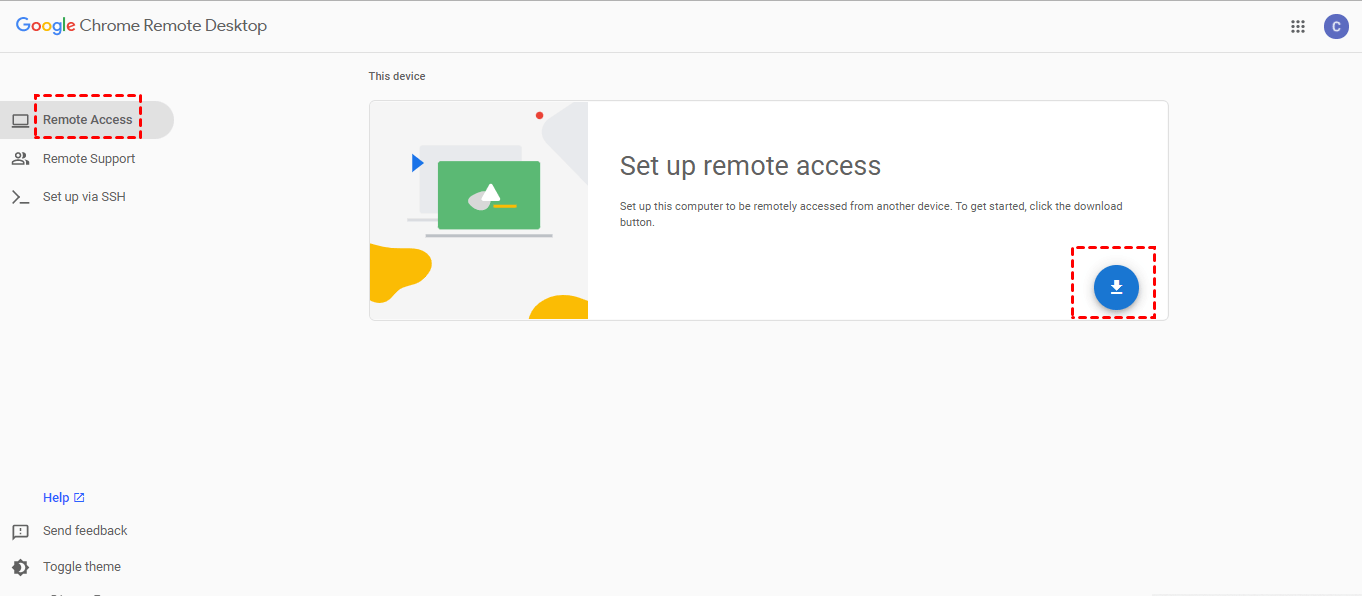
Step 2. Click Remote Access first and then click the blue download button.
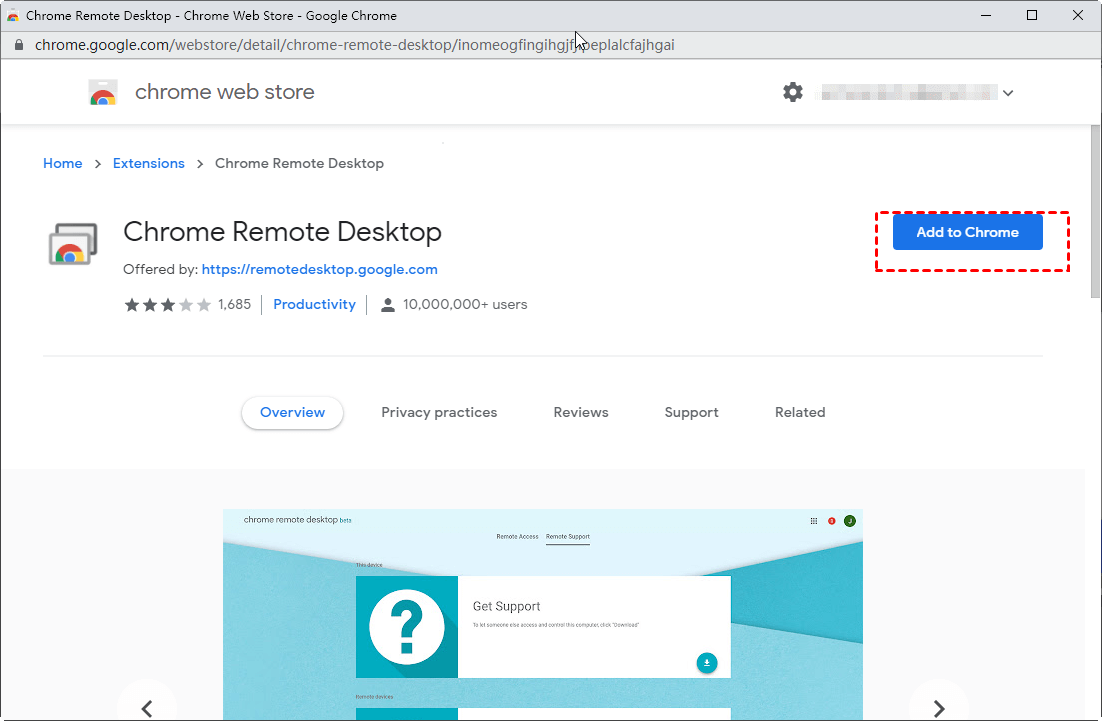
Step 3. Click on Add to Chrome to add the Chrome Remote Desktop in your Chrome browser.
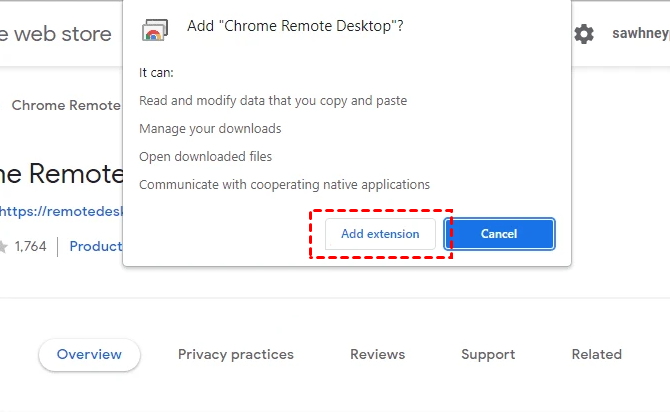
Step 4. Click Add extension to confirm the download.
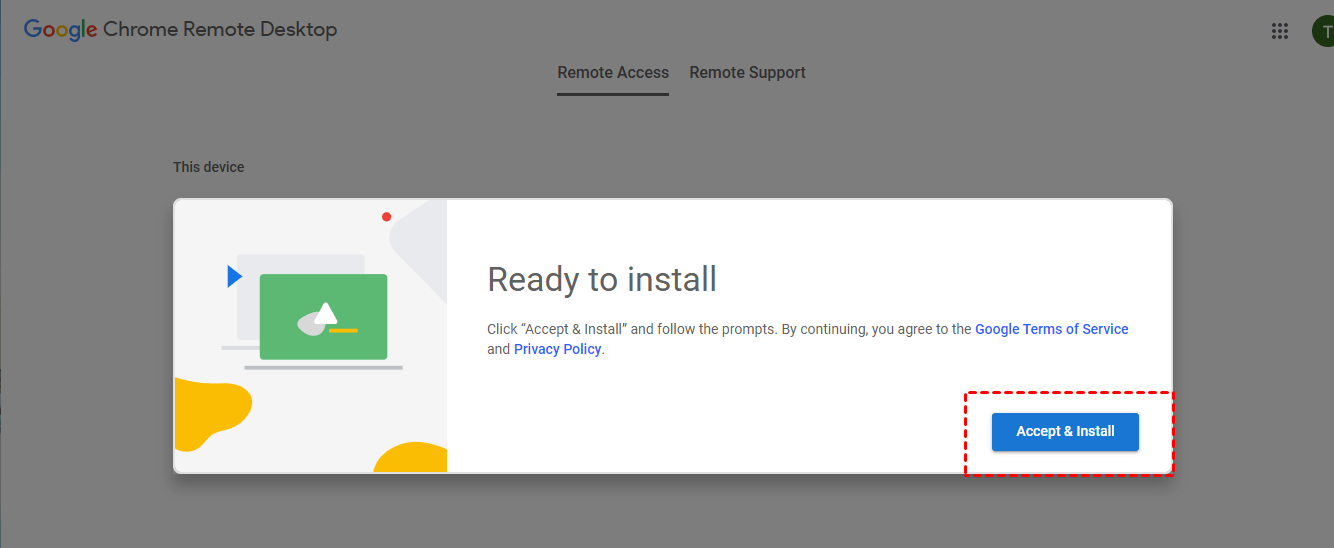
Step 5. Click Accept & Install.
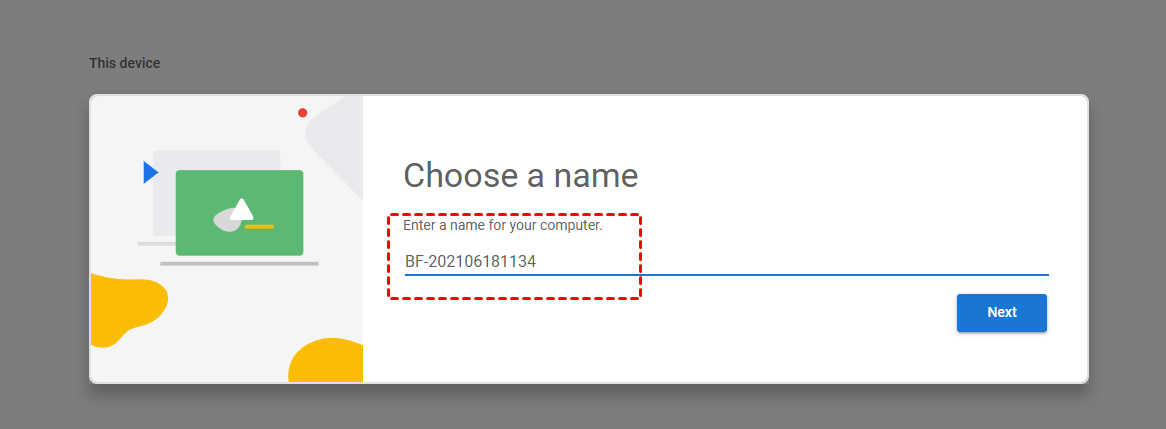
Step 6. Enter a name for your computer and then click Next.
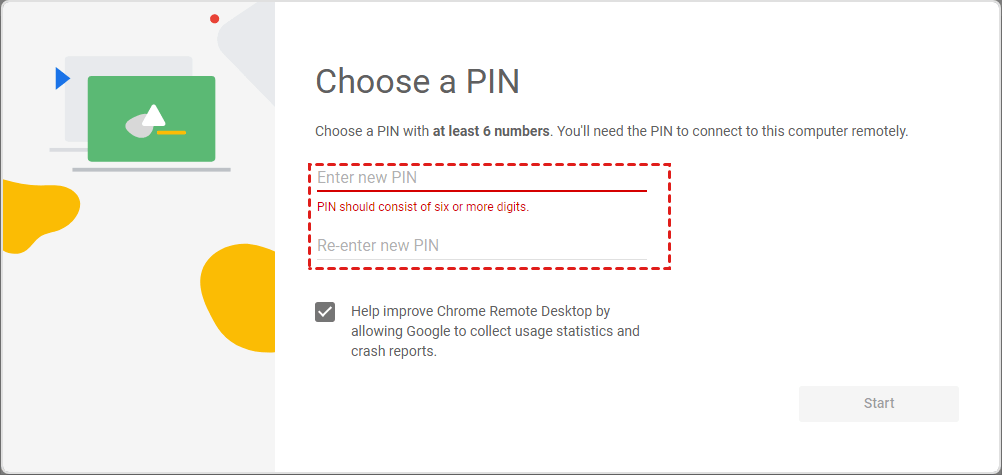
Step 7. Choose a PIN with at least 6 numbers, and then enter it twice to start the program.
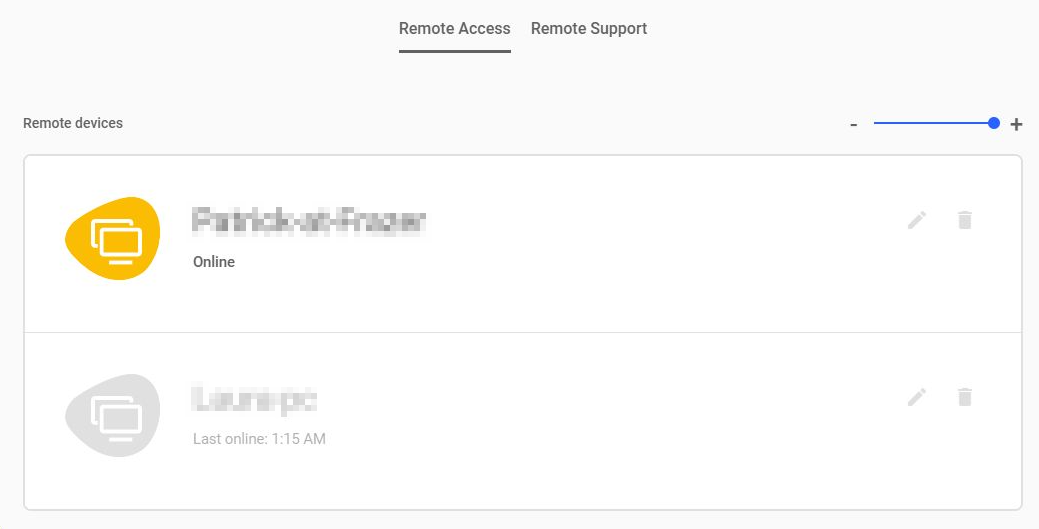
Step 8. After both computers have successfully created their PINs, you can see the available computers here on the client computer. Click the computer you want to connect to.
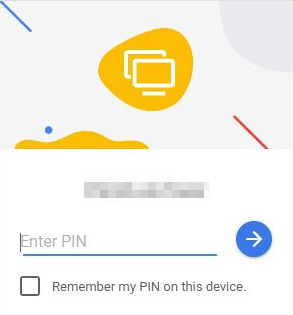
Step 9. Enter the PIN of the host computer, then click the blue arrow. Then you can start to control it.
Option 3. Control a device instantly with a temporary code
The third method allows you to gain instant access to a remote computer using Chrome Remote Desktop through a one-time access code. This approach is ideal for providing quick support or connecting temporarily to another device without setting up permanent access. Each time you want to connect, a new code is generated, ensuring that the remote session is secure and only available for a limited time.
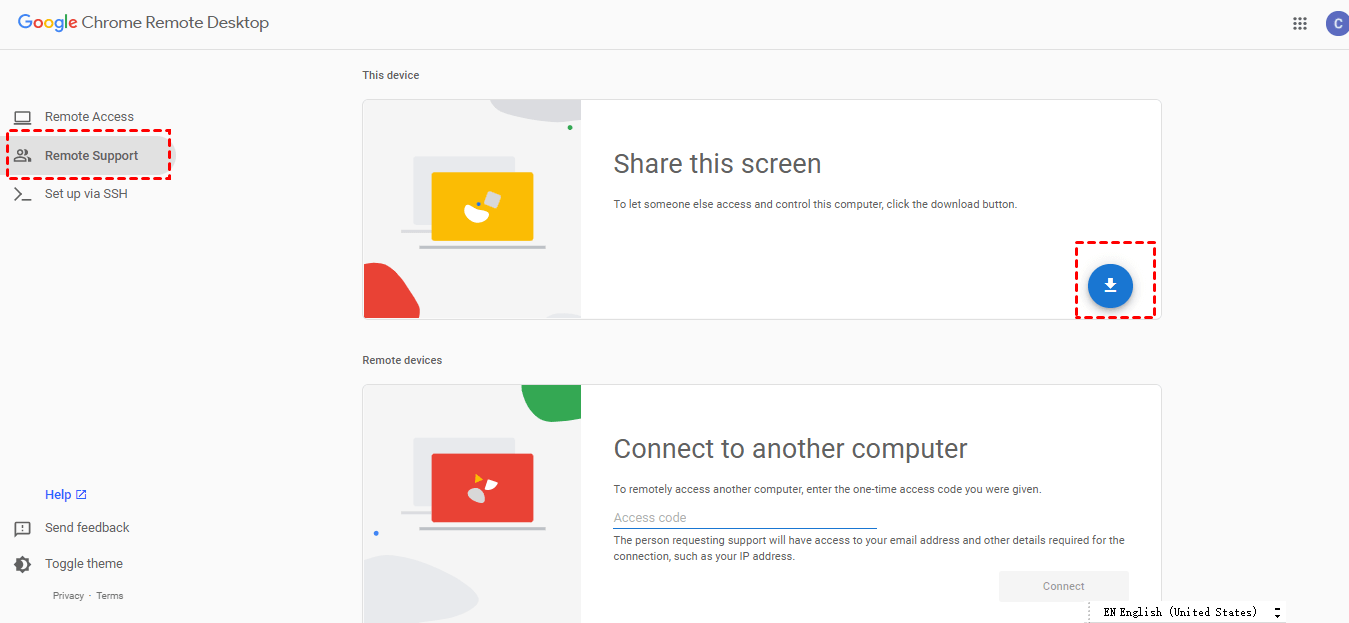
Step 1. Sign in to the same Google Account and open the Chrome Remote Desktop web page. On the host computer, click Remote Support first and then click the blue download button.
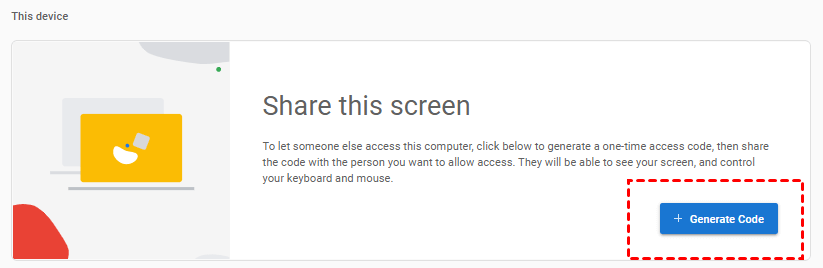
Step 2. After adding the Chrome Remote Desktop extension, click Generate Code.
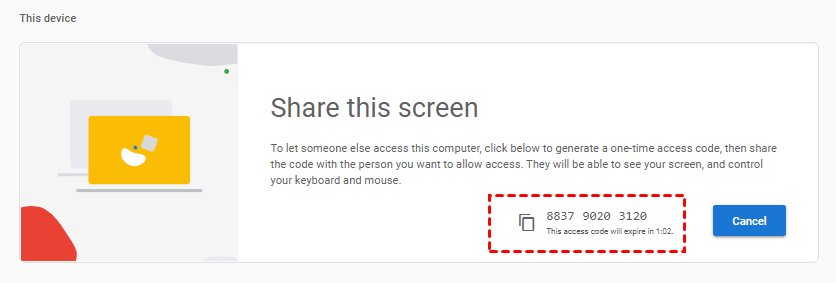
Step 3. Send the automatically-generated code to the client computer. Note: the code is only valid for 5 minutes.
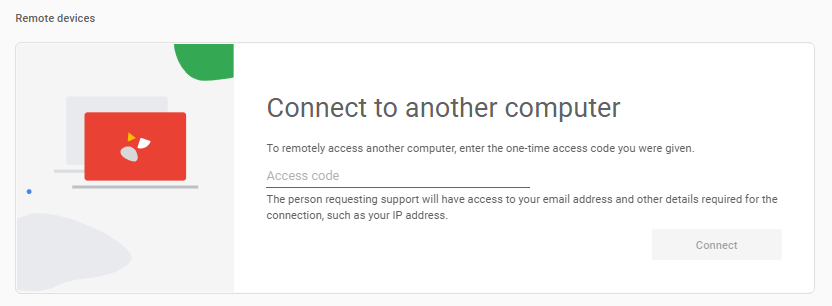
Step 4. On the client computer, input the code of the host computer in the box, then click Connect.
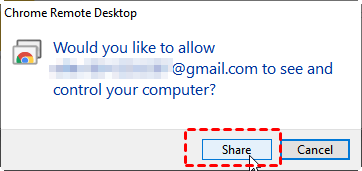
Step 5. On the host computer, there will be a pop-up window asking whether the host computer allows the control of the client computer. Click Share to establish the instant connection.
Further reading: Why you need remote software for Chromebook
Chromebooks are lightweight, secure, and ideal for web based tasks, but there are times when their built in capabilities are not enough. If you need to access files from afar, control another device, or provide remote support, a professional remote desktop tool becomes essential. Using remote software like AnyViewer allows you to unlock more flexibility and turn your Chromebook into a more powerful and versatile working device.
The following table explains why remote software for Chromebook is useful in real situations:
| Scenario | Why Remote Software Is Needed |
|---|---|
| Working away from home or office | Access your Chromebook remotely to retrieve documents, manage tasks, or continue unfinished work from another device. |
| Providing technical support | Help friends, family, or colleagues solve Chromebook issues without being physically present. |
| Accessing files stored on another computer | Connect your Chromebook to a Windows or Mac computer to view or transfer important files. |
| Managing multiple devices | Control different devices from one place, improving efficiency and saving time. |
| Business and remote collaboration | Support remote teams by securely accessing office devices and systems from anywhere. |
With these advantages, remote desktop software significantly expands what you can do with a Chromebook.
Conclusion
Accessing a Chromebook remotely is easy and flexible with the right tools. Chrome Remote Desktop offers free and secure options for temporary or permanent access, but it has some limitations, such as requiring the same Google account and occasional connection issues. For a more reliable and user-friendly solution, AnyViewer is highly recommended. It supports both unattended and instant remote access, works across devices, and is simple to set up. Whether you need permanent control, one-time access, or mobile remote support, AnyViewer provides a stable and efficient way to access your Chromebook from anywhere.
FAQs
🗨️ Is there a free remote software for Chromebook?
Yes. Chrome Remote Desktop is a free option provided by Google that allows you to remotely access computers through the Chrome browser. In addition, AnyViewer offers a free version with stable connections and supports both unattended access and instant remote support.
🗨️ Can I access my Windows PC from a Chromebook remotely?
Yes, you can. You can use Chrome Remote Desktop through the Chrome browser, or install AnyViewer on your Windows PC and connect from your Chromebook. Both tools allow you to control your Windows PC remotely as long as the device is online.
🗨️ Does AnyViewer work on Chrome OS?
Yes. AnyViewer works on Chrome OS through its web access or mobile app, allowing you to remotely control Windows or Mac computers from a Chromebook.
🗨️ How to access another computer remotely in Chrome?
You can use Chrome Remote Desktop. First, sign in to your Google account on both devices. Then install the extension, set up remote access with a PIN, and select the target computer to connect. For temporary access, generate a one time code and enter it on the client device.
🗨️ What does Ctrl+Alt+Z do on a Chromebook?
On a Chromebook, pressing Ctrl+Alt+Z turns on or off ChromeVox, the built in screen reader designed to help visually impaired users navigate the system.



 as a preferred
source on Google
as a preferred
source on Google