What Is AnyViewer Screen Wall?

Real-Time Multi-Screen Display

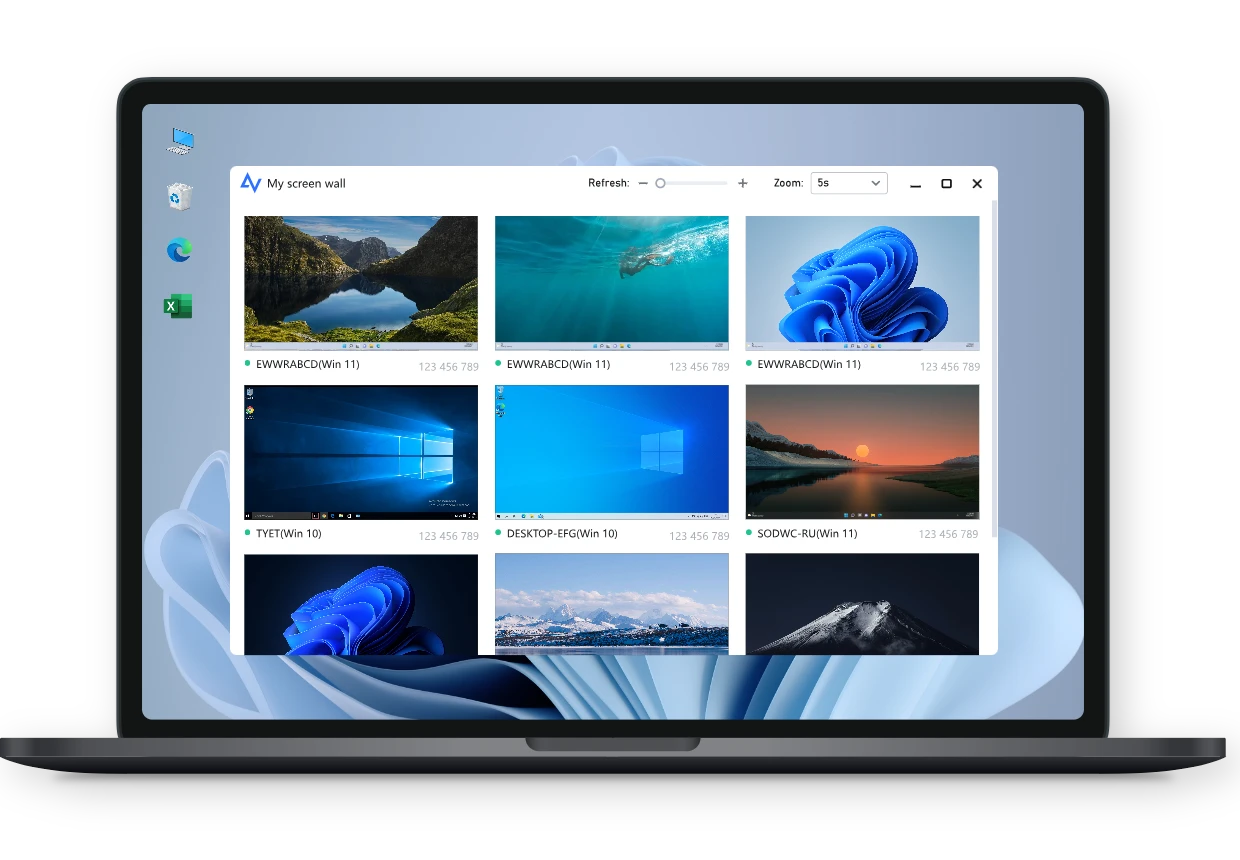
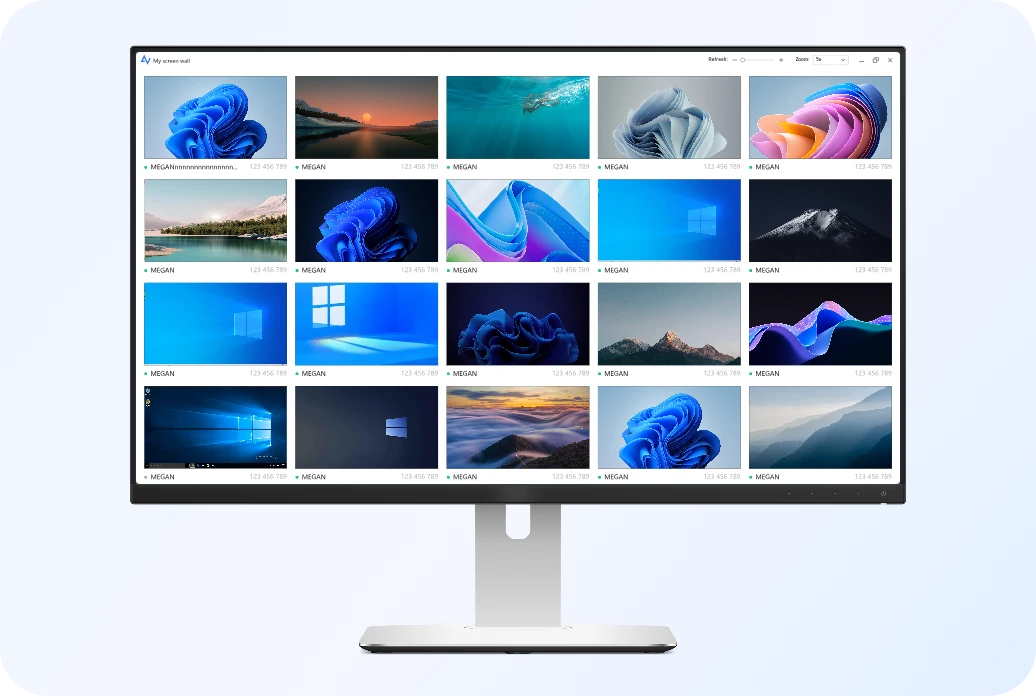
Easily view up to 24 remote screens at once within a single, centralized dashboard. Screen wall uses an advanced communication algorithm to keep smooth visual updates, low-latency performance, and stable display across all devices. It's perfect for situations where you need to watch multiple devices at once.

Quick Actions for Instant Response

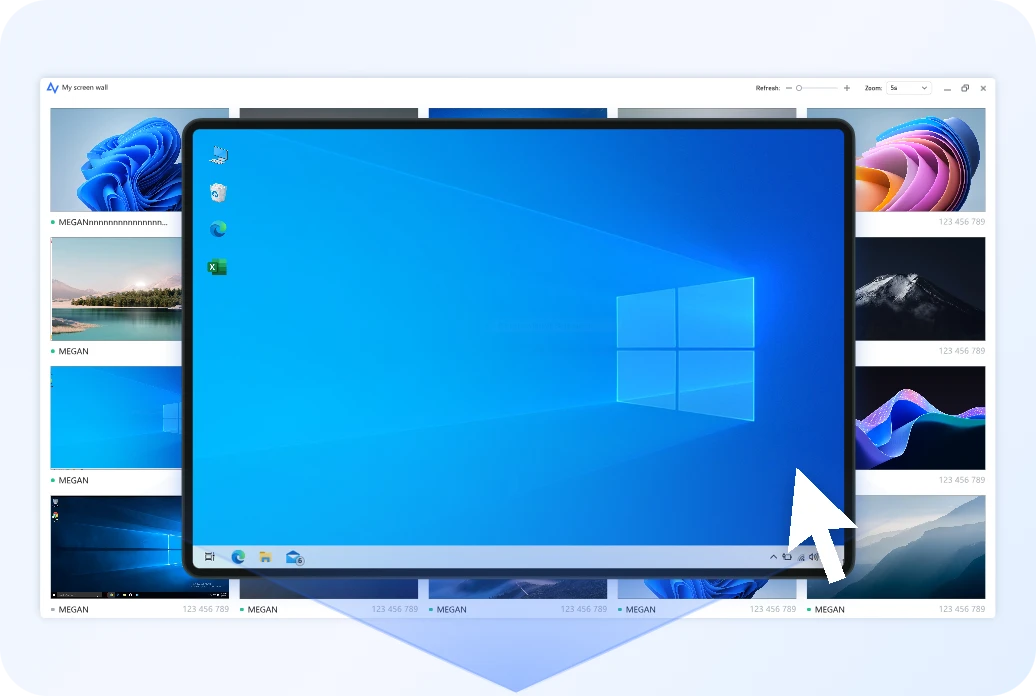
If you notice any unexpected behavior or need to take a closer look, just click on any screen tile to launch remote control, open detailed full-screen view, and take fast troubleshooting actions. This ensures immediate response without navigating through menus or device lists.

Adjustable Screen Refresh Interval

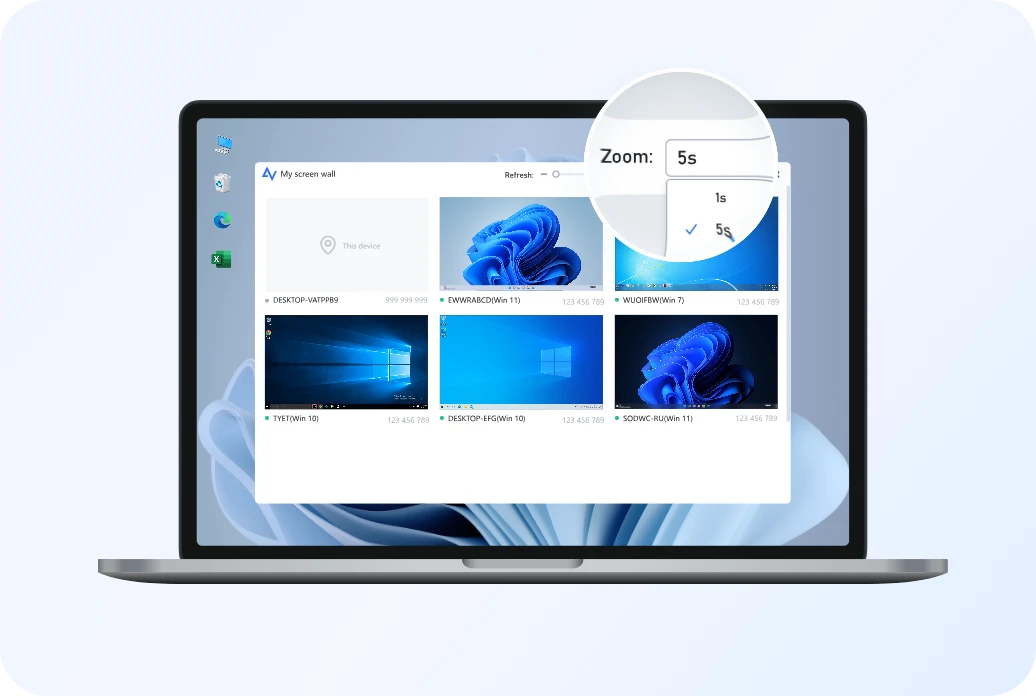
Set the screen refresh rate to match your workflow. Users can use faster updates for active, dynamic environments or slower intervals to save bandwidth. This flexibility allows screen wall to adapt easily to different network conditions and operational requirements.

Why Choose AnyViewer Screen Wall?

Zero-Configuration & User-Friendly

Out-of-the-box and incredibly easy to use. The intuitive design allows even beginners to complete the setup and start monitoring remote desktops in seconds.

Out-of-the-box and incredibly easy to use. The intuitive design allows even beginners to complete the setup and start monitoring remote desktops in seconds.

High Flexibility & Customization

Easily add or remove monitoring screens in real-time and freely adjust the size of specific windows. Supports device grouping and custom notes to keep multiple devices perfectly organized.

Easily add or remove monitoring screens in real-time and freely adjust the size of specific windows. Supports device grouping and custom notes to keep multiple devices perfectly organized.

Rock-Solid Stability

Engineered for 24/7 reliability. Extensive stress testing ensures that the screen wall maintains a continuous, fault-free connection for extended uninterrupted operation.

Engineered for 24/7 reliability. Extensive stress testing ensures that the screen wall maintains a continuous, fault-free connection for extended uninterrupted operation.

High-Performance Architecture

Optimized for minimal CPU and network bandwidth consumption. Its high-performance engine maintains a lag-free experience even when viewing multiple devices simultaneously, without affecting PC performance.

Optimized for minimal CPU and network bandwidth consumption. Its high-performance engine maintains a lag-free experience even when viewing multiple devices simultaneously, without affecting PC performance.

Superior Compatibility

Fully compatible with Windows 8 and all subsequent versions. Automatically adapts to ultra-high-definition resolutions to deliver crisp and detailed remote visuals.

Fully compatible with Windows 8 and all subsequent versions. Automatically adapts to ultra-high-definition resolutions to deliver crisp and detailed remote visuals.

Seamless Remote Management

Go beyond monitoring with high-speed, fluid remote control capabilities. Supports instant switching to high-speed, responsive remote control to double cross-device collaboration efficiency.

Go beyond monitoring with high-speed, fluid remote control capabilities. Supports instant switching to high-speed, responsive remote control to double cross-device collaboration efficiency.

How to Use AnyViewer's Screen Wall

Follow these simple steps to set up and manage multiple devices efficiently with AnyViewer's screen wall feature.

  • Step 1 Download & Install AnyViewer

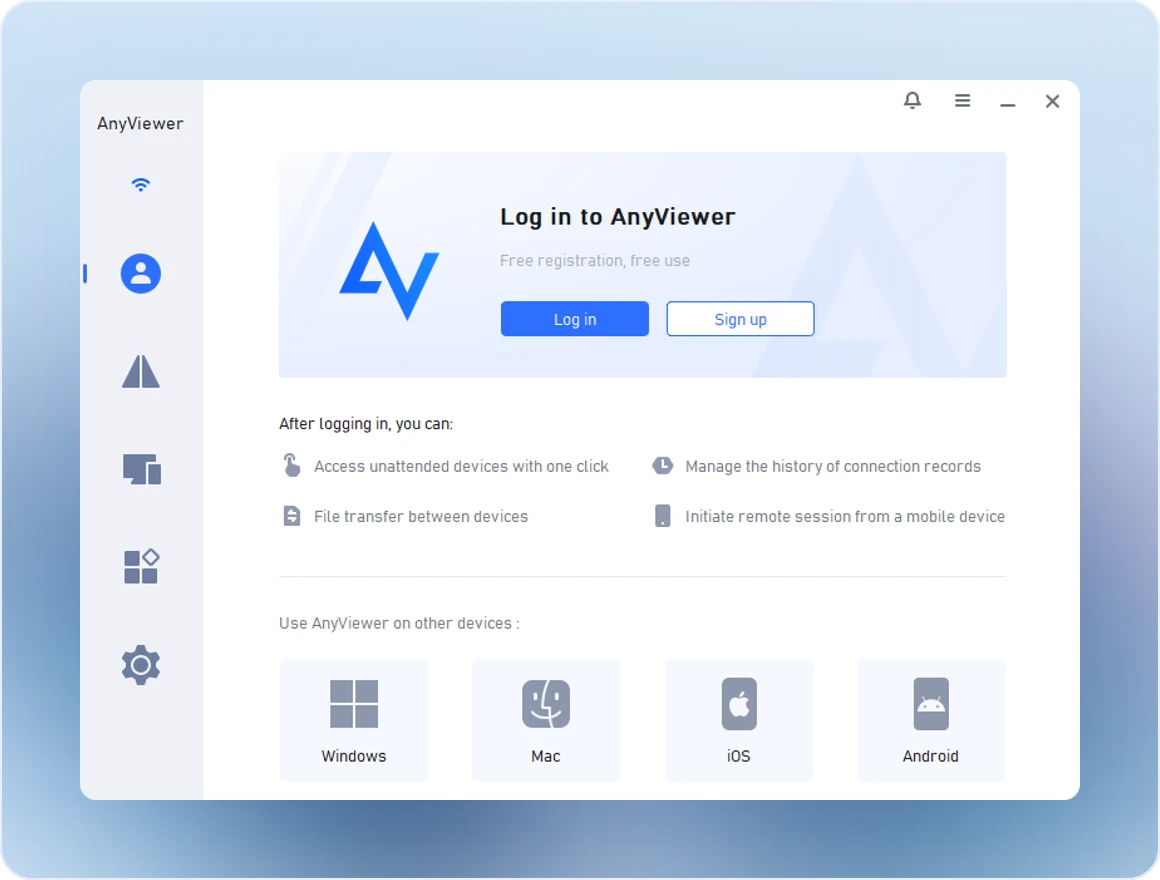
    Download and install AnyViewer on all devices you want to include. Create an account and log in with the same credentials on each device.

  • Step 2 Open Screen wall on the Admin Device

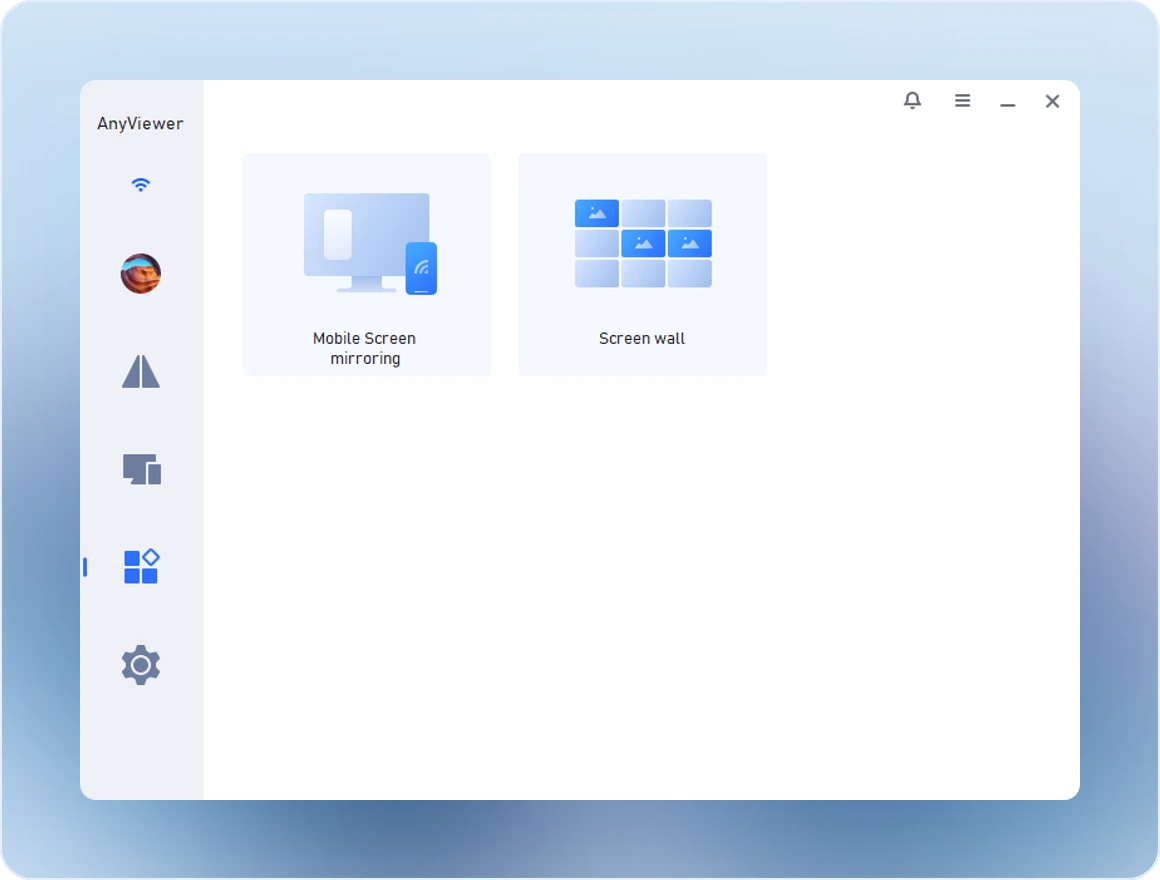
    On your Admin device, launch AnyViewer and navigate to Tools > Screen wall.

  • Step 3 Create a Screen Wall

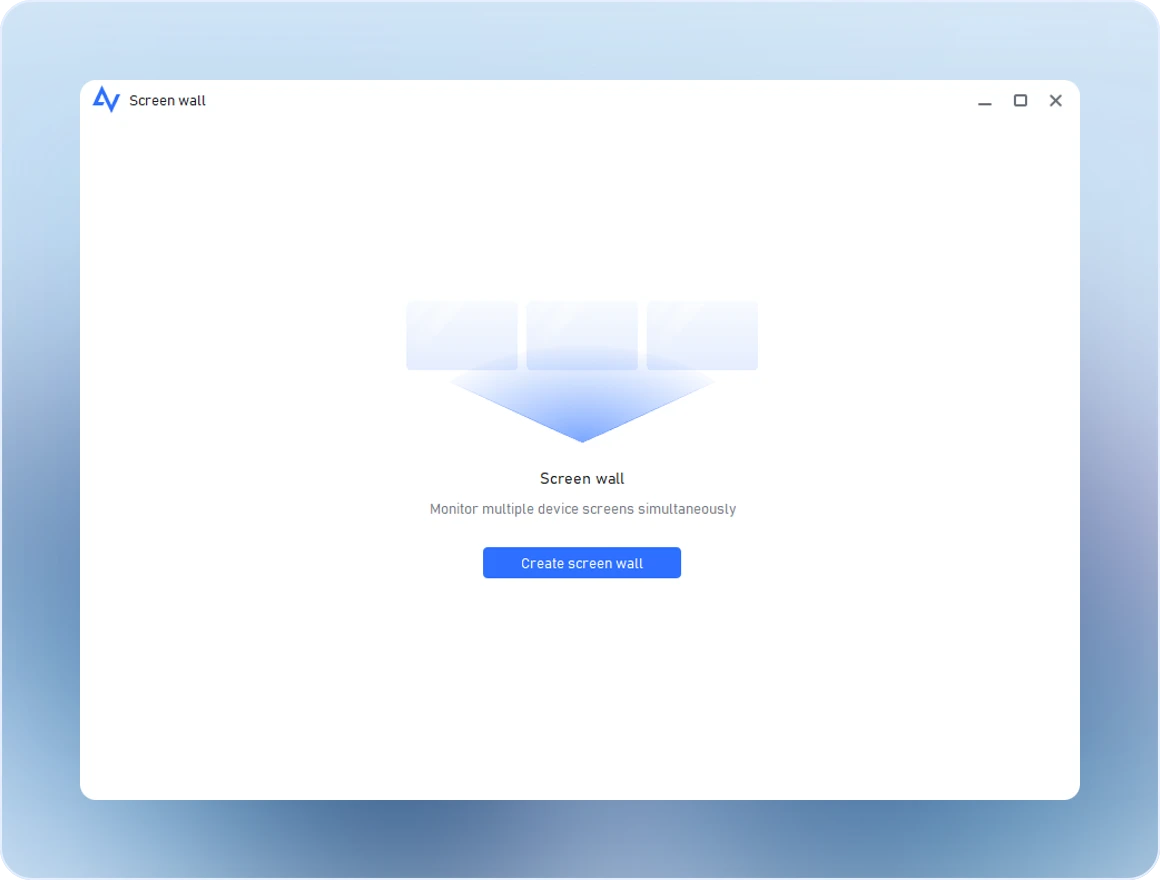
    Click Create screen wall to start setting up your multi-screen display.

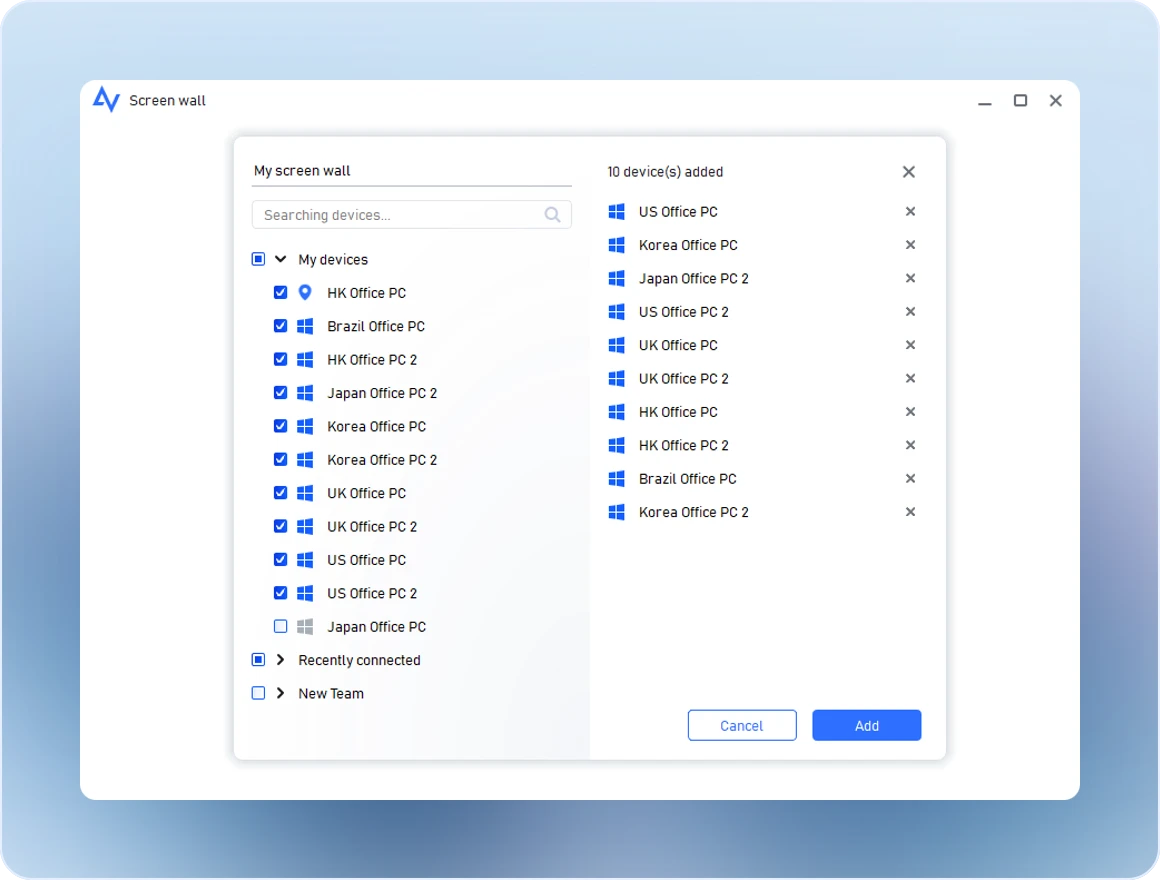
  • Step 4 Add Devices

    Select the devices you want to include in the screen wall, then click Add. Each screen wall can show up to 24 remote devices at once, allowing you to view and manage all of them seamlessly from a single dashboard.

Wide Use Cases for AnyViewer's Screen Wall

AnyViewer Screen Wall vs. Traditional Multi-Screen Management

AnyViewer logo
AnyViewer Screen Wall
Traditional Multi-Screen Management
Operational Workflow Zero friction: Monitors all devices within a single, unified interface. High friction: Requires constant Alt+Tab or taskbar clicking.
Information Awareness "Command Center" view: Oversight of up to 24 screens simultaneously. "Tunnel vision": Only one active screen is visible at a time.
Device Organization Structured: Organizes remote PCs into custom groups for instant identification. Disorganized: Devices are hidden behind generic taskbar icons.
Identification Instant: Provides clear notes and custom labels on every thumbnail. Slow: Must open each window to check the PC name or status.
Anomaly Detection Proactive: Catch error pop-ups or system spikes the second they happen. Reactive: Issues are only discovered when you switch to that tab.
Resource Optimization High-performance architecture reduces overhead for multi-device streaming. Each separate session consumes significant RAM and CPU.
Control Transition Instant: One click on any thumbnail launches immediate remote control. Cumbersome: Must find and maximize the specific window.
Visual Organization Adaptive: Supports dynamic re-sizing and flexible grid layouts. Messy: Overlapping windows lead to navigation fatigue.

What Our Users Say

Alex R. IT Specialist

"Screen wall has completely changed how I manage multiple devices. I can view all 18 of my team's computers at once and take action instantly. It saves so much time!"

Mia L. Lab Administrator

"In our computer lab, Screen wall allows me to keep all student stations visible in a single view. The drag-and-drop layout is intuitive and makes organizing devices effortless."

Daniel S. Managed Service Provider

"Working with multiple client systems used to be chaotic. Now, Screen wall lets me display 24 screens simultaneously and respond to issues quickly. The adjustable refresh interval is perfect."

Priya K. Corporate IT Manager

"I love how easy it is to interact with any device from Screen wall. One click and I can open full-screen or remote control. It's made managing our office workstations seamless."

Leo T. Technical Support Engineer

"Screen wall gives me a clear, organized view of all devices I need to access. The quick-action buttons save me from switching between windows constantly. Highly recommended!"

Sophie W. Educator

"In teaching labs, Screen wall is a lifesaver. I can see multiple student devices at once and guide them effectively. The feature is smooth, responsive, and easy to set up."

Get Started with Screen Wall Today

Simplify your workflow with a clean, intuitive multi-screen display. Access, arrange, and work with multiple devices more efficiently—anytime, anywhere.

Download Now