Why Use AnyViewer Remote Desktop for Mac?

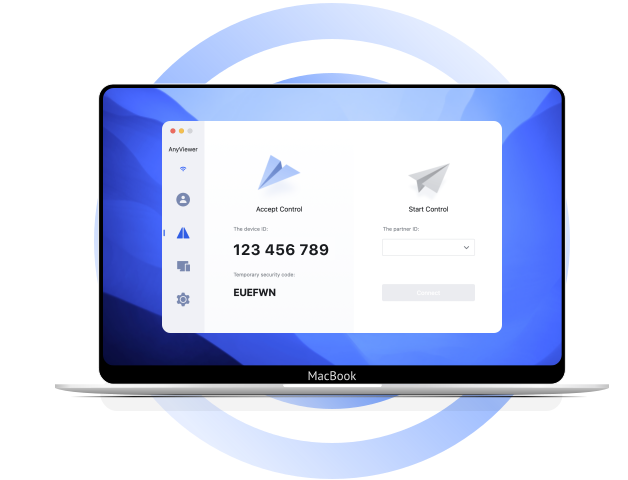
AnyViewer lets you securely access a Mac from another Mac, Windows PC, iPhone, iPad, or Android device, and use your Mac to remotely control supported computers and mobile devices.

Quick Download and Setup

Download AnyViewer directly to your Mac, complete the guided installation, and sign in to start a remote session. The lightweight client makes it easy to set up remote access on a MacBook, iMac, Mac mini, or Mac Studio.

Secure Remote Access for Mac

AnyViewer protects Mac remote sessions with ECC 256-bit end-to-end encryption. Two-factor authentication and configurable access permissions add extra safeguards against unauthorized access to your devices and account.

Responsive Connections on Changing Networks

AnyViewer automatically adjusts remote-session performance to your available network speed. Select the appropriate image quality setting to maintain a responsive connection when working from home, traveling, or using a lower-bandwidth network.

Remote Access, Support, and Work from Your Mac

Use AnyViewer for everyday remote access, cross-platform IT support, remote work, screen sharing, file transfer, and centralized device management.

Access Your Mac from Windows, macOS, iOS, or Android

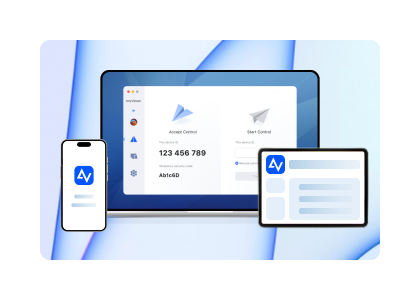
AnyViewer provides cross-platform remote access between Windows, macOS, iOS, and Android devices. Connect to your Mac from another Mac, a Windows PC, an iPhone, an iPad, or an Android device when you are away from your desk.

You can also use a Mac to access a remote Windows or Mac computer and supported mobile devices. This makes it easier to retrieve files, run desktop applications, or manage another device while working from home or traveling.

Provide Remote IT Support from a Mac

Connect from your Mac to a customer’s or colleague’s Windows or Mac computer to diagnose problems, adjust settings, install software, and perform routine maintenance without an on-site visit. Built-in chat and screen viewing help IT professionals guide users and resolve issues during the remote session.

Work Remotely and Share Screens from Your Mac

Access your office computer from a Mac to use work applications and files from home or while traveling. Screen sharing and chat can also support online presentations, demonstrations, and training sessions.

Features including unattended access, file transfer, chat, screen sharing, and privacy mode help protect productivity and privacy across remote workflows. Multi-device access and concurrent-session limits depend on the selected plan.

Manage Team Devices and Access Permissions

Organize team devices and assign access permissions by role or group from a central account. Administrators can limit each user to the devices and remote resources required for their work, helping reduce unnecessary access across business environments.

How to use AnyViewer remote desktop for Mac

To access a Windows or Mac computer remotely from your Mac, install AnyViewer on both devices, sign in, and select the remote computer from your device list. The following example shows unattended access from a Mac to a Windows PC.

  • Step 1 Download and install AnyViewer on both computers

    Download the Mac .dmg installer on your local Mac. Then download and install the Windows version on the remote PC you want to access. Launch AnyViewer on both computers.

  • Step 2 Sign in on both devices

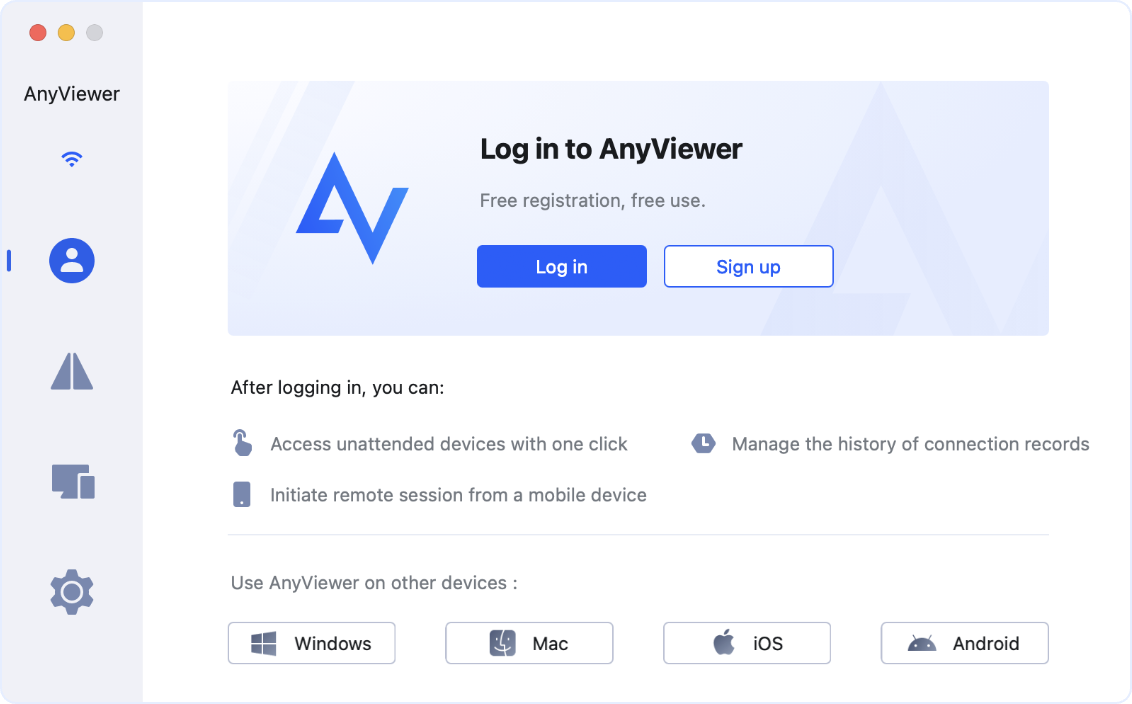
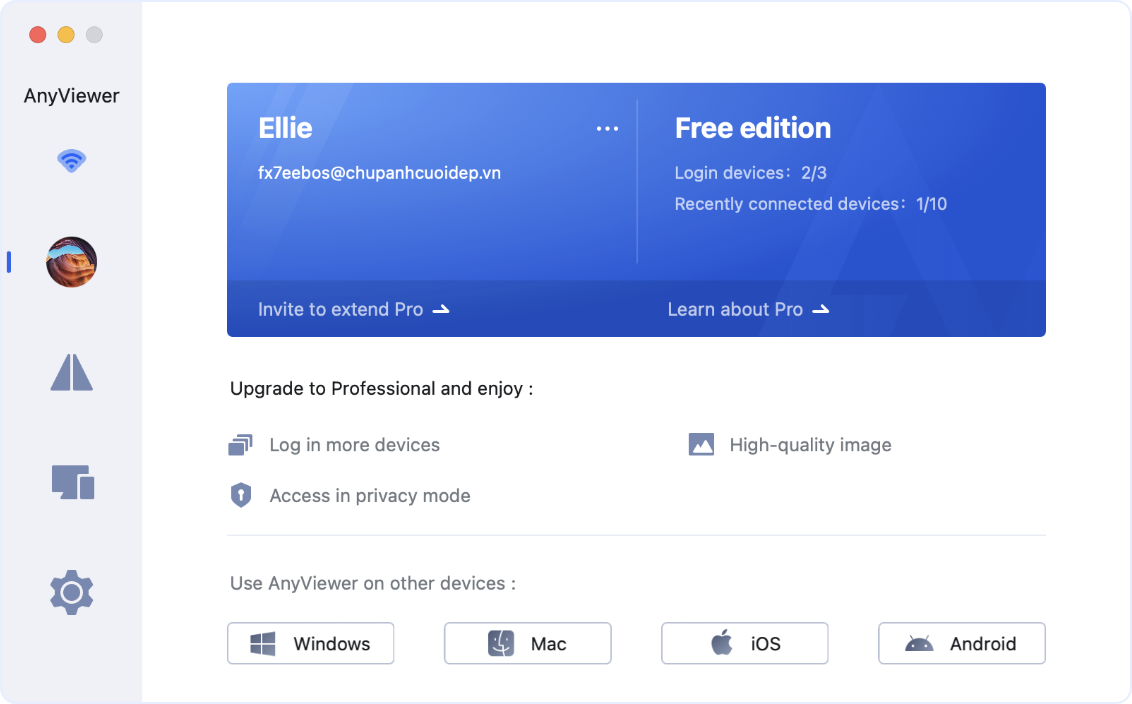
    Create an AnyViewer account or sign in on your Mac, then sign in to the same account on the remote Windows computer. Make sure AnyViewer is running and the remote computer is online.

  • Step 3 Start unattended remote access

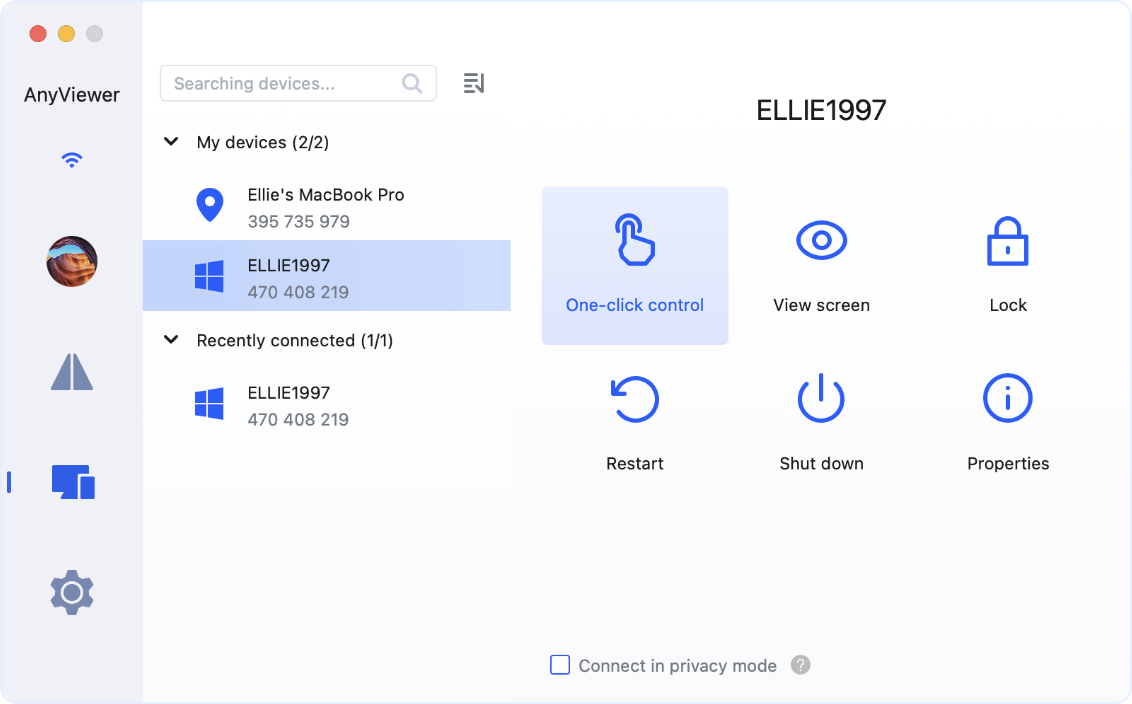
    On your Mac, open the Device tab and select the remote Windows computer. Click "One-click control" to connect without requiring someone at the remote computer to approve each session.

Remote desktop for Mac FAQs

  • Which macOS versions does AnyViewer support?

    AnyViewer for Mac supports macOS 10.15 Catalina and later. Download the latest Mac version from this page to receive current features, compatibility improvements, and security updates.

  • How do you set up AnyViewer remote desktop on a Mac?

    Download and install AnyViewer on your Mac and the remote device. Sign in to the same AnyViewer account on both devices, open the Device tab, select the remote computer, and choose One-click control. You can use this process to access a Mac remotely or connect from your Mac to another supported computer.

  • What should you look for in remote desktop software for Mac?

    A Mac remote desktop app should support the operating systems you use, secure remote sessions, unattended access, file transfer, responsive image quality, and straightforward setup. AnyViewer combines these capabilities with cross-platform access for Windows, macOS, iOS, and Android and ECC 256-bit end-to-end encryption.

  • How many concurrent sessions can I have on a Mac?

    The Free plan supports up to two concurrent remote sessions. Solo, Professional, Team, and Enterprise plans support unlimited concurrent sessions, subject to the current plan terms. Check the pricing page before upgrading for the latest device and session limits.

How People Use AnyViewer on Mac

Read how users describe working remotely, supporting customers, connecting across operating systems, and protecting remote sessions with AnyViewer for Mac.

Patricia

I've been using AnyViewer on my Mac for a few months now, and it has been a lifesaver! The setup was straightforward, and I can easily connect to my office PC from home. The interface is intuitive, and the connection is stable, even with my slower internet connection. It's great to have a tool that I can rely on for my work, especially during these times when remote access is so important.

Owen

As a freelance IT consultant, I often need to provide remote support to my clients. AnyViewer has been perfect for this purpose. It works seamlessly on my Mac, allowing me to connect to clients' computers no matter what OS they're using. The commercial pricing is very reasonable, and the features and reliability make it well worth the investment.

Karen

AnyViewer is fantastic for anyone working across different platforms. I use a Mac at home and often need to access my Windows desktop at work. AnyViewer makes this so easy, and I love that I can even control my Android phone from my Mac. The performance is smooth, and I haven't encountered any major issues. Highly recommend it for anyone needing a versatile remote desktop solution.

Aiden

Security is a big concern for me, and I appreciate that AnyViewer offers end-to-end encryption. Using it on my Mac feels safe, and I can trust that my data is secure during remote sessions. The performance is also top-notch—I can manage my remote devices without any lag. AnyViewer has definitely become a go-to tool in my daily workflow.

Barbara

AnyViewer is a solid remote desktop tool for Mac, but I've had a few hiccups with connection stability. Sometimes the session drops unexpectedly, which can be frustrating when I'm in the middle of something important. That said, when it works, it works well, and the user interface is very user-friendly. I just hope they improve the stability in future updates.