Powerful Features to Boost Your Remote Access

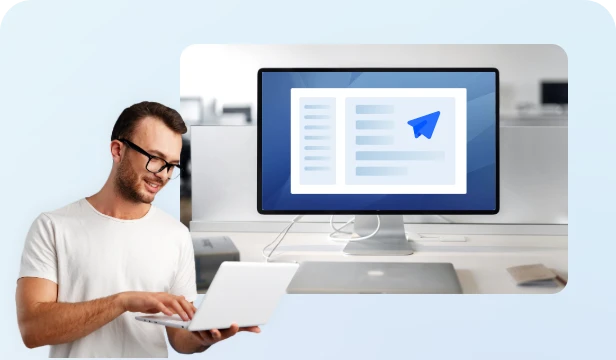
One-Click Unattended Access

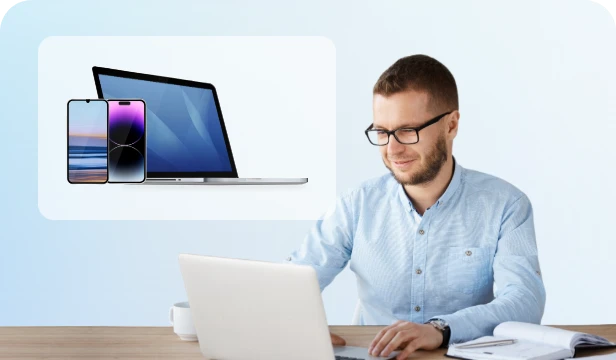
Access your office PC from your home Mac or mobile device without needing someone to accept the request.

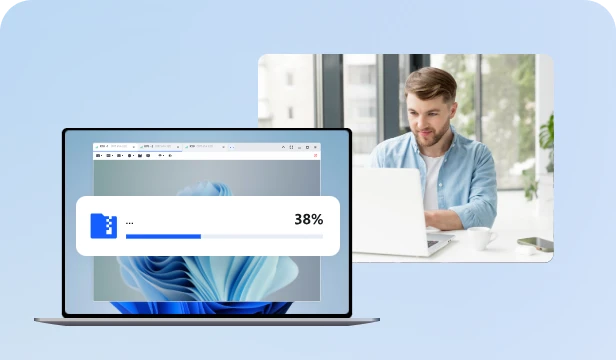
Fast File Transfer

Seamlessly move files and folders between different operating systems at lightning speed, bypassing the size and speed limitations of cloud storage.

Mobile Screen Mirroring

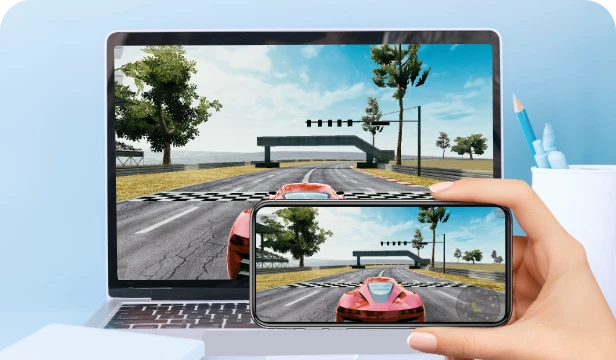
Wirelessly mirror your iPhone or Android screen to Windows or Mac for professional presentations or big-screen entertainment.

Connect in Privacy Mode

Black out the remote screen and disable the keyboard/mouse during a session to protect your privacy and sensitive data from onlookers.

Session Recording

Capture your remote desktop activities with high-quality video recording, perfect for creating tutorials, auditing technical support, or keeping records.

Screen Wall

Monitor and manage multiple remote desktops simultaneously on a single screen, allowing for efficient oversight of entire IT environments or server clusters.

How to Set Up Cross-Platform Remote Access

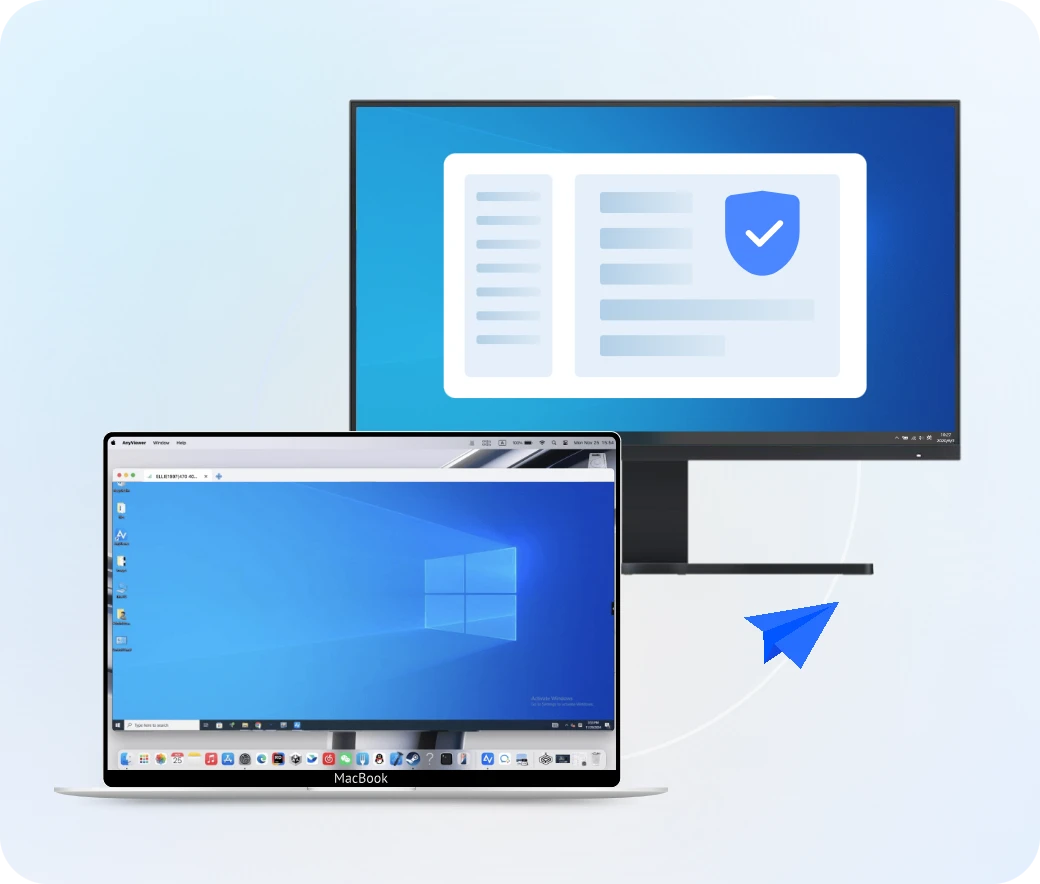
Unattended Access Between Windows and macOS

Access your home or office computer even when no one is there to help. Just follow these three steps to link your desktops.

Step 1. Install and Sign Up

Download, install, and launch AnyViewer on both devices. Navigate to the Log in section and follow the prompts to create your account.

Step 2. Log In and Bind Devices

Log in to the same account on both machines. Once signed in, your devices will be automatically assigned to your account for secure, permanent access.

Step 3. Start Unattended Remote Access

Go to the Device tab, select the target device you wish to control, and click One-click control to establish an instant, unattended remote session.

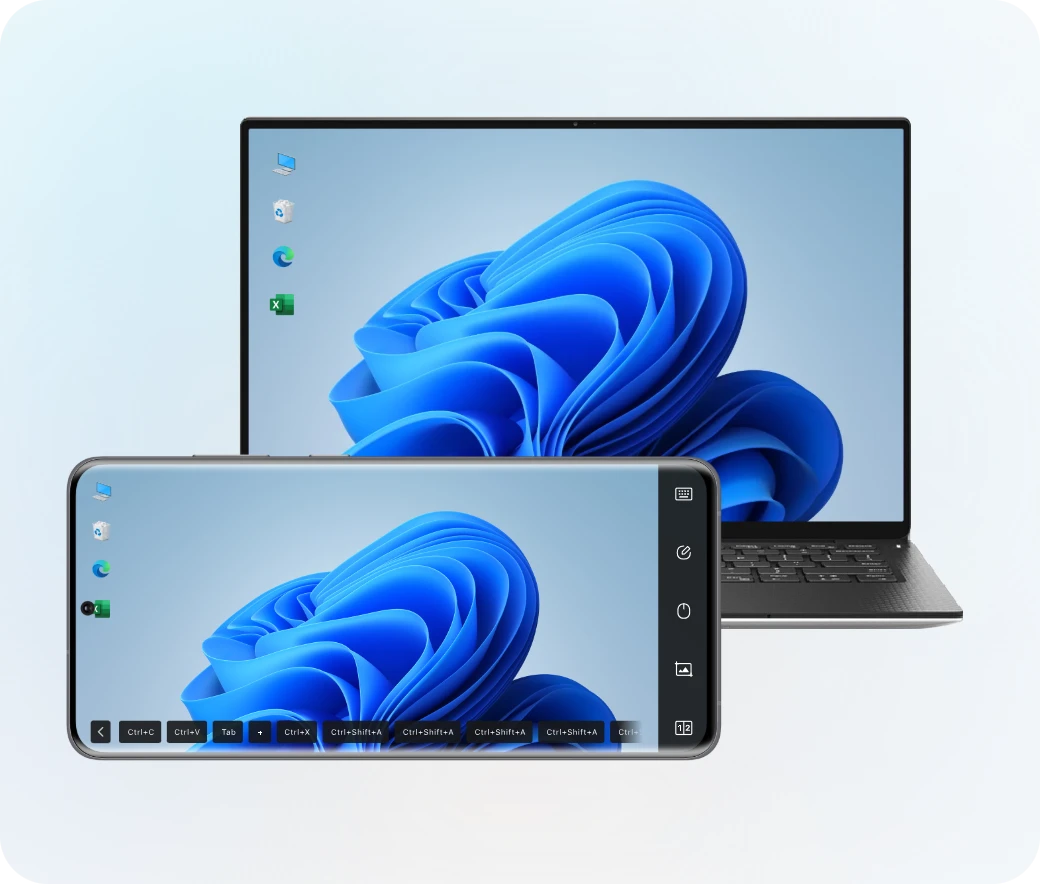
Control Your PC or Mac from iOS or Android

Use your phone or tablet to manage your computer from anywhere. This setup lets you control your desktop with simple touch gestures.

Step 1. Install AnyViewer on Both Devices

Install AnyViewer on your Windows PC or Mac, and download the AnyViewer mobile app from the App Store or Google Play.

Step 2. Log In on Your Mobile Device

Open the app on your phone and log in with the same account used on your desktop. Your desktop will instantly appear in the device list.

Step 3. Tap to Connect

Go to Device, select your computer, and tap One-click control. You can now manage your desktop files or run software using intuitive touch gestures.

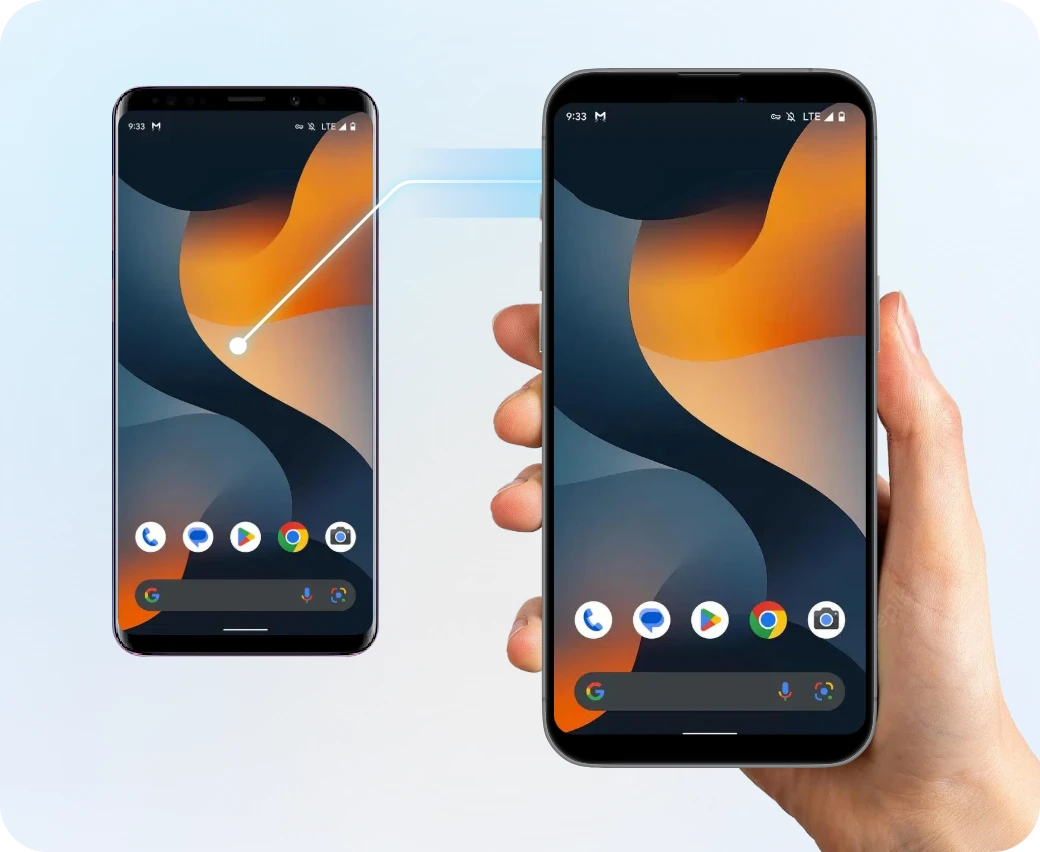
Control Android from iOS or another Android Device

Helping a friend or accessing a second phone is easy with mobile-to-mobile control. Here is how to connect two mobile devices.

Step 1. Set Up the Host and Controller

Install the AnyViewer app on both mobile devices and sign in with the same account.

Step 2. Locate the Target

On the controller device (the one you are holding), find the target Android phone under the Device list and tap Remote Control.

Step 3. Start Remote Support

On the target Android phone, accept the remote control request to begin the session.

Why Choose AnyViewer for Cross-Platform Remote Access?

Universal Compatibility

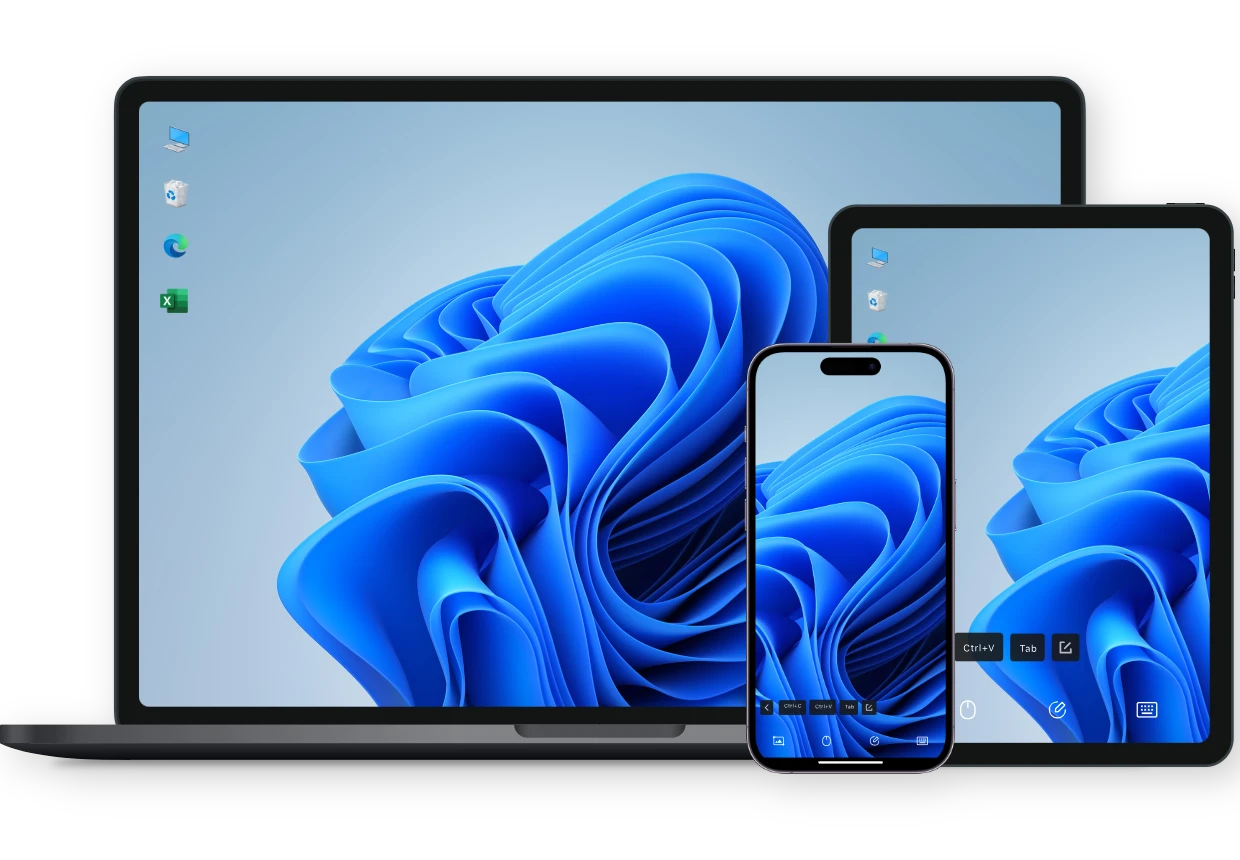
Experience a seamless remote connection across Windows workstations, MacBook Pro, and mobile devices (Android & iOS). AnyViewer ensures a consistent workflow, no matter the hardware.

Effortless Scalability

From individual users to global enterprises, AnyViewer grows with you. Deploy to small teams or thousands of endpoints instantly with our streamlined management tools.

Intuitive Simplicity

Eliminate the learning curve. With a user-friendly interface and zero-config setup, you can establish a secure connection in seconds, not hours.

Bank-Grade Security

Rest easy with 256-bit ECC end-to-end encryption. Your data remains private and protected against any unauthorized access during every session.

Connectivity Across Networks

Skip the headache of port forwarding and VPN setups. AnyViewer works instantly across different networks and firewalls, allowing you to bridge Windows, Mac, and mobile devices in seconds.

Superior Performance

Don't settle for lag. With high FPS and "True Color" accuracy, AnyViewer provides a lag-free experience that keeps your creative projects on track, setting a new standard for high-performance remote access software.

Remote Access Solution for Every Scenario

Remote Work Without Boundaries

Access your powerful office workstation from a MacBook or laptop at home. Enjoy a lag-free experience with high resolution and high FPS, making it feel as if you're sitting right in front of your office computer.

Instant Remote Technical Support

Provide efficient IT assistance to clients or colleagues across different networks. Use features like Chat and Screen Recording to streamline the troubleshooting process and maintain clear communication throughout the session.

Cross-Platform File Management

Bridge the gap between different operating systems. Quickly transfer large project files between a Windows PC and a Mac, or sync important documents to your mobile device without relying on slow cloud uploads.

Gaming & Entertainment Anywhere

Stream your high-end PC games to your mobile device or a lower-spec laptop. With AnyViewer's low-latency technology and true color support, you can enjoy an immersive gaming experience on any screen.

FAQs

  • Does AnyViewer support remote access between Windows and macOS?

    Yes. AnyViewer offers full cross-platform support. You can easily control a Windows PC from a Mac, or manage a Mac from your Windows workstation with the same high performance.

  • Can I control my office computer from an iPhone or Android device?

    Absolutely. Our mobile apps are optimized for remote control, featuring intuitive touch gestures and a virtual mouse to help you manage desktop software on a smaller screen.

  • Do I need to configure port forwarding for cross-platform connections?

    No. AnyViewer uses advanced NAT traversal technology to bypass firewalls and complex network settings. You can connect across different networks instantly without a VPN.

  • Is it possible to transfer files between different operating systems?

    Yes. AnyViewer supports high-speed file transfer between Windows, macOS, and mobile devices. You can drag and drop files directly or use the dedicated file manager.

  • How many computers can I access at once?

    From a single device, you can control multiple remote computers at once. AnyViewer supports up to 2 concurrent sessions for Free users, 4 for Solo, 29 per license for Team, and up to 100 per license for Enterprise.

  • Can multiple users access the same computer at the same time?

    Yes. Multiple authorized users can access the same target computer simultaneously, provided they are under the same account. As the administrator, you can easily manage and delegate access permissions for each specific computer within your dashboard.

What Our Users Say

Marcus V.

"As a freelance designer, I use a MacBook on the go but keep my heavy-duty rendering software on a Windows workstation. AnyViewer makes the cross-platform experience seamless. The 'True Color' support is a game-changer for my color-critical projects."

Elena R.

"I was skeptical about controlling a desktop from my phone, but the touch gestures on the AnyViewer app are incredibly intuitive. I can respond to urgent server issues from my Android phone while commuting without feeling like I'm missing a mouse."

Jonathan K.

"Switching between my home office and the corporate headquarters used to be a headache. Now, I use AnyViewer to access my office PC from my home laptop instantly. It's fast, secure, and I've never had to worry about port forwarding."

Li Wei

"Moving large project folders between my Mac and Windows machines used to take ages over cloud storage. With AnyViewer, I can drag and drop files directly between different operating systems at lightning speed. It's saved me hours of waiting."

Chloe M.

"I'm the 'tech expert' for my parents who live in another city. AnyViewer allows me to remote into their Windows PC from my iPad to fix issues. The one-click unattended access makes it so easy for me to jump in and help whenever they need it."

Tyler D.

"I use AnyViewer to stream my high-end PC games to my tablet when I'm away from my desk. The 60 FPS performance is incredibly smooth with virtually no lag. It's the best way to enjoy my Steam library from anywhere in the house."

Ready for True Remote Access Freedom?

Join millions of users who rely on AnyViewer for seamless, secure, and lightning-fast remote access. Start connecting your Windows, Mac, and mobile devices in seconds.

Download Now