

TeamViewer Session Timeout After 1 Minute: Causes and Fixes
This article explains common TeamViewer session timeout problems, such as one minute disconnections and blocked connections after timeout, and provides clear guidance to improve connection stability and prevent unexpected interruptions.

By Irene / Updated on March 2, 2026


🌟Quick summary:
This passage shares how to resolve TeamViewer session timeouts and connection blocks caused by commercial use detection or inactivity. You can try manual fixes like restarting services or appealing their account status. However, since these workarounds are often temporary, the most effective long-term solution is transitioning to a more stable remote desktop tool. AnyViewer serves as the premier alternative, providing a feature-rich and secure free version for personal use that avoids aggressive flagging and ensures uninterrupted remote sessions.
How to fix TeamViewer session timeout issues?
Method 1. Contact the TeamViewer support team
If you have already activated your license in TeamViewer but still encounter TeamViewer session timeout errors or see the "Connection blocked after timeout" message, contacting official support is the most direct solution. The support team can review your account status, check license activation details, and identify whether your ID has been mistakenly flagged.
You can submit a support ticket through the official website, provide your TeamViewer ID, license information, and a clear description of the issue. Once verified, their technical team can help remove incorrect restrictions and restore normal remote access.
Method 2. Upgrade and activate a paid license
If you are facing repeated non commercial use timeouts, it may be because you have exceeded the free connection limits or your usage has been detected as commercial. In this case, upgrading your plan is a practical solution.
TeamViewer applies strict limits to free accounts. When the system believes the software is being used for business purposes, it may trigger short session timeouts or connection blocks. Purchasing and activating a paid license removes these restrictions and provides longer session durations, stable connections, and full commercial rights.
After upgrading, make sure your license is correctly activated on your account and linked to your device. Once confirmed, your remote sessions should run without the frequent timeout interruptions.
Method 3. Restart the TeamViewer service
If you are a paid user but still encounter timeout inactive session errors or repeated connection failures in TeamViewer, restarting the service can refresh the program and clear temporary glitches. This simple action often resolves minor background conflicts that may block your connection.
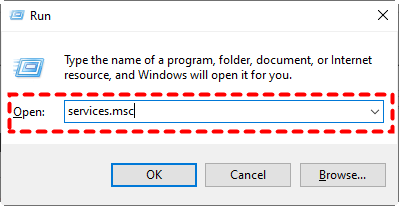
Step 1. Press Win+R, type in “services.msc”, and hit OK.
Step 2. Scroll down to find TeamViewer, right-click it and select Restart.
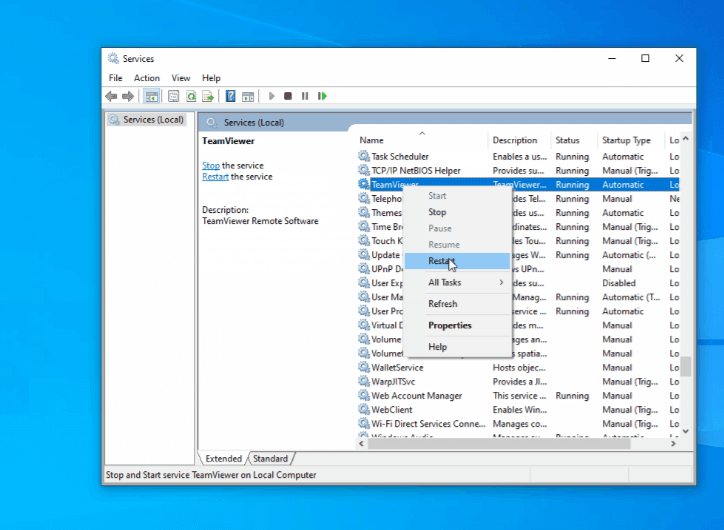
Now you can open TeamViewer and try to connect to your remote PC, please make sure you enter the right password or the connection could be rejected again.
Method 4. Reboot the remote computer
If the TeamViewer session timeout happens repeatedly, restarting the remote computer can help resolve the issue. A reboot clears temporary system errors, refreshes network connections, and restarts background services that may be causing the timeout problem in TeamViewer.
You can ask someone near the remote device to manually restart it. If both computers are in the same local area network, you can also reboot the remote PC using Command Prompt.
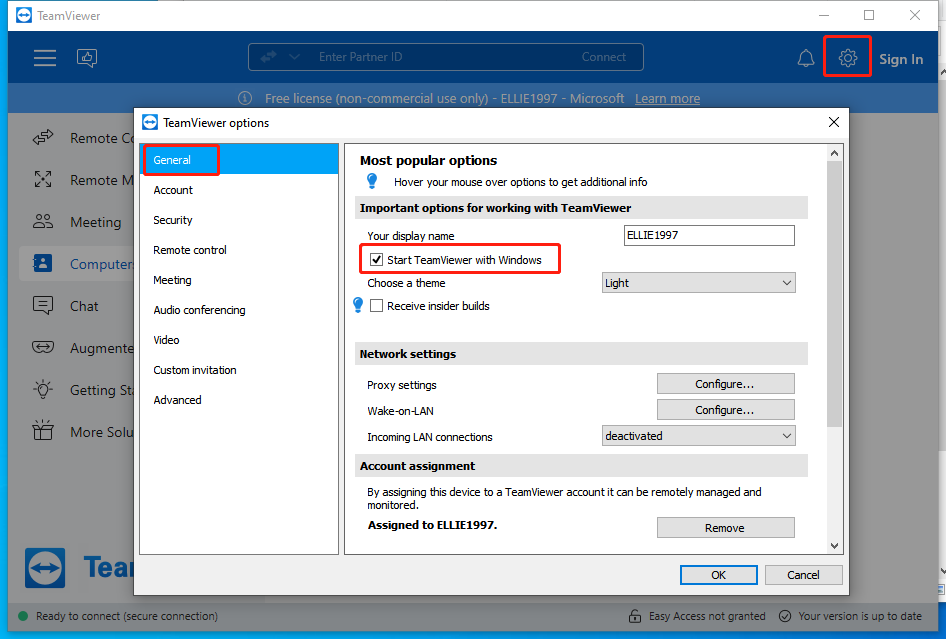
Note: Before restarting, make sure TeamViewer is set to start with Windows on the remote computer. Otherwise, after the reboot, the program may not launch automatically, and you may not be able to reconnect remotely.
On TeamViewer main interface, go to Options > General > tick Start TeamViewer with Windows.
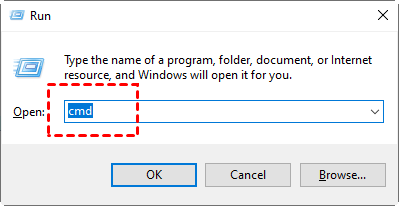
Step 1. On the local computer, press Win + R, enter “cmd” and hit OK.
Step 2. Type in “shutdown /i” and press Enter to evoke the Remote Shutdown Dialog.
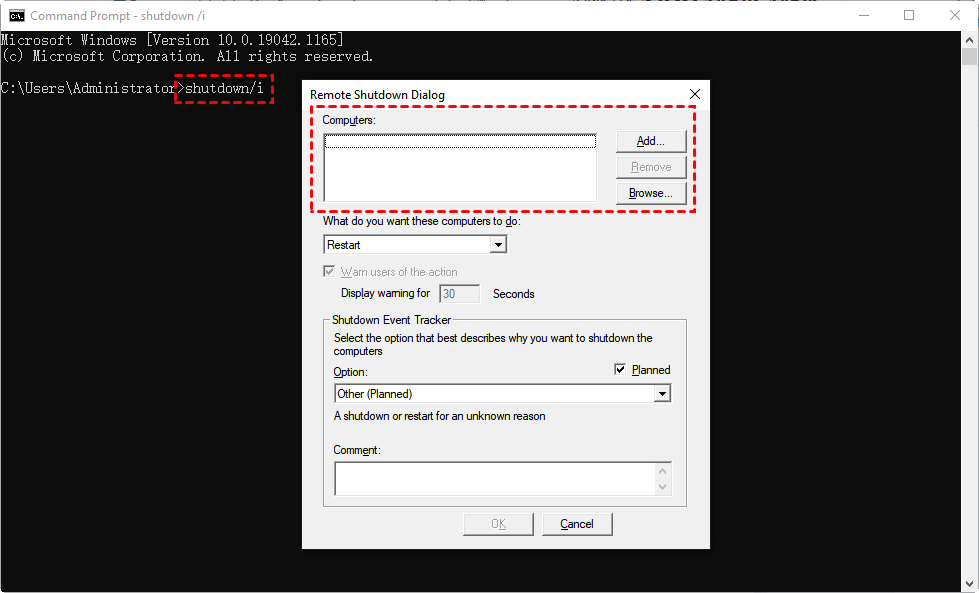
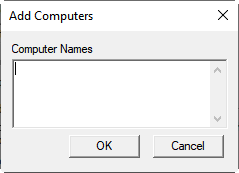
Step 3. Click Add and type in the computer name or IP addressof the device you want to restart, then select OK.
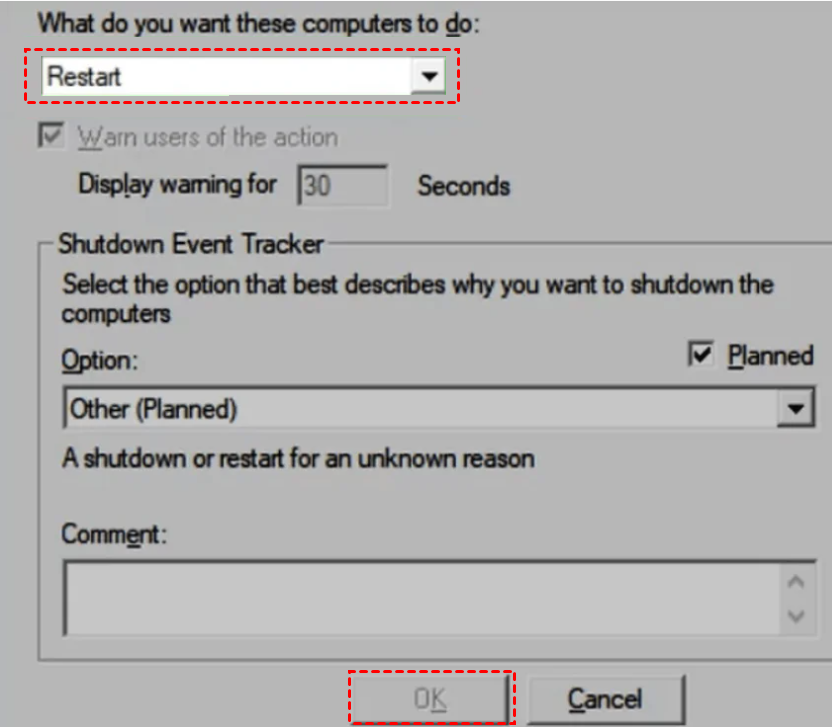
Step 4. Select Restart under What do you want these computers to do, and click OK to restart the device.
👍Method 5. Choose AnyViewer for stable remote access
If you are seeking a permanent solution to resolve TeamViewer session timeout issues, it is important to recognize that temporary fixes rarely provide lasting results. Resetting your ID or submitting a personal use appeal may offer short term relief, but the TeamViewer session timeout after 1 minute often reappears. For stable and uninterrupted remote access, transitioning to a more reliable alternative such as AnyViewer may be a more effective long term strategy. AnyViewer provides a free version for personal use without aggressively flagging accounts for suspected commercial activity, ensuring more consistent and secure remote sessions.
AnyViewer offers a professional, feature-rich alternative for remote access, making it a solid choice for those seeking more flexibility and functionality. Here are some of its standout features:
- Unattended & Attended Access: Whether you need someone on the other end or you’re accessing devices remotely without supervision, AnyViewer offers both solutions for maximum flexibility.
- Multi-Platform Support: Connect seamlessly across Windows, macOS, Android, and iOS—perfect for users across different devices and operating systems.
- Strong Encryption: Elliptic Curve Cryptography (ECC) provides robust end-to-end encryption, ensuring secure and private sessions. Your data remains protected, even when devices are on different networks.
- Multiple-Monitor Support: If you’re using a multi-monitor setup, AnyViewer lets you view all screens or select a specific one during remote access for a smoother experience.
- File Transfer: Seamlessly transfer files between devices during remote sessions, ensuring efficient collaboration and support.
- Unlimited Concurrent Sessions: Enjoy the flexibility of running multiple remote sessions simultaneously, enhancing productivity and efficiency for both IT support teams and businesses.
Step 1. On the remote PC, go to Log in from the left pane, and click Sign up.

Step 2. Fill in the following information and click Sign up.

Step 3. On the local PC, open AnyViewer and log in to the same account. Then you can see your assigned devices.

Step 4. Go to Device, select the target PC you want to connect to, and click One-click control to perform unattended remote access.
You can also tick Connect in privacy mode to better protect your data by blackening the remote computer and disabling the remote keyboard & mouse click when in remote sessions.

Why does TeamViewer session timeout happen?
A TeamViewer session timeout usually occurs because the system detects limits, risks, or unusual usage patterns. These restrictions are designed to control free usage and protect network security, but they can interrupt normal remote work.
Here are the most common reasons:
1. Suspected commercial use
If TeamViewer believes the software is being used for business purposes on a free license, it may trigger a session timeout after a short period, sometimes as quickly as one minute.
2. Free version time limits
Free accounts have connection restrictions. When usage exceeds the allowed duration or frequency, the system may automatically disconnect the session.
3. Inactive session detection
If there is no mouse or keyboard activity for a certain time, TeamViewer may close the session to save resources and enhance security.
4. Network instability
Unstable internet connections, firewall restrictions, or VPN conflicts can interrupt communication between devices, leading to unexpected timeouts.
5. Repeated connection history
If multiple timeouts or reconnection attempts occur within a short period, the system may temporarily block the ID and display a connection blocked after timeout message.
By understanding the root causes of TeamViewer session timeouts in TeamViewer, you can identify whether the issue is related to licensing, inactivity, or network instability. This allows you to apply the most appropriate fix and reduce the risk of repeated session interruptions.
Concluison
TeamViewer session timeout issues can interrupt your work and reduce efficiency. While contacting support, upgrading your license, restarting services, or rebooting the remote computer may help in some cases, these solutions do not always prevent the problem from returning.
If you want more stable and consistent remote access, choosing a reliable alternative such as AnyViewer can be a practical long term option. Compared with TeamViewer, it offers flexible features, strong security, and a free version for personal use without strict timeout limits. By selecting the right tool for your needs, you can ensure smoother and more secure remote connections.
FAQs
🗨️ How to fix TeamViewer session timeout?
Check your license status, ensure stable internet, restart the TeamViewer service, or upgrade your plan. You may also consider switching from TeamViewer to a more stable alternative like AnyViewer.
🗨️ How do I remove the TeamViewer session limit?
Purchase and activate a paid license to remove free account time restrictions and commercial use limits.
🗨️ Why do I keep getting kicked out of TeamViewer?
This usually happens due to suspected commercial use, inactive session detection, unstable network connections, or free version time limits.
🗨️ Can I use TeamViewer if my computer is asleep?
No. If the remote computer is in sleep mode, TeamViewer cannot connect. The device must be powered on and connected to the internet.
🗨️ How do I keep my computer awake for Remote Desktop?
Adjust your system power settings to prevent sleep mode and disable automatic screen or system sleep during remote sessions.
🗨️ How to keep TeamViewer running in the background?
Enable the option to start TeamViewer with Windows in settings and ensure the service is running in the background.



 as a preferred
source on Google
as a preferred
source on Google