

[Quick Fixes] TeamViewer Stuck On Initializing Display Parameters
The issue where TeamViewer gets stuck on initializing display parameters usually relates to system or connection errors. This article outlines reasons and quick methods to restore normal remote access.

By Irene / Updated on November 10, 2025


What causes the error TeamViewer Stuck On Initializing Display Parameters
TeamViewer is a popular tool for remotely accessing and controlling computers. It works on both PC and mobile devices, making it convenient for users everywhere. Usually, when connecting to another computer, TeamViewer briefly shows the message “Initializing display parameters” before displaying the remote screen.
Sometimes, this process can get stuck, leaving users unable to access the remote device. This problem is common on Windows 10 and 11, and it can be caused by different factors like below.
| Cause | Solution |
|---|---|
| Outdated TeamViewer | Update the app on both devices |
| Remote access not set up | Enable Remote Access on the remote PC |
| Conflicts with other apps | Close BGInfo or restart the TeamViewer service |
| Display settings mismatch | Adjust the remote device’s display resolution |
| Corrupted installation | Reinstall TeamViewer |
| System-related issues | Use TeamViewer Server ID or an HDMI dummy plug for headless monitors |
Before applying the fixes above, it’s important to perform a few simple checks to prevent the “Initializing Display Parameters” issue:
-
Ensure both computers have a stable internet connection.
-
Install any pending Windows updates.
-
Update display drivers through Device Manager if needed.
For a more reliable experience and to avoid display problems, consider using professional remote support tools like AnyViewer, which allow seamless remote access without interruptions.
How to fix TeamViewer Stuck On Initializing Display Parameters?
Fix 1. Update TeamViewer and Windows
An outdated TeamViewer client or Windows system can easily result in such an issue, so check your update first.
Part 1. Update TeamViewer
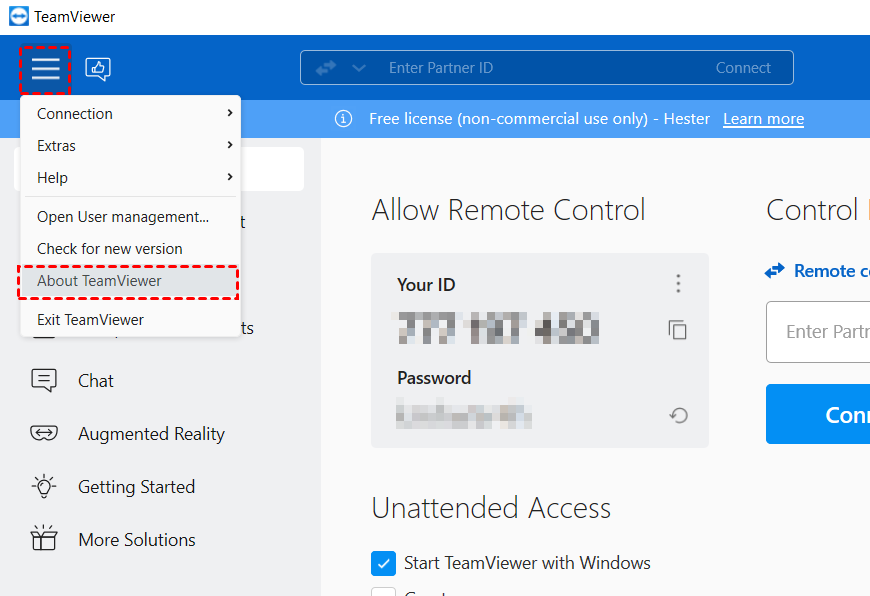
Open TeamViewer, click the Menu icon > About TeamViewer. Update if there are any available updates.
Part 2. Update Windows
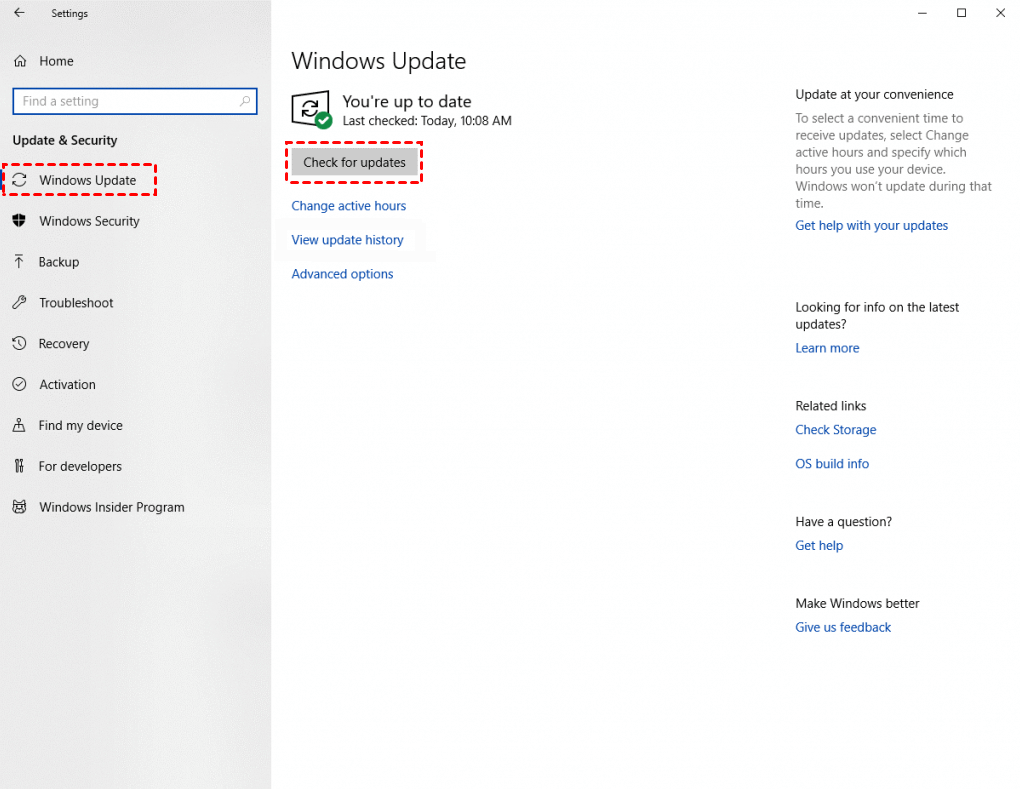
Launch Settings, click Update & Security > Windows Update > Check for updates, and download any available updates.
Fix 2. Reconfigure Remote Access
Incorrect remote access settings on the remote PC can block display initialization. Ensure Windows allows remote connections properly.
Step 1. Press Win + R, type sysdm.cpl, and hit Enter.
Step 2. Under the Remote tab, check Allow Remote Assistance connections to this computer.
Step 3. Click Advanced and make sure Allow this computer to be controlled remotely is checked.
Step 4. Click Apply and restart the remote PC.
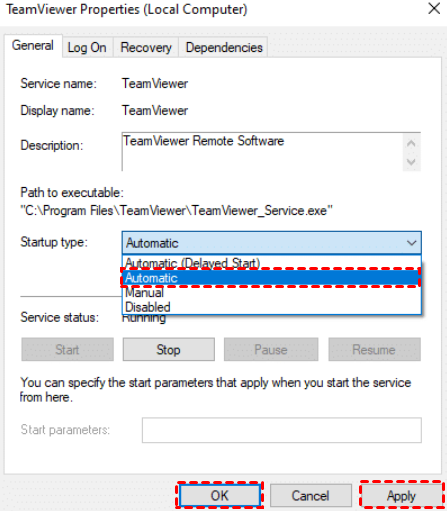
Fix 3. Restart TeamViewer service
You can try to restart TeamViewer service by stopping it once and then restarting it after a few minutes.
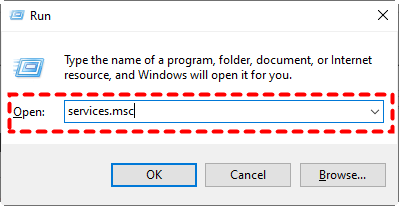
Step 1. Press Win + R and type in “services.msc”, and hit Enter.
Step 2. Scroll down and right-click TeamViewer > Properties.
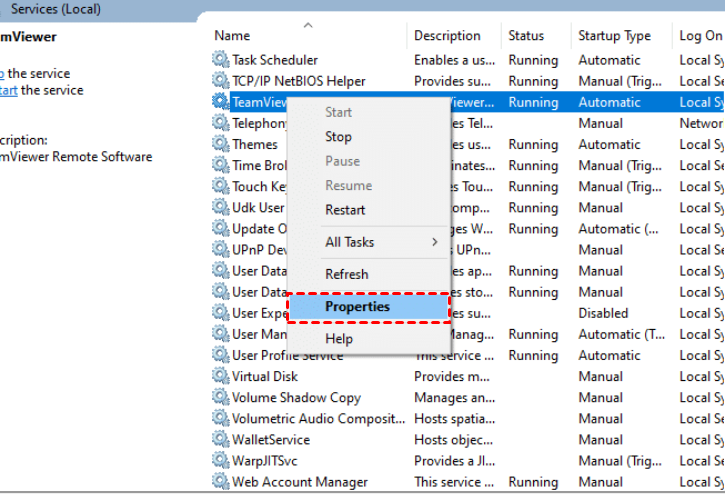
Step 3. Set the Startup type to Automatic and click Apply > OK.
Fix 4. Reinstall TeamViewer
If you have both the latest versions but nothing changes, try to reinstall the software.
Step 1. Open Control Panel > Programs and Features, right-click TeamViewer > Uninstall.
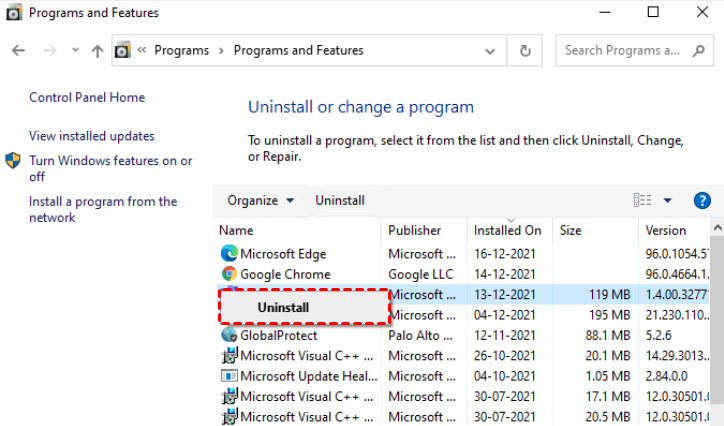
Step 2. Redownload TeamViewer from its official website.
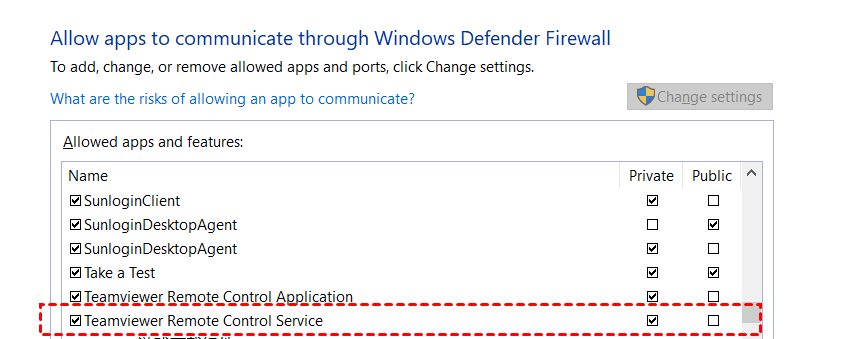
Fix 5. Check Firewall setting
Windows Defender Firewall may sometimes block applications to work properly, therefore, check whether TeamViewer is in the exception list of the Firewall.
Open Control Panel, then click Windows Defender Firewall > Allow apps, click Change settings, and check TeamViewer Remote Control Service.
Fix 6. Adjust Display Quality
High display resolution or settings can cause display initialization problems. Lowering quality can help.
Step 1. Launch TeamViewer on the remote PC.
Step 2. Go to Extras > Options > Remote control.
Step 3. Enable Remove remote wallpaper.
Step 4. Set Quality to Optimize speed.
Step 5. Restart TeamViewer and try reconnecting.
✔️Quick fix: Use AnyViewer as an alternative
If the solutions above don’t resolve your problem, you can switch to a reliable alternative to TeamViewer. AnyViewer is a strong choice to fix this issue and prevent it from happening again.
Why choose AnyViewer?
👌 Offers a completely free version with no time limits.
👌 Supports flexible remote access and file transfers between devices.
👌 Includes helpful built-in features like chat, image quality adjustment, and more.
👌 Works on iPhone and Android, so you can access your PC anywhere.
AnyViewer is compatible with Windows, iOS, and Android. It allows you to view all connected monitors at once or focus on a specific monitor, making it ideal if you work with multiple screens. Unlike TeamViewer, which is free only for personal use, AnyViewer is free for both personal and commercial purposes, making it a cost-effective solution for work or business setups.
To avoid remote connection or display-related errors permanently, consider switching to AnyViewer. It is a reliable tool for instant remote access, whether attended or unattended, from any device.
Step 1. On the remote computer, click Log in from the left pane, and click Sign up.

Step 2. Fill the information and click Sign up.

Step 3. On the local computer, log in to the same account and then you can see the assigned devices.
Tips: You can upgrade to Professional or Enterprise plan to assign more devices at once, which is more convenient for you to manage these devices with one click.

Step 4. Go to Device interface, select the target computer you want to connect to, and click One-click control to perform unattended remote access.
You can also tick Connect in privacy mode to strongly protect your data by blackening the remote computer and disabling the remote keyboard & mouse click when in remote sessions.

Then you can remote into the computer and directly control it.
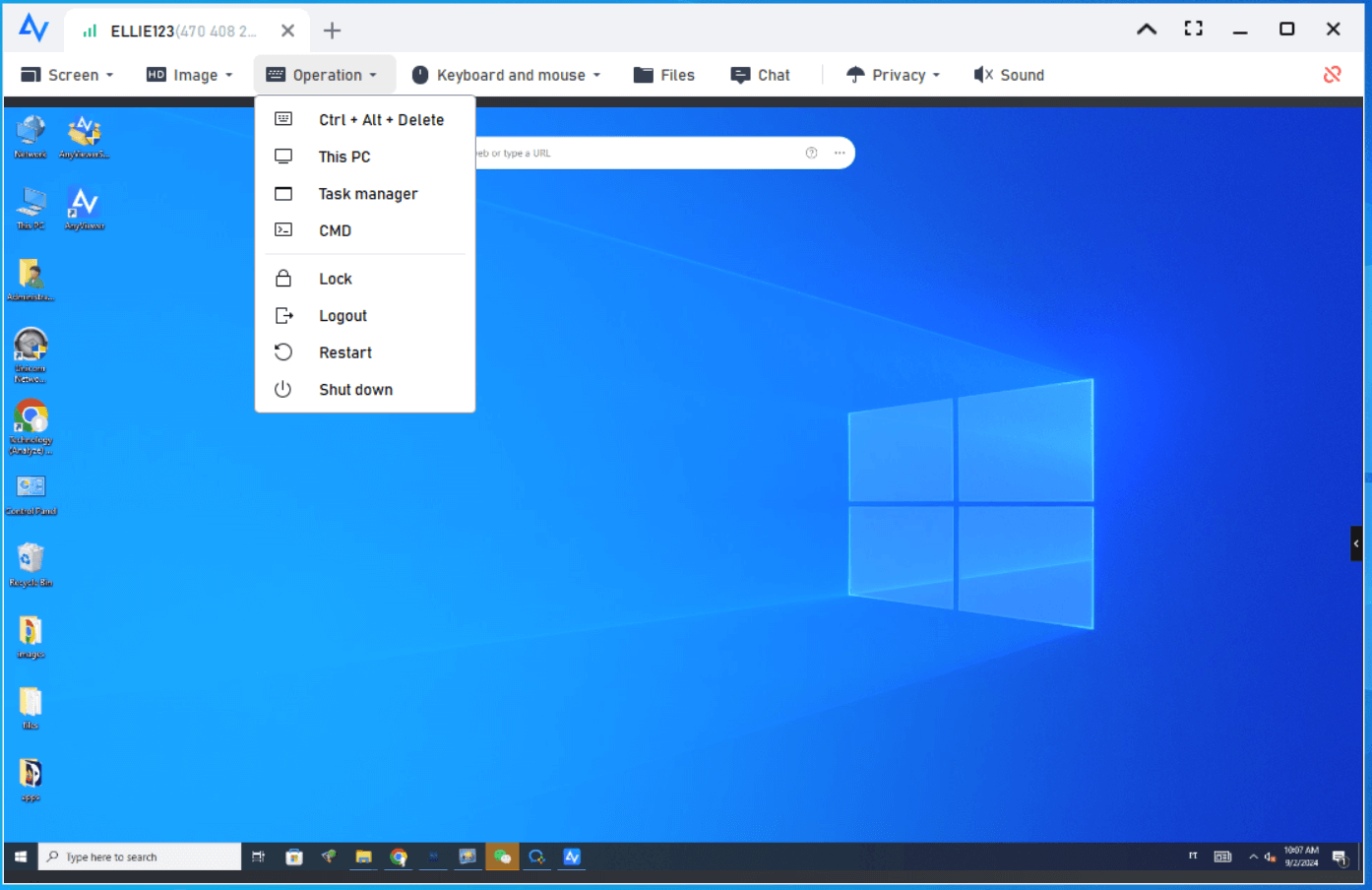
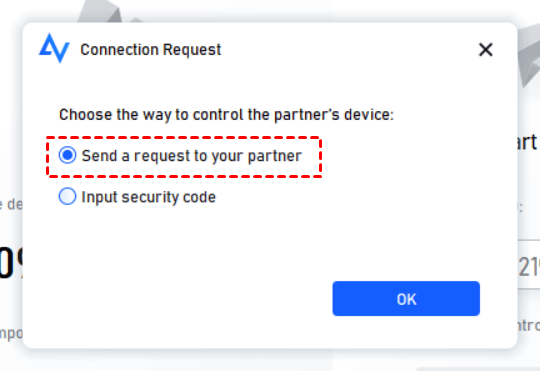
As we said, AnyViewer offer you flexible ways to remotely access another computer. If you don’t want to share you account with someone else, you can still establish remote connection with partner ID.
Go to Connect, enter the partner ID and click Connect. Then you can achieve the connection by Send a request to your partner or Input security code.
Conclusion
TeamViewer getting stuck on initializing display parameters is usually caused by outdated software, incorrect settings, or system conflicts. Most issues can be fixed by updating TeamViewer and Windows, adjusting remote access and display settings, or reinstalling the program. For a more reliable and uninterrupted remote access experience, using an alternative like AnyViewer is recommended. It offers fast, stable connections across multiple devices and platforms, making remote work easier and more efficient.



 as a preferred
source on Google
as a preferred
source on Google