

Screen Capture in Remote Desktop [Easy Guide]
Screen capture in Remote Desktop helps you solve problems, show errors, and share steps with others. RDP works, but it can be tricky with black screens or saving issues. This guide shows simple shortcuts and explains why AnyViewer is a better choice for quick, clear, and easy screen capturing.

By Ellie / Updated on September 17, 2025


Importance of screen capturing in remote sessions
Why does screen capturing matter in remote desktop environments? The reasons are more than you might expect. From troubleshooting computer issues and creating training material to monitoring employee productivity or even retaining records for compliance, screen capture in remote desktop sessions is a powerful asset.
Captures allow users to take snapshots of error messages, workflows, or configurations that are hard to describe over a phone call. Ever tried explaining a server error to IT without a screenshot? It's painful. With a screen capture, it's crystal clear.
Also, in industries like finance, healthcare, or legal services, where record-keeping is vital, screen captures can serve as evidence of work done or issues encountered. Just remember, there's a thin ethical line when it comes to capturing others' screens, especially if done without consent.
How to capture screen in Remote Desktop sessions
Capturing your screen during a Remote Desktop session can be a bit tricky. Many users get confused about whether the screenshot will be from the local or remote machine, and figuring out where that image is saved adds to the challenge. Here's a clear breakdown of how to take a screen capture in Remote Desktop correctlyand know exactly where it ends up.
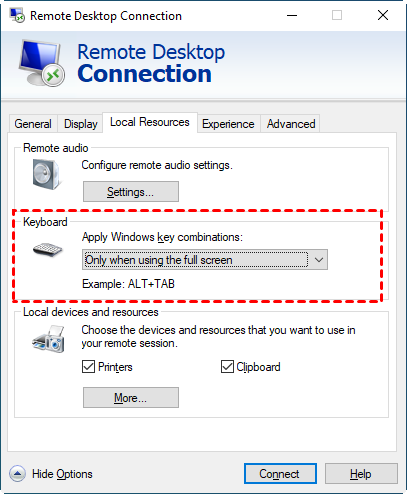
To ensure Windows keyboard shortcuts work properly during a Remote Desktop session, follow these steps to set up Remote Desktop Connection:
Step 1. Open Remote Desktop Connection by clicking the Start button, then navigating to All Programs > Accessories > Remote Desktop Connection.
Step 2. Click Options, then select the Local Resources tab.
Step 3. Under the Keyboard section, choose On the remote computer. This setting allows the remote machine to recognize the Windows keyboard shortcuts you type. Alternatively, you can select Only when using the full screen to apply these shortcuts only when Remote Desktop is in full-screen mode (this is the default).
Essential Remote Desktop Screenshot Shortcuts
Knowing the right shortcuts and where the images are saved helps you capture exactly what you need. Here are the essential shortcuts to get it done easily.
- Ctrl + Alt + Break
This shortcut doesn’t take a screenshot, it switches your Remote Desktop window between full-screen and windowed mode. Using the windowed view can make it easier to multitask between your local and remote desktops.
- Ctrl + Alt + Print Screen
Captures the entire remote desktop screen. The screenshot is stored on the remote machine, not your local one.
- Ctrl + Alt + + (numeric keypad)
Takes a screenshot of the full display within the remote session. The image is again saved on the remote PC.
- Ctrl + Alt + - (numeric keypad)
Snaps a screenshot of the currently active window in the remote session. Just like the other commands, this screenshot will also be stored on the remote computer.
Note: The plus (+) and minus (–) keys used in these shortcuts must come from the numeric keypad, not the ones above the regular letter keys, for them to function correctly.
Limitations of RDP in screen capturing
Although RDP is a robust tool, it's not perfect for every screen capture in remote desktop scenario. Some common limitations include:
- Black screens: When GPU rendering is used or when display drivers are misconfigured, screenshots may appear black.
- Low frame rates: RDP prioritizes performance over visuals. So fast-moving screens (like videos or animations) can appear choppy or miss frames entirely.
- Security restrictions: Organizations may disable clipboard or file transfer features, limiting your ability to save screenshots.
- Software compatibility: Some advanced screen recorders may not function properly inside RDP due to graphics acceleration limitations.
Understanding these limitations helps set expectations and choose the right tools for the job. In sensitive environments, you may need to request special permissions or use alternate remote access solutions for effective screen capture.
AnyViewer: A powerful alternative to RDP for smarter screen capturing
If you're struggling with black screen issues, lag, or strict restrictions when capturing screenshots via RDP (Remote Desktop Protocol), it might be time to consider a more modern and user-friendly remote access tool, AnyViewer.

AnyViewer is a lightweight, easy-to-deploy remote desktop solution designed for both personal and business use. It excels in scenarios where frequent screen captures and smooth remote operation are critical. Compared to traditional RDP, it offers several key advantages for screen capturing:
- Crystal-Clear Captures Without Black Screens: AnyViewer leverages advanced image rendering technology to deliver sharp, high-definition screen captures, free from black screen glitches. Even on systems using GPU acceleration, it maintains visual clarity, ensuring every screenshot is accurate and reliable.
- Built-in Screenshot Tool: No need for complex hotkeys or third-party apps. AnyViewer includes a one-click screenshot button within the interface, making the process fast and intuitive, ideal if you're unsure how to take screenshot in remote desktop tools like RDP.
- Automatic Local Saving: Screenshots are saved directly to your local device, bypassing clipboard sync or file transfer limitations. This boosts efficiency, especially during fast-paced support or documentation tasks.
- Cross-Platform Compatibility: Whether you're on Windows, macOS, iOS, or Android, AnyViewer supports seamless cross-platform remote access and screen capturing.
- Enterprise-Grade Security: All captures and session data are transmitted over encrypted channels, ensuring data privacy and compliance, ideal for sensitive industries like healthcare, finance, and legal services.
In short, if you're looking for a RDP alternative that overcomes its limitations while enhancing your screen capture workflow, AnyViewer is a smart and reliable choice.
Conclusion
Screen capturing during remote desktop sessions is a simple but powerful way to solve problems, share information, and keep records. It makes communication easier, especially when dealing with technical issues or training someone from a distance.
While RDP works for basic needs, it has some problems like black screens and saving issues. That’s where tools like AnyViewer come in. It’s easier to use, has built-in screenshot features, and works smoothly across different devices.
If you want better screen captures without the hassle, AnyViewer is a smart choice for both personal and professional use.



 as a preferred
source on Google
as a preferred
source on Google