

How to Record a Computer Screen with Another Computer
Want to record a screen from a different computer? This guide shows you 4 simple and effective ways to do it. Whether you're helping someone, creating a tutorial, or monitoring a device, you'll find the right tool here, quick, clear, and easy to follow.

By Ellie / Updated on September 17, 2025


Is it possible to record a computer's screen with a different computer?
Absolutely! Whether you're a content creator, IT support professional, or just helping a friend troubleshoot a problem, there are smart ways to record one computer's screen using another device. Wondering how to record a computer screen with another computer? You're not alone. While most screen recorders are designed to capture what's happening on the same machine, there are scenarios where you might need to record a remote screen, like monitoring a desktop without recording software, capturing gameplay from another system, or setting up a dual-computer streaming rig.
The good news? With the help of advanced remote desktop software that supports screen recording, you can easily record a computer screen from another device, even if you're miles away. This guide will show you exactly how to record a PC screen remotely using four powerful tools.
How to record a computer screen with another computer [4 ways]
Whether you're offering tech support, capturing remote tutorials, or monitoring activity, here are four effective ways to record a computer screen using another computer.
Way 1. AnyViewer
AnyViewer stands out as a highly reliable remote access solution with session recording feature, ideal for screen control and support tasks. Whether you're working from home, assisting someone remotely, or managing multiple devices, this tool is designed to streamline your workflow. It's a one-stop solution compatible across various devices, making it an excellent choice for professionals who rely heavily on remote operations to stay efficient and focused.

If you're looking for how to record computer screen Windows systems from a remote location, AnyViewer makes the process easy. To get started, simply connect the target computer using one of three methods: unattended one-click access, a secure connection code, or by sending a control request. Once access is granted, you can operate the remote desktop as if you were sitting in front of it, allowing you to start recording the screen directly from your second device with ease.
Standout Features of AnyViewer
- Crystal-Clear Screen Recording: Capture remote sessions in sharp 1080p quality with synced audio, perfect for walkthroughs, training, and software presentations.
- Single-Click Capture: Initiate or halt screen recording instantly during your session with just one click.
- Protected File Storage: Save your recordings locally or route them to a secure network drive to ensure privacy and quick retrieval.
- Lag-Free Experience: Thanks to its cutting-edge architecture, AnyViewer ensures smooth streaming, even when bandwidth is tight.
Why AnyViewer Deserves Your Attention
When it comes to remote screen recording with speed, security, and simplicity, AnyViewer hits all the marks. It's especially well-suited for:
- IT teams needing to log or review remote procedures.
- Content creators producing tutorials or product walkthroughs on remote systems.
- Service professionals onboarding new clients or troubleshooting tech remotely.
- Teachers recording lectures or presentations on student devices.
AnyViewer brings professional-level performance without the hassle of expensive gear or complex setups, making it a smart, accessible solution for a wide range of users.
Way 2. TeamViewer
TeamViewer is another remote desktop software with built-in session recording capabilities, widely recognized for its ease of use and cross-platform support. It's a popular choice among IT professionals, support teams, and individuals who need to access and control computers remotely from anywhere in the world.
TeamViewer's integrated session recording feature makes it easy to capture every action during the remote session. You can enable automatic recording or start it manually before beginning your support or training session. This ensures that everything on the remote screen is documented in real-time, making it perfect for reviewing steps, maintaining records, or sharing the session with others later.
If you're figuring out how to record a PC screen directly on the target computer, TeamViewer provides a reliable solution.
Pros
- Supports remote access from and to mobile devices, offering flexibility across platforms.
- Prioritizes security with advanced 256-bit AES encryption to protect your data and connections.
Cons
- Not free for commercial use; requires a paid license for business or professional purposes.
Way 3. ObserveIT
ObserveIT is a powerful monitoring tool designed to track and record all user activities from login to logout, whether it's through a remote desktop session, terminal server, or direct console access. It captures screen video of every action, giving administrators a detailed visual log of user behavior. This includes the ability to search logs using specific keywords and instantly jump to relevant video segments from search results or activity logs.
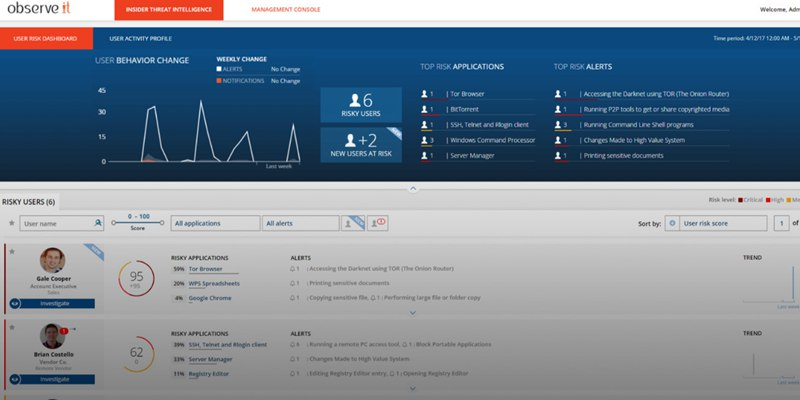
If your goal is how to record computer screen Windows systems for compliance or audit purposes, ObserveIT is a perfect fit. The tool is especially useful for compliance, security audits, and insider threat detection. It offers real-time alerts triggered by suspicious or sensitive behavior, which can be customized to meet organizational policies and risk thresholds.
Pros
- Secured remote access function helps prevent data leaks and unauthorized activity.
- Blocks users from taking screenshots during remote sessions, enhancing confidentiality.
Cons
- Remote sessions may occasionally be disrupted, affecting continuous monitoring.
Way 4. RecordTS
RecordTS is a trusted session recording solution tailored for Windows servers and workstations. Available in different packages to suit small businesses and large enterprises alike, RecordTS allows companies to capture and monitor all remote desktop session activity. It's especially effective for employee oversight, training review, and security compliance.
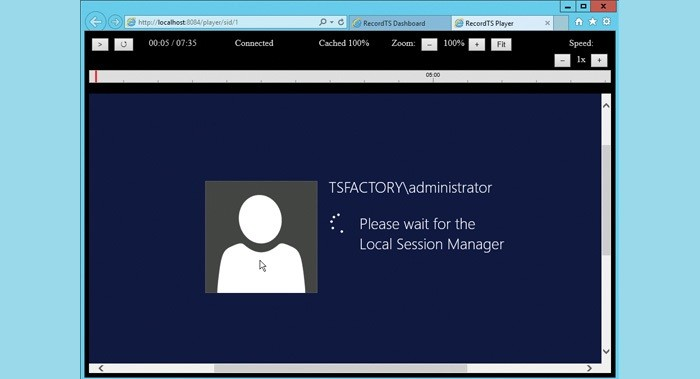
The software enables automatic recording of all user actions during remote sessions, offering valuable insights for performance evaluation or incident investigation. Its scalable design supports various recording needs, from light usage in small teams to enterprise-grade environments with complex IT infrastructures.
RecordTS is another reliable answer for those looking for how to record computer screen Windows environments in a professional setting.
Pros
- Sends alert notifications to connected devices when a pop-up appears on the target computer.
- Packed with features ideal for workforce monitoring and training assessments.
Cons
- Lacks functionality to monitor user inactivity or idle time.
Conclusion
Recording a computer screen from another device is not only possible, it’s easier than ever, thanks to powerful remote desktop solutions. Whether you’re using AnyViewer for seamless 1080p recording, TeamViewer for cross-platform convenience, ObserveIT for enterprise-grade monitoring, or RecordTS for session compliance, there’s a method that fits your specific needs. These tools make remote screen recording accessible, secure, and efficient, no matter where you are or what you're trying to capture. So if you’ve been wondering how to record a computer screen with another computer, this guide has you covered.



 as a preferred
source on Google
as a preferred
source on Google