

How to Capture Another PC Screen Remotely [Like a Pro in 2026]
Learn how to capture another PC screen remotely for support, training, or surveillance. Explore three smart methods, screen recording, screenshots, and silent monitoring, plus tips, tools, and real-world examples.

By Ellie / Updated on December 26, 2025


Why capture another PC screen?
Whether you're running IT support, giving remote training, or keeping an eye on workplace productivity, knowing how to capture another PC screen is a must-have skill in today’s hybrid digital environment. Gone are the days when screen sharing was clunky or unsafe, now it’s secure, flexible, and surprisingly simple.
In this guide, we’ll explore how to use another PC to record or view a remote desktop screen using three powerful methods, complete with expert tips, tool comparisons, and use-case examples. Whether you want to take quick screenshots or record another computer screen in full HD, we’ve got your back.
What does "capturing another PC screen" actually mean?
Before we dive into the tools, let’s clear the air: capturing another PC’s screen doesn’t mean hacking or spying. Instead, it refers to:
- Viewing a remote desktop live
- Recording screen activity for training or documentation
- Taking screenshots for audits or reporting
- Monitoring employee or student activity (with consent!)
It’s all about efficiency, collaboration, and accountability, not snooping.
Method 1. Use AnyViewer – The smartest all-in-one option (Top pick)

If you're looking for a modern, feature-rich, and effortless way to capture another computer’s screen remotely, AnyViewer is our top recommendation.
It doesn’t just allow remote access; it goes beyond with a built-in screen recording system. No plugins. No switching apps. Just click and capture.
Use Case Example: Remote Troubleshooting in Real Time
Let’s say you're helping a coworker who’s struggling with software crashes. Instead of just guessing what’s wrong, you launch AnyViewer, connect to their PC, and record another computer screen as the issue unfolds, perfect for reviewing or sharing with the dev team later.
Top Features of AnyViewer
- Built-in screen recording for full desktop sessions
- Smooth remote access with ultra-low latency
- End-to-end 256-bit ECC encryption for data security
- Unattended access, perfect for after-hours maintenance
- Cross-device support: Windows, Mac, iOS, Android
How to Capture Another PC’s Screen with AnyViewer
Step 1. Download and install AnyViewer on both PCs.
Step 2. Register and log into the same account on both devices.
Step 3. Connect to the target device.
Step 4. Hit the Screen recording button to start capturing the screen in real time.
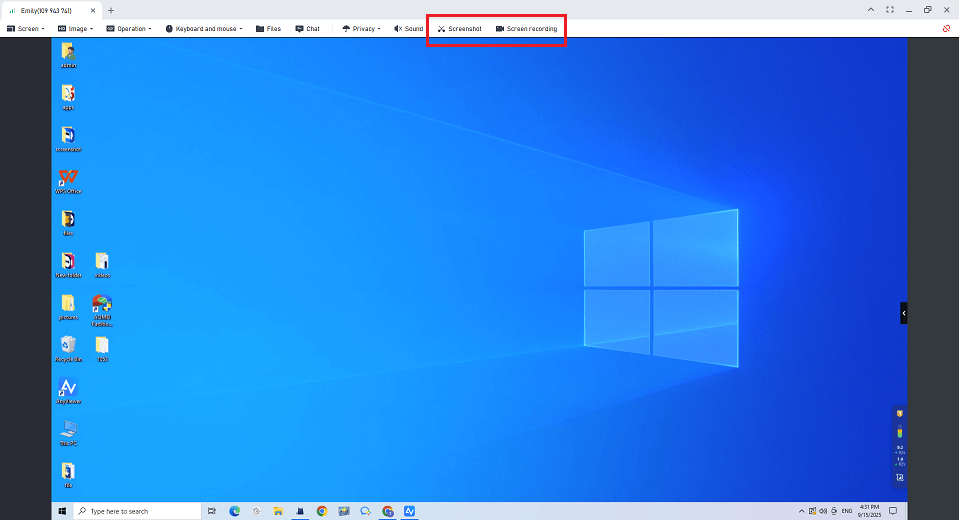
Bonus Tip: Use the built-in chat function to guide the remote user during recording for better clarity and collaboration.
Method 2. Use remote desktop + screen recorder (Best for custom workflows)
If you prefer more control over the recording, say, for editing, adding overlays, or adjusting frame rate, then combining remote desktop access tools (like Chrome Remote Desktop or Microsoft RDP) with a third-party screen recorder (like OBS, Camtasia, or Bandicam) might be your best bet.

Creative Use Case: Recording Software Demos for YouTube
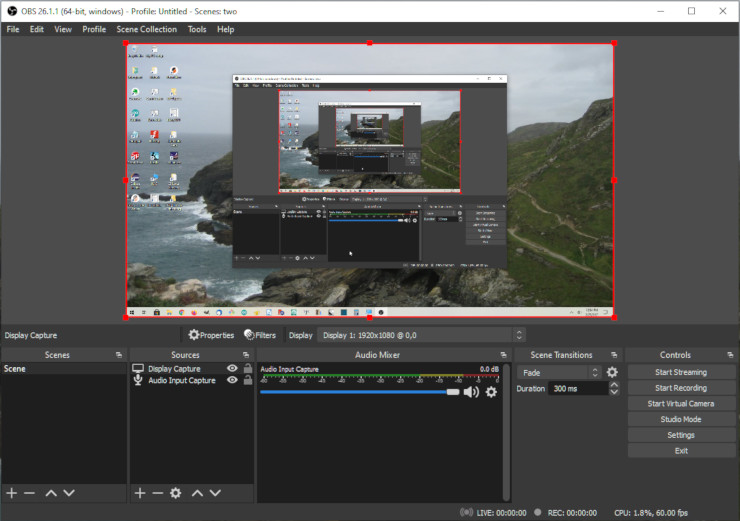
Many tech YouTubers use this method to record another computer screen on a remote machine without affecting their primary system’s performance. OBS Studio, for example, lets you add webcam overlays, transitions, and branding while recording the remote session.
Steps to Set It Up
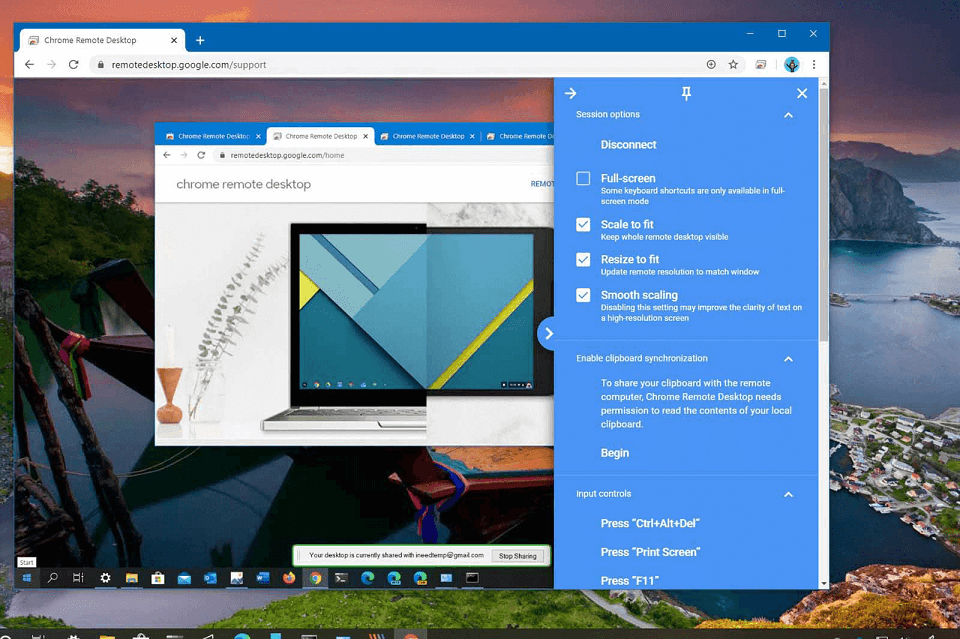
Step 1. Connect to the remote PC using Chrome Remote Desktop or RDP.
Step 2. Launch your preferred screen recording app on the local device.
Step 3. Start recording your screen while you interact with the remote PC.
Step 4. Save and edit the recording as needed.
What to Watch Out For
- Dual-software setup requires manual syncing
- More technical to configure and optimize
- May suffer from lag or pixelation depending on network speed
- No built-in unattended access features
Expert Insight: OBS Studio allows real-time scene switching. Use it to toggle between apps, webcam, and the remote screen for dynamic videos.
Method 3. Use Alloy Remote Screenshot – Silent, lightweight monitoring
Need to silently capture screenshots of a remote computer for security, compliance, or auditing purposes? Alloy Remote Screenshot is designed exactly for that.
It’s not a screen recorder, but rather a lightweight snapshot tool that doesn’t alert the user or require any changes on their end, perfect for system admins.
Example Scenario: Stealth Monitoring in a Corporate Setting
As an IT admin, you’re tasked with ensuring employees follow security protocols. With Alloy, you can periodically capture another PC screen as static images without interrupting workflows or installing additional software on the target machine.
Steps to Capture with Alloy
Step 1. Open Alloy and select the PC from your network dashboard.
Step 2. Navigate to Tools > Integrations > Screenshot.
Step 3. Enter Windows administrator credentials.
Step 4. Select the appropriate user session.
Step 5. Capture and review the screenshot with timestamp details.
Limitations
- Only captures static images, not videos
- Requires Windows admin access
- Not suitable for real-time collaboration
- Limited to Windows OS
Pro Tip: Schedule automatic screenshots every X minutes for silent desktop monitoring without manual interaction.
Conclusion: Choose what works for you
By now, you should have a crystal-clear understanding of how to capture another PC screen, how to use another PC to record, and how to record another computer screen, whether you need it for support, security, training, or productivity.
- Want all-in-one ease? Go with AnyViewer.
- Need customization and editing power? Try RDP + OBS.
- Need silent screenshots for auditing? Alloy has you covered.
No matter your tech level or purpose, these tools give you the power to view, record, and monitor remote computers effectively. In 2025, remote screen capture is no longer a hassle; it’s a productivity booster.
FAQs
1. Can I use AnyViewer to record sessions without the remote user seeing it?
Yes, you can record sessions silently if you’re using unattended access mode, which the user must authorize beforehand.
2. Is there a free version of AnyViewer?
Absolutely! AnyViewer offers a free version with essential features. For more advanced options like multi-session or custom recording, consider upgrading.
3. Can I capture audio along with the screen when recording another PC?
Yes! AnyViewer supports capturing both audio and video during a remote session. This makes it ideal for recording online meetings, tutorials, or any activity where sound is essential alongside screen content.



 as a preferred
source on Google
as a preferred
source on Google