

5 Proven Ways to Transfer Files from Laptop to Android
Learn 5 efficient ways to transfer files from laptop to Android devices. This guide covers both wired and wireless methods to help you move data to your phone or tablet quickly and securely.

By Ellie / Updated on January 15, 2026


How do I transfer files from laptop to Android phone?
In our multi-device world, the need to transfer files from laptop to Android is a daily occurrence. Whether you are a professional needing to review a document on the go, a student transferring study materials, or someone simply wanting to move high-quality photos and videos to your phone, knowing the most efficient methods is essential.
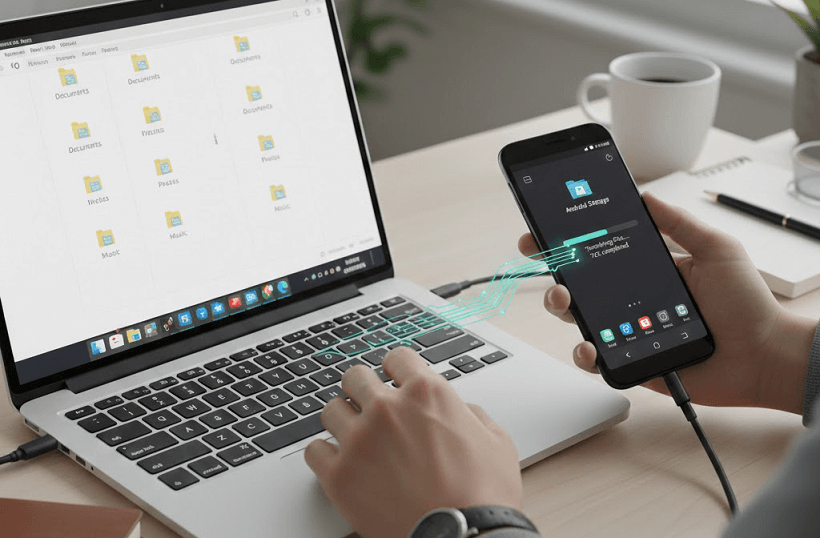
If you’ve found yourself asking, "How do I transfer files from laptop to Android phone?", you aren't alone. While the process is generally straightforward, the "best" method depends on your hardware, the file size, and whether you have a steady internet connection.
This comprehensive guide covers five distinct ways to transfer files from laptop to Android tablet or phone, ranging from wired connections to cloud-based solutions.
How to transfer files from laptop to Android [5 Proven Ways]
Explore the following five reliable methods to find the one that best suits your current file transfer needs.
Option 1: Transfer files wirelessly with AnyViewer (Best for remote access)
When you need to wirelessly transfer files from laptop to Android phone or tablet without being in the same room, or even the same building, remote desktop software like AnyViewer is an excellent choice. While traditionally used for remote support and remote work, it features a robust file transfer protocol that is fast and secure.
Why Choose AnyViewer?
- No Distance Limit: Transfer files even if your laptop is at home and you are at the office.
- High Speed: Optimized for large file transfers compared to standard cloud uploads.
- Security: Uses ECC (Elliptic Curve Cryptography) encryption to keep your data safe during transit.
How to use it:
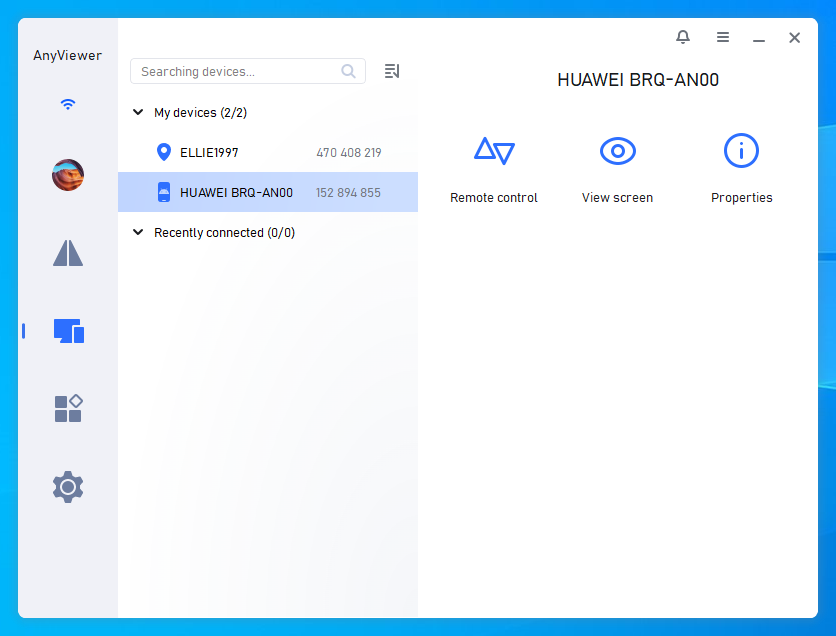
Step 1. Download and install AnyViewer on both your Windows laptop and your Android phone.
Step 2. Create an account and log in on both devices.
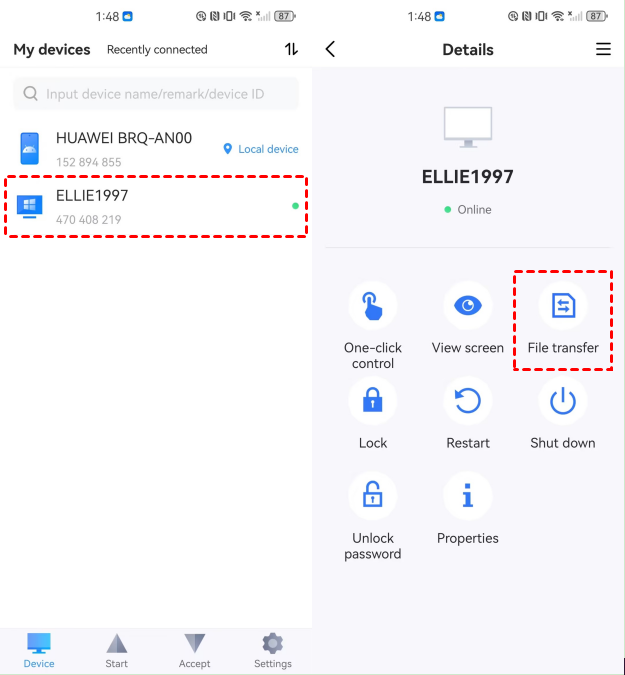
Step 3. On your Android app, find your laptop under the "Device" list > Choose the "File Transfer" option.
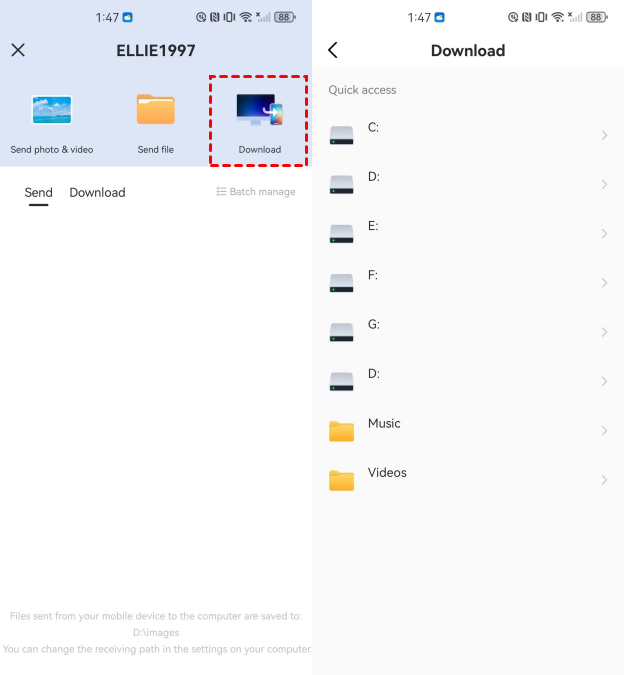
Step 4. Tap Download. You can now browse your laptop’s folders from your phone screen and "pull" the files you need directly to your mobile storage.
Option 2: Move files with your Google account (Best for syncing)
Since Android is a Google-based ecosystem, using your Google Account is perhaps the most seamless way to keep files synced across devices. This method relies on the cloud, meaning that as long as you upload a file from your laptop, it will appear on your phone automatically.
Way 1. Move General Files: Google Drive
For PDFs, Word documents, or ZIP files, Google Drive is the gold standard.
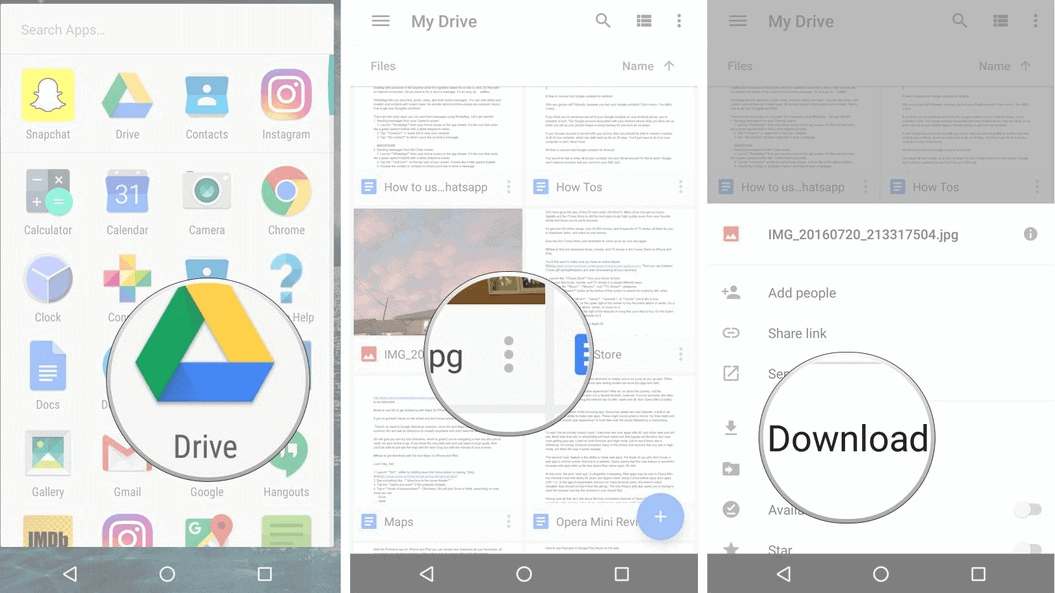
- On Laptop: Go to [drive.google.com](https://drive.google.com) and drag your files into the browser window.
- On Android: Open the Google Drive app. Your files will appear in the "Recent" or "Files" tab. You can tap the three dots next to a file and select "Download" to keep a copy on your phone's local storage.
Way 2. Move Music: YouTube Music
If you have a library of local MP3s on your laptop:
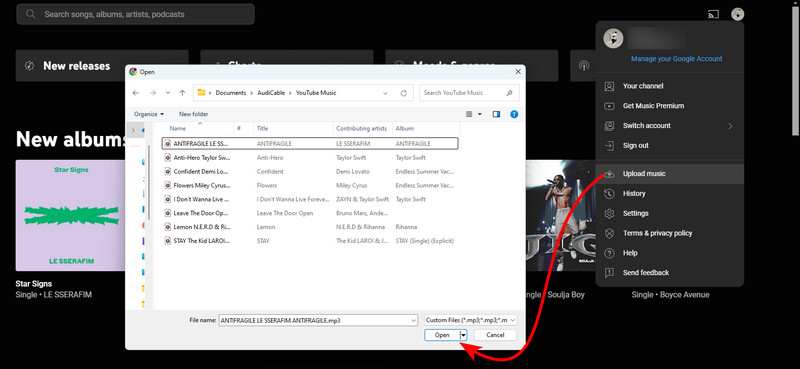
- On Laptop: Visit the YouTube Music web player. You can drag and drop your music files anywhere on the screen to upload them to your private cloud library.
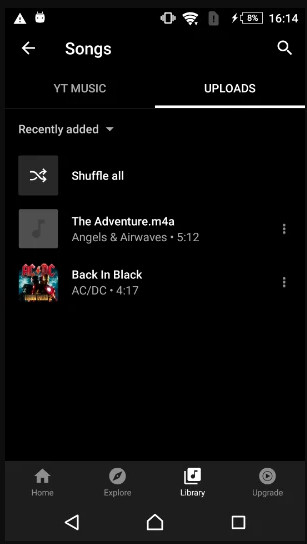
- On Android: Open the YouTube Music app, go to Library > Songs > Uploads to stream or download your music.
Way 3. Move Photos and Videos: Google Photos
To preserve storage space on your phone while still having access to your laptop's gallery:
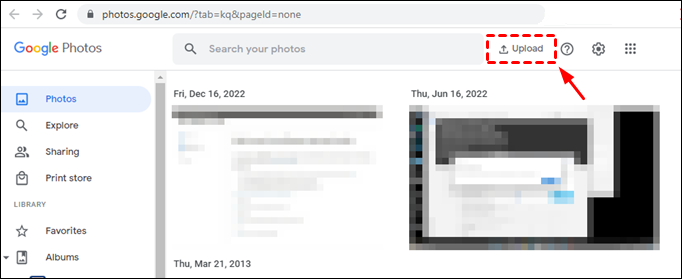
- On Laptop: Go to [photos.google.com](https://photos.google.com) and click "Upload."
- On Android: Open the Google Photos app. Your laptop's photos will be organized by date alongside your mobile shots.
Option 3: Move files with a USB cable (Best for large volumes)
If you are transferring several gigabytes of data (like 4K movies or large game obb files), a physical connection is the fastest and most reliable method. It doesn't require an internet connection and provides the highest data transfer rates.
For Windows Computers
Step 1. Unlock your device: Your Android phone must be unlocked for the computer to "see" the internal folders.
Step 2. Connect: Use a high-quality USB-C or Micro-USB cable to connect your phone to the laptop.
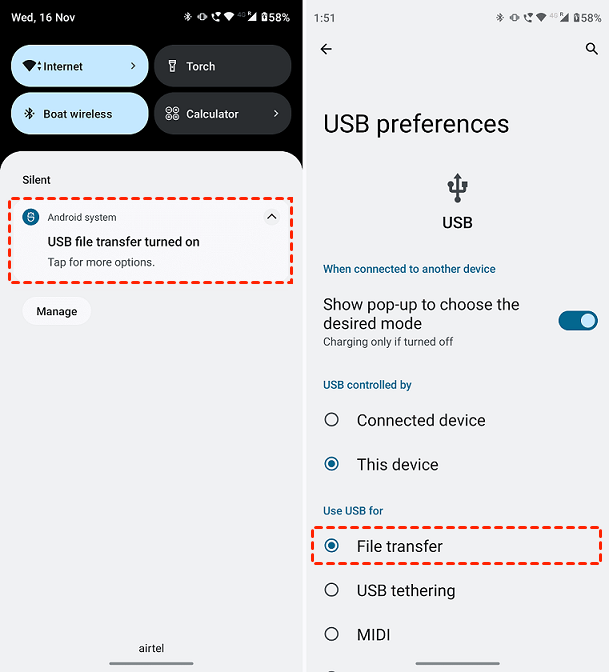
Step 3. Change USB Preferences: On your Android device, swipe down from the top of the screen to see your notifications. Tap the one that says "Charging this device via USB."
Step 4. Select File Transfer: Under the "Use USB for" menu, select File Transfer (or MTP).
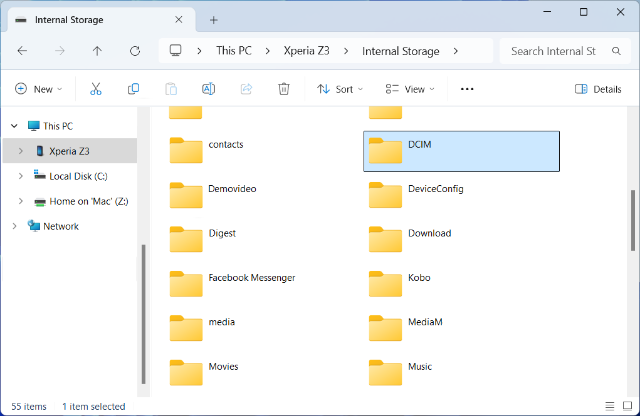
Step 5. Drag and Drop: A file explorer window will automatically pop up on your Windows laptop (appearing as a new drive). You can now copy and paste files between the laptop and the phone's "Internal Storage" or "SD Card" folders.
Step 6. Eject and Unplug: Once finished, it is best practice to right-click the drive in Windows and select "Eject" before unplugging the cable to prevent data corruption.
For Chromebooks
Chromebooks and Android phones play very well together. Simply connect the cable, and the "Files" app on the Chromebook will display your Android phone as a linked device. You can move files as easily as you would between two folders on a single computer.
Option 4: Move files with Quick Share for Windows (Best for quick wireless transfers)
Previously known as "Nearby Share," Quick Share is Google's answer to Apple's AirDrop. It is the most efficient way to transfer files from laptop to Android wirelessly when the devices are close to each other using a combination of Bluetooth and Wi-Fi Direct.
How to use Quick Share:
Step 1. Download the app: Install Quick Share for Windows from the official Android website on your laptop.
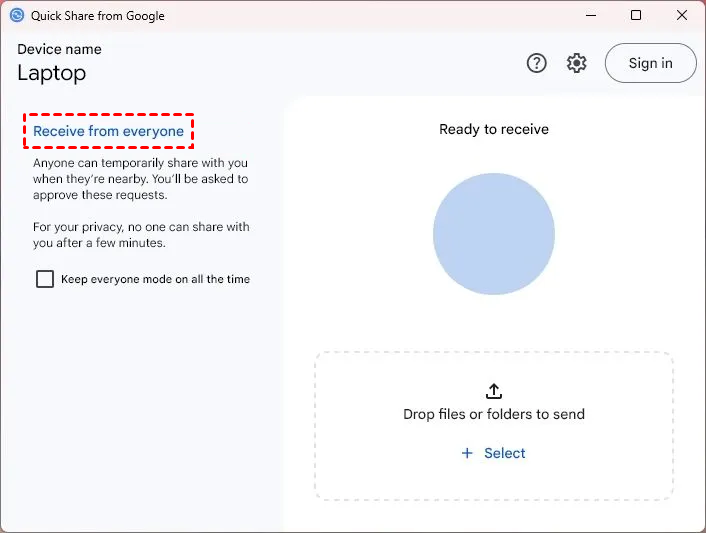
Step 2. Set visibility: Open the app on your laptop and select Receive from everyone from the left panel. Make sure Bluetooth and Wi-Fi are enabled on both your laptop and Android phone.
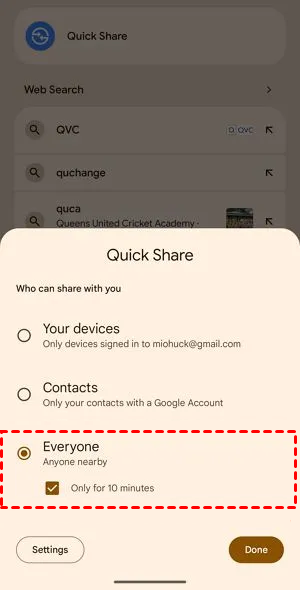
Step 3. Prepare your phone: On your Android device, open the Quick Share app and set sharing to Everyone.
Step 4. Send from the laptop: On Windows 11, click Select in the app, choose the files you want to share, and then click Open.
Step 5. Choose the device: Your Android phone will appear in the list of nearby devices. Click on it.
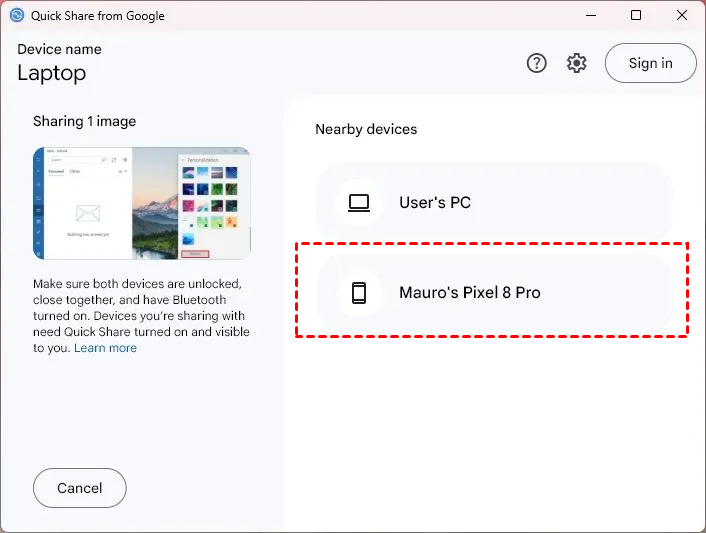
Step 6. Accept the transfer: When prompted on your phone, tap Accept to receive the files wirelessly at high speed.
Option 5: Transfer files via chat apps (Best for small, immediate files)
Sometimes, the easiest way to transfer files from laptop to Android tablet or phone for a single document is by using apps you already have open. In these cases, using a messaging app you already use is often the path of least resistance.
- Telegram: Telegram features a "Saved Messages" chat, which acts as a personal cloud. Upload a file (up to 2GB) from your laptop Telegram app, and it will be instantly available on your mobile app.
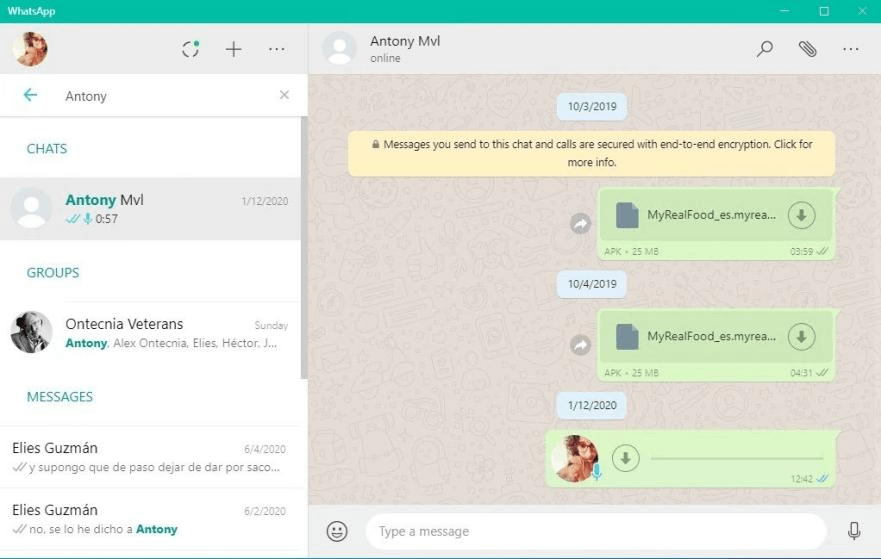
- WhatsApp: You can use "WhatsApp Web" on your laptop to send a file to your own number or a trusted contact, then download it on your phone.
- Slack/Discord: Similarly, posting a file in a private channel or a "personal DM" on these platforms allows for easy cross-platform retrieval.
Conclusion
Transferring files from a laptop to Android doesn't have to be a headache. To summarize:
- Use AnyViewer if you need to access your laptop files from a remote location.
- Use USB Cables for massive folders and speed.
- Use Google Drive or Google Photos for constant syncing.
- Use Quick Share for a modern, "AirDrop-like" wireless experience.
- Use Chat Apps for quick, one-off documents.
By choosing the right tool for the task, you can ensure your data is always where you need it, when you need it.



 as a preferred
source on Google
as a preferred
source on Google