

8 Ways to Transfer Files from PC to Android Wirelessly
Transferring files from your PC to Android doesn't have to be hard. You can use methods like Bluetooth or cloud storage, but AnyViewer is the easiest and fastest option for wireless transfers.

By Ellie / Updated on January 15, 2026


What is the fastest way to transfer data from PC to Android wirelessly?
Transferring data from a PC to an Android device doesn't have to be a hassle. Whether you're moving a hefty video, a crucial document, or just some photos, you've probably encountered the pain of dealing with slow Bluetooth, USB cables that seem to never be long enough, or frustrating email attachment limits.
If you've been stuck in this cycle, don't worry, you're not alone. Many users struggle with the same issue: what's the quickest, easiest, and most reliable way to transfer files from a PC to Android wirelessly? This guide will explore the best methods for sending your files without the need for cables, helping you find the solution that suits your needs.
How to transfer files from PC to Android wirelessly
If you're looking for seamless, hassle-free file transfers, you're in the right place. Whether you're dealing with a few small files or large media, there are various ways to get the job done. Let's explore the most efficient methods for transferring files wirelessly from your PC to Android, from simple solutions to more advanced techniques.
Part 1: Perfect all-in-one tool for wireless file transfer - AnyViewer
For seamless, wireless file transfers between your PC and Android, AnyViewer is a top contender. It simplifies the process, making it fast, straightforward, and free from the hassle of cables or complex configurations.
With AnyViewer, you can effortlessly transfer various files, photos, videos, music, and documents, while enjoying a smooth user experience. Plus, the software allows you to organize and view files directly on your PC, giving you the convenience of working from one device without constantly switching between them.
Steps to transfer files from PC to Android using AnyViewer:
Step 1. Download AnyViewer on both your PC and Android device via the App Store or Google Play Store.
Step 2. Log in to your AnyViewer account on both devices.
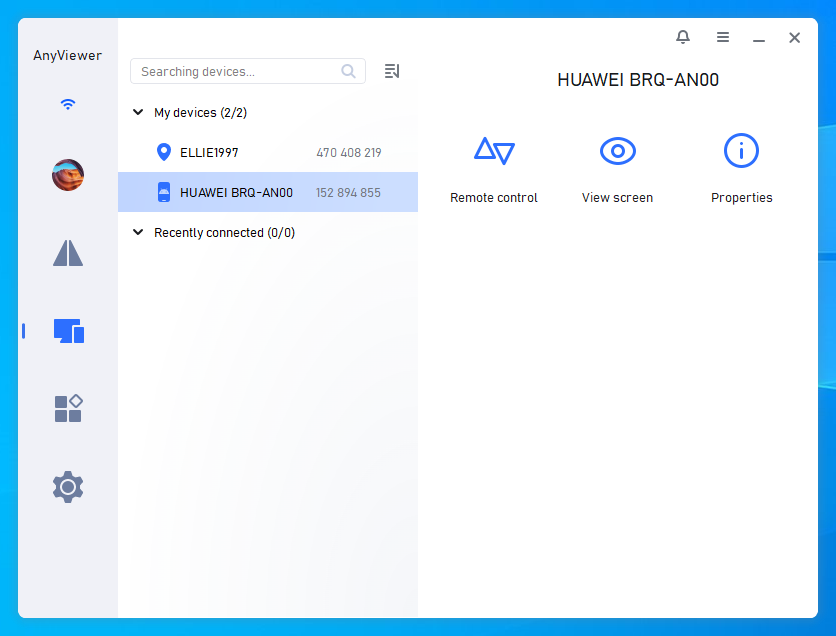
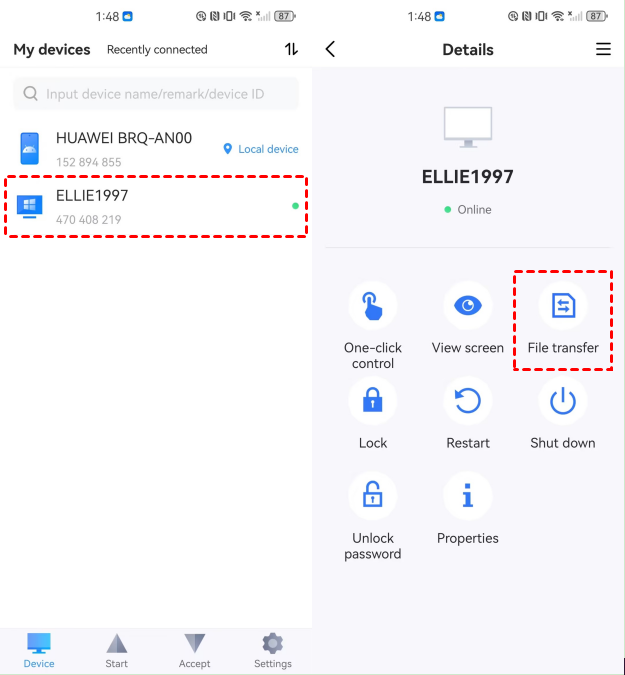
Step 3. On your Android phone, tap your PC, and choose File transfer.
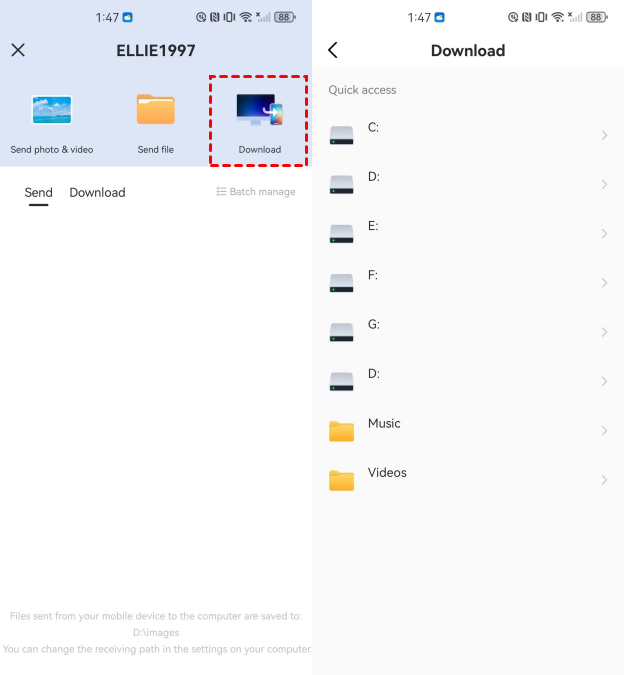
Step 4. Tap Download, where you'll be able to access the files sent from your PC. From there, you can choose and download them directly to your device.
Part 2: Common methods - Bluetooth, cloud, email, and chat apps
For smaller files and quick transfers, these methods offer convenient, no-installation solutions. While not the fastest options, they're straightforward and work well for everyday file transfers.
Method 1. Bluetooth
Bluetooth is available on most PCs and Android devices, offering wireless file transfers without the need for an internet connection. However, it's slower compared to other methods, making it suitable for transferring small files like documents or a handful of photos.
How to Transfer Files via Bluetooth:
Step 1. Enable Bluetooth on both your PC and Android device.
Step 2. Pair your devices. When your PC searches for nearby devices, your Android phone will prompt you to connect.
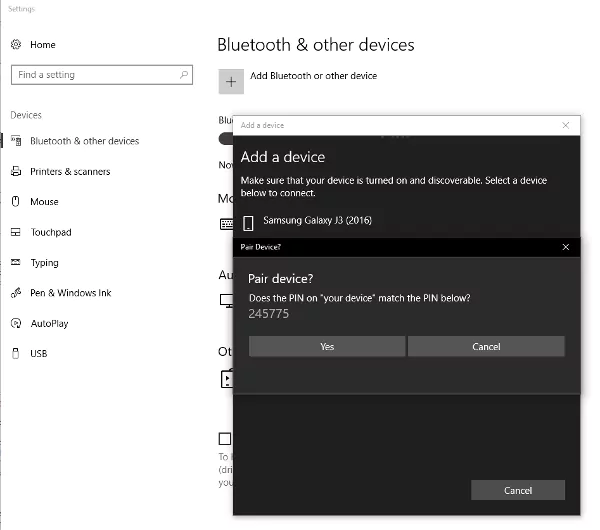
Step 3. Select the files you want to transfer from your PC and choose your Android device from the Bluetooth options.
Step 4. On your Android, accept the incoming file transfer notification.
Limitations:
- Very slow, especially for large files
- Not ideal for videos or multiple large photos
Method 2. Cloud services
Cloud storage and file sharing services such as Google Drive, Dropbox, and OneDrive let you upload files from your PC and download them onto your Android device whenever you need them. This method is perfect for cross-device access but requires an internet connection.
How to Transfer Files via Cloud Storage:
Step 1. Open your preferred cloud storage service (Google Drive, Dropbox, etc.) on your PC.
Step 2. Upload the files you want to transfer.
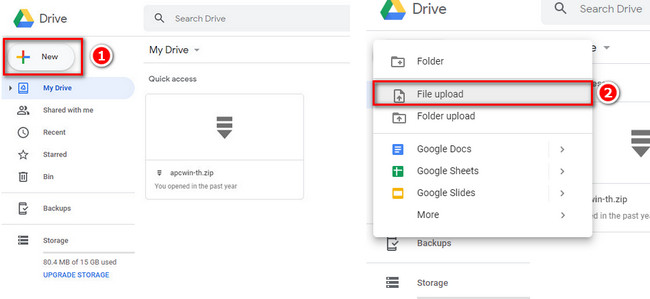
Step 3. On your Android, open the same cloud app and sign in.
Step 4. Locate the uploaded files and download them to your device.
Limitations:
- Requires internet access
- Free storage is limited (Google Drive offers 15GB, Dropbox only 2GB for free users)
- Files need to be uploaded and then downloaded separately, so it's not an instant transfer
Method 3. Email
If you're sending smaller files, such as a document or a few images, emailing them to yourself is an easy option. Most email services support file attachments up to 25MB.
How to Transfer Files via Email:
Step 1. Open your email client (Gmail, Outlook, etc.) on your PC.
Step 2. Compose a new email.
Step 3. Attach the file you want to send (ensure it's under 25MB).
Step 4. Send the email to your own email address.
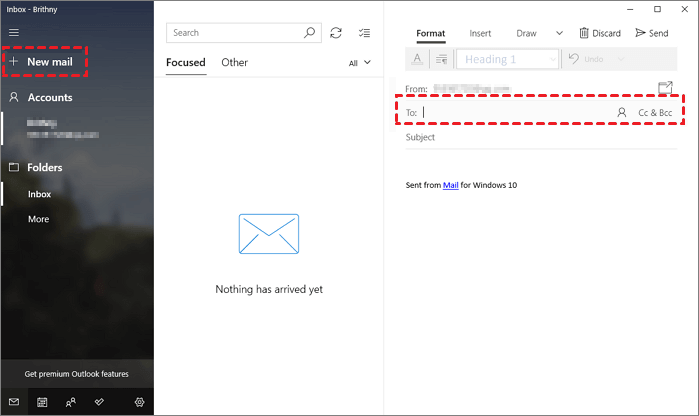
Step 5. On your Android, open the email app and download the attachment.
Limitations:
- 25MB file size limit per email
- Not suitable for large videos or multiple files
Method 4. Chat apps
Messaging apps like WhatsApp, Telegram, and Messenger allow you to send files directly within a chat. This is a quick and simple way to move documents or images between devices. However, some apps compress files, which may degrade the quality of images and videos.
How to Transfer Files via Chat Apps:
Step 1. Open the chat app (WhatsApp, Telegram, Messenger) on your PC (through the web or desktop app).
Step 2. Start a chat with yourself (if the app supports it) or with a trusted contact.
Step 3. Attach the file you want to send by clicking the attachment icon.
Step 4. On your Android phone, open the app and download the file.
Limitations:
- Some apps compress images and videos, affecting quality
- File size limits: WhatsApp allows 16MB for videos, while Telegram supports up to 2GB
Part 3: Advanced methods for the tech-savvy - Phone Link, FTP, SMB
For faster, more efficient file transfers, Wi-Fi-based methods are the way to go. These methods excel at handling large files much more effectively than Bluetooth. Phone Link, FTP, and SMB allow direct communication between your PC and Android device, offering high-speed transfers without the need for cables or the internet.
Method 1. Phone Link
When your PC and mobile device are connected via Phone Link and the Link to Windows program, you may easily share files between them.
How can you transfer files to your Android device from your PC:
Step 1. On your PC, choose the file you wish to share.
Step 2. Choose "Share" with a right-click on the file.
Step 3. Locate the phone link in the share pop-up window's App Section.
Step 4. Your mobile device linked to Phone Link will initiate file sharing.
Step 5. To keep an eye on the file sharing process in real time, make sure Windows notifications for Phone Link are turned on.
Step 6. After the file has been transmitted to your mobile device, a Windows notification will show up.
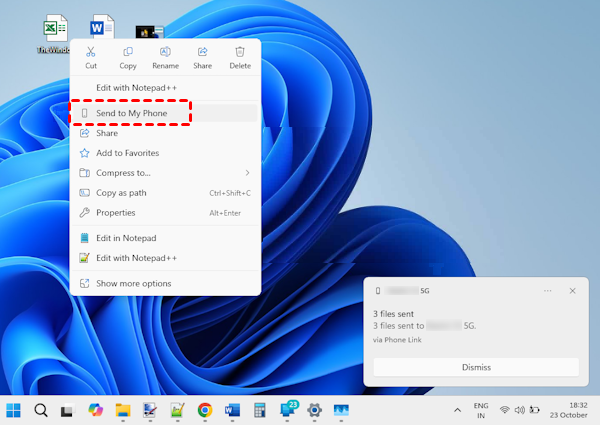
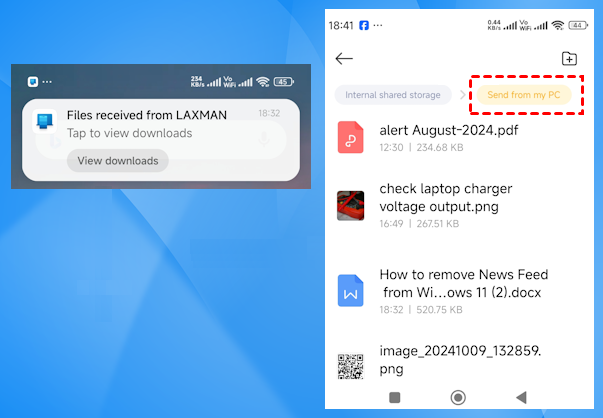
Getting files on your mobile device:
Step 1. Your mobile device will display a notification from Link to Windows.
Step 2. To examine the received file, click the notification to launch the default file management application.
Step 3. Every file that is received will be kept under "Downloads" > "Send from your PC."
Method 2. FTP (File Transfer Protocol)
FTP allows your PC and Android device to communicate over the same Wi-Fi network, making it an excellent choice for fast, cable-free transfers. You'll need a file manager app like MixPlorer, Solid Explorer, or ES File Explorer to set up an FTP server on your phone.
How to Transfer Files via FTP:
Step 1. Connect both your PC and Android device to the same Wi-Fi network.
Step 2. Install a file manager app on your Android phone (MixPlorer, Solid Explorer, etc.).
Step 3. Open the app and navigate to the FTP section.
Step 4. Start an FTP server, which will generate an address (e.g., ftp://192.168.1.100:2121).
Step 5. On your PC, open a web browser or File Explorer (Windows) and enter the FTP address.
Step 6. Now, you can drag and drop files between your PC and Android device.
Limitations:
- Both devices must be on the same Wi-Fi network
- Requires manual initiation of the FTP server each time
Method 3. SMB (Server Message Block)
SMB is a protocol that enables file sharing between a PC and Android device over a local network. Unlike FTP, which requires setting up a temporary server, SMB allows permanent network sharing, offering easy access to your PC files from your phone.
How to Transfer Files via SMB:
Step 1. On your Windows PC, go to Control Panel > Network & Sharing Center > Change advanced sharing settings.
Step 2. Enable "File and Printer Sharing" and optionally disable password-protected sharing.

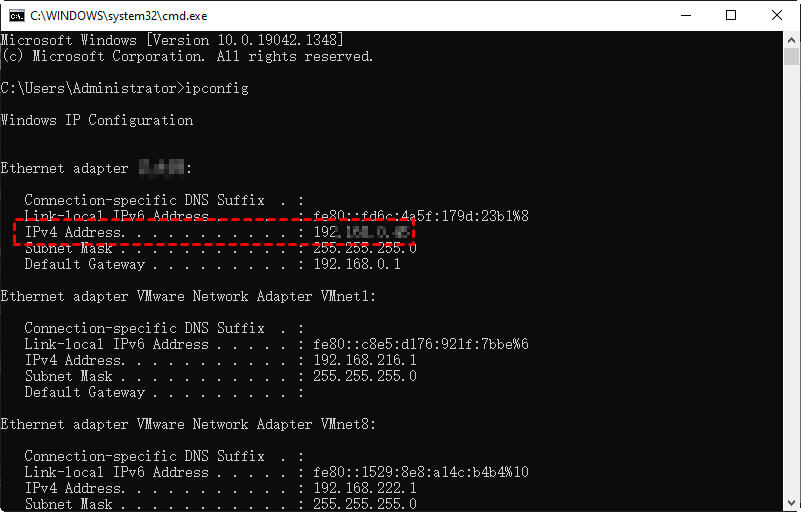
Step 3. Open Command Prompt and type `ipconfig` to find your PC's IP address (e.g., 192.168.1.105).
Step 4. Install a file manager app like CX File Explorer or Solid Explorer on your Android device.
Step 5. Add a new SMB connection and enter your PC's IP address and credentials.
Step 6. You can now browse and transfer files between your PC and Android phone.
Limitations:
- Both devices must be on the same Wi-Fi network
- The initial setup is slightly more complex than FTP
Concluson
There are several methods to wirelessly transfer files from your PC to Android, ranging from Bluetooth and cloud storage to Phone Link, FTP, and SMB. While each method has its advantages, AnyViewer stands out as the fastest and most hassle-free solution. It not only enables seamless file transfers but also offers powerful features like remote access and device management. Give it a try today for a smoother, more efficient experience!
FAQs
Is wireless transfer faster than USB?
Wireless transfers can be faster than USB in certain scenarios, especially with Wi-Fi-based methods like Phone Link or AnyViewer. USB can still be more reliable for large file transfers, but wireless methods like AnyViewer ensure speed, flexibility, and convenience without needing a physical connection.
How to quickly share from PC to Android?
The quickest way to share files from a PC to Android is by using a wireless method like AnyViewer, which supports seamless file transfer without cables. You can also use Wi-Fi-based apps such as SHAREit or Xender, which enable rapid transfers over a local network.
How to transfer files from PC to Android phone via Bluetooth?
To transfer files via Bluetooth, enable Bluetooth on both devices, pair them, select the files you wish to transfer, and then accept the incoming transfer on your Android device. While this method is simple, it's slower and better suited for smaller files like documents or images.
How do I transfer files from PC to phone on Android?
Transferring files from your PC to an Android phone can be done wirelessly through cloud services, Bluetooth, AnyViewer, or Phone Link. AnyViewer provides the fastest and most efficient method, allowing you to send files directly from your PC to Android without a physical connection.
Can you AirDrop to a PC?
Unfortunately, AirDrop is exclusive to Apple devices and doesn't support transferring files to a PC. However, alternatives like AnyViewer, Bluetooth, and cloud storage can provide similar wireless transfer capabilities between Android and PC.



 as a preferred
source on Google
as a preferred
source on Google