

3 Proven Ways to Transfer Files from Android to PC Wirelessly
Transferring files from Android to PC no longer requires cables or complicated setups. This guide introduces three reliable wireless methods, including a powerful remote transfer tool, cloud-based Wi-Fi solutions, and traditional Bluetooth file transfer.

By Ellie / Updated on January 13, 2026


How to wirelessly transfer files from Android to PC?
Transferring files between your Android device and your computer does not need to be a tedious or difficult task. Gone are the days of searching for USB cables, dealing with driver issues, or facing slow and unstable connections.

Today, there are multiple ways to transfer files from Android to PC wirelessly, whether you’re moving photos, videos, documents, music, or even more advanced data like contacts and messages. Many users now prefer wireless solutions because they are faster, cleaner, and far more flexible than traditional USB connections.
In this article, we’ll guide you through three of the best wireless file transfer methods that don’t require a USB cable and clearly explain how to transfer files from Android phone to PC wirelessly:
- Remote transfer using AnyViewer
- Wi-Fi transfers via cloud solutions
- Bluetooth file transfer
Each method has its own advantages, depending on your needs.
How to transfer files from Android to PC wirelessly
Moving files without cables feels faster, cleaner, and far more convenient. Fortunately, modern wireless tools now make Android to PC file transfers effortless, whether you’re on the same network or working remotely.
Way 1. How to transfer files from Android to PC remotely: AnyViewer
If you’re looking for the most powerful, flexible, and secure way to transfer files from Android to PC wirelessly, AnyViewer is hands down the best option. Unlike traditional Wi-Fi sharing or cloud-based syncing tools, AnyViewer combines remote desktop access, real-time control, and high-speed file transfer into one easy-to-use platform.
AnyViewer is a professional remote desktop and file transfer solution that allows you to access your PC from an Android device and transfer files wirelessly without relying on USB cables, local Wi-Fi restrictions, or third-party cloud storage. Whether you’re at home, in the office, or traveling, you can move files between your Android phone and PC from anywhere.
Why AnyViewer Stands Out
What makes AnyViewer truly different from other wireless transfer tools is its all-in-one design and enterprise-grade performance, even for everyday users:
- True wireless transfer over the internet: AnyViewer works not only on the same Wi-Fi network but also across different networks. You can easily transfer files from Android to PC using Wi-Fi or mobile data, making it ideal for remote work and long-distance access.
- Fast and stable file transfer speeds: Powered by optimized data transmission technology, AnyViewer ensures smooth and reliable transfers, even for large files like videos, folders, or high-resolution images.
- Advanced security and encryption: All data transfers are protected with end-to-end encryption, preventing unauthorized access. Your files stay private and secure without being uploaded to external cloud servers.
- No file size limitations: Unlike Bluetooth or free cloud services, AnyViewer allows you to transfer large files and entire folders without worrying about size caps.
- Remote control + file management in one tool: In addition to file transfer, AnyViewer lets you fully control your PC from your Android device, access files, open programs, and manage data just as if you were sitting in front of your computer.
- Simple setup with an intuitive interface: No complex configuration or technical knowledge is required. Install the AnyViewer app, sign in, and start transferring files in minutes.
How to Transfer Files from Android to PC Wirelessly with AnyViewer
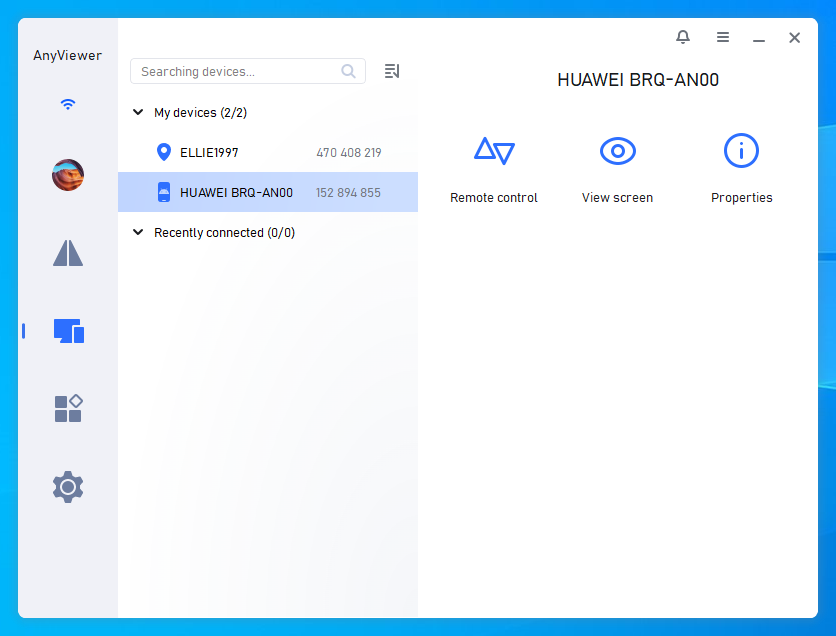
Step 1. Download and install AnyViewer on your PC.
Step 2. Install the AnyViewer app on your Android phone.
Step 3. Sign in with the same AnyViewer account on both devices.
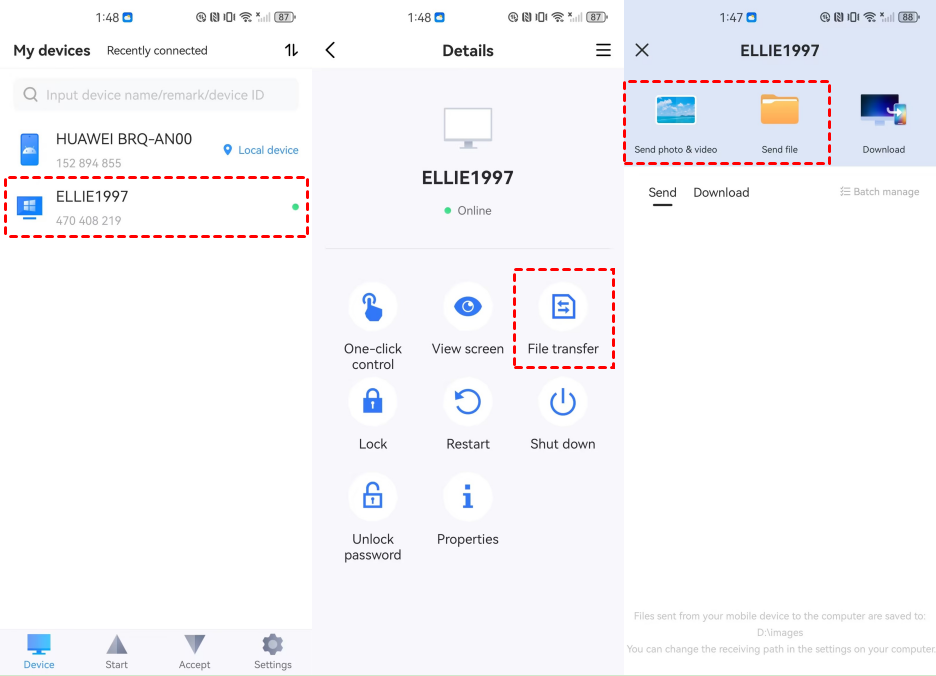
Step 4. On your Android phone, choose the target PC and tap File transfer.
Step 5. Now you can move photos, videos, and files between Android and PC wirelessly.
Summary: AnyViewer Wireless Transfer
- High-speed wireless file transfer
- Works over local Wi-Fi and the internet
- Supports large files and full folders
- Secure encrypted data transmission
- Remote access and file management in one solution
If you want a reliable, professional, and future-proof way to transfer files from Android to PC wirelessly, AnyViewer delivers the best overall experience with no compromises.
Way 2. Transfer files from Android to PC via Wi-Fi: Cloud solutions
Another popular way to transfer files from Android to PC using Wi-Fi is through cloud storage and file sharing services such as Google Drive or Dropbox.
Cloud solutions allow you to upload files from your Android device and then access them from your PC through the same account. This method works well for syncing files across multiple devices.
How Cloud File Transfer Works:
Step 1. Go to your chosen cloud provider’s website. For example, Google Drive.
Step 2. Register for an account (most offer free plans with limited storage).
Step 3. Download and install the cloud app on your Android phone.
Step 4. Sign in using the same account on your PC.
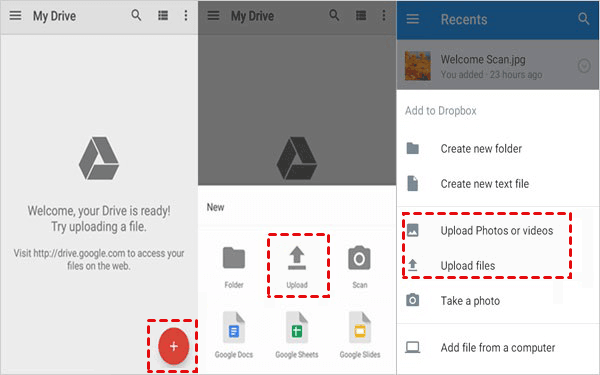
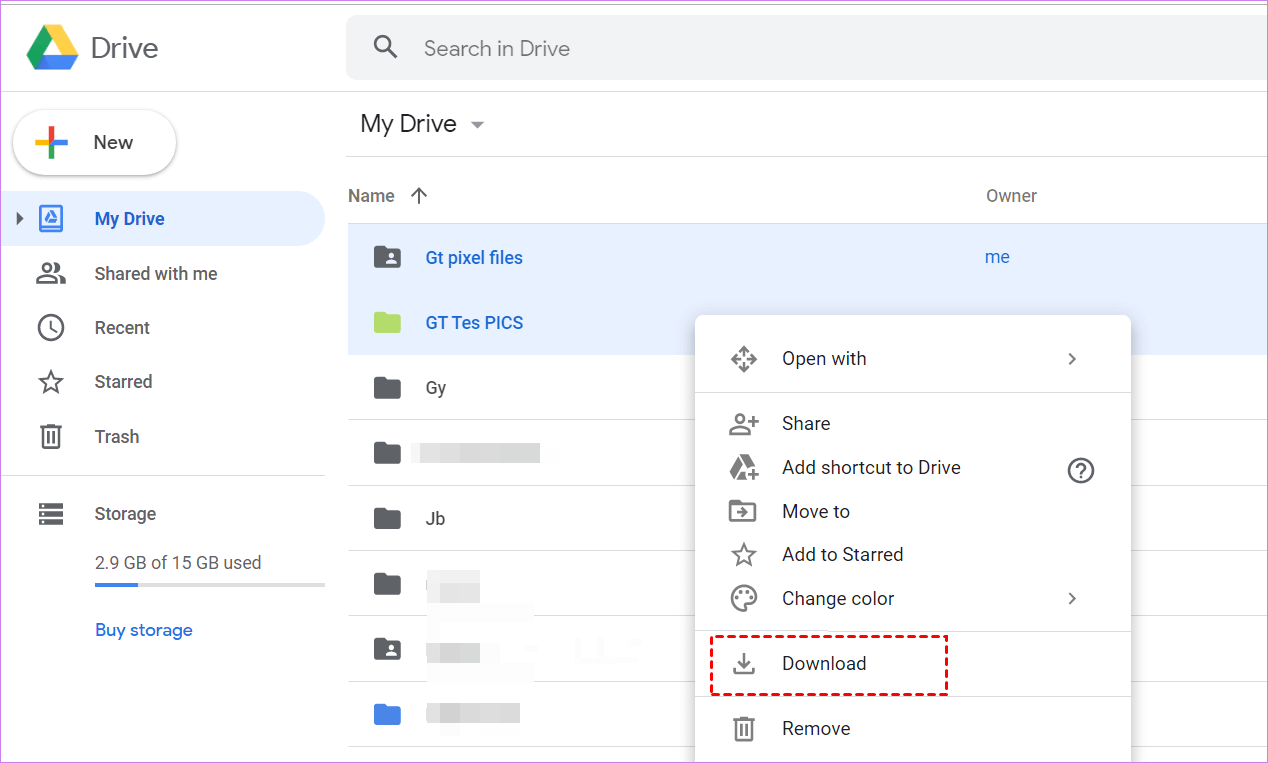
Step 5. Upload files from Android and download them on your PC.
Step 5. Download them on your PC.
Things to Keep in Mind:
While cloud services are convenient, your data is stored externally, which may raise concerns about privacy. Storage space is often limited unless you pay for a premium plan, and upload/download speeds depend heavily on your internet connection.
Cloud solutions work best for:
- Photos and videos
- Documents and music
- Automatic syncing between devices
However, transferring data such as messages or call logsusually requires dedicated tools like Droid Transfer.
Summary: Cloud Services
- Wireless file transfer
- Transfer limited data types
- Externally stored data
- Limited storage space
Way 3. Transfer files from Android to PC wirelessly: Bluetooth file transfer
Bluetooth may not be as popular as Wi-Fi-based solutions, but it still has its place, especially when no internet connection is available.
Bluetooth allows you to send files directly from your Android phone to your PC without using Wi-Fi or mobile data. That said, transfer speeds are slower, and file size limitations can be frustrating.
How to Transfer Files from Android Phone to PC Wirelessly via Bluetooth
Step 1: Activate Bluetooth on Both Devices
- On Android: Go to Settings > Bluetooth and turn it on. Set your phone to discoverable.
- On PC: Open Settings > Bluetooth & devices and enable Bluetooth.
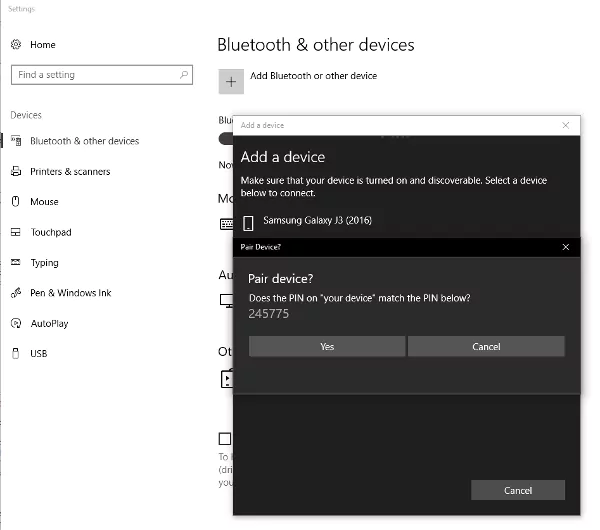
Step 2: Pair Your Android Phone with PC
- On the PC, click Add device > Bluetooth.
- Select your Android phone from the list.
Step 3: Confirm the Security Code
- Verify that the PIN shown on both devices matches.
- Tap Pair on Android and Yes/Connect on PC.
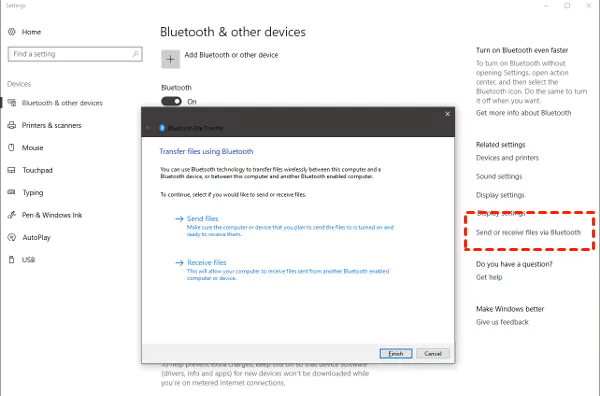
Step 4: Grant File Transfer Permissions
- On your PC, open Send or receive files via Bluetooth.
- Choose Receive files.
Step 5: Share Files from Android
- Locate the file on your phone.
- Tap Share > Bluetooth, then select your PC.
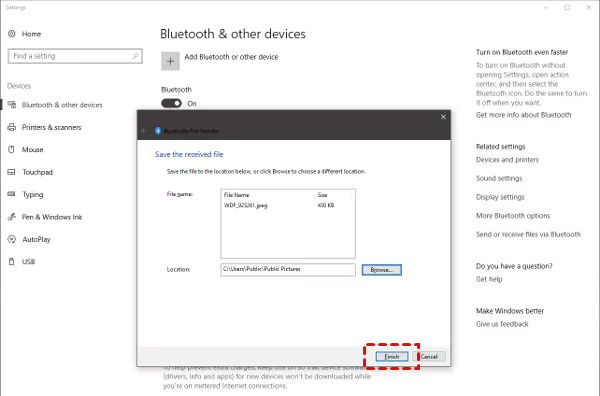
Step 6: Accept and Save the File on PC
- Choose a save location on your PC.
- Click Finish to complete the transfer.
Summary: Bluetooth File Transfer
- Wireless file transfer
- Transfer limited data types
- Internally stored data
- Unlimited storage space
- Does not require Wi-Fi
Conclusion
There are several effective ways to transfer files from Android to PC wirelessly, and the best method depends on your needs. If you want fast, secure, and feature-rich file management, AnyViewer is the most powerful option. Cloud services are great for syncing files across devices, while Bluetooth remains a useful fallback when Wi-Fi isn’t available. By choosing the right method, you can eliminate cables entirely and enjoy seamless wireless file transfers between your Android phone and PC.
FAQs
How do I transfer files from my Samsung phone to my computer?
You can transfer files wirelessly using AnyViewer, cloud services like Google Drive, or Bluetooth. AnyViewer offers the most control and supports more data types.
What is the fastest way to transfer files from phone to PC?
Wi-Fi-based tools and remote transfer software like AnyViewer are typically the fastest, especially for large files.
Is wireless transfer faster than USB?
In many cases, high-speed Wi-Fi transfers can match or even outperform USB, especially when using optimized software.
Is Bluetooth file transfer fast?
No. Bluetooth is generally slower and better suited for small files rather than large data transfers.
Why is transferring files to a USB so slow?
Slow USB transfers are often caused by outdated USB standards, faulty cables, or device driver issues.



 as a preferred
source on Google
as a preferred
source on Google