

TeamViewer File Transfer Size Limit
Frustrated by TeamViewer's 4GB file transfer limit and "commercial use" blocks? This guide compares TeamViewer to AnyViewer, a high-speed alternative supporting massive 2TB file transfers with professional-grade stability.

By Ellie / Updated on March 18, 2026


In today's world of remote work, moving large files quickly isn't just a perk; it's a requirement. Whether you're deploying IT patches or sending raw video footage, every second counts.
If you are searching for "TeamViewer file transfer size limits," you've likely hit a snag. Whether your transfers are crawling at snail speed or failing without warning, it's time for a better solution.
This guide breaks down TeamViewer's limitations and introduces a high-performance alternative: AnyViewer.
Does TeamViewer Have a File Transfer Size Limit?
The short answer is: Yes.
While TeamViewer officially supports files up to 4 GB per file in many versions, the real "limit" often comes from connection stability. Users frequently report that transfers of larger datasets (10GB+) fail midway or experience severe throttling.
Furthermore, there is the "Commercial Use Detection" Trap. TeamViewer's automated algorithms monitor session duration and data volume. If you are transferring large professional files on the "Free for Personal Use" tier, you risk being flagged, resulting in a sudden 5-minute session timeout or a complete connection block.
AnyViewer: Best Alternative for Large File Transfers
If you are tired of the "Commercial Use Detected" pop-ups and the 4GB bottleneck, AnyViewer is designed to handle the heavy lifting. Designed for the modern era of high-capacity data, AnyViewer provides a streamlined, high-speed experience that treats file transfers as a core feature, not an afterthought.
Why AnyViewer Excels Where Others Falter
AnyViewer has rapidly become the preferred choice for SMBs and power users due to its balance of speed, security, and simplicity.
- Blazing Fast Transfer Speeds: AnyViewer utilizes optimized transmission protocols reaching up to 10MB/s. It intelligently manages bandwidth to prioritize your data packets without sacrificing screen fluidity.
- Mass Transfer Capabilities: With AnyViewer, you can transfer files up to 2TB per file (on professional plans). This is a massive leap forward for industries dealing with 4K/8K video, database backups, or large-scale virtual machine images.
- Drag-and-Drop Simplicity: The user interface is designed to be intuitive. You don't need to navigate complex "File Manager" windows; you can simply drag a file from your local desktop and drop it onto the remote window.
- Robust Security: Security is non-negotiable. AnyViewer uses Elliptic Curve Cryptography (ECC) encryption, protecting your data from interception during the entire transfer process. This is the same grade of security used by modern financial institutions.
Comparing AnyViewer and TeamViewer
| Feature | AnyViewer | TeamViewer |
| Free Tier Limit | Generous | Strict/Variable |
| Max File Size | Up to 2TB | Theoretically Unlimited (Limited by Stability) |
| Ease of Use | High (Clean UI) | Moderate (Menu heavy) |
| Speed | Optimized High-Speed | Varies by server load |
| Connection Stability | Stable & Persistent | Prone to "Commercial Use" blocks |
How to Transfer Large Files Using AnyViewer
Setting up AnyViewer is a matter of seconds. Here is how you can bypass your current size limit frustrations:
Step 1. Download and install AnyViewer on both the source and destination computers.
Step 2. Create a free account and log in to both devices.

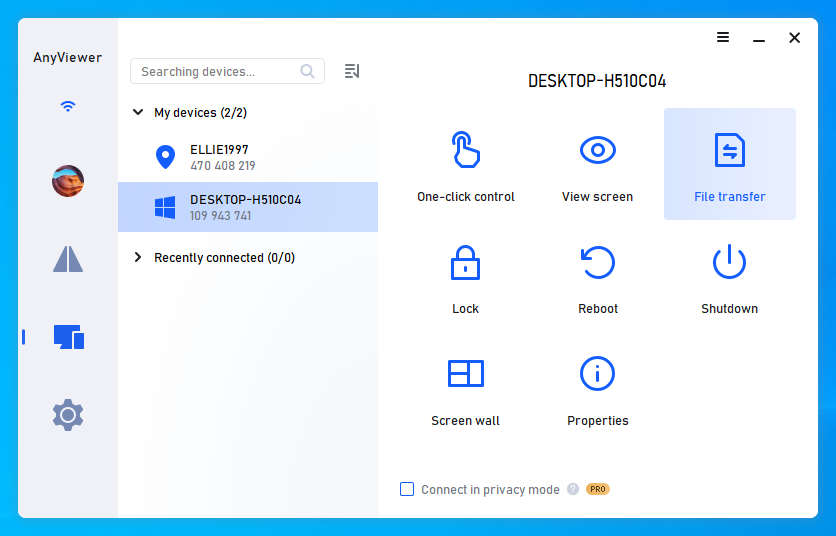
Step 3. On the source computer, choose the destination computer from the list and click the "File Transfer" button.
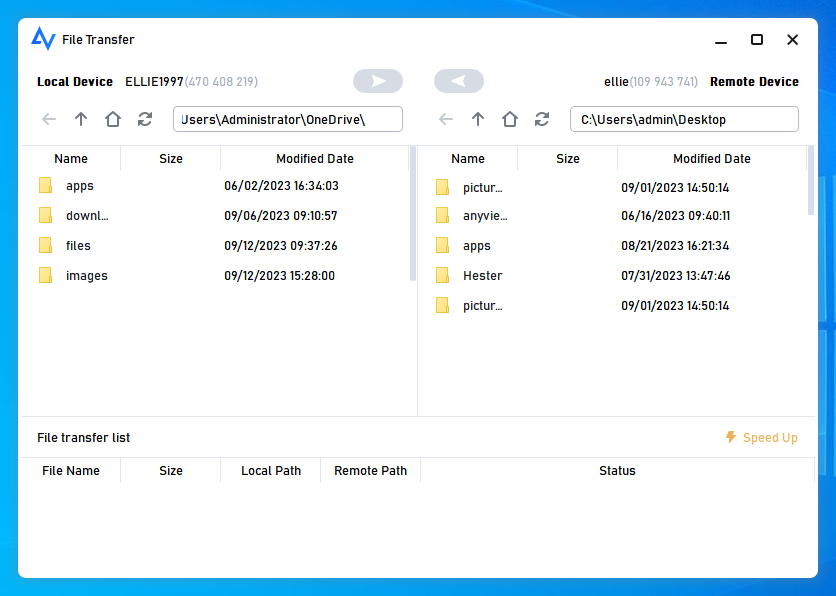
Step 4. Use the dual-pane window to select files and click the transfer arrow.
Conclusion
TeamViewer remains a powerful tool for quick support sessions, but when it comes to the TeamViewer file transfer size limit, or the lack of reliability during large moves, it often falls short of professional needs.
AnyViewer offers a more stable, faster, and user-friendly experience for those who prioritize data movement. By eliminating the "commercial use" interruptions and providing a dedicated high-speed channel for files, it stands out as the premier alternative in 2026.
Don't let your workflow be dictated by software limitations. Transition to a tool that grows with your data needs.



 as a preferred
source on Google
as a preferred
source on Google