

6 Easy Ways to Transfer Large Files between Computers
This post introduces six methods to transfer large files between computers. Choose based on your needs for ease and speed.

By Ellie / Updated on March 6, 2026


How Do I Send Large Files to Different Computers?
Large files can range into several gigabytes or even terabytes. Transferring large files between computers can be a real headache, especially if you're not sure where to start. Whether you're trying to share work documents, move your music library, or send videos to a friend, finding the right method is crucial.
There are various ways to transfer these files, depending on factors like file size, urgency, and the tools at your disposal. Let's break down these methods to help you choose the best one for your needs.
How to Transfer Large Files Between Computers [6 ways]
Here are six ways to transfer large files between computers, both modern solutions and traditional methods.
Quick Comparison of Large File Transfer Methods
| Method | Best For | Speed | File Size Limit | Pros | Cons |
| 1. AnyViewer (Remote Desktop) | Remote Work / Cross-Regional | Fast (P2P) | 2TB | Transfer files without being near the PC; supports resuming from a breakpoint. | Requires client installation. |
| 2. Cloud Storage (Google Drive, etc.) | Cross-device / Long-term backup | Dependent on ISP | Limited by storage | Easy link sharing; multi-device sync. | Double time (upload then download); storage costs. |
| 3. External Storage (USB/HDD) | Physical proximity / No internet | Very Fast (USB 3.0+) | Limited by disk size | Works offline; best for TB-level data. | Physical effort; risk of hardware loss/damage. |
| 4. Network Sharing (LAN) | Same Local Network (Home/Office) | Fast | No Limit | No third-party software needed. | Complex setup; limited to the same Wi-Fi/LAN. |
| 5. Transfer Sites (WeTransfer) | One-time temporary sharing | Moderate | Usually 2GB - 20GB | No registration; easiest to operate. | Links expire; lower privacy for sensitive data. |
| 6. FTP/SFTP Transfer | Enterprise / Tech Professionals | Fast | No Limit | Highly customizable; great for servers. | High technical barrier; maintenance required. |
Way 1. AnyViewer: The Fastest Way to Transfer Files Remotely (No Distance Limit)
If you are looking for a way to send massive files—like 100GB 4K videos or giant database backups—without the hassle of first uploading them to a third-party server, AnyViewer is your best file transfer software bet.
Unlike traditional cloud storage (which requires a two-step "Upload-then-Download" process), AnyViewer uses Point-to-Point (P2P) technology to establish a direct tunnel between two computers. This means your data moves at the maximum speed your internet allows, with no middleman and no storage caps.
- Zero File Size Limits: Stop worrying about "File too large" errors. Whether it’s 10GB or 1TB, AnyViewer handles it with ease.
- Direct P2P Transfer: By bypassing the cloud, you cut your transfer time in half. Your files move directly from PC A to PC B.
- Resume from Breakpoint: If your connection drops during a massive 50GB transfer, AnyViewer picks up right where it left off. No more starting from 0%.
- Bank-Grade Security: All transfers are protected by 256-Bit ECC Encryption, ensuring your private data never leaks during transit.
- Unattended Access: You can pull files from your office computer while sitting at home, even if no one is there to "accept" the transfer.
Download this FREE file transfer software:
How to Transfer Large Files via AnyViewer (3 Simple Steps)
Step 1: On your local computer, navigate to the login section and select "Sign Up." Log in to the same account on the remote computer.

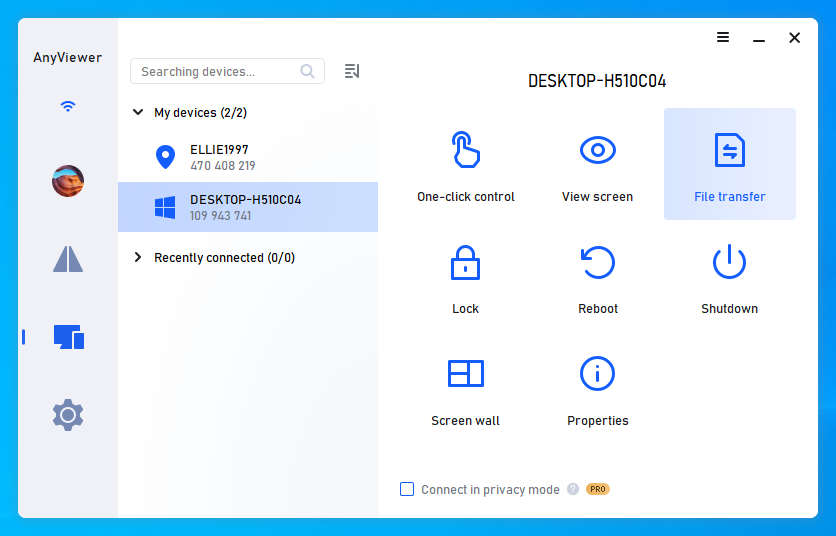
Step 2: On the local computer, select the remote computer you want to transfer files to, and click on "File Transfer."
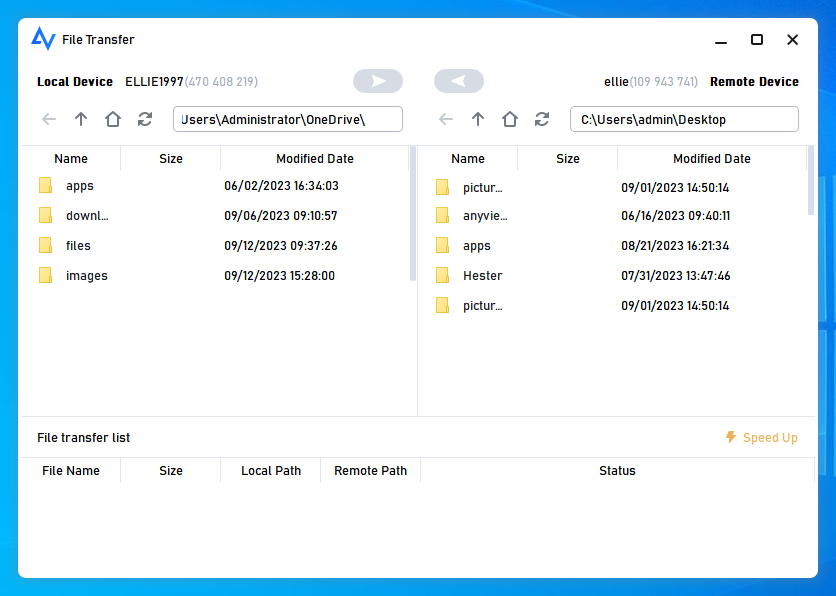
Step 3: A File Transfer dialog box will appear. You can transfer files between devices by clicking the arrows after selecting the files, or simply double-click the files you wish to transfer. To transfer large files at a fast speed, consider upgrading to a paid plan.
Way 2. Cloud Storage: Best for Cross-Device Syncing & Small Backups
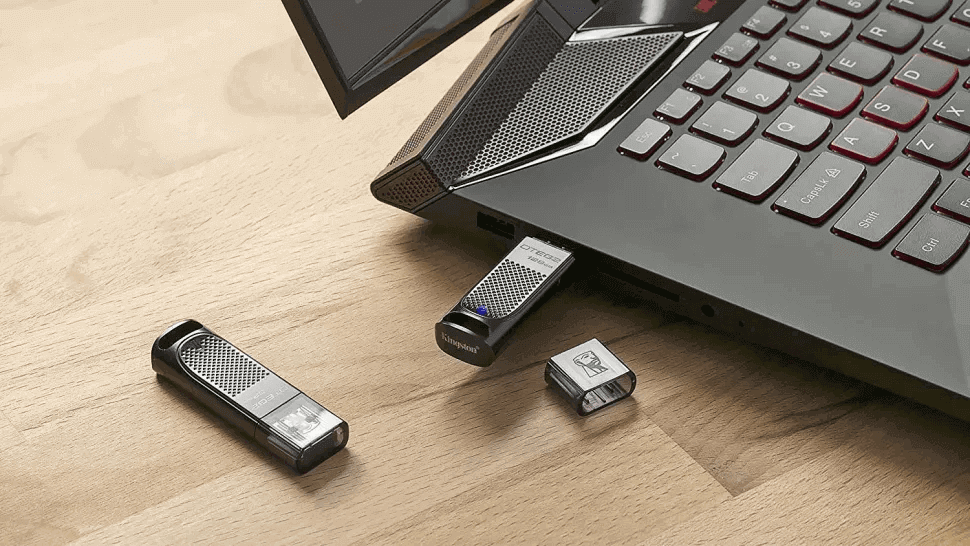
Most people opt for this method due to its lack of network dependency. With a fast USB transfer speed, you can complete file transfers swiftly. However, the downside is limited disk capacity. You might need to invest in high-capacity external drives, which can be a significant expense.
Steps to transfer large files from PC to PC using an USB:
Step 1. Attach the external hard drive to the source computer.
Step 2. Copy the desired files onto the external hard drive.
Step 3. Safely eject the drive and connect it to the destination computer.
Step 4. Transfer the files from the external hard drive to the new computer.
Way 3. External Hardware: The Go-To Solution for TB-Level Data Without Internet
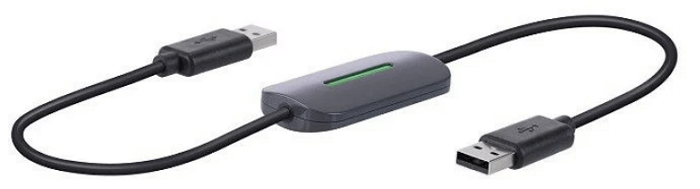
This method explains how to use a USB cable to transfer files between PCs. A computer-to-computer transfer cable can be used for this purpose, but it is compatible only with Windows 7, XP, or Vista. If you're using Windows 10, 8.1, or 8, you can disregard this method.
The Easy Transfer Cable is specifically designed for the Microsoft Windows Easy Transfer utility, available in Windows 7. Simply connect the cable from the USB ports of your old Windows XP or Vista computer to your new Windows 7 machine, and then run the utility to transfer your files.
Way 4. Network Sharing (LAN): Best for Fast Transfers Within the Same Wi-Fi/Office
Cloud storage services like Google Drive, Dropbox, and OneDrive are great for transferring larger files. They offer ample space and can handle both personal and business needs efficiently.
In the following section, we will guide you on how to use Google Drive to transfer large files between computers. It offers 15GB of free storage; if you need more space, consider purchasing additional storage or using alternative software like AnyViewer for efficient file transfers.
Step 1. Go to Google Drive.
Step 2. Click "New" and select "File upload" or "Folder upload."
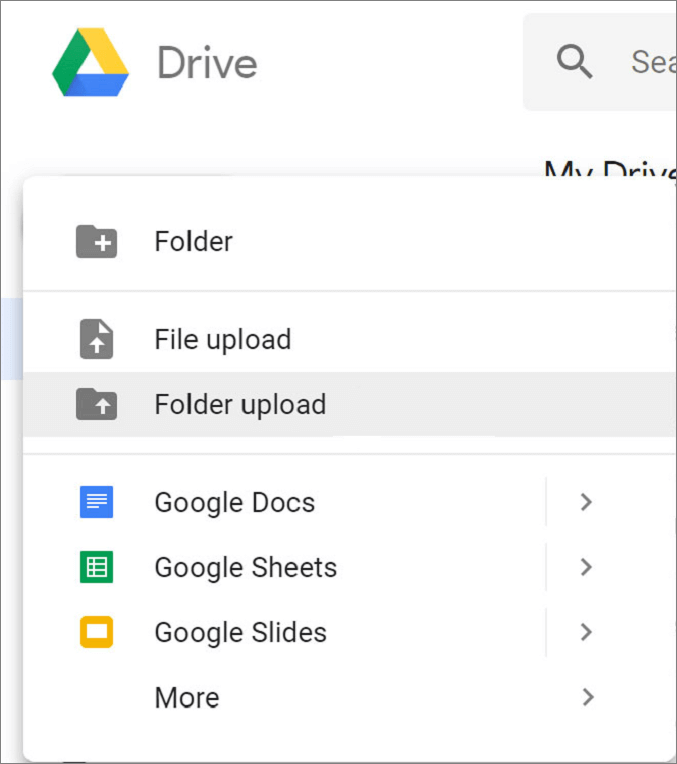
Step 3. After uploading, click "Get shareable link" to share the files.
Way 5. Online Transfer Sites: Quickest Way for One-Time Sharing Without Registration
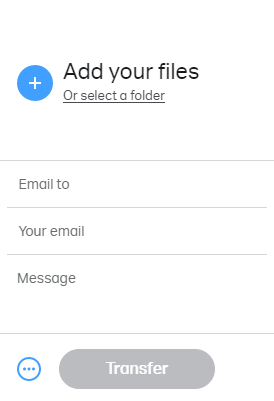
This approach demonstrates how to move large files between PCs over the internet. Various online platforms facilitate this process, with WeTransfer being a notable example. WeTransfer permits the transfer of files up to 2GB at no cost.
Step 1: Go to the WeTransferwebsite.
Step 2: Upload your files or folder.
Step 3: Enter your email address and select Transfer.
Way 6. FTP/SFTP: Professional Choice for Secure & Automated Server Transfers
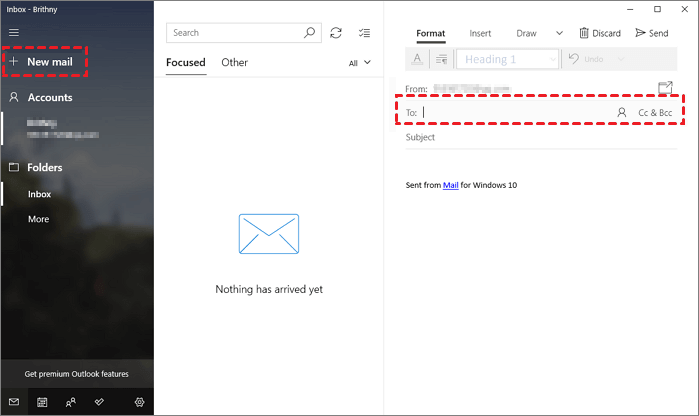
For Outlook or Gmail accounts, the total file size limit is 20MB. For Exchange accounts (typically used for business email), the default limit is 10MB. Consequently, this method is ideal for transferring smaller files.
Step 1: Address the email to yourself.
Step 2: Attach the files to the email.
Step 3: Access your email on the other PC and download the attachments.
Still Unsure Which Method to Select?
If you're unsure which method to use for transferring large files between computers, review the brief comparison of the advantages and disadvantages of the six methods.
|
Ways |
Pros |
Cons |
|
AnyViewer |
|
|
|
|
|
While AnyViewer does require downloading software and registering an account, these steps are generally straightforward compared to the potential complexity and costs associated with other methods. If ease of use, remote access, and flexibility are important to you, AnyViewer is a strong recommendation.
The bottom line
In conclusion, transferring large files between computers can be simplified with several methods. AnyViewer offers an easy and efficient way to move files between computers without extra hardware. External hard drives and USB cables are useful for local transfers but have storage limits. Cloud services and online platforms are flexible options but may involve costs or size restrictions. Choose the method that best fits your needs for ease and speed.
FAQs
Q1: What is the fastest way to transfer large files between computers?
Q2: How can I send 20 GB files for free?
- AnyViewer: Transfer files of any size directly between PCs for free.
- 7-Zip: Compress and split the 20 GB file into smaller 2 GB volumes, then send them via traditional methods.
- Shared Folders: If both PCs are on the same Wi-Fi, use Windows built-in "Give access to" feature.
Q3: How to transfer a 100 GB file?
- Remote Transfer: Use AnyViewer. Its P2P architecture ensures that a 100 GB stream doesn't time out or get capped by server limits.
- Physical Transfer: Use a formatted ExFAT or NTFS External Hard Drive. Avoid FAT32 as it cannot handle individual files larger than 4 GB.



 as a preferred
source on Google
as a preferred
source on Google