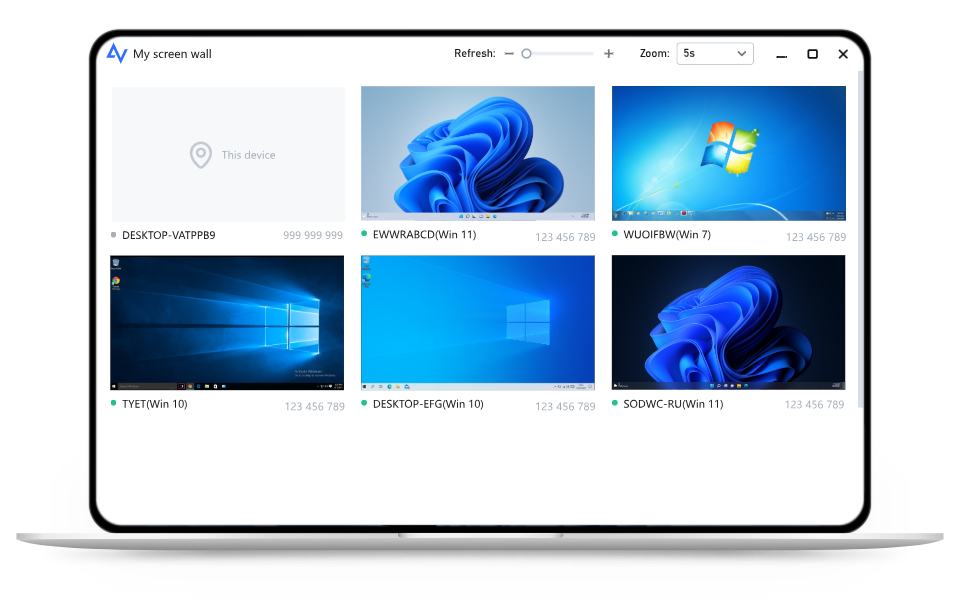
Screen wall is a dedicated feature in AnyViewer designed to provide a centralized, real-time view of multiple remote screens. Instead of switching between individual sessions, you can see all selected devices in one unified workspace, making multi-device management faster, simpler, and more organized—without the need for extra hardware or complex setups.
Discover how AnyViewer's screen wall enhances visibility, control, and efficiency across multiple devices with powerful, easy-to-use tools.
Easily view up to 24 remote screens at once within a single, centralized dashboard. Screen wall uses an advanced communication algorithm to keep smooth visual updates, low-latency performance, and stable display across all devices. It's perfect for situations where you need to watch multiple devices at once.
Set the screen refresh rate to match your workflow. Users can use faster updates for active, dynamic environments or slower intervals to save bandwidth. This flexibility allows screen wall to adapt easily to different network conditions and operational requirements.
If you notice any unexpected behavior or need to take a closer look, just click on any screen tile to launch remote control, open detailed full-screen view, and take fast troubleshooting actions. This ensures immediate response without navigating through menus or device lists.
Follow these simple steps to set up and manage multiple devices efficiently with AnyViewer's screen wall feature.
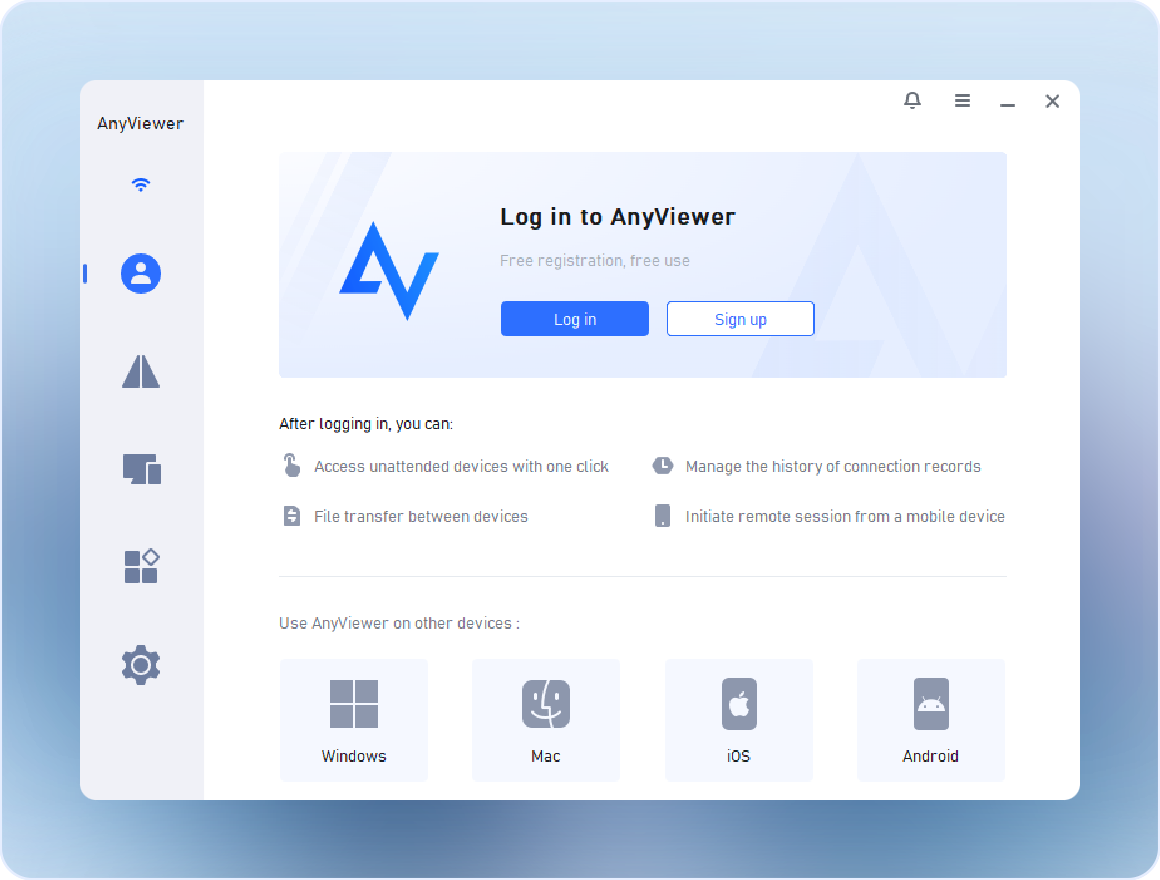
Download and install AnyViewer on all devices you want to include. Create an account and log in with the same credentials on each device.
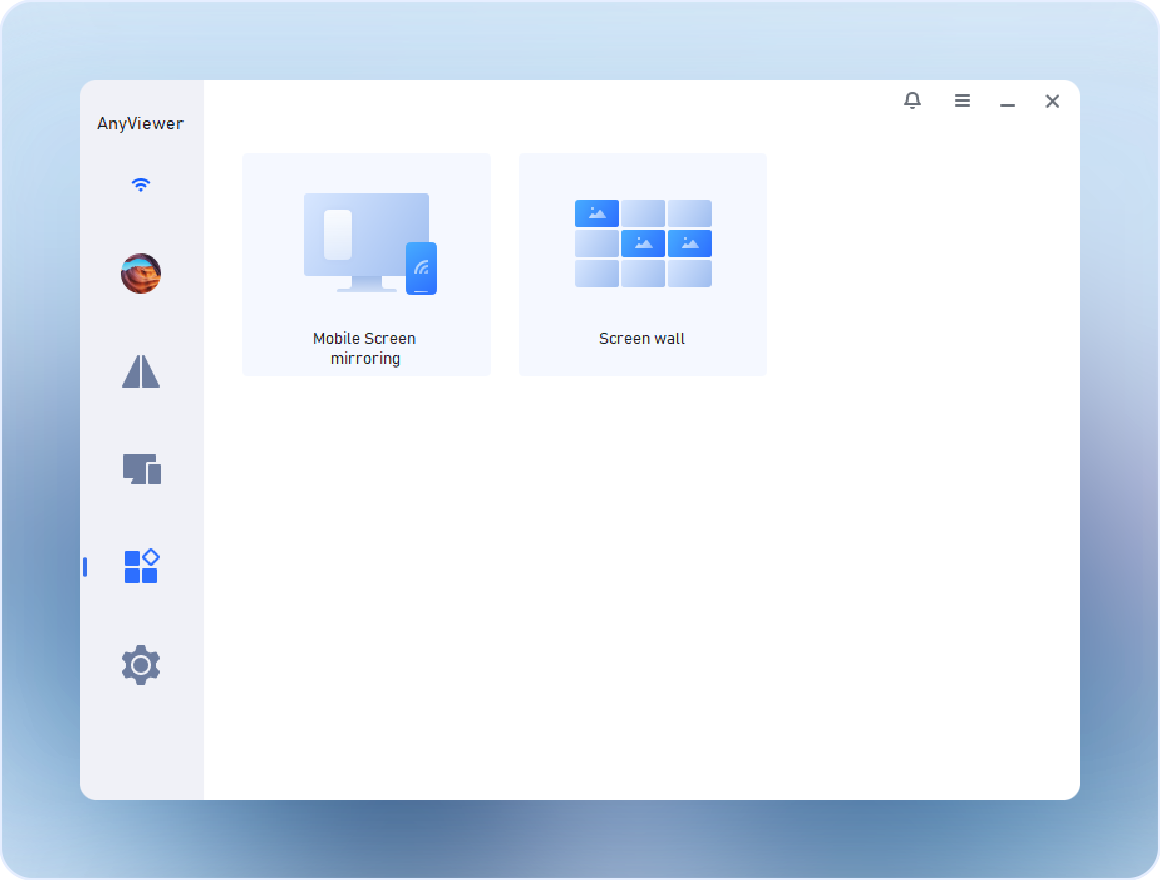
On your Admin device, launch AnyViewer and navigate to Tools > Screen wall.
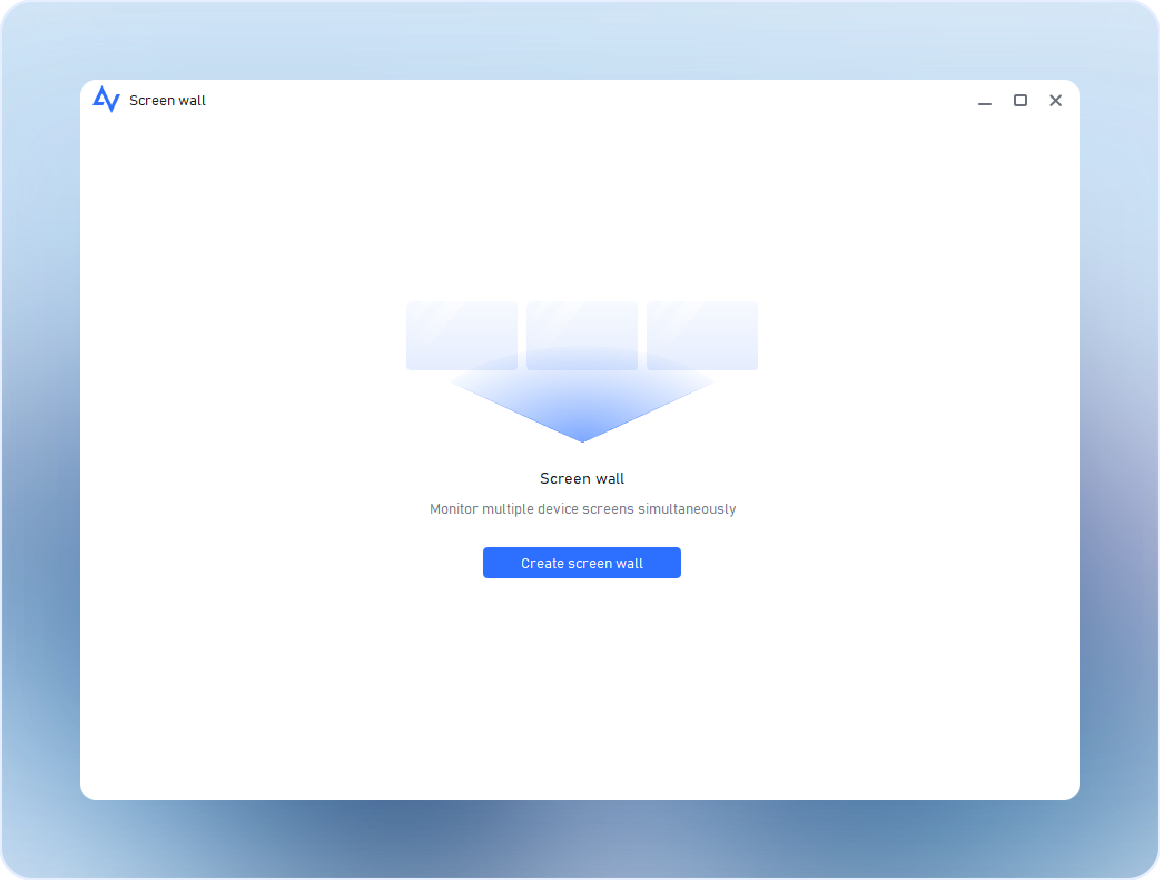
Click Create screen wall to start setting up your multi-screen display.
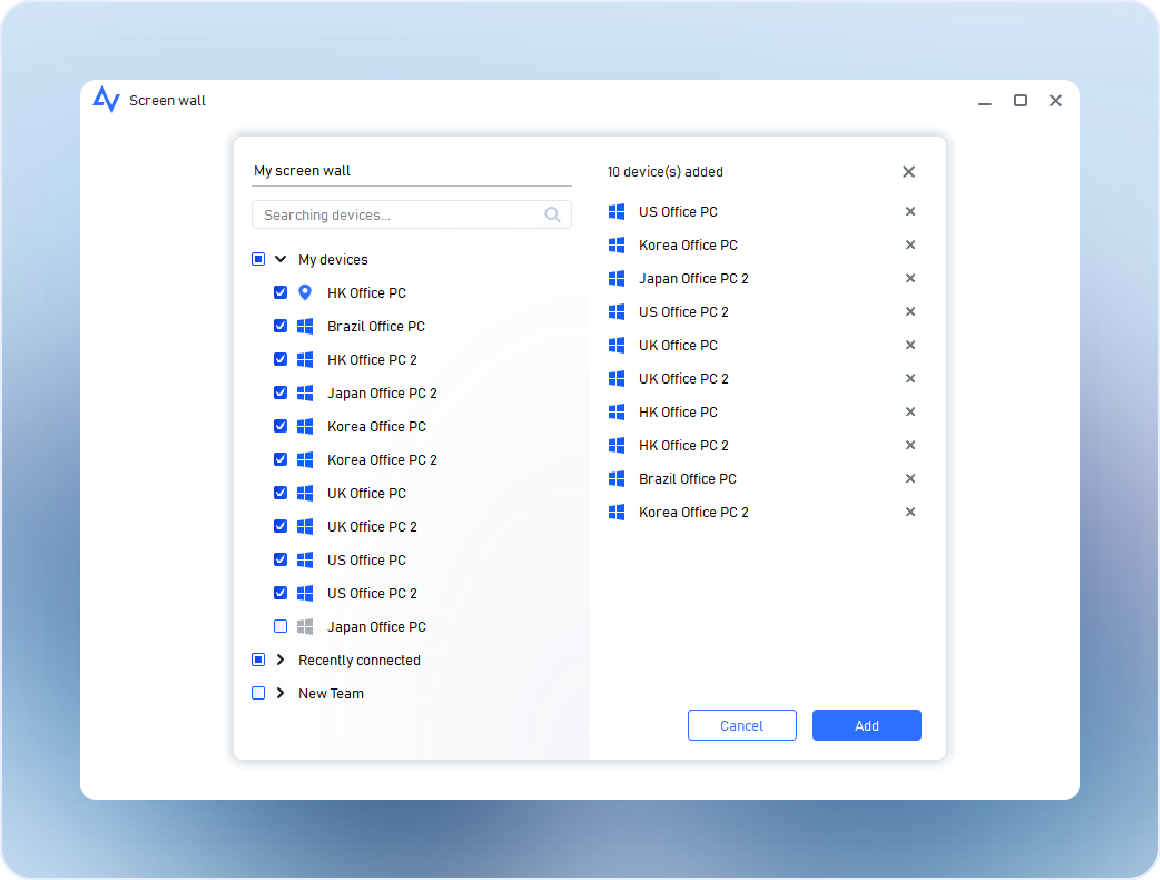
Select the devices you want to include in the screen wall, then click Add. Each screen wall can show up to 24 remote devices at once, allowing you to view and manage all of them seamlessly from a single dashboard.
Efficiently manage multiple workstations or servers.
Access client devices side by side for quicker updates and troubleshooting.
Monitor student or lab devices simultaneously for smoother lessons and exercises.
Coordinate office devices, kiosks, or terminals from one central dashboard.
Keep multiple project workstations organized and easily accessible.
"Screen wall has completely changed how I manage multiple devices. I can view all 18 of my team's computers at once and take action instantly. It saves so much time!"
"In our computer lab, Screen wall allows me to keep all student stations visible in a single view. The drag-and-drop layout is intuitive and makes organizing devices effortless."
"Working with multiple client systems used to be chaotic. Now, Screen wall lets me display 24 screens simultaneously and respond to issues quickly. The adjustable refresh interval is perfect."
"I love how easy it is to interact with any device from Screen wall. One click and I can open full-screen or remote control. It's made managing our office workstations seamless."
"Screen wall gives me a clear, organized view of all devices I need to access. The quick-action buttons save me from switching between windows constantly. Highly recommended!"
"In teaching labs, Screen wall is a lifesaver. I can see multiple student devices at once and guide them effectively. The feature is smooth, responsive, and easy to set up."
Simplify your workflow with a clean, intuitive multi-screen display. Access, arrange, and work with multiple devices more efficiently—anytime, anywhere.
Download Now