

[Fixed] TeamViewer Install Limit Reached Error
This article explains why the "TeamViewer install limit reached" error appears, how the device limit works, and how to easily deactivate a device so you can continue using your TeamViewer Business license.

By Ellie / Updated on December 4, 2025


Why has the TeamViewer install limit been reached?
If you're seeing the “TeamViewer install limit reached” warning, it's because your license has already been activated on the maximum number of devices allowed. With a TeamViewer Business license, you can register the software on up to 3 devices, but you can connect from only 1 device at a time.
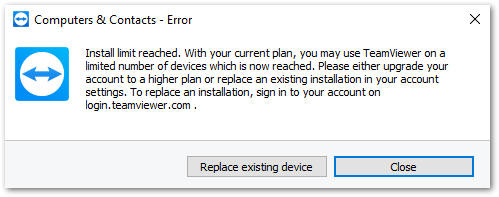
Once all three device slots are occupied, TeamViewer prevents you from adding new devices until you manually free up an existing slot. This is part of the TeamViewer device limit system, designed to prevent unauthorized or excessive activations.
Whenever you replace a computer, reinstall your operating system, or switch to a new work device, TeamViewer may count these as new installations, which can eventually trigger the limit. Luckily, you can resolve this quickly by removing older or unused devices from your account using the TeamViewer deactivate device option.
How to deactivate or remove a device from your Business license
If you've upgraded your hardware, changed computers, or received an "install limit reached" alert, simply follow these steps to remove an old device and continue using your license.
Step-by-step: How to use the TeamViewer deactivate device option
Step 1. Visit the TeamViewer (Classic) Management Console in your browser.
Step 2. Click Edit Profile > License to access your registered devices.

Step 3. Locate the device you want to remove and select Deactivate Device.
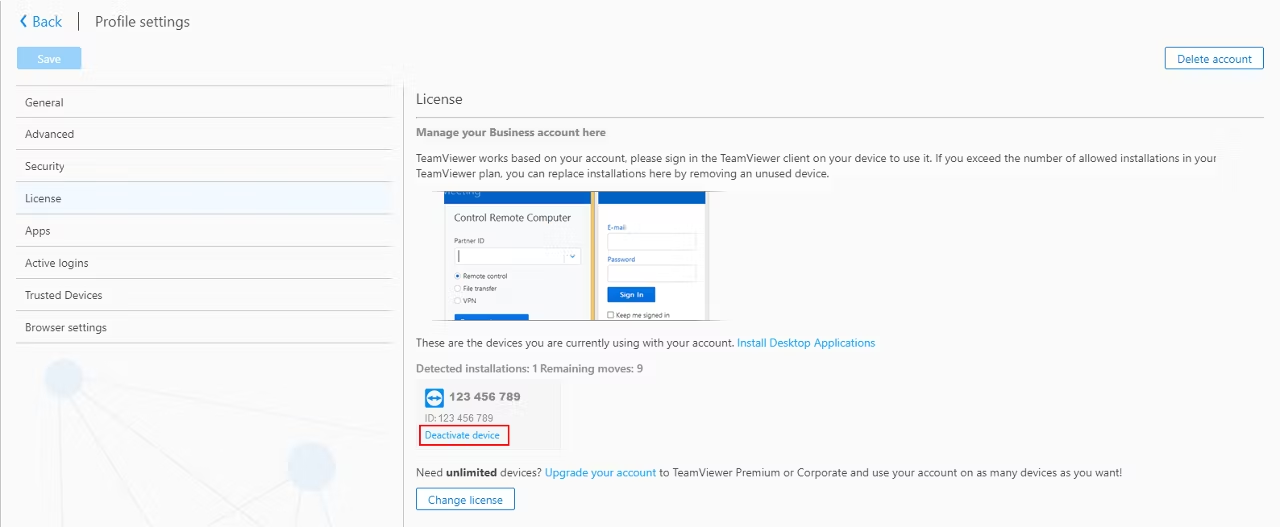
Step 4. Confirm the action in the pop-up window.

Once completed, the chosen device will be removed from your license, freeing up a slot for any new computer or mobile device you want to use. This ensures your Business license continues to work smoothly without interruptions and avoids repeatedly triggering the TeamViewer install limit reached error.
Bonus tip: Best free alternative to TeamViewer
If you often encounter the TeamViewer install limit reached message or find the device restrictions inconvenient, switching to a more flexible remote access tool can save you time and frustration. AnyViewer stands out as the best free TeamViewer alternative thanks to its balance of performance, stability, and ease of use.

Why AnyViewer is better for users who frequently change devices
One of the biggest advantages of AnyViewer is its no-hassle device management. Unlike TeamViewer's strict device limit system, AnyViewer allows you to log in on multiple devices without repeatedly activating or deactivating them. This makes it ideal for users who upgrade hardware often, switch between workstations, or support clients across various devices.
Key advantages of AnyViewer
Here are some key advantages of AnyViewer:
- No Strict Device Limits: AnyViewer doesn't impose the same activation caps found in TeamViewer. You can use the software across multiple devices without worrying about triggering a device limit error.
- Fast and Stable Remote Connections: AnyViewer is known for its smooth performance, even on lower-bandwidth networks. Whether you're providing remote IT support services, accessing office files from home, or troubleshooting family devices, the connection stays stable and responsive.
- Cross-Platform Compatibility: Use AnyViewer on Windows, macOS, iOS, and Android, making it suitable for IT professionals, businesses, and everyday users who need versatile remote access capability.
- Secure Remote Access: Security is a top priority. AnyViewer uses strong encryption and provides both attended and unattended access modes, ensuring your sessions are safe and protected.
- Intuitive Interface for All Skill Levels: The interface is clean and simple, requiring no steep learning curve. Even first-time users can set up remote access within minutes.
- Completely Free for Personal and Commercial Use: Unlike many competitors, AnyViewer offers a generous free plan that supports essential features without forcing you into paid upgrades.
When to choose AnyViewer over TeamViewer
You should strongly consider switching to AnyViewer if:
- You frequently run into TeamViewer device limit restrictions.
- You use multiple computers and don't want to constantly deactivate devices.
- You want a reliable remote access tool without expensive subscription costs.
- You need ultra-stable remote performance with minimal configuration.
- You want a clean, lightweight, and beginner-friendly alternative.
Overall, AnyViewer removes the limitations that many TeamViewer users struggle with, offering a smoother and more flexible remote access experience, completely free.
Conclusion
Hitting the "TeamViewer install limit reached" error can be frustrating, but the fix is simple. Since a Business license only supports three registered devices, you'll need to remove unused or outdated devices through the Management Console. Using the TeamViewer deactivate device feature instantly frees up a slot, allowing you to continue working without disruption. If you prefer a remote access solution with fewer restrictions and more flexibility, consider AnyViewer as a powerful, free alternative. It offers smooth performance, easy device management, and reliable security, making it a great choice for personal use or professional workflows.



 as a preferred
source on Google
as a preferred
source on Google