

Causes and Solutions: Recording Has Timed Out, Please Try Again
You may encounter the "recording has timed out, please try again" message during remote access or at the login screen. This overview details what this issue means and provides potential solutions.

By Irene / Updated on March 10, 2026


🌟 Quick Summary:
This error indicates that a recording or authentication process failed to finish within the system's allotted time limit. It typically occurs in two scenarios: during a login attempt where security services fail to initialize, or during a remote access session where the connection or recording component times out. There are 3 common solutions:
-
For Login Issues: Restart the computer, use the Ctrl + Alt + Delete shortcut to try alternate sign-in options, or boot in Safe Mode to check for software conflicts.
-
For Remote Access Issues: Verify network stability, restart both devices, and ensure Remote Desktop services are active.
-
Software Alternative: If the error persists during remote sessions, switching to a more stable tool like AnyViewer can bypass these initialization timeouts.
The message essentially serves as a notification that the system terminated a task to prevent an infinite hang. Whether caused by slow hardware, network lag, or buggy updates, the fix usually involves refreshing the session or the underlying services.
What does recording has timed out, please try again mean?
The error “recording has timed out, please try again” can appear in different situations depending on where the recording process is being used. Two common cases are when it appears on a login screen and when it occurs during remote access.
Case 1. Recording has timed out on the login screen
When this error appears on a login screen, it means the system attempted to start or complete a recording process related to authentication but did not finish within the allowed time. Some platforms temporarily record login activity, verification steps, or session initialization for security and auditing purposes. If the recording process does not respond or complete before the system’s timeout limit, the operation expires and the system displays the message indicating that the recording session has timed out.
Case 2. Recording has timed out during remote access
In a remote access environment, the error usually indicates that the platform attempted to start or maintain a recording of the remote session but the process exceeded the permitted time window. Remote access tools sometimes record sessions for monitoring, compliance, or troubleshooting. If the recording component cannot start, respond, or complete within the expected timeframe during the connection process, the system automatically terminates the recording attempt and shows the timeout message.
In both situations, the error simply means that a recording task required by the system did not complete within the predefined time limit, so the system ended the process and notified the user.
How to fix the recording has timed out, please try again issue
Case 1. Fix the error on the login screen
When the error appears on the login screen, it usually means the system cannot complete the required login process within the allowed time. In some environments, the login stage must initialize certain services, authentication components, or session processes before the desktop loads. If these processes respond slowly or fail to initialize properly, the system may stop the operation and show the timeout message. Resolving the issue typically involves checking system status and ensuring that the login process can start normally without delays.
Step 1. Restart the computer and wait for the system to fully load before attempting to sign in again.
Step 2. Press Ctrl + Alt + Delete on the login screen and try signing in through the available login options.
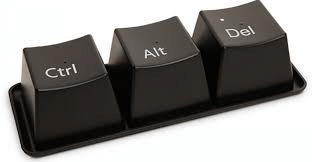
Step 3. If the issue persists, restart the system in Safe Mode and check whether the login process works normally.
Step 4. Review recently installed updates, drivers, or security programs that may affect the login environment.
Step 5. After making adjustments, restart the computer and attempt to log in again to see whether the timeout message still appears.
If the error does not occur on the local login screen but appears when accessing the computer remotely, the problem may be related to the remote connection environment.
Case 2. Fix recording has timed out, please try again in remote access
When this error occurs during remote access, it usually indicates that the remote session could not initialize or respond within the allowed time. Remote connections depend on several components, including the network, the remote desktop service, and the remote access software. If any of these elements respond slowly or fail to establish a session in time, the platform may stop the process and display a timeout message. Addressing the issue often involves checking the remote connection environment and ensuring that the remote desktop service can start properly.
Step 1. Check that both the local and remote devices are connected to a stable network before starting the remote session.
Step 2. Close the current remote session completely and reconnect to the remote computer.
Step 3. Restart the remote computer to refresh the remote desktop services and clear temporary session issues. If the Remote Desktop screen is not refreshing, you can read this guidance for reference.
Step 4. Verify that remote desktop features are enabled and running on the remote device.
Step 5. If the problem continues, try accessing the remote computer using another remote desktop tool such as AnyViewer to determine whether the issue is related to the original remote access software.
By checking the login process, system services, and remote connection environment, most timeout issues related to recording or session initialization can be identified and resolved.
👍An easy fix: Run AnyViewer for remote access
If the error “recording has timed out, please try again” continues to appear during remote access, using a different remote desktop tool can be a simple solution. Some remote access programs may struggle to initialize sessions or respond quickly enough, especially when the network is unstable or the login environment is restricted. In these situations, a stable and lightweight remote access program can help establish the connection more smoothly. AnyViewer is designed to provide fast and reliable remote control with minimal configuration, making it a convenient option for both personal users and businesses. It is one of the best screen recorders for PC.
✍ Key benefits of AnyViewer:
✔ Easy Setup & User-Friendly Interface: AnyViewer requires no complicated configuration. With a clean interface and intuitive controls, even first-time users can start remote access in minutes.
✔ True Cross-Platform Remote Access: Stable and consistent remote access between Windows, macOS, Android, and iOS devices.
✔ Smooth and Stable Performance: Optimized connection technology ensures low latency and clear screen quality, even on slower or unstable networks.
✔ Enterprise-Grade Security: Advanced encryption and two-factor authentication protect remote sessions and sensitive data from unauthorized access.
✔ Fast File Transfer: Transfer files between devices quickly and securely during remote sessions, improving productivity.
✔ Powerful Free Version: Unlike many competitors, AnyViewer offers unattended remote access, high-quality control, and file transfer completely free, making it ideal for individuals and small teams.
Overall, AnyViewer offers a simple and reliable way to perform remote access. With its stable performance, strong security, and practical features, it provides a convenient alternative when remote connections frequently encounter timeout or session errors.
Step 1. To get started, install AnyViewer on each of your devices.
Step 2. Next, sign up and log in using the same credentials on both of your devices.

Step 3. Within the "Devices" section on your local device, locate the remote computer you wish to connect to. Simply click on "One-click control" to establish a secure connection.

Step 4. Once connected, open the remote desktop window and click “Start Recording” in the toolbar to begin recording, then click “Stop Recording” when finished, and the video will be automatically saved to your local storage.

Step 5. If you want to lock the AnyViewer screen, lick Menu > Lock AnyViewer.
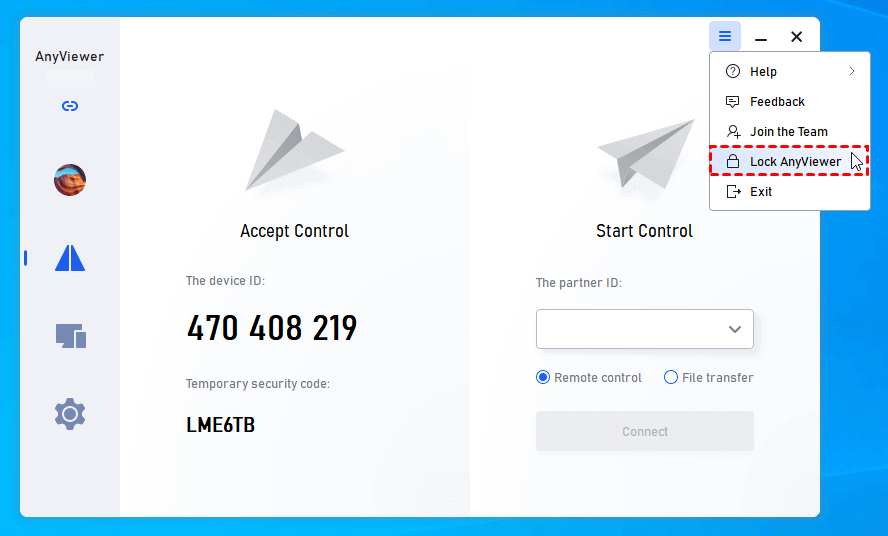
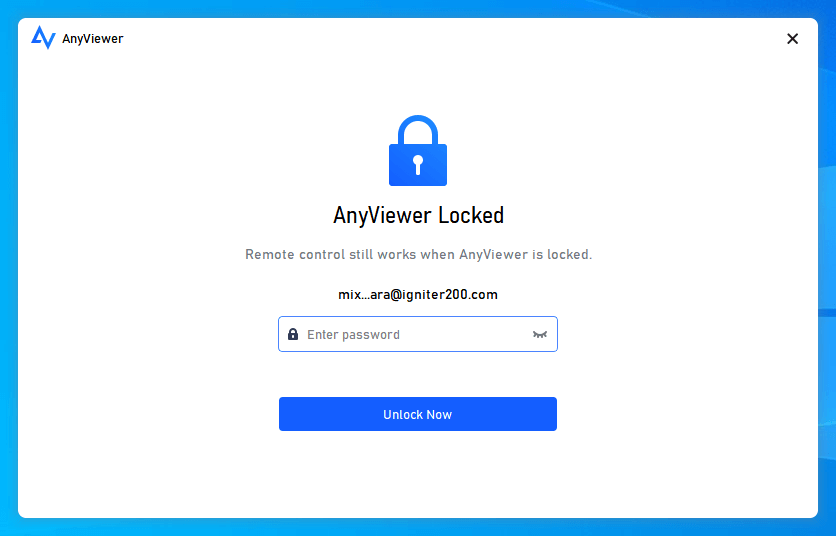
Step 6. Then, the program will be locked. To use it again, you need to input the AnyViewer account password to unlock the interface.
- ★Tips:
- To enhance your user experience even further, you can upgrade to a Professional or Enterprise plan. This upgrade provides access to a wide range of advantages, including:
- Managing an expanded array of devices: Gain the capability to oversee a larger number of devices effortlessly.
- Expedited file transfer: Enjoy faster file transfer, saving you valuable time.
- Augmented security with privacy mode: Enhance your security measures with the added privacy mode feature.
- Elevated visual fidelity: Experience improved visual quality during remote sessions.
- Simplified administration tailored for enterprise configurations: Streamline administrative tasks, specifically designed to meet the needs of enterprise setups.
Conclusion
In summary, the error “recording has timed out, please try again” usually means that a recording or session process did not finish within the system’s allowed time. This can happen during login authentication or while starting a remote access session. In most cases, the issue can be resolved by restarting the device, checking system services, reviewing recent updates, or ensuring the network and remote desktop features are working correctly. If the problem continues during remote access, switching to a stable remote desktop solution such as AnyViewer can help establish the connection more reliably and avoid repeated timeout errors.
FAQs
🗨️ How to remove the 5 minute limit in ScreenRec?
The 5 minute limit usually applies to free or unregistered versions. Sign in to your ScreenRec account or upgrade the plan to remove the time limit. After logging in, the program typically allows longer or unlimited recordings.
🗨️ Why is my screen recording failing when remote access?
Screen recording may fail during remote access if the connection is unstable, the remote session does not allow recording, or the system resources are limited. Restarting the remote session, checking network stability, or using a stable remote access tool such as AnyViewer can help reduce recording issues.
🗨️ How to tell if someone's recording your screen?
In many systems, a screen recording indicator or notification will appear when recording starts. You can also check running programs or background processes to see if any screen recording software is active.
🗨️ How do I check if my phone is being monitored?
Look for unusual signs such as unknown apps, increased data usage, fast battery drain, or device overheating. You can also review app permissions and installed applications to identify any suspicious monitoring software.
🗨️ How to fix “your Remote Desktop Services session has ended”?
This error can happen due to network interruptions, inactive sessions, or remote desktop service problems. Restart the remote computer, reconnect to the session, and make sure Remote Desktop services are enabled and running properly.



 as a preferred
source on Google
as a preferred
source on Google