

Remote Desktop Screen Not Refreshing [Causes and Fixes]
Remote Desktop is a great tool, but screen refresh issues can slow down work. This guide covers the common causes, such as network problems, outdated drivers, or wrong settings, and shows practical solutions. It also suggests alternative tools if problems persist.

By Ellie / Updated on September 5, 2025


Why do screen refresh problems occur frequently?
Remote Desktop (RDP) is a handy tool for IT staff, remote workers, and all sizes of businesses that need to access computers from different places. It lets you use your office computer even when you're at home or traveling. However, like any technology, it's not flawless. A common problem is when the screen doesn't refresh properly. Instead of showing real-time updates, the screen may freeze, show old information, or lag badly. This is especially frustrating if you're editing files, coding, or managing servers.
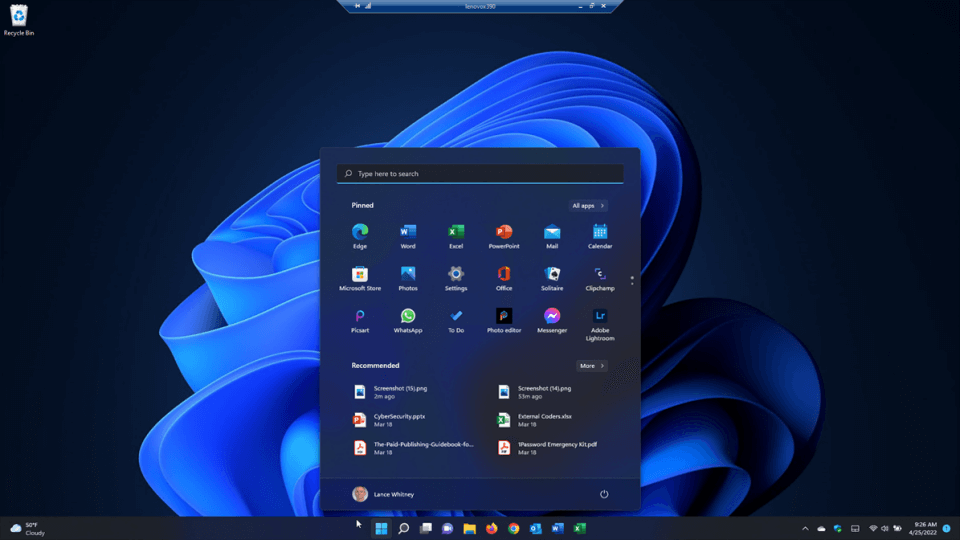
The issue of the Remote Desktop screen not refreshing usually happens due to a mix of software, hardware, and network factors. Sometimes it's as simple as a poor internet connection, while other times it could be a deep-rooted issue with your display drivers or even the way your Remote Desktop Protocol is configured. Think of it like a video call: if your internet is unstable, the video lags or freezes. Similarly, if your RDP connection doesn't get enough bandwidth or resources, your screen fails to update smoothly.
When this happens, productivity takes a big hit. Imagine editing a spreadsheet but the numbers don't update in real-time, or trying to run a server command only to see the result after a long delay. That's why understanding the root causes and applying the right fixes is crucial.
Common causes of Remote Desktop screen not refreshing
Common causes of the Remote Desktop screen not refreshing include network issues, outdated drivers, and misconfigured settings.
Cause 1. Network connection issues
One of the most common culprits behind screen refresh problems is a weak or unstable network connection. Remote Desktop relies heavily on continuous data transmission. If there's packet loss or high latency, your session will lag, freeze, or fail to refresh. A simple analogy would be watching Netflix with a poor internet connection; you'll see buffering or pixelation instead of smooth streaming.
High latency, especially on Wi-Fi, can cause delays in transmitting screen updates. VPN connections can also add extra overhead to the network, worsening refresh problems. Users who experience remote desktop screen updates. VPN connections can also add extra overhead to the network, worsening refresh problems. Users who experience Remote Desktop keeps freezing Windows 11 may notice this issue more frequently when relying on cellular data or public Wi-Fi.
Cause 2. Display driver conflicts
Your display driver acts as a bridge between the operating system and your graphics card. If the driver is outdated, corrupted, or incompatible with Remote Desktop, you'll often notice screen refresh issues. In many cases, instead of rendering updates smoothly, the RDP session freezes or shows black screens. This is especially common after major Windows updates or when using older GPUs.
Cause 3. Incorrect Remote Desktop settings
Sometimes, the problem is hidden in your RDP settings. For example, if you've configured the session for high resolution and full graphical effects, but your network or computer cannot handle it, you'll see refresh issues. Features like font smoothing, desktop background, and animations look great but can cause screen lag.
Cause 4. Outdated RDP Client or Server version
Another overlooked cause is using mismatched or outdated versions of Remote Desktop. If the client version doesn't align with the host system, compatibility issues may occur. Microsoft frequently releases patches and updates to fix bugs, so running an old version can lead to unnecessary problems.
Cause 5. High resource usage on the host machine
If the host computer is overloaded with CPU or memory-intensive tasks, it won't have enough resources to update the remote session properly. For example, if you're running multiple virtual machines or heavy applications, the screen refresh will naturally lag. This is often seen in server environments or older PCs.
How to troubleshoot Remote Desktop screen not refreshing
Here are some effective solutions to resolve screen refresh issues in Remote Desktop.
Solution 1. Check your internet connection
The first step in troubleshooting is always to ensure a stable network. If your RDP session lags, try switching from Wi-Fi to a wired Ethernet connection. You can also run a simple speed test to check latency and packet loss. Restarting your router or avoiding bandwidth-heavy apps like streaming or downloads can also help.
Solution 2. Adjust display and performance settings
Reducing graphical effects in RDP can drastically improve refresh rates. You can adjust settings by disabling desktop background, font smoothing, animations, and high color depth. These may look visually appealing, but they consume unnecessary bandwidth. Setting the session to "Best performance" mode often fixes refresh delays instantly.
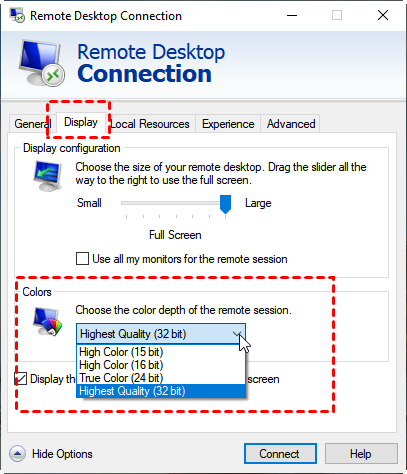
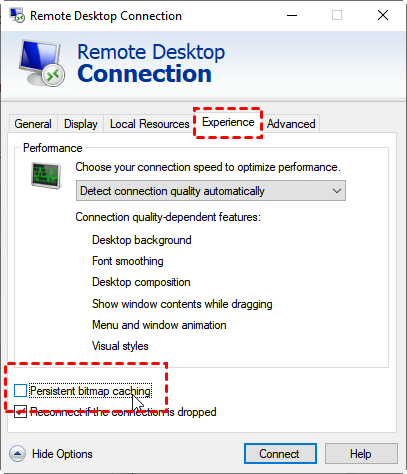
Solution 3. Disable Persistent bitmap caching
Persistent bitmap caching stores image files locally to speed up Remote Desktop sessions, but it can sometimes cause screen refresh problems. To disable it:
Step 1. Open the connection settings in the Remote Desktop app.
Step 2. Go to the Session tab.
Step 3. Uncheck Persistent bitmap caching.
Step 4. Save changes and reconnect.
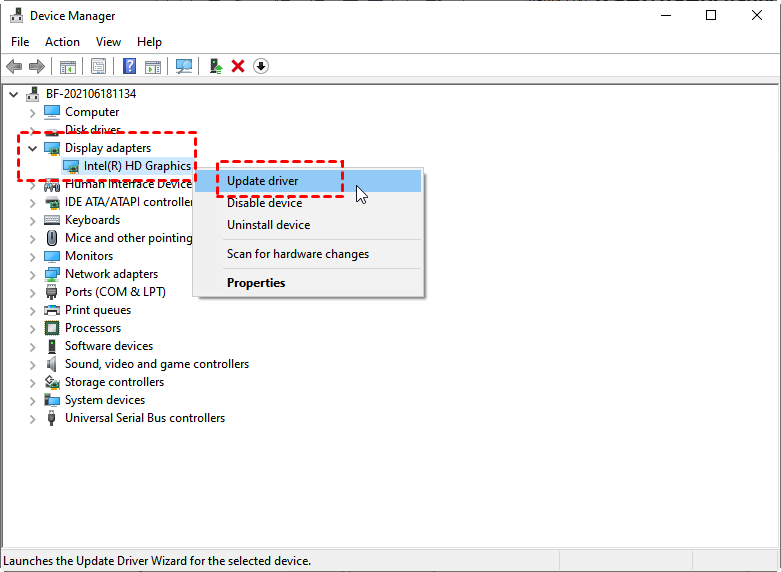
Solution 4. Update graphics drivers
Always ensure that your graphics drivers are up to date. Visit your GPU manufacturer's website (e.g., NVIDIA, AMD, Intel) and download the latest version. This step alone resolves many refresh problems since outdated drivers struggle to handle remote display rendering.
Step 1. Right-click the Start button and select Device Manager from the expanded menu.
Step 2. Find Display adapters and click it. Right-click Intel(R) HD Graphics and then click Update driver.
Solution 5. Restart the Remote Desktop session
Sometimes, the simplest fix is restarting the session. Log out and reconnect. This forces RDP to reinitialize the connection and can clear temporary glitches. If possible, restart both the client and host machines for a fresh connection.
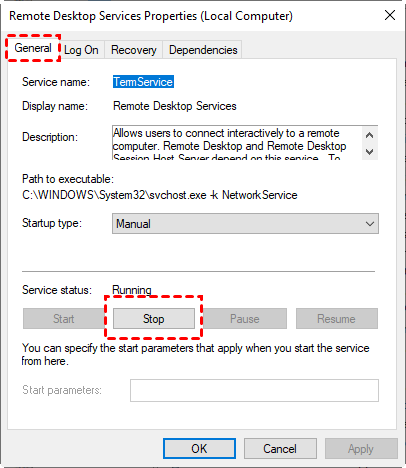
Step 1. Press Win + R to open the Run dialog box. Type in “services.msc” and press OK.
Step 2. Find Remote Desktop Services in the right pane.
Step 3. On the General tab, click Stop, then Start.
Solution 6. Verify Windows updates
Since RDP is deeply integrated into Windows, installing pending updates can solve bugs. Outdated Windows versions may contain known issues with Remote Desktop screen not refreshing Windows 11 that are patched in newer builds. Always check for updates and reboot after installation.
Advanced solution for persistent screen refresh issues: Using alternative tools
If you've tried all the above fixes and the Remote Desktop screen not refreshing problem persists, it might be time to consider a Remote Desktop alternative remote access solution. While Windows Remote Desktop is built in, it isn't always the most reliable or flexible.

One excellent alternative is AnyViewer. It offers a smoother remote desktop access experience by optimizing bandwidth usage and ensuring real-time screen updates, even on slower networks. Unlike RDP, AnyViewer is designed to minimize lag, making it ideal for IT support, remote work, or server management.
AnyViewer is an excellent alternative that addresses many of these limitations. Its advantages include:
- Real-Time Screen Updates: AnyViewer is optimized for bandwidth efficiency, which ensures smooth and continuous screen refresh, even on slower connections. This effectively eliminates the lag and freezing issues commonly seen in RDP.
- Cross-Platform Compatibility: AnyViewer works seamlessly across Windows, Mac, and mobile devices. You can control your PC from an Android or iOS device with ultra-HD clarity, making it ideal for remote work on the go.
- High Security Standards: AnyViewer uses end-to-end encryption, secure authentication, and optional two-factor authentication (2FA) to keep your remote sessions safe from unauthorized access.
- User-Friendly Interface: Unlike RDP, which can be complex to configure, AnyViewer offers an intuitive interface that allows both beginners and IT professionals to connect quickly without dealing with firewalls or port forwarding.
- Stable Performance Under Heavy Loads: AnyViewer efficiently manages CPU and memory usage, reducing the likelihood of screen refresh problems even when the host PC is running multiple heavy applications.
- Advanced Features for IT Support: Beyond screen sharing, AnyViewer offers file transfer, multi-session management, remote reboot, and unattended access, tools that are especially useful for IT teams and technical support.
By switching to AnyViewer, you not only solve the screen not refreshing problem but also gain a more reliable, secure, and versatile remote desktop experience.
Conclusion
Remote Desktop screen not refreshing issues can be frustrating, but they're usually solvable with the right troubleshooting steps. From checking your internet connection and updating graphics drivers to tweaking performance settings and disabling persistent bitmap caching, most problems can be fixed without much hassle.
However, if you've exhausted all options and still face delays, turning to an alternative tool like AnyViewer can make a world of difference. By addressing both technical tweaks and practical solutions, you can ensure your remote sessions remain smooth, responsive, and productive, just as if you were working locally.



 as a preferred
source on Google
as a preferred
source on Google