

LogMeIn Unattended Access: How to Set It Up and Best Alternative
This guide shows you how to use LogMeIn unattended access, including setup, management, and revoking steps. You'll also discover an easier and more affordable alternative for remote access.

By Ellie / Updated on September 17, 2025


Does LogMeIn have unattended access?
As more businesses and individuals rely on remote solutions, LogMeIn unattended access has become a trusted choice for seamless and dependable connectivity. Its Unattended Access feature empowers IT teams to troubleshoot, manage, and resolve device issues without requiring the user to be present. With centralized management and advanced tools, teams can ensure quick response times and maintain productivity across multiple devices.
In this article, we provide a step-by-step tutorial on how to setup unattended access in LogMeIn and introduce an alternative remote software to help you optimize your remote management workflow.
How to set up LogMeIn unattended access
Setting up unattended access LogMeIn is straightforward and efficient. Follow this comprehensive guide to enable remote connectivity on single or multiple devices.
Setting up on a single computer
If you need to access a client's device anytime without their presence, follow these steps:
Requesting Unattended Access
Before proceeding, ensure you have the client's permission to enable unattended access.
Step 1. While in an active session, click on the “Unattended Access” section.

Step 2. Choose between:
- At Connection: Require administrator credentials each time a session starts.
- At Setup: Use credentials provided by the client during setup.

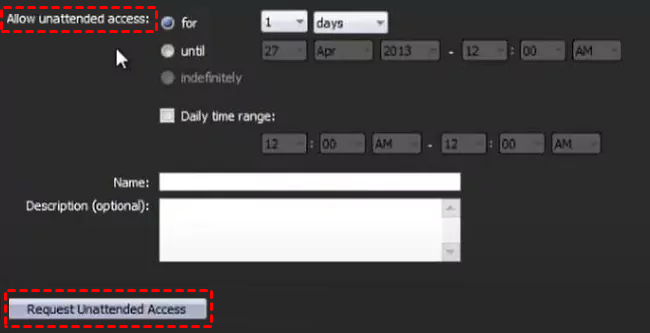
Step 3. Options include specific days, a date range, indefinitely, or a daily time window. Adjust for time zone differences if necessary.
Step 4. Click Request Unattended Access to send it to the client.
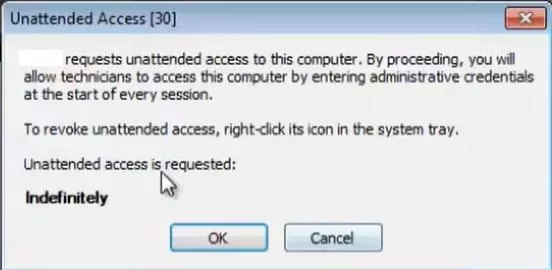
Step 5. The client must approve the request. Administrator credentials require an “OK” click, while client credentials need their Windows username and password.
Step 6. Once approved, LogMeIn unattended access is live. You can now connect remotely even when the client is away.
Step 7. After completing your tasks, disconnect to close the session.
Initiating Unattended Access
The client's computer must be powered on and awake.
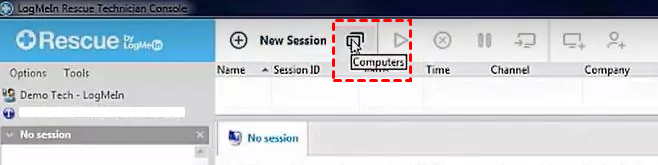
Step 1. Click the Computer icon on the session toolbar to view all devices.
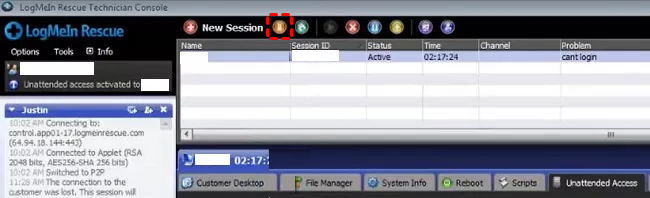
Step 2. Select the unattended computer and click Connect.
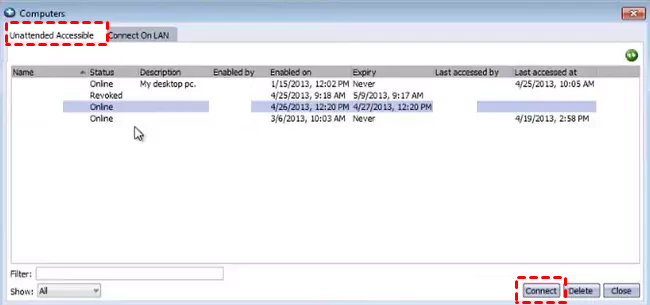
The Technician Console now allows full remote support for unattended devices.
Revoking Unattended Access
- For Customers:
Step 1. Find the LogMeIn Rescue system tray icon (blue circle with a white cross).
Step 2. Right-click the icon and select the option to revoke access.
Step 3. Confirm the action when prompted.
- For Technicians:
Step 1. Connect to the assigned computer via LogMeIn Rescue.
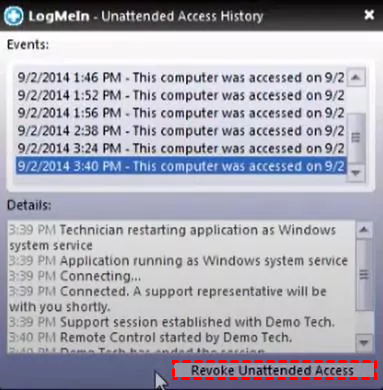
Step 2. Navigate to the Unattended Access tab in the Technician Console.
Step 3. Click Revoke Unattended Access.
- For Admins:
Step 1. Log in to the Admin Center and navigate to the Computers tab.
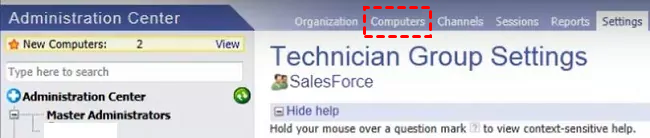
Step 2. Select the technician group and verify the computers from which you want to revoke access.
Step 3. Click Delete and confirm to remove access.
Setting up on multiple computers
Managing multiple unattended devices is essential for IT teams handling numerous endpoints.
Deploying Unattended Access
Step 1. Log in to your LogMeIn Rescue account.
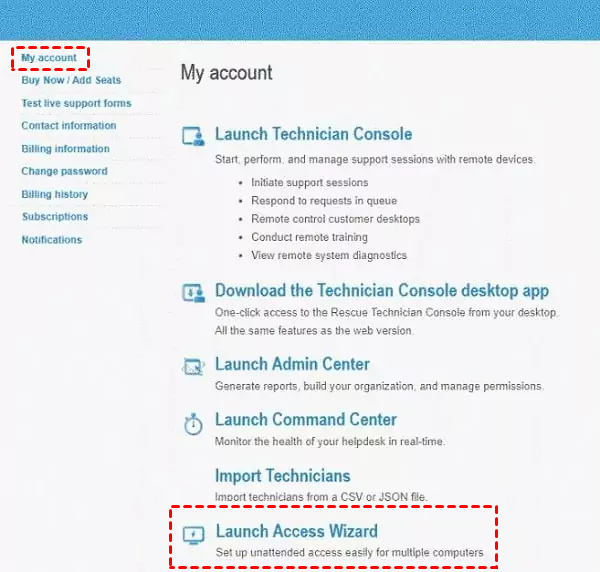
Step 2. Navigate to My Account and click Launch Access Wizard.
Step 3. Follow the official guide to configure installer parameters, assign technicians, and deploy the installer.
Searching for Unattended Computers
Step 1. Open LogMeIn and log in.
Step 2. Click the Computers icon on the Session Toolbar.
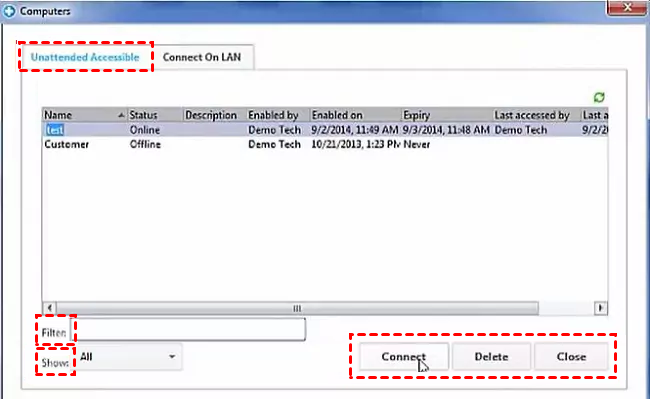
Step 3. Go to the Unattended Accessible tab and use the Filter box to locate a computer by name. Use the Show box to filter by status.
Step 4. Click Connect to start a session or Delete to revoke access.
Assigning or Removing Computers
Step 1. Log in and select a Technician Group or root in the Organization Tree.
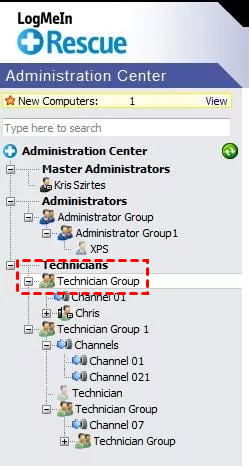
Step 2. Click the Computers tab to view all devices.
Step 3. Use Copy… to assign computers to other groups, Move… to transfer, or Delete to remove assignments.
Step 4. To revoke access, select all related assignments and confirm deletion. Changes update automatically in the Organization Tree and Computers tab.
Disruption-free unattended access
This feature ensures uninterrupted access to devices serving critical functions like digital signage, kiosks, or dashboards.
Step 1. Remove any existing unattended access service to allow deployment of updated installers.
Step 2. Log in, navigate to My Account, and launch both the Access Wizard and Access Dashboard.
Step 3. Generate a new installer or edit an existing one via the Access Wizard.
Step 4. Configure the three new options for disruption-free access and deploy.
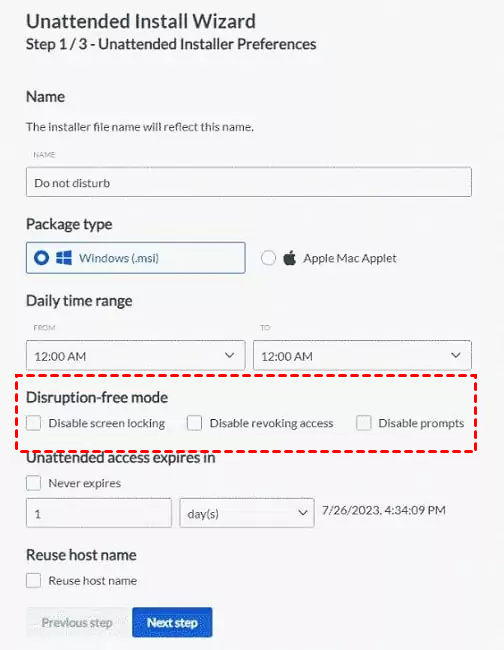
This setup allows IT teams to maintain full remote support without interfering with the device's primary functions.
Bonus tip: Best LogMeIn unattended access alternative
Looking for a smarter, more affordable remote access solution? AnyViewer is quickly becoming the go-to alternative for former LogMeIn users. Enjoy completely free unattended access across Windows, Mac, iOS, and Android devices. With AnyViewer, you can remotely manage and support devices anytime, anywhere, without worrying about costly subscriptions. Seamless, reliable, and user-friendly, it's the perfect solution for teams and individuals who need uninterrupted remote control without breaking the bank.

Key Features to deliver fast, on-demand support:
- Attended and unattended support
- Instant connection using a simple session code
- Full support for Windows, Mac, iOS, and Android devices
- Built-in chat for real-time communication
- File transfer capabilities
- Cross-platform drag-and-drop file transfer
- Technician screen sharing
- Multi-monitor navigation
- Session logging and recording
- Advanced security to protect your data
With these robust features, AnyViewer gives IT teams and individuals everything they need to provide fast, secure, and efficient remote support, without the high costs of traditional remote access software.
Conclusion
LogMeIn unattended access offers businesses and IT teams a reliable way to manage and support devices remotely, ensuring efficiency and minimizing downtime. By following the setup and management steps outlined above, you can confidently maintain connectivity across single or multiple devices. For those seeking a more cost-effective and versatile solution, AnyViewer provides seamless unattended access with cross-platform support and advanced features, making it an excellent alternative for uninterrupted remote management.



 as a preferred
source on Google
as a preferred
source on Google