

Fixed: Splashtop "Invalid Connection Token" Error
Learn how to resolve Splashtop connection issues by restarting the streamer or performing a clean reinstall to fix invalid tokens.

By Ellie / Updated on March 5, 2026


What is aSplashtop "Invalid Connection Token" Error?
In the world of remote desktop solutions, efficiency and reliability are paramount. However, even top-tier software like Splashtop can occasionally run into technical hiccups. One of the mostSplashtopcommon issues users encounter is the "Invalid connection token" error. If you’ve seen the message, "Invalid Connection Token. Please try restarting Splashtop Streamer," you know how frustrating it can be when you're trying to access a critical file or support a client.
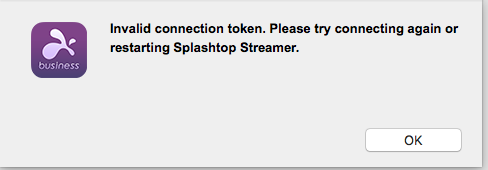
The Splashtop"Invalid connection token" error occurs when the secure "handshake" between the Splashtop Business App and the remote Streamer fails. Splashtop uses these digital identifiers to securely link devices, and they refresh every 12 hours. If a synchronization lag or mismatch occurs on either side during this refresh, the connection is blocked.
In this guide, we will break down exactly what this error means, why it happens, and provide a comprehensive set of solutions to get your remote connection back on track.
Quick Fix: Restarting the Streamer
The most common solution—and the one recommended by the error message itself—is a simple restart. Since the token is likely stuck or expired on the remote end, refreshing the service usually generates a new, valid token.
Step 1. Open your Splashtop Business App.
Step 2. Locate the computer you are trying to connect to.
Step 3. Click on the Gear Icon (Settings) next to the computer name.
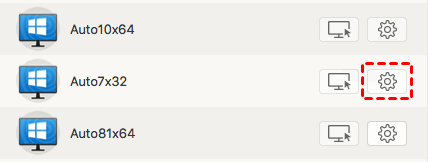
Step 4. Select Restart Streamer or Reboot Computer.
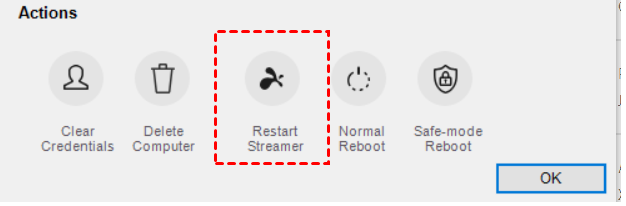
Note: This feature requires Splashtop Business app version 3.1.2.1 or higher.
Advanced Troubleshooting: Clean Reinstallation
If a simple restart doesn't solve the problem, the issue might lie in corrupted registry entries or local files. In this case, a "Clean Reinstall" is necessary. This involves more than just a standard Splashtop uninstall; you need to wipe the remaining data traces.
For Windows Users
Standard uninstalls often leave behind registry keys. For a clean wipe on Splashtop invalid connection token Windows 10:
Step 1. Splashtop provides a specific ZIP file, "CleanUpInstallerSRS_v1.0.1.0.zip," for the Streamer and "CleanUpInstallerSRC.zip" for the Business App. Download the cleanup tools.
- Uninstaller for Splashtop Streamer: CleanUpInstallerSRS_v1.0.1.0.zip
- Uninstaller for Splashtop Client: CleanUpInstallerSRC.zip
Step 2. Unzip the file and run the executable. This will automatically clean registries and directories.
Step 3. Download the latest version of the Splashtop Streamer or Business App from the official website and perform a fresh installation.
For Mac Users
Step 1. Download the Splashtop Business or Splashtop Streamer installer. Open the ".dmg" installer file for Splashtop.
Step 2. Look for the "Uninstall Splashtop Streamer.app" script within the DMG window. Double-click it to run.
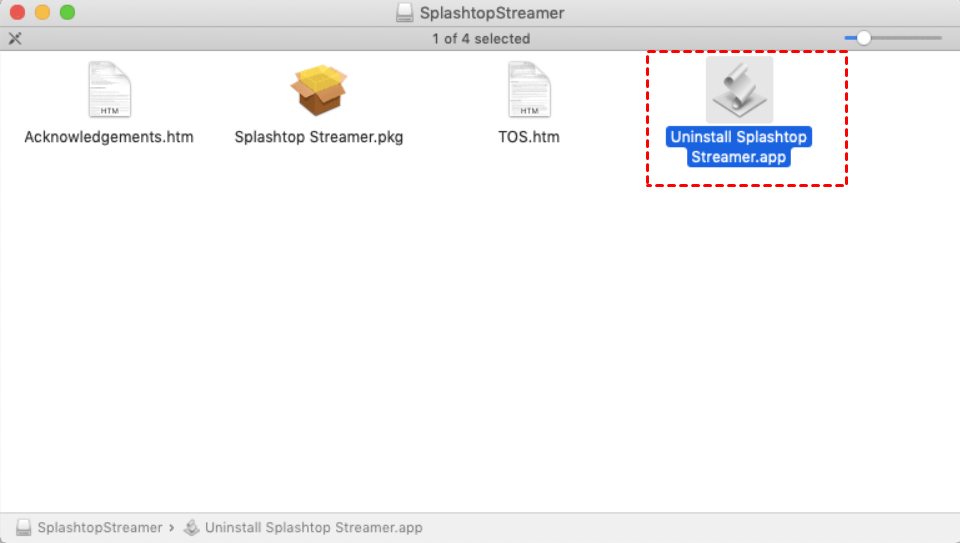
Step 3. Once the uninstallation is complete, run the DMG installer again, select "Install," and follow the prompts to set up the app again.
Bonus Tip: A Reliable, Error-Free Alternative — AnyViewer
If you find yourself frequently battling the Splashtop "Invalid connection token" error, it might be time to consider an alternative. AnyViewer is a rapidly growing remote desktop solution known for its stability and user-friendly interface.
Why consider AnyViewer?
- High Stability: AnyViewer uses an optimized connection algorithm that minimizes "handshake" errors, ensuring a smoother connection process.
- Speed & Performance: It offers low-latency remote desktop performance, making it ideal for everything from IT support to remote gaming.
- Powerful Free Version: Unlike many competitors, AnyViewer provides a robust free version that includes features like file transfer and multi-monitor support.
- Security: It utilizes ECC (Elliptic Curve Cryptography) encryption, providing enterprise-grade security for every session.
How to Use AnyViewer
Step 1. Download and install AnyViewer on both your local and remote devices.
Step 2. Create a free account and log in to the same account on both machines to link them.

Step 3. Go to the Device tab, select your remote computer, and click One-click control for instant access.

Conclusion
The "Splashtop Invalid Connection Token" error is usually a minor synchronization issue that can be fixed with a quick restart or a clean reinstallation. By keeping your software updated and knowing how to clear out old registry data, you can maintain a seamless remote work experience. However, for those looking for a more "set it and forget it" experience, exploring tools like AnyViewer can provide a refreshing, error-free alternative.



 as a preferred
source on Google
as a preferred
source on Google