

Virtual GPU Display in Remote Sessions
This article explains how Virtual GPU display in remote session technology enables high-performance remote work by cutting lag in demanding apps like CAD, covering the basics of vGPU acceleration and shows how AnyViewer improves the experience with Virtual Screen support and 60 FPS streaming.

By Ellie / Updated on March 6, 2026


In the era of hybrid work and cloud-based rendering, Virtual GPU (vGPU) Display technology has become the cornerstone of high-performance remote computing. Whether you are running complex CAD simulations or editing high-bitrate 4K video, the "fluidity" of your remote desktop depends entirely on how effectively your backend GPU is virtualized.

What is a Virtual GPU (vGPU) in a Remote Session?
In a traditional Virtual Desktop Infrastructure (VDI), the CPU often handles graphics through software emulation. This works for basic spreadsheets but fails miserably under the weight of modern graphical demands.
A Virtual GPU display in remote session allows a single physical GPU on a server to be partitioned into multiple virtual instances. Each instance acts like a dedicated hardware graphics card for its respective remote session, providing full hardware acceleration.
How the vGPU Display Workflow Works
The typical vGPU display lifecycle follows these three key steps:
- Resource Slicing: A physical GPU (e.g., NVIDIA A16 or RTX series) is divided into vGPU profiles with specific frame buffer sizes.
- Instruction Mapping: The remote VM sends graphics commands directly to the vGPU, bypassing inefficient CPU translation.
- Encoding & Transmission: The rendered frames are compressed by hardware encoders (like NVENC) and sent via remote protocols (PCoIP, ICA, or RDP) to the end-user's device.
Why Virtual GPU Display is Essential for Remote Work
Here is why Virtual GPU display in remote session is the gold standard for high-performance remote work:
- Eliminating Latency and Stutter: Without vGPU acceleration, remote displays often suffer from "lag." vGPU ensures that even in 4K resolutions or multi-monitor setups, the frame rate remains stable at 60 FPS, providing a local-like experience.
- Support for Professional-Grade Software: For architects and engineers, compatibility is non-negotiable. vGPU provides full support for OpenGL and DirectX APIs, allowing software like AutoCAD, Adobe Premiere, and SolidWorks to run flawlessly in the cloud.
- Increased Server Density: By intelligently allocating GPU resources, enterprises can host dozens of power users on a single server, maximizing hardware ROI without sacrificing the user experience.
How to Fix Virtual GPU Display Remote Session Not Working
A Virtual GPU (vGPU) display allows remote sessions to use hardware-accelerated graphics inside virtual machines. It works with technologies like NVIDIA vGPU or PCIe passthrough, managed through platforms such as Proxmox and VMware ESXi.
When GPU acceleration is enabled in RDP, performance becomes smoother, especially for 3D applications. If the virtual GPU display is not working, make sure hardware acceleration is enabled in Group Policy and that the correct GPU drivers are installed.
Simplified Steps to Fix Virtual GPU Display Remote SessionNot Working
Step 1. Press Win + R, type gpedit.msc, and press Enter to open Local Group Policy Editor.
Step 2. Go to: Administrative Templates > Windows Components > Remote Desktop Services > Remote Desktop Session Host > Remote Session Environment > RemoteFX for Windows Server
Step 3. Enable the following:
- Configure RemoteFX
- Optimize visual experience when using RemoteFX
- Optimize visual experience for Remote Desktop Service Sessions
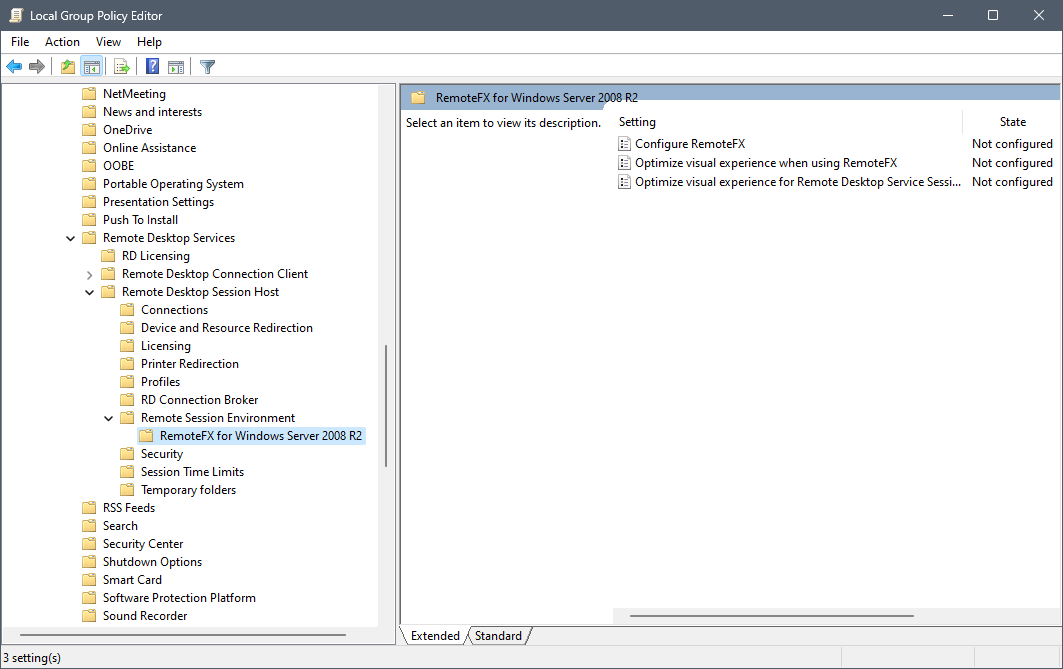
Step 4. Return to Remote Session Environment and set:
- Use the hardware default graphics adapter for all Remote Desktop Services sessions → Enabled
- Configure compression for RemoteFX data → Enabled
- Use WDDM graphics display driver for Remote Desktop Connections → Disabled
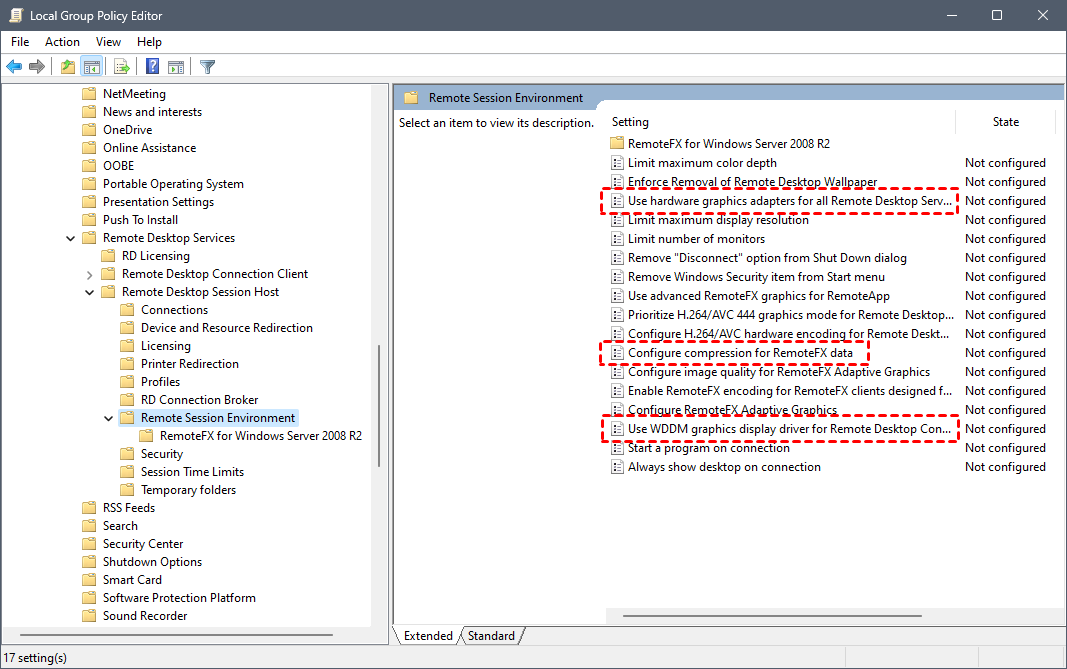
Step 5. Restart the host computer to apply the changes.
Bridging the Gap: Implementing vGPU in Remote Session with AnyViewer

While understanding the mechanics of vGPU is essential, choosing the right remote desktop software to leverage that power is what defines the user experience. AnyViewer stands out as a robust solution designed to translate backend GPU power into a seamless front-end display, especially for those optimizing a Virtual GPU display in remote session on Windows 10 and Windows 11 environments.
Why AnyViewer for vGPU-Powered Sessions?
AnyViewer is engineered to handle the high-bandwidth demands of virtualized graphics, making it an ideal choice for users who require more than just a basic RDP connection.
- Virtual Screen Expansion: AnyViewer allows users to set up Virtual Screens, enabling a multi-monitor workflow even when the remote host lacks physical displays. This perfectly complements vGPU's ability to drive multiple high-resolution outputs.
- 60 FPS High-Speed Streaming: Optimized for high frame rates, it ensures that vGPU-accelerated applications like 3D modeling or video editing remain fluid and responsive.
- Adaptive Image Optimization: It automatically balances visual fidelity and latency, ensuring that the 4K output from your vGPU is delivered with minimal compression artifacts.
- Hardware-Level Encoding: By supporting GPU-based H.264/H.265 encoding, AnyViewer reduces CPU overhead and maximizes the efficiency of the remote display protocol.
Conclusion
As cloud-native applications become the standard, a high-performance virtual GPU display in remote session is no longer a luxury but a necessity for remote productivity. It ensures that professional software runs smoothly while keeping sensitive data secure in the data center.
To truly master this technology, choosing a capable tool like AnyViewer is key. With features like Virtual Screen support and 60 FPS streaming, AnyViewer effectively translates backend vGPU power into a seamless user experience. Optimizing this combination of hardware virtualization and smart software is the best way to boost efficiency in any remote work setup.



 as a preferred
source on Google
as a preferred
source on Google