

Fix: TeamViewer Initializing Display Parameters Problem
This guide offers step-by-step fixes for TeamViewer display initialization hangs, including software updates, process management, and headless monitor solutions, plus a reliable alternative in AnyViewer.

By Ellie / Updated on April 2, 2026


In the world of remote support, few things are more frustrating than a connection that hangs just as it's about to start. For many users, the dreaded TeamViewer "Initializing display parameters" screen is a common roadblock.
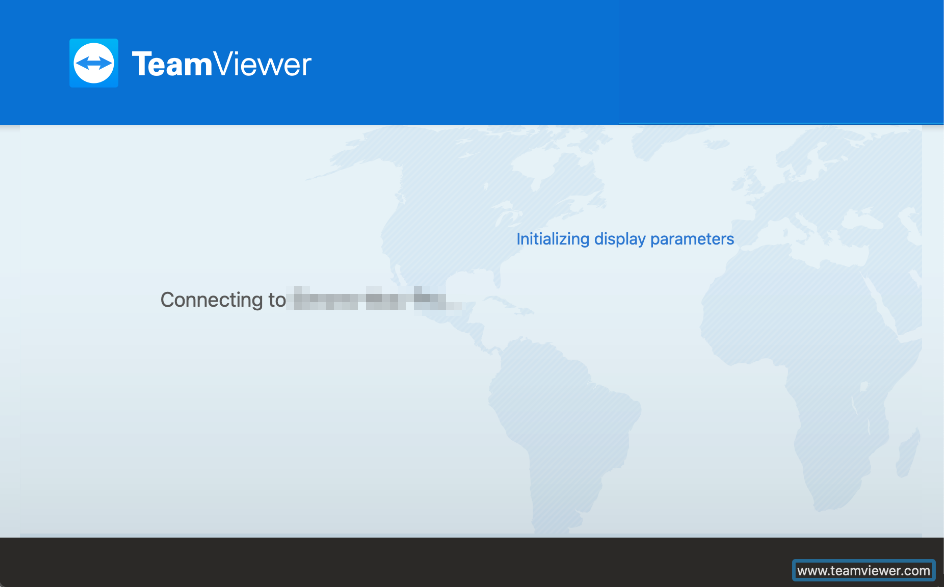
Typically, this message should only appear for a split second. However, if it gets stuck indefinitely, it prevents you from accessing the remote desktop. This guide explores why this happens and provides step-by-step solutions to get your connection back on track and solve the TeamViewer "Initializing display parameters" problem for good.
Why Is TeamViewer Stuck on Initializing Display Parameters?
Several factors can cause TeamViewer to hang during the handshake process:
- Version Mismatch: Outdated software on either the local or remote machine.
- Process Conflicts: Third-party background apps (like BGInfo) are interfering with the display capture.
- Headless Systems: The remote PC has no monitor attached, causing display driver initialization to fail.
- Corrupt Settings: Damaged registry keys or cache files within the TeamViewer installation.
Basic Troubleshooting Solutions
If you're stuck on the initialization screen, try these simple steps first to get your connection back up and running.
Fix 1. Restart the TeamViewer Service
Before diving into complex settings, a simple service restart can often clear temporary glitches that cause the TeamViewer connecting "Initializing display parameters."
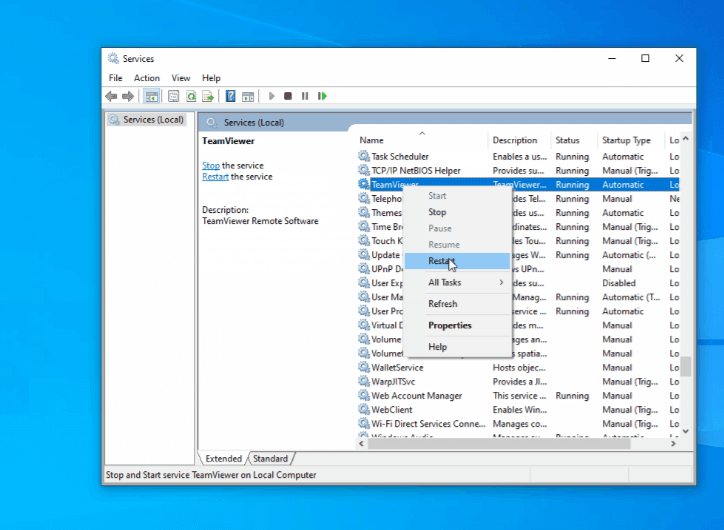
Step 1. Press "Win + R", type "services.msc", and hit Enter.
Step 2. Locate TeamViewer, right-click it, and select Restart.
Fix 2. Update TeamViewer on Both Ends
Compatibility issues between different versions frequently trigger display errors.
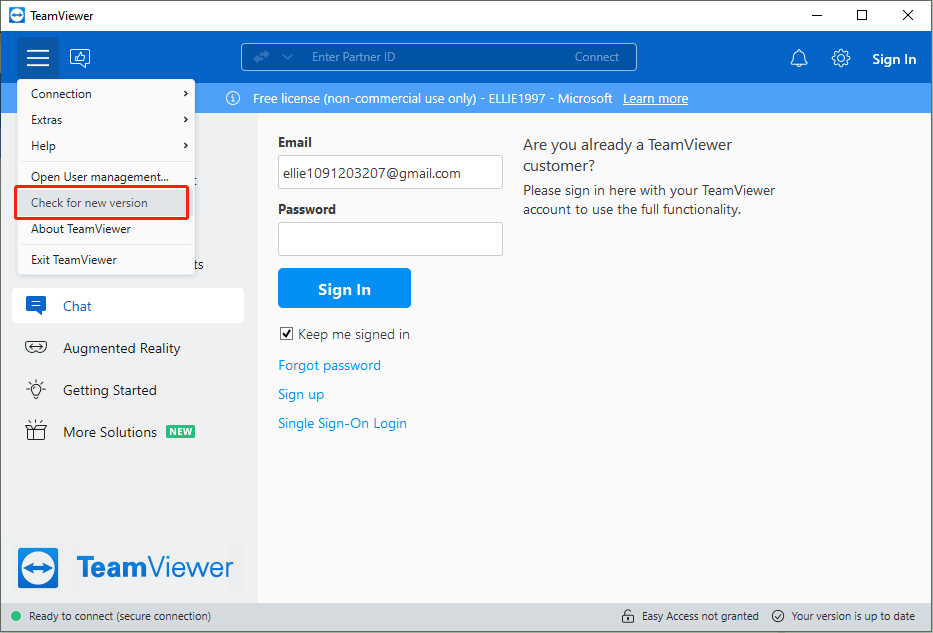
Step 1. Open TeamViewer.
Step 2. Click the Three-dot menu > Check for new version.
Step 3. Ensure both the controller and the remote computer are running the latest build.
Fix 3. Kill Conflicting Processes (BGInfo)
A known culprit for the TeamViewer "Initializing display parameters" stuck error is a utility called BGInfo, which overlays system text on wallpapers.
Step 1. Press "Ctrl + Shift + Esc" to open Task Manager.
Step 2. Find "BGInfo" under the Processes tab.
Step 3. Click End Task and try reconnecting.
Advanced Fixes for Persistent Issues
If basic steps didn't work, try these more technical configurations to bypass deep-seated connection issues.
Fix 4. Adjust Remote Display Quality
If the remote PC is trying to push a high-resolution feed over a slow connection, it may hang during initialization.
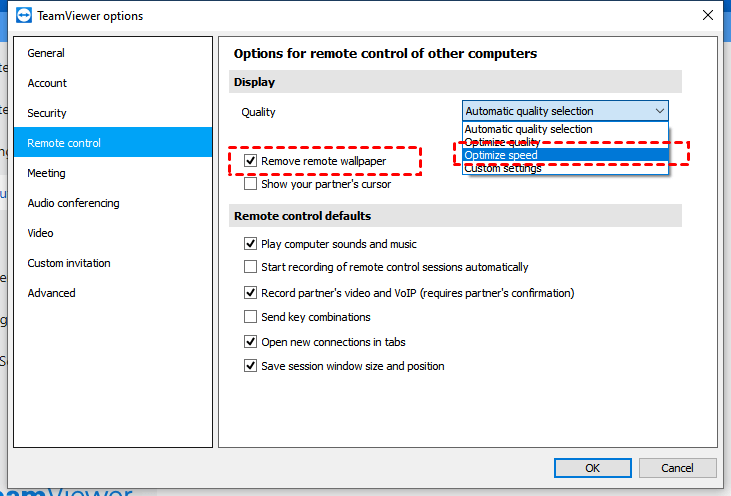
Step 1. On the remote machine, go to Extras > Options.
Step 2. Click the Remote Control tab.
Step 3. Set Quality to Optimize Speed.
Step 4. Uncheck "Remove remote wallpaper" to see if a simplified handshake helps.
Fix 5. Use the Server ID to Connect
Sometimes the standard User ID fails to route the display parameters correctly.
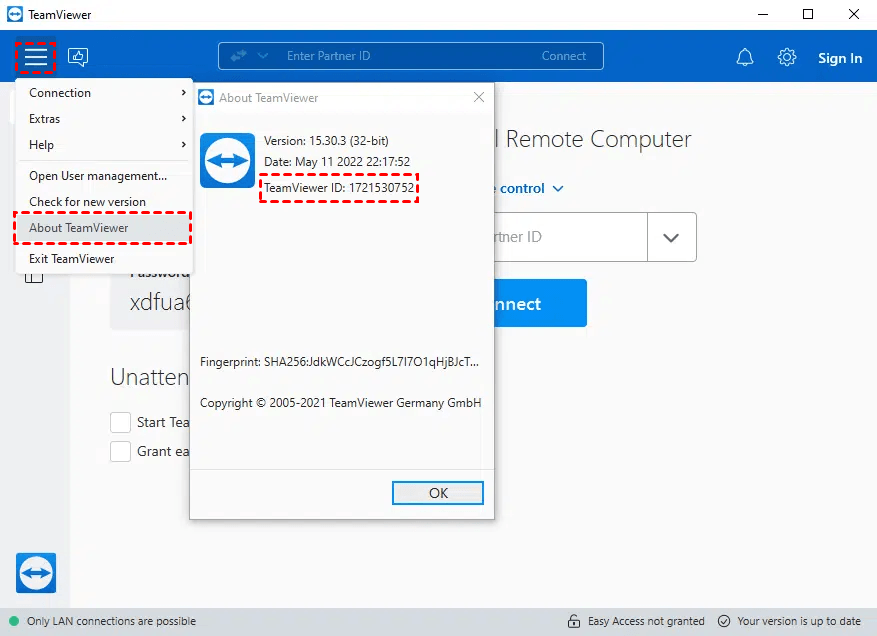
Step 1. On the remote PC, go to Help > About TeamViewer.
Step 2. Look for the Server ID (different from your regular ID).
Step 3. Use this Server ID on your local machine to initiate the connection.
Fix 6. The "Headless" Solution: HDMI Dummy Plug
If you are connecting to a server or a PC without a physical monitor attached, the graphics card may deactivate, causing TeamViewer to get stuck.
Step 1. Use an HDMI Dummy Plug (Ghost Adapter).
Step 2. This tiny device tricks the computer into thinking a high-resolution monitor is connected, allowing display parameters to initialize perfectly.
Fix 7. Clean Reinstall & Unattended Access
If the error persists, your installation might be corrupt. Follow these steps for a clean slate:
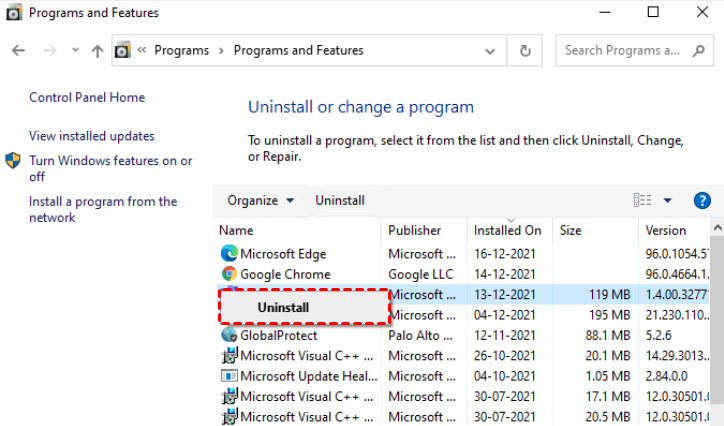
Step 1. Remove TeamViewer via the Control Panel.
Step 2. Manually delete TeamViewer folders in "C:\Program Files (x86)" using the following command:
- Get-Item "C:\Program Files" | select Name,CreationTime

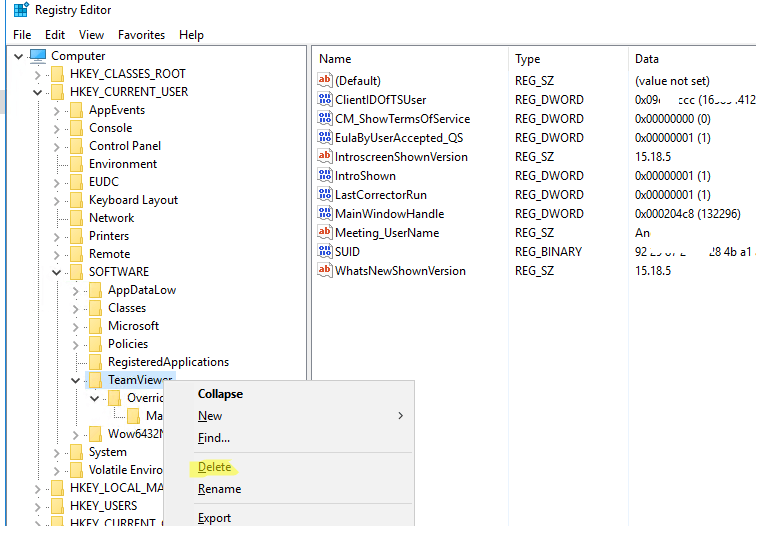
Step 3. Delete the TeamViewer keys in "HKEY_CURRENT_USER\SOFTWARE\TeamViewer".
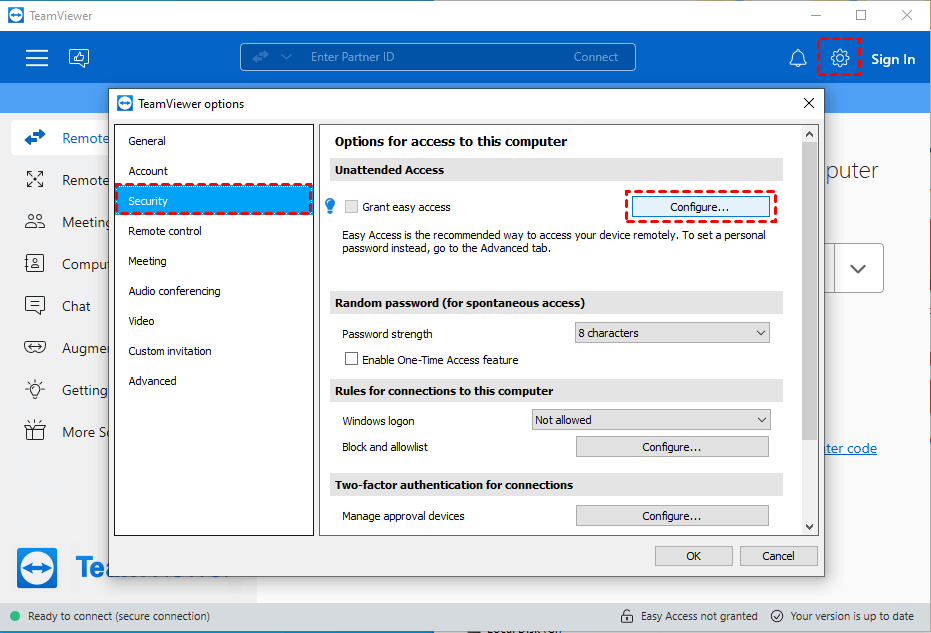
Step 4. Download the latest version and set up unattended remote access to ensure the service has permanent permissions to capture the screen.
A More Reliable Alternative: AnyViewer

Tired of troubleshooting the TeamViewer "Initializing display parameters" problem? Switch to AnyViewer for a seamless remote access experience that bypasses common display errors entirely.
If you want to eliminate the TeamViewer "Initializing display parameters" headache for good, AnyViewer is your best bet. Unlike legacy software that often struggles with complex handshakes, AnyViewer is built on a high-speed, optimized engine designed for instant connectivity.
Why Choose AnyViewer over TeamViewer?
- Stable Unattended Access: Enjoy reliable, one-click connections to remote PCs without requiring manual intervention at the other end—perfect for managing servers or home PCs.
- Enhanced Privacy with Black Screen: Perform sensitive tasks securely by forcing a black screen on the remote monitor, ensuring your actions remain private from onlookers.
- Lightweight & Headless-Ready: AnyViewer is highly optimized to handle display parameters efficiently. It connects smoothly even to headless servers or systems without active monitors, where other tools typically hang.
- Seamless Multi-Monitor Support: Navigate between multiple displays with zero lag. Its intuitive interface allows you to view all monitors at once or switch between them instantly.
- Zero Configuration Hassle: Get started in seconds with a user-friendly setup that doesn't require complex firewall or registry tweaks.
Conclusion
Don't let the TeamViewer "Initializing display parameters" error slow you down. Most of the time, a quick service restart or software update will get you back online. If the problem persists, following the advanced steps like using a dummy plug or a clean reinstall should clear the path.
However, if you're tired of troubleshooting and want a more reliable connection every time, switching to AnyViewer, the best TeamViewer alternative, is a smart move. It’s built to bypass these display glitches entirely, giving you a faster and more stable remote experience without the hassle.



 as a preferred
source on Google
as a preferred
source on Google