

What Does ScreenConnect Waiting for Your Host Mean?
This brief overview explains what screen connect waiting for your host indicates. It offers helpful insights for situations where screenconnect is unable to connect to the server, aiming to restore connectivity.

By Irene / Updated on March 10, 2026


🌟Article Overview
1. What "Waiting for Your Host" Means
This is not an error. It simply indicates that your computer (the client) has successfully connected to the session, but the technician (the host) has not yet joined. The connection will stay in this idle state until the host opens the session on their end.
2. Troubleshooting "Unable to Connect to Server"
Unlike the "waiting" message, this is an actual error. The article suggests four methods to fix it:
-
Check Internet: Ensure your connection is active; restart your router if necessary.
-
Verify Links: Double-check the URL or session code for typos.
-
Firewall Settings: Ensure security software isn't blocking ScreenConnect.
-
Restart Client: Use Task Manager to fully close and relaunch the application.
3. Featured Alternative: AnyViewer
The article highlights AnyViewer as a simpler, more affordable alternative to ScreenConnect, particularly for teams or individuals.
-
Key Benefits: Easy setup, end-to-end ECC encryption, and a free tier for personal use.
-
Advanced Features: Includes unattended access, file transfer, and "Privacy Mode" (blacking out the remote screen).
What does ScreenConnect Waiting for Your Host mean?
The message “Waiting for Your Host” in ScreenConnect means that you have already joined a remote support session, but the technician has not connected yet. ScreenConnect is a remote access tool that allows IT staff to view and control your computer to help solve technical problems. When this message appears, your computer has successfully entered the session and is ready for support. However, the technician still needs to join from their side before the remote connection can start.
Remote support works only when both sides are present in the same session. In this process, your computer acts as the client, while the technician acts as the host. Your device has already connected to the service and confirmed that you are ready. However, the screen sharing and remote control will not begin until the host opens the session and approves the connection from their control panel. Until that happens, the system simply keeps the session open and waits.
In most cases, this message is not an error and does not indicate any problem with your computer or network. It is only a status notification showing that the session is ready but not active yet. You usually do not need to restart your device, change any settings, or reinstall the software. The best action is to keep the window open and wait for the technician to join. If the waiting time becomes too long, you can contact your IT support team to let them know that you are already connected and waiting for assistance.
Common error: ScreenConnect unable to connect to the server
Although the message “Waiting for Your Host” in ScreenConnect usually means the session is simply waiting for the technician, users may sometimes encounter a different problem called “unable to connect to the server.” This error occurs when the software cannot establish communication with the remote server. The issue may be caused by network problems, firewall restrictions, or incorrect settings. The following methods can help you troubleshoot and restore the connection.
Method 1. Check your internet connection
Step 1. Open a browser and visit any website to confirm that your internet connection is working normally.
Step 2. If the page does not load, restart your modem or router.
Step 3. Reconnect your computer to the network and try to join the ScreenConnect session again.
If the connection works normally after the restart, the issue was likely caused by a temporary network interruption.
Method 2. Verify the session link or server address
Step 1. Carefully check the remote support link or server address provided by your technician.
Step 2. Make sure there are no typing errors when entering the URL or session code.
Step 3. Open the correct link again and reconnect to the session.
Incorrect or outdated session links can prevent your device from reaching the server.
Method 3. Check firewall or security software
Step 1. Open the firewall or antivirus settings on your computer.
Step 2. Look for any rules that may block ScreenConnect connections.
Step 3. Temporarily allow the program through the firewall and try to reconnect.
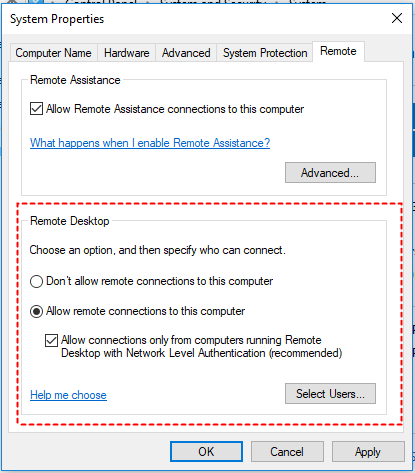
Some security tools may mistakenly block remote access software from contacting the server.
Method 4. Restart the ScreenConnect client
Step 1. Close the ScreenConnect window completely.
Step 2. End the related process in Task Manager if it is still running.
Step 3. Reopen the support link or launch the client again.
Restarting the application can clear temporary glitches and restore the connection.
The “ScreenConnect unable to connect to the server” issue is usually related to network interruptions, incorrect session links, or security restrictions. By checking your internet connection, verifying the session address, reviewing firewall settings, and restarting the client, you can often resolve the problem quickly and reconnect to the support session.
🔥The best Screen Connect alternative for remote support: AnyViewer
While ConnectWise ScreenConnect is a powerful remote support platform, it may not be the best choice for everyone. Its complex interface, higher pricing, and learning curve can make it difficult for beginners or small teams. If you are looking for a simpler and more affordable option, AnyViewer is a great alternative. It provides reliable remote access and practical features while keeping the setup and daily use easy for both individuals and businesses.
- ★ Why AnyViewer is a good ScreenConnect alternative
- Simple setup and easy operation
AnyViewer is designed with a clear and user friendly interface. Users can quickly install the program, sign in, and start remote connections with only a few steps, which makes it suitable even for beginners. - Fast and stable remote connection
The software uses an optimized connection system to keep remote sessions smooth and responsive. Whether you are using WiFi or another network, the connection remains stable and reliable. - Strong security protection
Remote sessions are protected by end to end Elliptic Curve Cryptography encryption. This helps keep data safe during remote access. - Useful features for remote support
AnyViewer includes practical tools such as unattended remote access, file transfer, multi session support, and multiple monitor viewing. These features help users manage devices and provide remote assistance more efficiently. - Affordable and flexible plans
Compared with enterprise focused tools, AnyViewer offers more budget friendly pricing and even free options for personal use.
AnyViewer offers a simpler approach with stable performance, strong security, and helpful remote management features. For individuals, small businesses, and growing teams, it can be a practical and cost effective alternative for remote support.
Step 1. Download, install, and launch AnyViewer on both computers. On the Controller computer, go to Log in, and then click Sign up (if you already have signed up on its official website, you can log in directly).

Step 2. Fill in the signup information.

Step 3. Then you can see you successfully logged in to AnyViewer. Your device will automatically be assigned to the account you’ve logged in to.

Step 4. Log in to the same AnyViewer account on the two devices; then you can achieve a direct connection by clicking One-click control.

Step 5. After connecting successfully, you’ll see the remote desktop.
- Notes: You can also upgrade your account to a Professional or Enterprise plan. What can a professional or enterprise plan brings to you:
- More devices can be assigned to the same account for unattended remote access.
- Connect in privacy mode to protect privacy, which means the Controller can black the remote PC screen and disable the remote keyboard & mouse click. This helps to prevent accidental touches during remote access.
- Faster file transfer speed. Transfer speed for a free account is 500 KB/s, and for a paid account is up to 10 MB/s.
Conclusion
The message “Waiting for Your Host” in ConnectWise ScreenConnect simply means that your device has joined the remote support session and is ready, but the technician has not connected yet. In most situations, it is only a normal status notification rather than an error. However, if you encounter issues such as “unable to connect to the server,” checking your internet connection, verifying the session link, reviewing firewall settings, or restarting the client can usually resolve the problem. If you prefer a simpler and more user friendly remote access solution, AnyViewer can be a practical alternative that offers stable connections, useful features, and flexible plans for both personal and business use.
FAQs
1. What does “Waiting for Your Host” mean in ConnectWise ScreenConnect?
It means your computer has already joined the remote support session, but the technician has not connected yet. The system is simply waiting for the host to start the remote connection.
2. Is “Waiting for Your Host” an error?
No. In most cases it is only a status message. It shows that the session is ready and your device is waiting for the technician to join.
3. Why does ScreenConnect show “unable to connect to the server”?
This error usually happens because of network problems, incorrect session links, firewall restrictions, or temporary software issues that prevent the client from contacting the server.
4. How can I fix the ScreenConnect unable to connect to the server error?
You can try checking your internet connection, verifying the session link or server address, reviewing firewall settings, or restarting the ScreenConnect client.
5. Is there an easier alternative to ScreenConnect for remote support?
Yes. Tools like AnyViewer offer a simpler interface, stable remote connections, and flexible plans, making them suitable for both personal and business remote access.



 as a preferred
source on Google
as a preferred
source on Google