

9 Best Mouse Without Borders Alternatives for Any Device
Compare nine Mouse Without Borders alternatives for controlling devices across Windows, macOS, Linux, Android, and iOS. See which tools work over a local network, which support remote access, and how to set up AnyViewer for cross-device control.

By Ellie / Updated on September 4, 2026


What is Mouse without Borders?
Mouse Without Borders enables seamless control across multiple PCs as if they were a single desktop. With this utility, you can move your mouse between three or more screens, even if one is connected to a different PC. It is a highly popular tool in the OS and utilities category for sharing a mouse.
However, Mouse without Borders has a few limitations.
- It may experience lag or connectivity issues if the network is unstable.
- It also relies on all connected computers being on the same network, which can limit its use in some environments.
- It’s designed primarily for Windows systems, so compatibility with other operating systems might be limited.
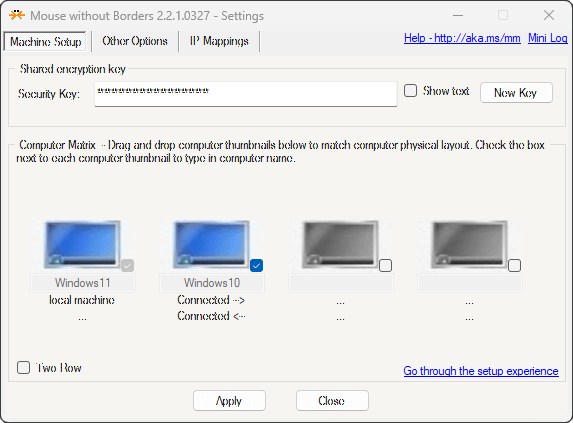
Top 9 Mouse without Borders alternatives for controlling PC
The right replacement depends on where the computers are located, which operating systems they run, and whether you need more than just keyboard and mouse sharing. Use this table to narrow the list before reading the detailed reviews.
| Tool | Platforms | Works across the internet | File transfer | Best fit |
|---|---|---|---|---|
| AnyViewer | Windows, macOS, iOS, Android | Yes | Yes | Remote work, support, and unattended access |
| Synergy | Windows, macOS, Linux | Primarily LAN | Drag and drop on supported plans | Mixed-OS desks |
| Barrier | Windows, macOS, Linux | Primarily LAN | No | Free, basic keyboard and mouse sharing |
| Input Director | Windows | LAN | Shared clipboard | Windows-only multi-PC desks |
| Input Leap | Windows, macOS, Linux | Primarily LAN | No | Open-source, mixed-OS setups |
| ShareMouse | Windows, macOS | LAN | Yes | Easy setup and automatic discovery |
| Multiplicity | Windows | LAN and remote KVM features | Yes | Professional multi-PC workstations |
| InputShare | Windows to Android | USB or Wi-Fi | No | Android testing and typing |
| Deskflow | Windows, macOS, Linux | Primarily LAN | No | Modern open-source keyboard and mouse sharing |
Quick picks: Choose AnyViewer when the devices are on different networks or when you need unattended access and file transfer. Synergy, Barrier, Input Leap, and Deskflow suit a nearby mixed-OS desk. Input Director or Multiplicity makes more sense for an all-Windows setup, while InputShare is built for controlling Android from a PC.
Option 1. AnyViewer: Remotely control PC mouse and keyboard
AnyViewer takes a different approach from LAN-only keyboard-sharing tools. This remote desktop software shows the remote computer’s screen and sends keyboard and mouse input through a remote session, so the devices do not have to be on the same network.
The screen wall feature in AnyViewer allows users to view and control all their devices from a single window, managing keyboards and mice seamlessly. Its clean interface makes setup and operation straightforward, ideal for support, team management, and remote file access. AnyViewer provides fast, responsive connections with minimal delay.
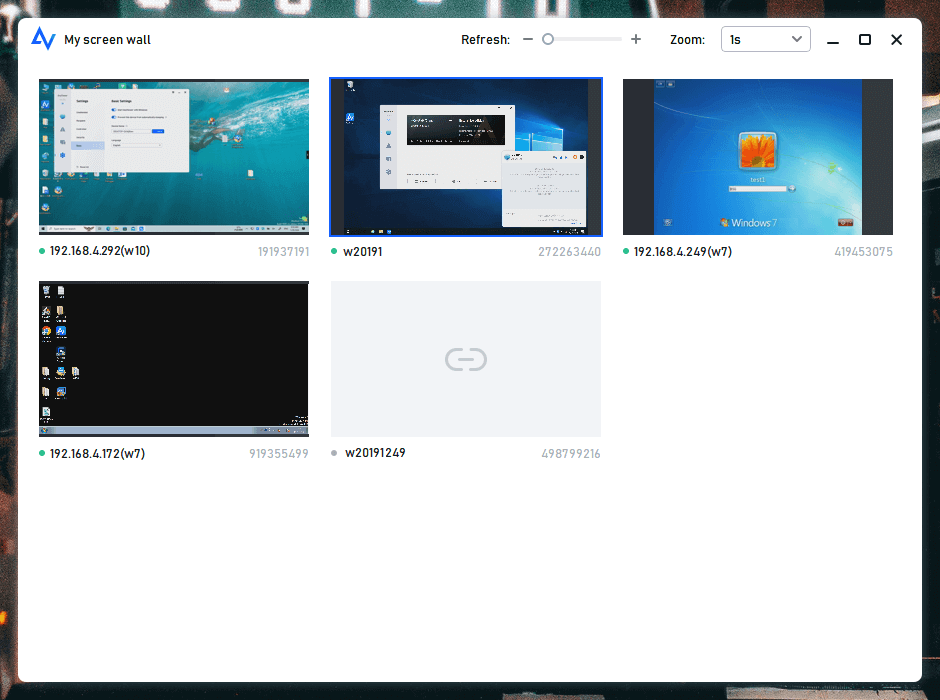
AnyViewer protects remote sessions with end-to-end encryption and supports two-factor authentication for account security.
AnyViewer features:
- Unattended remote mouse and keyboard control: Control your PC's mouse and keyboard from anywhere, even if no one is at the computer.
- File transfer: Move files between your computer and the remote PC easily, using drag-and-drop or a file manager.
- Multiple sessions: Handle several remote connections at once, perfect for IT support or managing multiple computers.
- Screen recording & capture: Record your remote sessions or capture screenshots directly during a connection, making it convenient for training, documentation, or troubleshooting.
- Screen sharing: Share your screen or view someone else’s screen in real-time, useful for presentations or troubleshooting.
- Sound sync: Hear audio from the remote PC on your local device, ideal for remote meetings or watching videos.
- Access from mobile devices: Control your PC from your smartphone or tablet (iOS and Android) using the AnyViewer mobile app.
- Bluetooth keyboard and mouse detection: Use Bluetooth keyboards and mice connected to your mobile device to control the PC, just like you would if you were there.
When AnyViewer is the better fit:
- Working away from your main PC: Reach an office or home computer from another network instead of limiting control to devices on the same desk.
- Helping family members or customers: View the remote screen while controlling the keyboard and mouse to troubleshoot an issue.
- Managing unattended computers: Connect to an assigned device without waiting for someone to accept the session.
- Controlling a PC from a phone or tablet: Use the mobile app when a second computer is not available.
- Watching several computers: Use Screen Wall to check multiple assigned screens from one window.
How to control another device with AnyViewer:
- Install AnyViewer. Download and install it on the computer you will control and on the device you will use to connect.
- Sign in on both devices. Create an AnyViewer account, then sign in with the same account on each device. The remote computer will appear under Device once it is assigned.
- Start the connection. On the controlling device, open Device, select the target computer, and click One-click control.
- Use the session toolbar. Adjust display quality, transfer files, switch screens, or enable other available session controls as needed.
Option 2. Synergy: Smooth and cross-platform professional tool
Synergy shares one keyboard and mouse among Windows, macOS, and Linux computers on the same desk. It is a practical choice when your setup mixes operating systems, and you want the pointer to pass from one screen to the next.
Install Synergy on every computer, set the computer with the physical keyboard and mouse as the Server, and add the others as Clients. Paid plans differ in their included features and support, so check the current plan details before buying.
Because Synergy is designed for nearby computers, it is a closer match to Mouse Without Borders than a full remote desktop tool. It is less suitable when you need to see and control a computer over the internet.
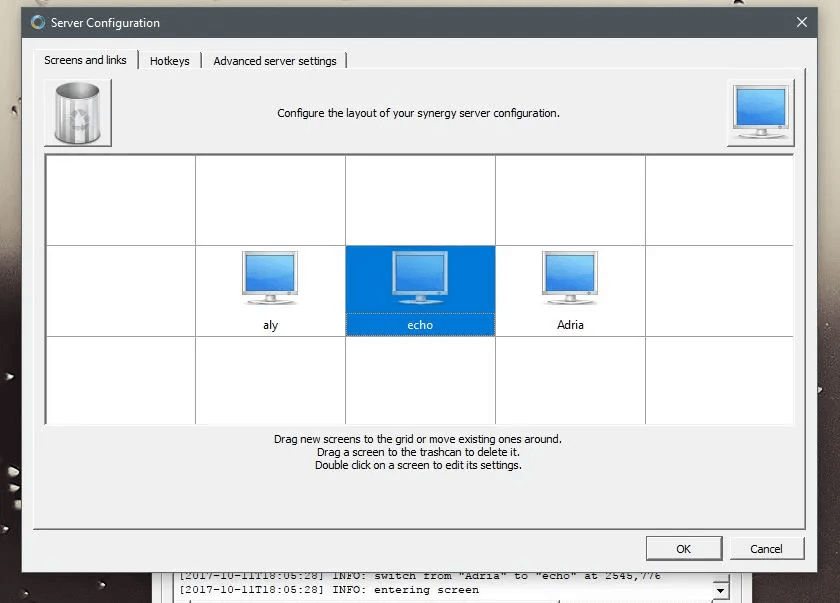
Synergy features:
- Mouse sharing
- Keyboard sharing
- Clipboard sharing
- SSL/TLS encryption
- Virtual KVM-like switching
- Auto-connect configuration
- Wayland support
- Drag-and-drop functionality
- Multi-platform compatibility
Option 3. Barrier: Free and open-source multi-device controller
Barrier is a free, open-source tool for sharing one keyboard and mouse among Windows, macOS, and Linux computers. It covers the basics without a subscription or physical KVM switch.
Setup follows a server-and-client model: install Barrier on each computer, choose the machine connected to the keyboard and mouse as the Server, then arrange the Client screens. Barrier is lightweight, but configuration can take more work than a commercial tool with automatic discovery.
Barrier works best for a personal desk or home office where all computers are nearby and the user is comfortable troubleshooting network settings.
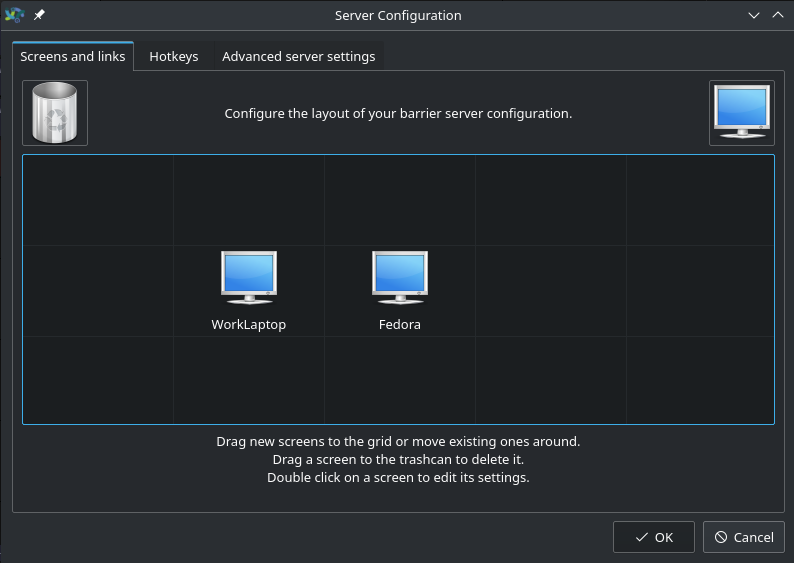
Barrier features:
- Completely free and open-source
- Mouse sharing across devices
- Keyboard sharing across devices
- Clipboard synchronization
- Windows, macOS, and Linux support
- Lightweight resource usage
- Multi-monitor support
- Optional SSL encryption via community builds
Option 4. Input Director: Designed for Windows only
For Windows users seeking smoother performance than Mouse Without Borders, Input Director is a highly regarded alternative. However, it requires more setup effort and might pose challenges for those who are less experienced.
For instance, Input Director often struggles to detect other devices on the network during a scan, even when entering the hostname manually. However, inputting the secondary machine's IP address directly generally resolves this issue, leading to smooth operation.
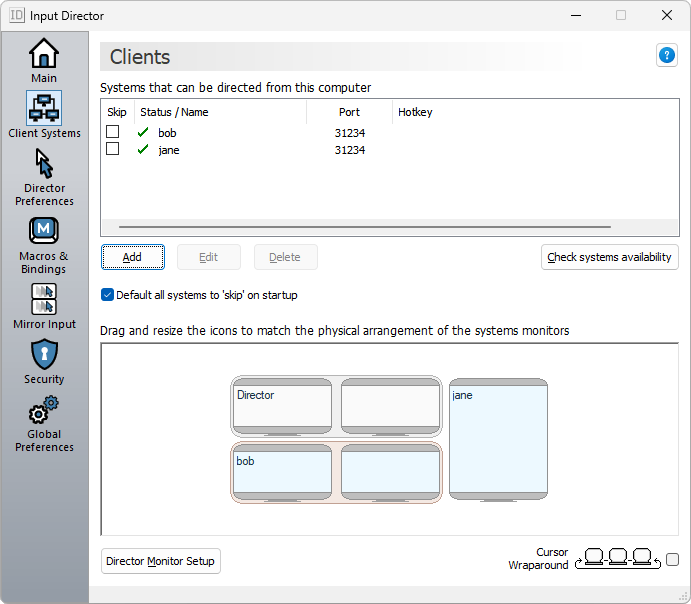
Moreover, Input Director offers robust security features that allow you to control which computers can connect, along with customizable hotkeys and additional functionalities. While these features might be daunting for some, those familiar with the system will find Input Director operates as seamlessly as Synergy, albeit exclusively for Windows environments.
Input Director features:
- Keyboard sharing
- Mouse sharing
- Macro recording
- Screen sharing
Option 5. Input Leap: Lightweight cross-platform option
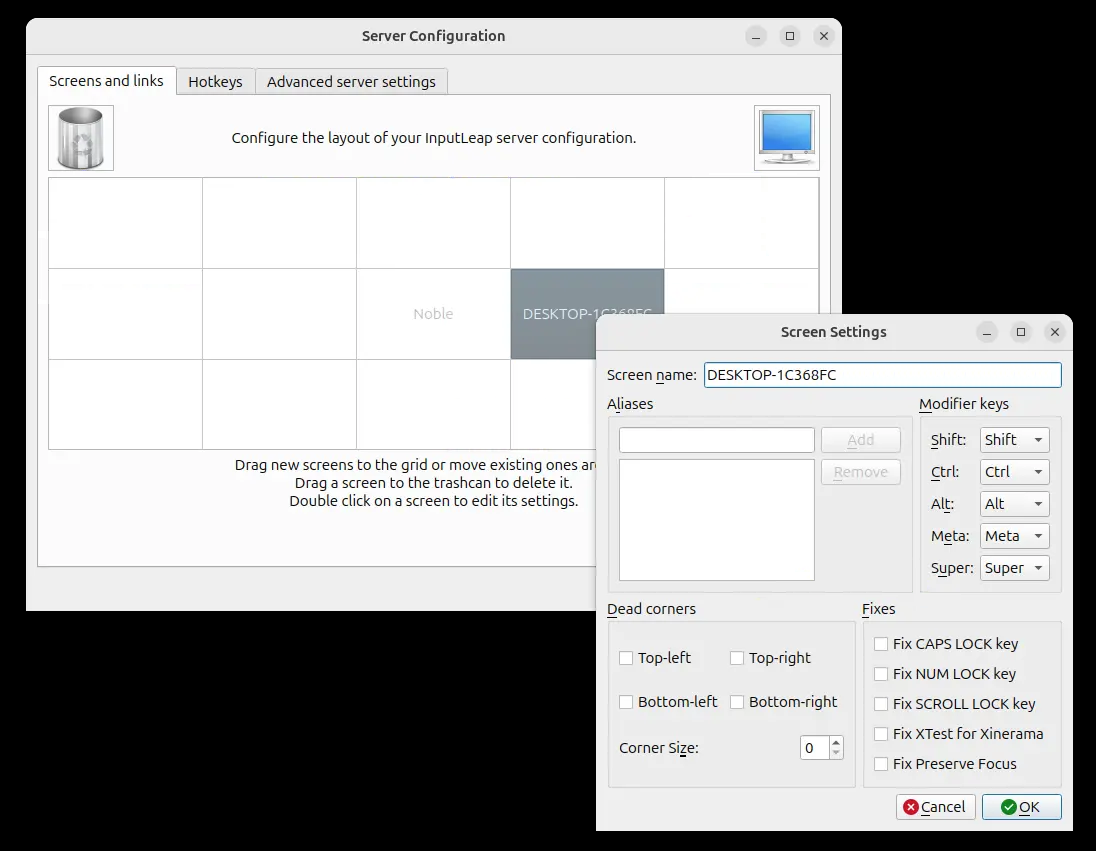
Input Leap is a lightweight and open-source utility that works as a virtual KVM switch, letting you control multiple computers with one keyboard and mouse. It functions similarly to older hardware KVM switches, except without needing physical devices.
Compared to Synergy or Barrier, Input Leap focuses on simplicity and stability. Its minimalistic design makes setup straightforward, and it supports smooth pointer movement across screens, clipboard sharing, and multi-platform environments. While it may not include as many advanced features as commercial solutions, Input Leap’s clean approach makes it ideal for users who want a basic, free, and no-frills experience.
Input Leap features:
- Keyboard and mouse sharing
- Clipboard sharing
- Cross-platform support
- Lightweight and open-source
- No hardware required
- Easy installation and configuration
Option 6. ShareMouse: Feature-rich and easy to use
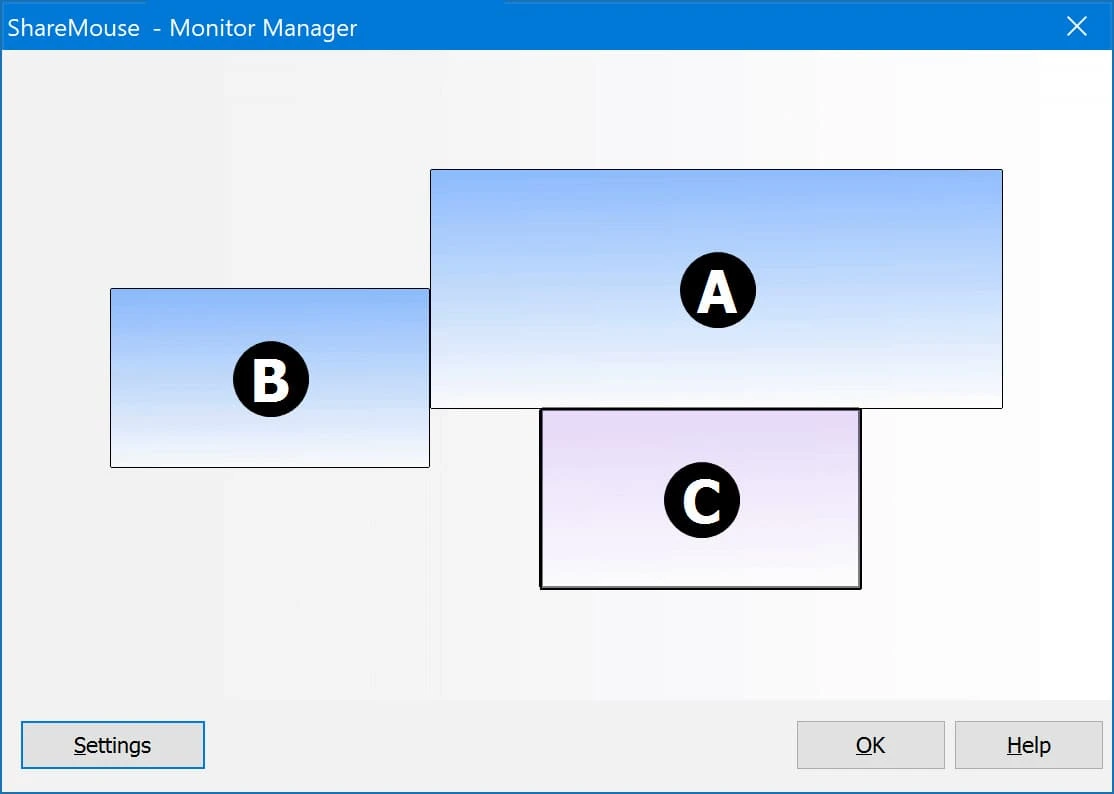
ShareMouse is a polished and user-friendly alternative to Mouse Without Borders. Unlike some open-source tools, ShareMouse offers a more refined interface with automatic device detection and a smooth setup process. Simply move your mouse to the edge of one screen to jump to another computer—no manual configuration needed.
Beyond basic keyboard and mouse sharing, ShareMouse includes advanced features like drag-and-drop file transfers, secure LAN communication, and clipboard synchronization. It also supports cross-platform environments, making it a solid option for users with both Windows and macOS systems.
ShareMouse features:
- Automatic device discovery
- Keyboard and mouse sharing
- Supports Windows & macOS
- Clipboard sharing
- Drag-and-drop file transfer
- Secure encrypted connection
- Multi-monitor support
Option 7. Multiplicity: Premium multi-PC KVM solution
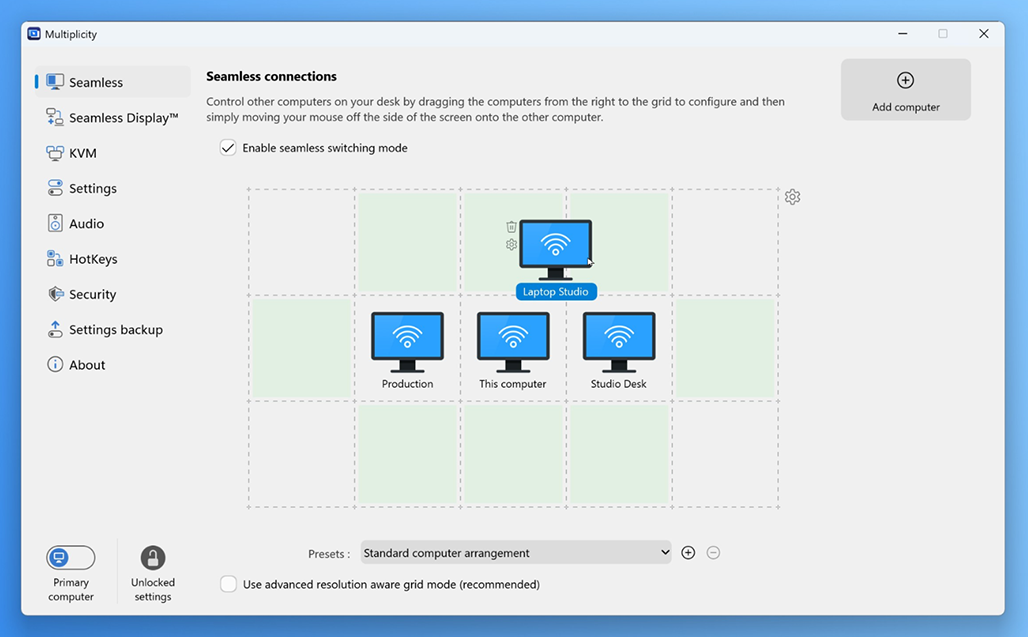
Multiplicity provides a premium virtual KVM experience for controlling multiple computers with one keyboard and mouse. Designed by Stardock, it offers smooth transitions across devices and advanced features suitable for professional environments such as command centers or IT desks.
Multiplicity allows secure file transfers, audio sharing, and centralized computer locking—all without requiring additional hardware. Its performance is stable and responsive, even across several machines.
While it’s a paid solution, users looking for a professional-grade multi-PC control tool will appreciate its reliability and feature depth.
Multiplicity features:
- Keyboard and mouse sharing
- File transfer between PCs
- Audio sharing from remote devices
- Secure encrypted connections
- Multi-PC management
- Designed for professional use
Option 8. InputShare: Control Android devices using your PC peripherals
InputShare provides a specialized type of control: instead of controlling another computer, you can share your PC’s keyboard and mouse with an Android device. It works through ADB in either a wired or wireless configuration.
This makes InputShare particularly useful for developers, testers, or users who want to type long messages, navigate apps, or control their phones without constantly picking them up. Although it has a narrower use case, it fills an important gap that traditional KVM tools do not address.
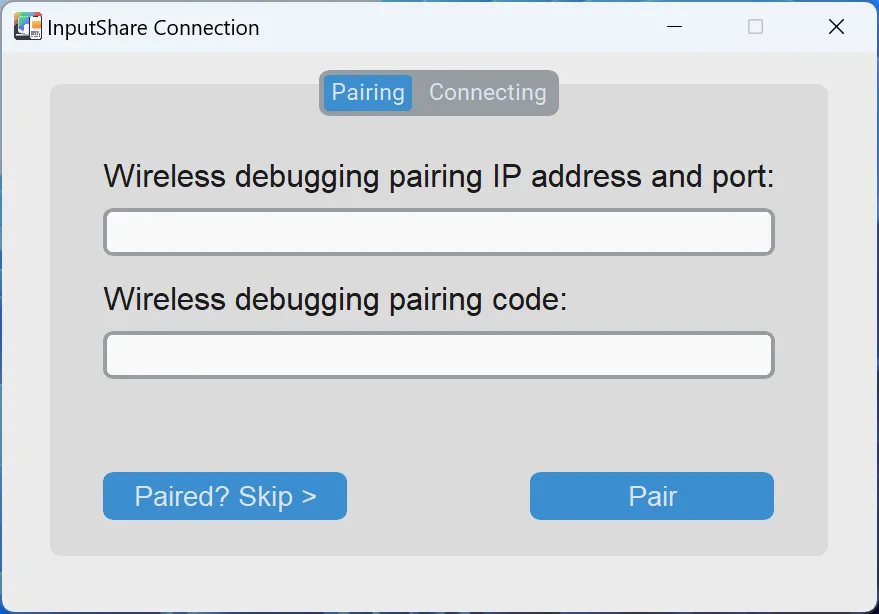
InputShare features:
- Share PC keyboard and mouse with Android
- Works over USB or Wi-Fi (ADB-based)
- No root required
- Low-latency control
- Ideal for productivity and app testing
Option 9. Deskflow: Modern open-source keyboard and mouse sharing
Deskflow is a modern, open-source alternative similar to Synergy and Barrier, but with an updated interface and more secure defaults. It allows you to use one computer’s keyboard and mouse to control nearby devices seamlessly, just like a software KVM setup.
Deskflow emphasizes simplicity and security, with TLS encryption enabled out of the box. It supports Windows, macOS, and Linux, making it suitable for mixed-device environments. Its operation is smooth and intuitive, especially for users who want a free and trusted open-source tool.
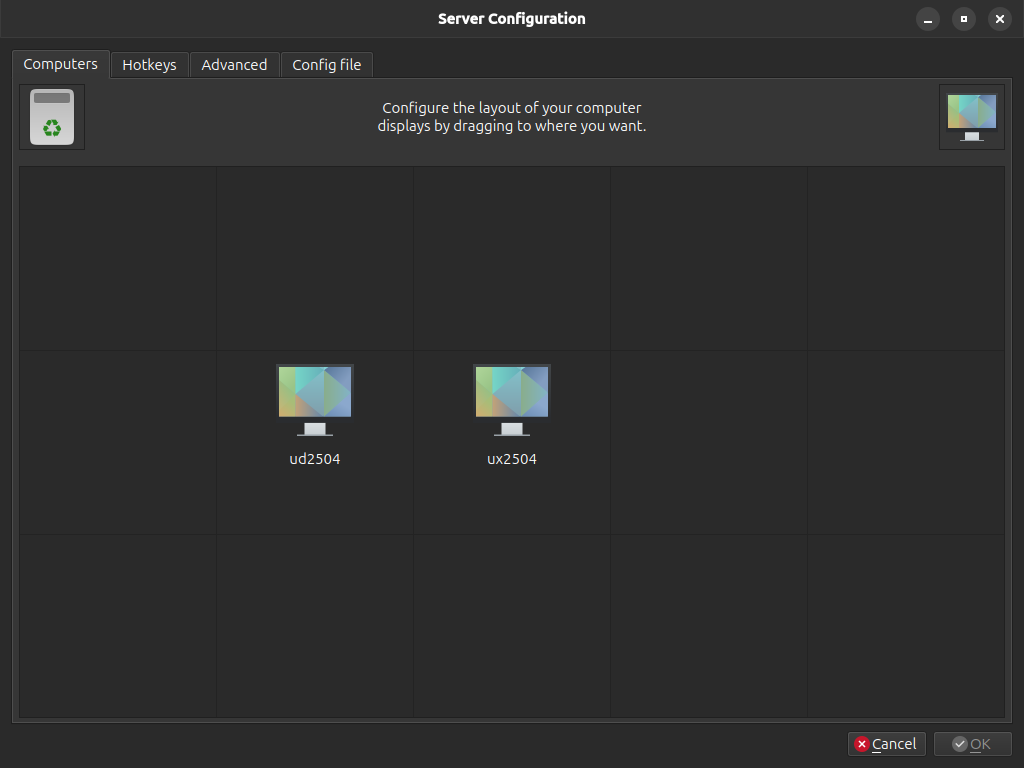
Deskflow features:
- Free and open-source
- Keyboard and mouse sharing
- Clipboard sync
- TLS encryption is enabled by default
- Cross-platform support
- Smooth multi-device workflow
The bottom line
For computers sitting on the same desk, choose by operating system: Input Director or Multiplicity for Windows-only setups, and Synergy, Barrier, Input Leap, or Deskflow for mixed Windows, macOS, and Linux environments. ShareMouse is a convenient Windows-and-Mac option, while InputShare targets Android control from a PC.
If the computers are on different networks, or you need unattended access, file transfer, mobile control, and a live view of the remote screen, AnyViewer is the more direct replacement. Download AnyViewer to try cross-device control from another computer or mobile device.



 as a preferred
source on Google
as a preferred
source on Google