

3 Easy Ways to Use iPhone as a Keyboard for PC
Keyboard broken? Learn how to use iPhone as a keyboard for PC wirelessly using Wi-Fi or Bluetooth, with AnyViewer and other leading tools that make remote control simple and reliable.

By Ellie / Updated on January 30, 2026


Can I use my iPhone as a keyboard for my PC?
We’ve all been there. Maybe your physical keyboard just gave up the ghost, or perhaps you’re tucked into bed and realized you forgot to turn off your PC. Or, let’s be real—sometimes you just want to lie on the couch and control your computer like a remote.
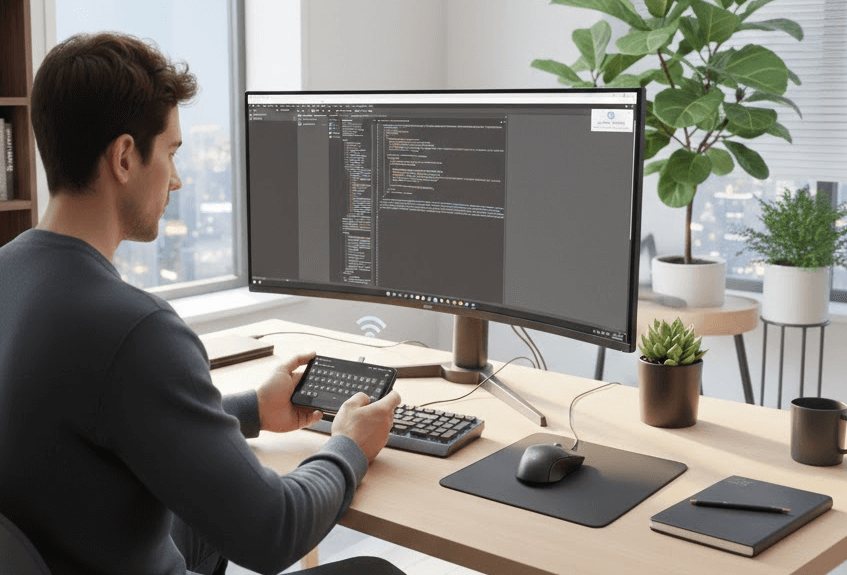
The good news? Your iPhone is already a high-tech wireless keyboard waiting to happen. You don't need to run to the store for a wireless spare. With the right app, you can turn your phone into a fully functional trackpad and keyboard.
Today, I’m breaking down three of our favorite tools—AnyViewer, Remote Mouse, and Bluetooth—to help you find the perfect match for your setup.
Why use your iPhone as a PC keyboard?
Before we dive in, let’s talk about why this is a total lifesaver. Beyond the "my keyboard is broken" emergency, using your iPhone as a PC input is perfect for:
- The Ultimate Remote Control: Lie on your bed and pause Netflix or skip music tracks without getting up.
- Travel Light: Forget packing a bulky wireless keyboard for your laptop—your phone is already in your pocket.
- Presentations: Walk around the room while clicking through slides like a pro.
- Silent Typing: Use your iPhone’s haptic keyboard or voice-to-text to type late at night without the loud "clack-clack" of mechanical keys waking everyone up.
How to use iPhone as a keyboard for PC [3 methods]
Depending on whether you’re in the same room as your PC or miles away, different tools work better. Here are the three best ways to get connected.
Method 1: Best for remote access (AnyViewer)
If you’re looking for a tool that works even when you’re not on the same Wi-Fi network, AnyViewer is a total game-changer remote desktop solution.
Most "keyboard apps" only work if your phone and PC are in the same room. AnyViewer is different. It’s like having your entire desktop shrunken down into your pocket. Whether you’re at a coffee shop or just in another room, you’ve got full control.
- Distance is No Issue: Control PC from across the house or across the city using cellular data or any Wi-Fi.
- Zero Technical Headache: No messing with IP addresses. If you can log into an email account, you can use this.
- Privacy Mode: You can black out your PC screen while you're using it remotely so nosy roommates can’t see what you’re typing!
- Unattended Remote Control: As long as your computer is on, you can connect from your iPhone anytime, even if the PC is unattended.
How to Get Started (The Simple Way):
Step 1: Download and launch AnyViewer. Click "Log in" and then "Sign up" to create a quick account.

Step 2: Grab the AnyViewer app from the App Store.
Step 3: Log into the same account on both devices. On your iPhone, find your PC under "Devices" and tap "One-click control."
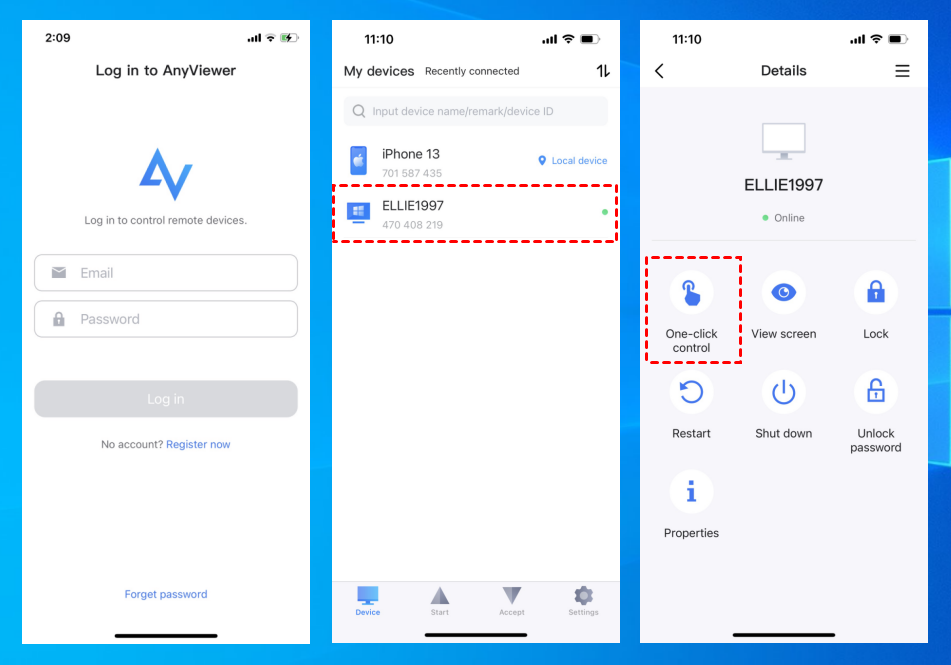
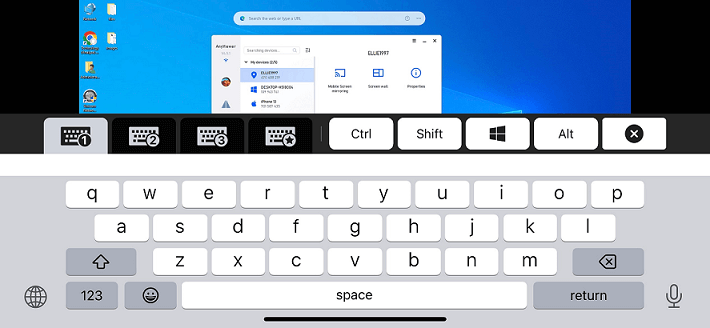
Step 4. Once your desktop appears on your phone, tap the keyboard icon. Boom—you’re now typing on your PC from your phone!
Method 2: Best for home Wi-Fi (Remote Mouse)
For those who want a smooth, lag-free experience while sitting on the couch, Remote Mouse is the gold standard. It’s incredibly fast and turns your phone into a giant trackpad.
✅ Pros:
- Intuitive Gestures: Supports multi-touch scrolling and zooming (like a MacBook).
- Media Remotes: Dedicated buttons for YouTube, Spotify, and Netflix.
- Gyroscope: Move your phone in the air to move the mouse cursor.
❌ Cons:
- Requires Installation: You must install a "server" app on your PC.
- Wi-Fi Bound: Both devices must be on the same network.
How to set it up:
Step 1: Connect your mobile device and computer to the same Wi-Fi network.
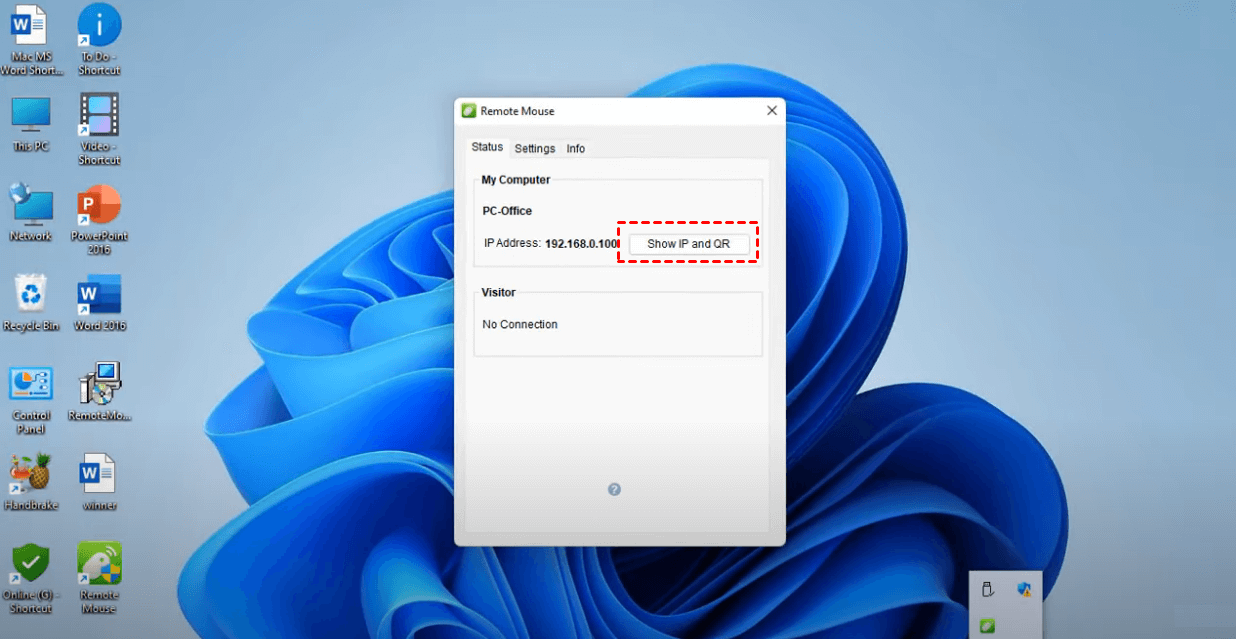
Step 2: Download and install Remote Mouse for desktop on your computer. Open the software and click “Show IP and QR.”
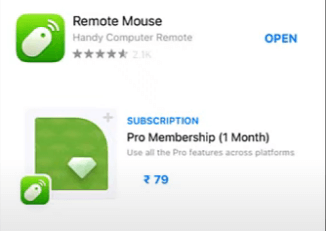
Step 3: Download the Remote Mouse app on your iOS device.
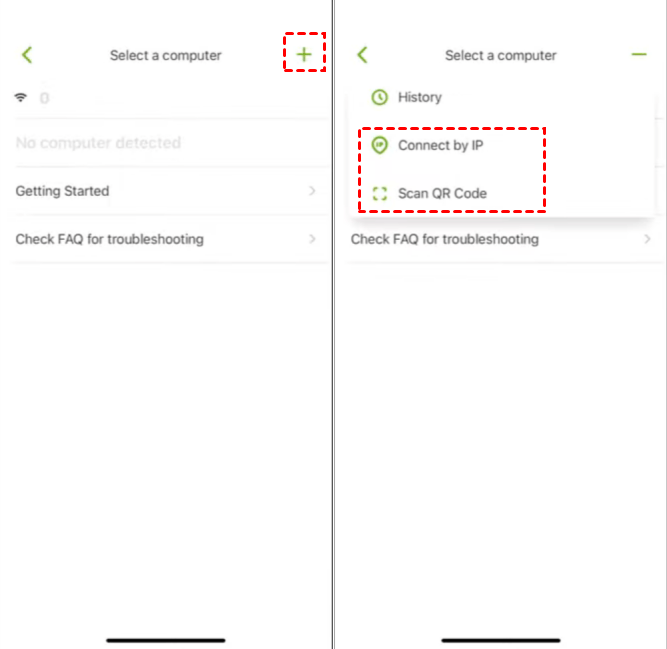
Step 4: Open the app, click “+” and select “Scan QR code” or choose “Connect by IP.”
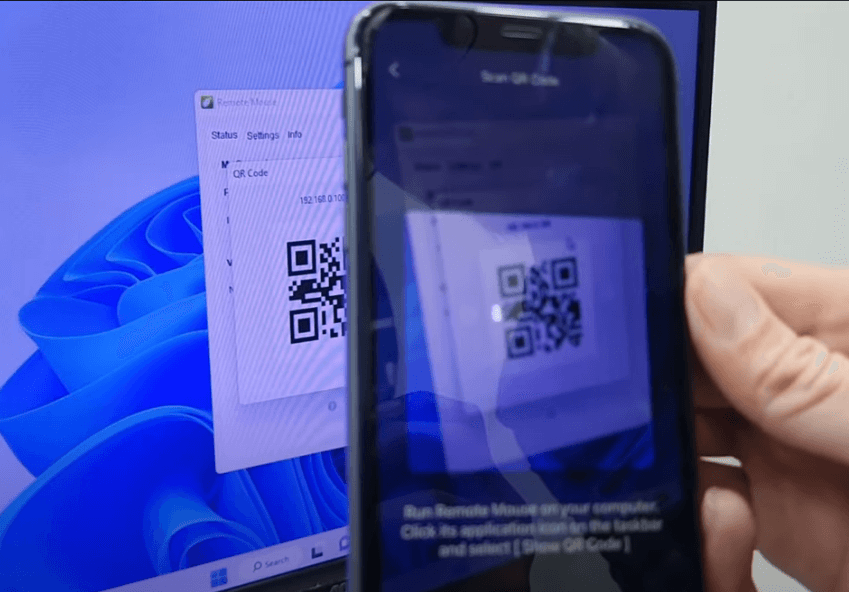
Step 5: Use your iOS device to scan the QR code displayed on the desktop.
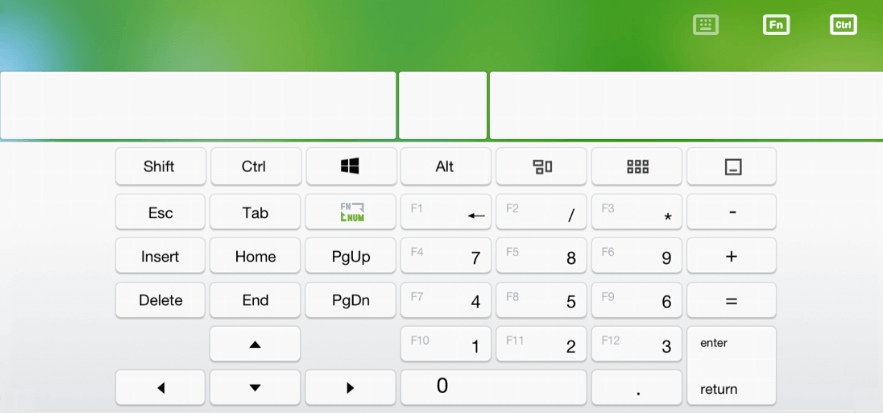
Step 6: You can now use your iPhone as a keyboard for your PC.
Method 3: Using Bluetooth (No software needed)
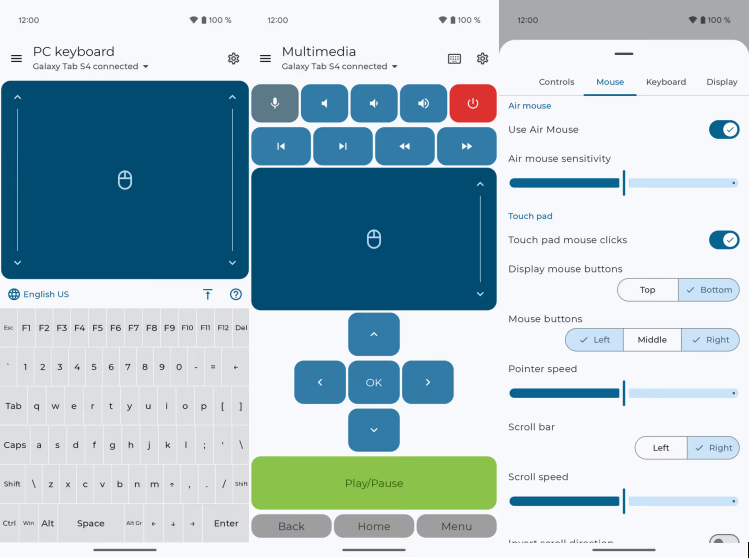
Want to connect to a computer where you can’t install new software (like a work PC or a library computer)? You can use a "Serverless Bluetooth" app. It makes your PC think your iPhone is a real physical Bluetooth keyboard. No "helper" software is needed on the computer side!
✅ Pros:
- Zero PC Setup: No software needed on the computer; it works like a real hardware keyboard.
- Battery Efficient: Uses Bluetooth Low Energy (BLE).
- Versatile: Works with any Bluetooth-enabled device (PC, Mac, or even Smart TVs).
❌ Cons:
- Short Range: Connection drops if you walk more than 30 feet away.
- Pairing Hurdles: Bluetooth can occasionally be finicky to pair.
How to do it:
Step 1. Download an app like "Bluetooth Keyboard & Mouse" from the App Store.
Step 2. Turn on Bluetooth on your PC and your iPhone.
Step 3. Go to your PC's Bluetooth settings and "Add Device."
Step 4. Select your iPhone from the list. Once paired, the app will let you use your iPhone's screen as a keyboard and mouse pad immediately.
The bottom line
Now that you know how to use iPhone as a keyboard for PC, the best choice depends on your needs. AnyViewer is our top pick because it offers the most freedom. While most apps trap you within your home Wi-Fi, AnyViewer lets you type and control your PC from anywhere in the world. Plus, its Privacy Mode and unattended access give it a massive edge over simpler tools.



 as a preferred
source on Google
as a preferred
source on Google