

Mirroring Multiple Monitors on Mac [Complete Guide]
Learn how to set up and optimize mirroring multiple monitors on Mac. Step-by-step guide to hardware, AirPlay, DisplayLink, and remote mirroring solutions for smoother productivity and presentations.

By Ellie / Updated on December 16, 2025


Can I screen mirror to multiple devices at once on Mac?
Have you ever wanted to project the same screen across multiple monitors on your Mac? Whether you’re giving a presentation, teaching a class, or setting up a professional workstation, mirroring multiple monitors Mac can make your workflow smoother and more efficient. Screen mirroring allows you to duplicate your Mac’s display across several monitors so everyone sees the same thing, no matter where they’re sitting.
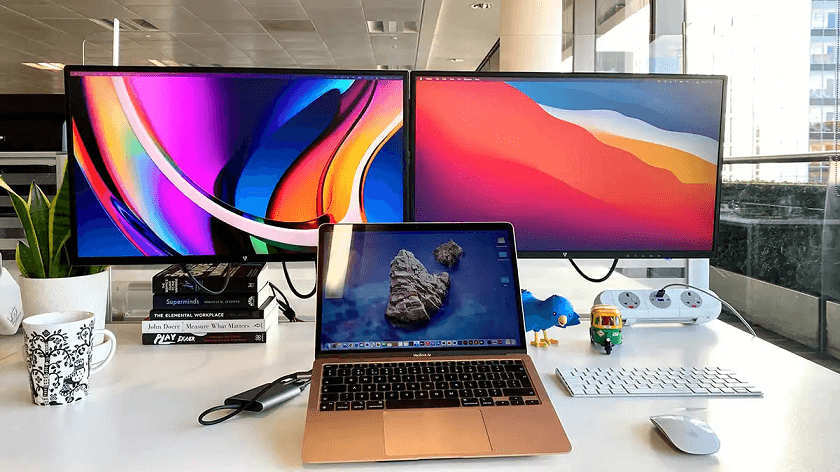
Apple’s macOS comes with powerful built-in features that make multi-monitor setups straightforward. Still, things can get a bit tricky when you want to mirror multiple external displays or connect to non-Apple devices. This guide will walk you through everything, from hardware requirements to troubleshooting, so you can master the art of mirroring multiple monitors Mac setups, including how to mirror multiple monitors Mac to TV for wireless presentations.
By the end, you’ll know how to connect and configure multiple monitors, use AirPlay for wireless mirroring, optimize your display performance, and even troubleshoot common problems when working with mirroring multiple monitors Mac M1 devices.
Hardware Requirements for Mirroring Multiple Monitors
Before you dive into the setup, let’s talk hardware. Not every Mac can handle multiple external monitors simultaneously, especially in mirrored mode.
- Compatible Mac Models: Most recent Macs, including MacBook Pro (M1, M2, M3), iMac, Mac Mini, and Mac Studio, support multiple displays. However, base M1 MacBook Air and M1 MacBook Pro models officially support only one external display natively, so users seeking mirroring multiple monitors Mac M1 will need to use special solutions like DisplayLink.
- Adapters and Cables: Depending on your Mac’s ports, you may need USB-C to HDMI, DisplayPort, or Thunderbolt adapters. For older models, Mini DisplayPort to HDMI adapters work well.
- Monitor Limitations: Some monitors require specific resolutions or refresh rates. Make sure your monitor supports the same resolution you intend to mirror.
If you plan to mirror three or more monitors, you might need additional hardware like a DisplayLink-enabled docking station, which allows multiple screens to connect through USB and supports mirroring multiple monitors Mac M1 effectively.
Software Requirements and macOS Compatibility
Screen mirroring is built directly into macOS, but certain features depend on your version.
- macOS Monterey and Later: Offers seamless AirPlay to Mac and advanced display settings.
- macOS Ventura and Sonoma: Provide improved support for external displays with M-series chips.
- Older macOS Versions: Still allow mirroring but might lack support for wireless or third-party features.
You can also enhance your setup using third-party utilities like DisplayLink Manager, Duet Display, or Luna Display, which can extend or mirror displays even when macOS doesn’t natively allow it, especially helpful for users handling mirroring multiple monitors Mac M1 setups.
How to Mirror Multiple Monitors on Mac
Before you begin, it’s important to understand that mirroring multiple monitors Mac can be done in several ways, using built-in macOS settings, DisplayLink technology, or even AirPlay. Let’s explore each method step by step to help you find the best setup for your needs.
1. Mirroring Displays Using System Settings
This built-in method is perfect for simple mirroring multiple monitors Mac configurations, whether for home offices or classroom environments. Here’s the step-by-step process to mirror displays using macOS’s built-in options:
Step 1. Click the Apple Menu and choose System Settings.
Step 2. Navigate to Displays.
Step 3. Select Arrangement.
Step 4. Check the box labeled Mirror Displays.
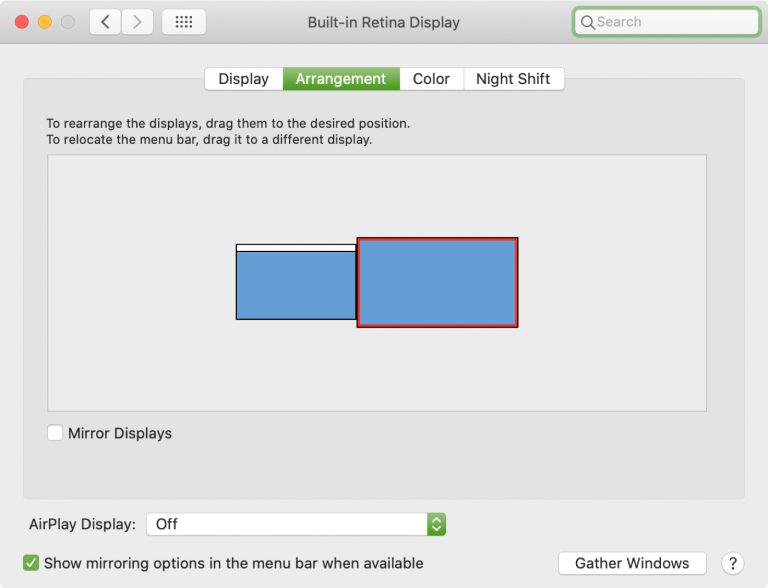
You’ll instantly see your Mac’s screen duplicated across all connected displays. You can also drag and reposition display icons if you need a specific arrangement.
If your monitors have different resolutions, macOS automatically scales them to match the primary display. To fine-tune the look, click Display Settings > Scaled and select a custom resolution that looks best across all screens.
2. Mirroring Multiple External Monitors using DisplayLink
When it comes to mirroring multiple monitors Mac, things get slightly more technical. While mirroring one external display is straightforward, mirroring two or more simultaneously often requires additional steps or third-party tools.
Here’s how you can set it up:
Step 1. Plug each monitor into your Mac using the correct adapters. If you have limited ports, use a Thunderbolt or USB-C docking station that supports multiple HDMI or DisplayPort outputs.
Step 2. Go to Apple Menu > System Settings > Displays. Your Mac should automatically detect each connected screen.
Step 3. In the Arrangement tab, check Mirror Displays. macOS will mirror your main screen to all connected displays.
Step 4. You can drag the white bar representing the menu bar to the monitor you want to be the main mirrored display.
However, note that M1 and M2 MacBooks have some limitations. They can only mirror one external display natively. To mirror more than one, you’ll need DisplayLink technology, an advanced driver-based solution that uses a dock to “trick” macOS into recognizing more displays.
If you’re using DisplayLink, simply:
Step 1. Install the DisplayLink Manager app.
Step 2. Plug your docking station into your Mac.
Step 3. Connect multiple monitors to the dock.
Step 4. Launch DisplayLink Manager, and your displays will appear as mirrored or extended based on your settings.
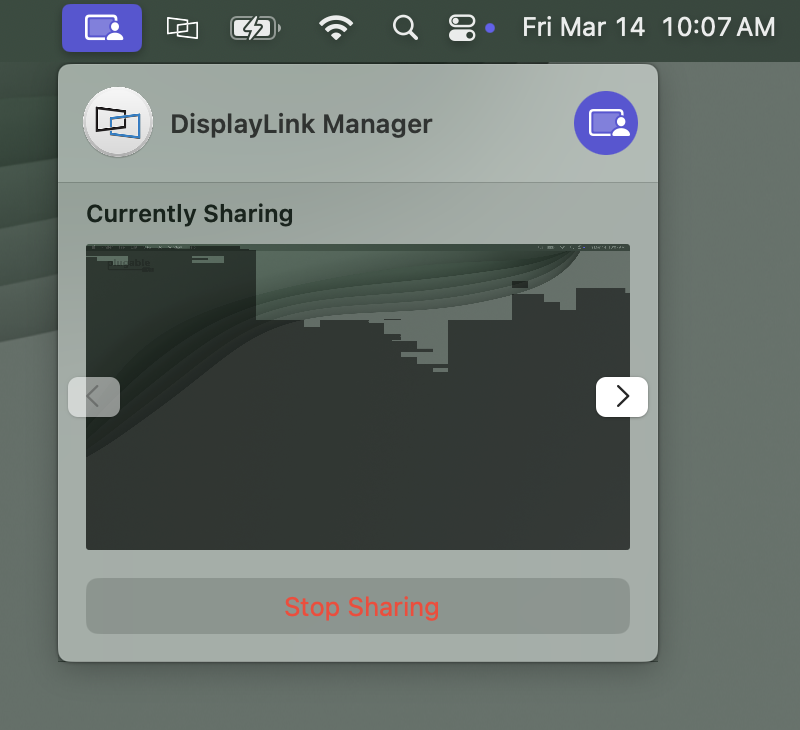
This setup is ideal for professionals running multiple mirrored screens during events, workshops, or live demonstrations.
3. Using AirPlay to Mirror Your Mac Display
AirPlay is Apple’s wireless streaming protocol that allows you to mirror your Mac’s screen to TVs or projectors. It’s perfect for when you want to mirror without messy cables, ideal for mirroring multiple monitors Mac to TV setups.
To mirror your Mac display using AirPlay:
Step 1. Ensure your Mac and TV are on the same Wi-Fi network.
Step 2. On your Mac, click the Control Center icon on the menu bar.
Step 3. Choose Screen Mirroring.
Step 4. Select your Apple TV or AirPlay-compatible display from the list.
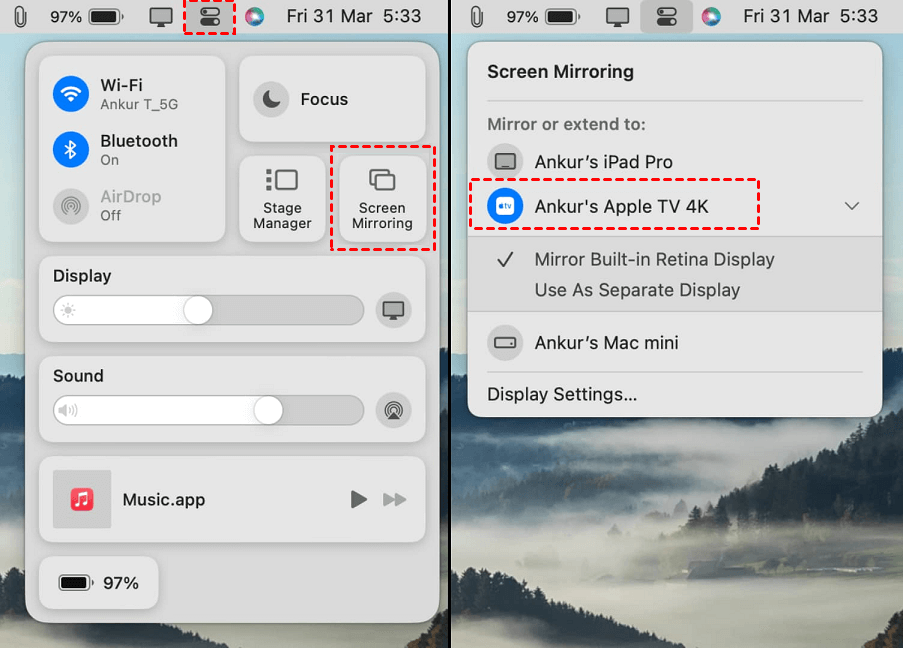
Your Mac’s screen will now appear on the TV. If you want to use AirPlay to mirror multiple screens (for instance, one wired monitor and one wireless), you can do that too; macOS allows a combination of AirPlay and physical connections.
However, keep in mind that network speed plays a huge role in performance. A weak Wi-Fi signal can cause lag or stuttering. For the best experience, connect to a 5GHz Wi-Fi network or use Ethernet for your Apple TV.
Another advantage of AirPlay is that it can mirror both video and audio, making it ideal for streaming movies, showing slideshows, or demonstrating software in real-time.
AnyViewer: Mirror Multiple Mac Screens Remotely Anytime, Anywhere

If you’re looking to go beyond cables and local connections to mirror multiple Mac screens remotely, AnyViewer is your ultimate solution. Whether you want to share your entire Mac setup with several remote monitors or control multiple computers from one place, AnyViewer makes it simple, fast, and seamless.
AnyViewer is a professional remote desktop and multi-screen mirroring tool that allows you to view and control your Mac displays from anywhere in the world. Unlike AirPlay or DisplayLink, which rely on local connections, AnyViewer works over the internet, perfect for remote presentations, online teaching, or managing multi-display workstations from afar.
Here’s how to use AnyViewer for remote multi-screen mirroring:
Step 1. Download and install AnyViewer on your Mac and the other devices.
Step 2. Sign in with the same account on all devices for faster pairing and synchronization.
Step 3. On the other device, choose your Mac, and click One-click control for instant remote access, or click View screen for only screen mirroring.
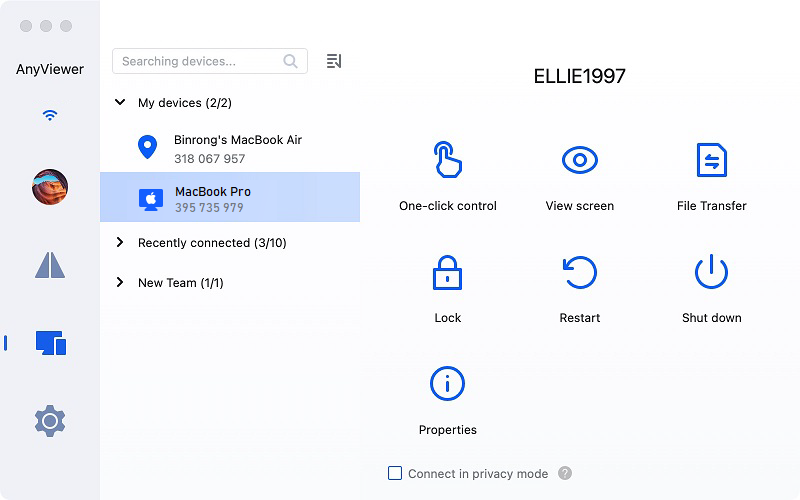
Step 4. Once connected, you can mirror multiple Mac screens simultaneously to different remote monitors, each displaying identical content or specific applications as you configure them.
Why choose AnyViewer for multiple screen mirroring?
- Multi-screen compatibility: Mirror multiple Mac displays to several remote devices at the same time.
- High-definition performance: Enjoy ultra-clear visuals with minimal delay, even across long distances.
- Advanced security: Protects all remote sessions with end-to-end encryption.
- Cross-platform support: Works seamlessly across macOS, Windows, iOS, and Android.
- Remote management: Perfect for remote IT support, presentations, or collaborative work environments.
Whether you’re managing a multi-monitor workstation, assisting clients remotely, or hosting virtual training sessions, AnyViewer lets you control and mirror multiple Mac screens effortlessly. It takes Mac screen mirroring beyond physical boundaries, giving you full control, flexibility, and clarity anytime, anywhere.
Conclusion
Mirroring multiple monitors Mac isn’t just about showing the same screen twice; it’s about unlocking flexibility, clarity, and control in how you share and manage content. Whether you’re a teacher, designer, developer, or business professional, understanding how to properly set up and optimize mirrored displays can significantly improve your workflow.
With the right combination of hardware (adapters, docks), software (DisplayLink, AirPlay), and settings tweaks, you can mirror your screen across multiple monitors with ease, wired or wirelessly.
Remember to keep your software updated, secure your network, and adjust your display settings for optimal performance. Once you master these techniques, your Mac becomes a powerful tool for seamless multi-display collaboration.



 as a preferred
source on Google
as a preferred
source on Google