

How to Transfer Files from iPhone to PC Wirelessly
Looking for an easy way to transfer files from iPhone to PC wirelessly? This complete guide covers secure, high-quality methods to move files without USB cables, including remote desktop software, shared folders, and iCloud.

By Ellie / Updated on January 13, 2026


How can Imove files from iPhone to PC without USB?
Apple devices like iPhone and Mac work seamlessly together thanks to AirDrop. However, when it comes to transferring files from an iPhone to a Windows PC, things aren’t as straightforward. Most users still rely on USB cables to ensure stable speed and file integrity. But what if you want the same reliable experience without plugging in a cable?
If you’ve ever wondered how to transfer files from iPhone to PC wirelessly, you’re not alone. The good news is that there are effective ways to transfer files from iPhone to PC wirelessly—without sacrificing quality or security. Below, we’ll walk you through three proven methods that work across systems and suit different scenarios.
How to transfer files from iPhone to PC wirelessly
Transferring files from an iPhone to a Windows PC doesn’t have to involve cables or complicated setups. Whether you want to know how to transfer data from iPhone to PC wirelessly, send files remotely, or share data on the same network, the following methods will help you choose the most efficient wireless solution for your needs.
Way 1. Use remote desktop software to transfer files (Recommended)
If you want the most flexible and professional solution to transfer files from iPhone to PC wirelessly, remote desktop software is the best choice. Among available tools, AnyViewer stands out due to its balance of performance, security, and ease of use.
Unlike traditional wireless methods that rely on the same local network, AnyViewer works over the internet. This means you can send files from iPhone to PC wirelessly, even when your devices are in different locations. Whether you’re traveling, working remotely, or accessing your office computer from home, AnyViewer ensures uninterrupted file access.
Why AnyViewer Has a Competitive Advantage
- No network limitations: Works across different networks and locations, not just the same Wi-Fi.
- No file size or type restrictions: Transfer large videos, photos, documents, or compressed files without limits.
- High-level security: Uses end-to-end encryption and account verification to protect your data during transmission.
- Simple and intuitive interface: Designed for both beginners and advanced users.
- Multi-purpose functionality: In addition to file transfer, AnyViewer supports remote control and real-time screen access.
These advantages make AnyViewer ideal for users who want to securely send files from iPhone to PC wirelessly without relying on cables or local networks.
Simple steps to transfer files with AnyViewer:
Step 1. Install AnyViewer on your iPhone/iPad and Windows PC, then log in to the same account.
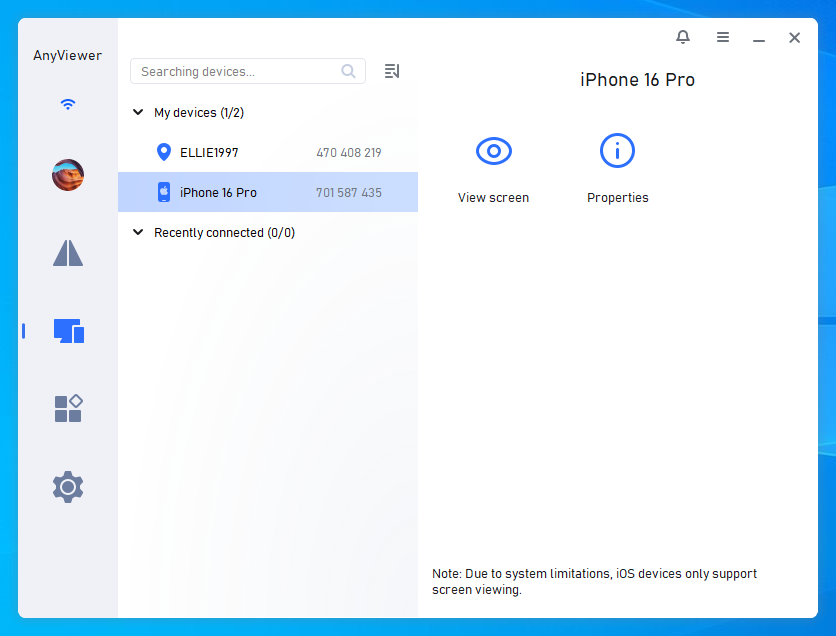
Step 2. Open AnyViewer on your iPhone and select your PC > choose File transfer and connect.
Step 3. Select files and send them wirelessly between your iPhone and PC.
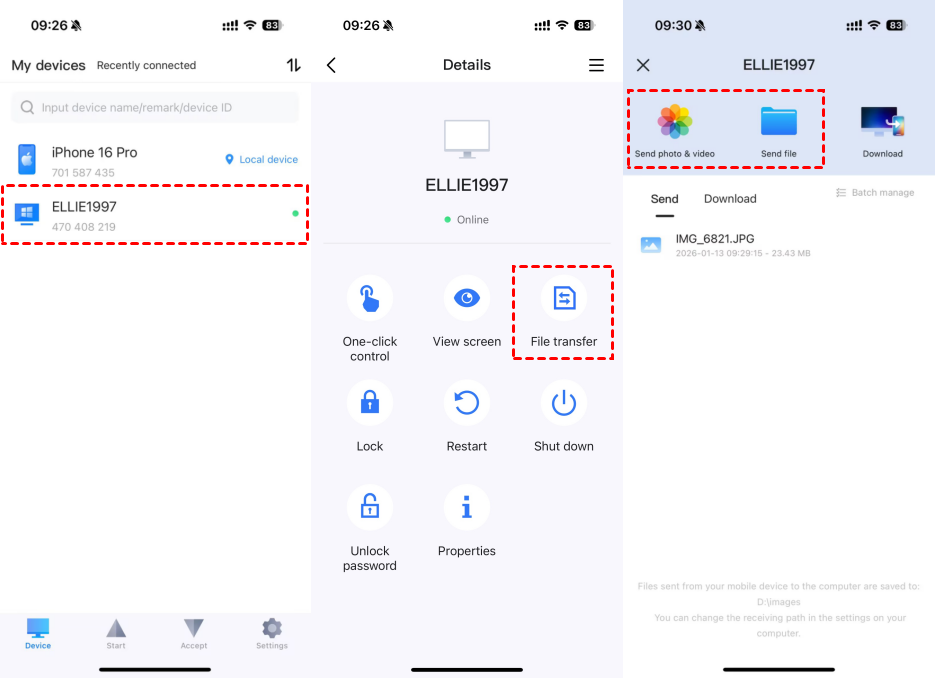
Tip: All file transfers are initiated from the AnyViewer mobile app, ensuring a smooth and consistent experience.
Way 2. Use Shared Folders to transfer files between Windows and iPhone
If your iPhone and Windows PC are connected to the same local network, shared folders provide a convenient way to transfer data from your iPhone to your PC wirelessly, without the need to install extra software on your PC.
Steps using Shared Folders:
Step 1. Create a new folder on your Windows desktop or any preferred location.
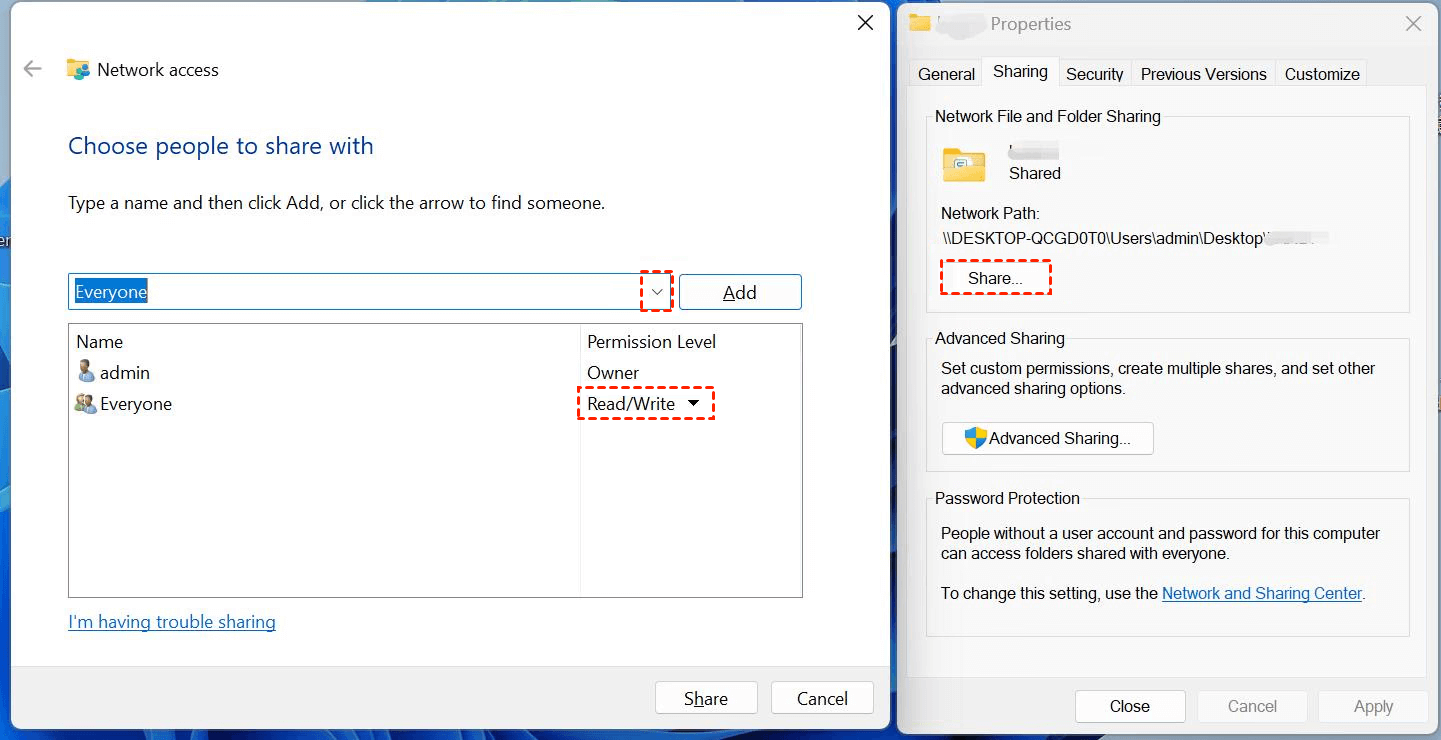
Step 2. Right-click the folder and select Properties. Go to the Sharing tab and click Share. Find Everyone and click Add. Set permission level to Read/Write. Click Share.
Step 3. Open Control Panel. Go to Network and Internet > Network and Sharing Center. Click Change advanced sharing settings.
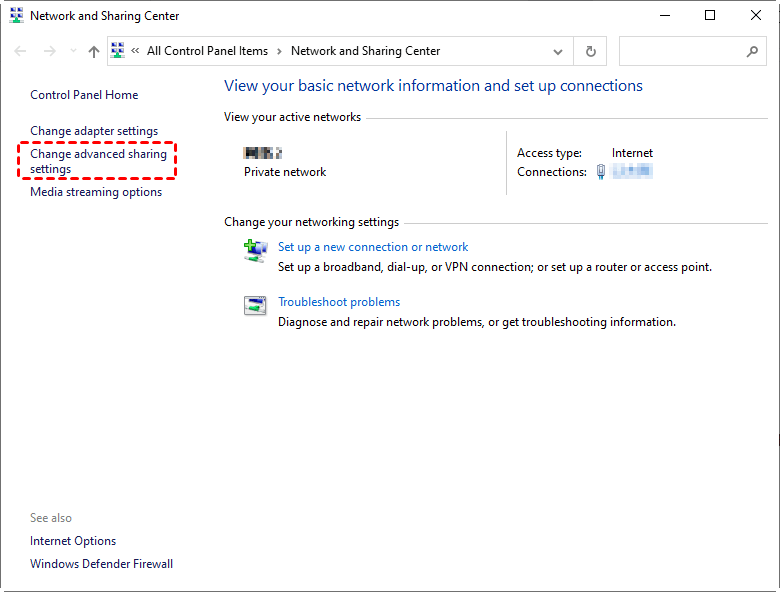
Step 4. Enable the following options:
- Network discovery
- File and printer sharing
- Public folder sharing
Disable:
- Password-protected sharing
Save the settings.
.png)
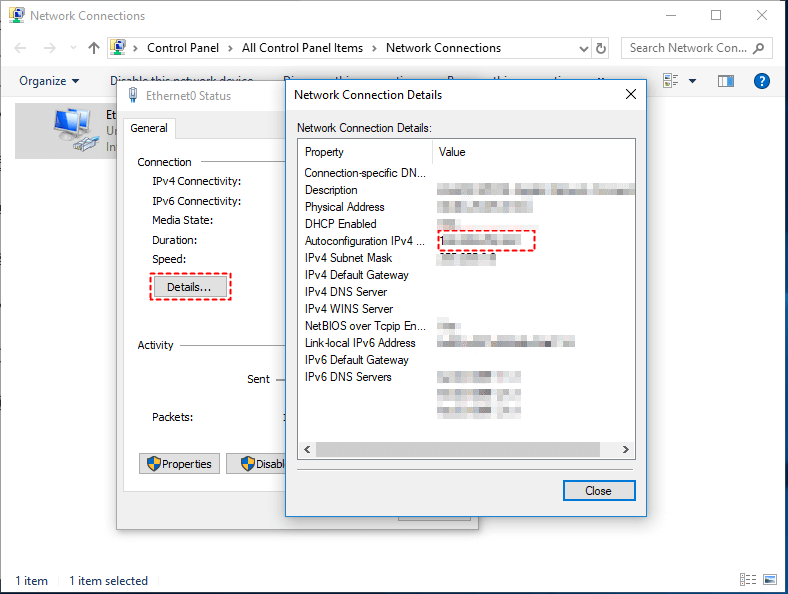
Step 5. Return to Network and Sharing Center. Click WLAN Status. Select Details and note the IPv4 address.
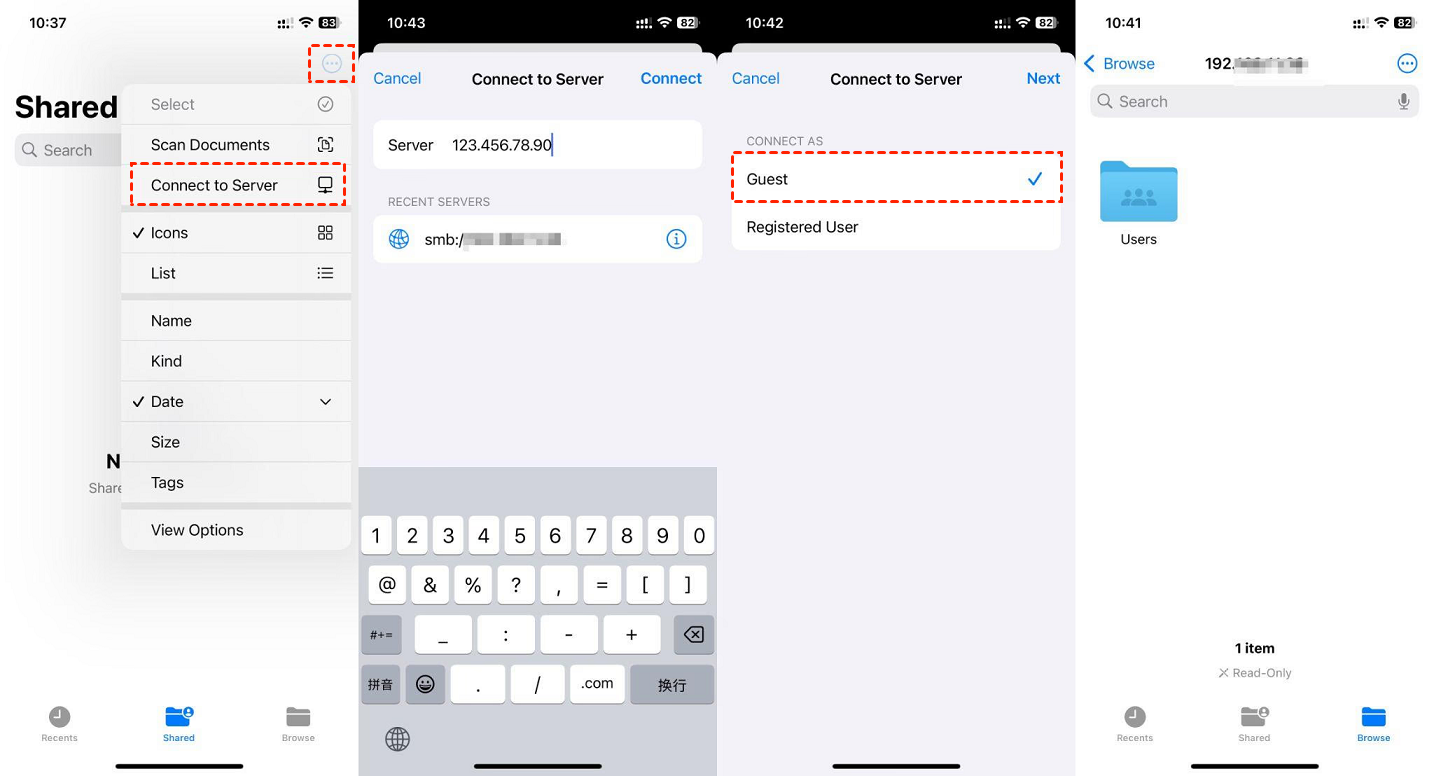
Step 6. Open the Files app on your iPhone/iPad. Tap the three dots in the top-right corner. Select Connect to Server. Enter the Windows PC’s IP address. Tap Connect. Choose Guest and tap Next. You should now see and access the shared Windows folder.
Step 7. Place files into the shared folder on Windows. Open the folder from the Files app on your iPhone. Download the files to your device.
Step 8. Select photos, videos, or documents on your iPhone. Tap Share > Save to Files. Choose the shared folder. Access the files later from your Windows PC.
Pros:
- Fully wireless transfers
- No file size or format limits
- No third-party software required on Windows
Cons:
- Works only on the same Wi-Fi network
- Setup can be confusing for beginners
- Potential security risks if sharing settings are misconfigured
Way 3. Use iCloud for wireless transfer between Windows and iPhone
iCloud is a convenient option for users who prefer Apple’s built-in ecosystem and only need to send files from iPhone to PC wirelessly on an occasional basis.
How to Transfer Files Using iCloud
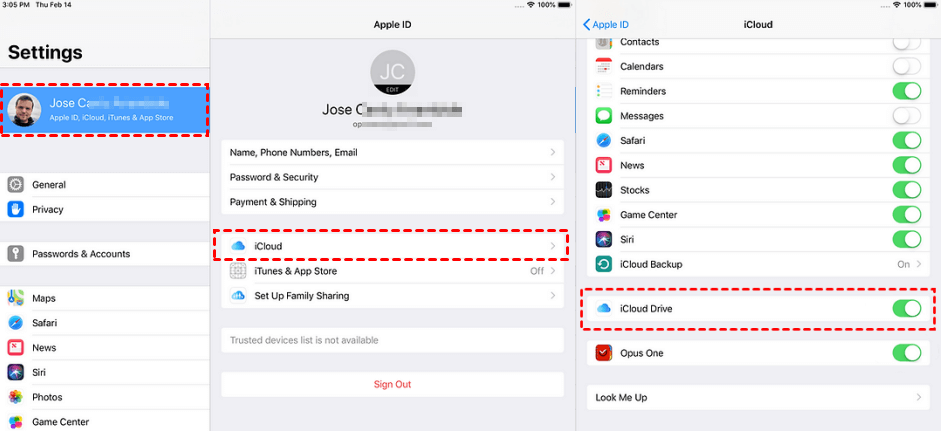
Step 1. On your iPhone, go to Settings > [Your Name] > iCloud.
Step 2. Turn on iCloud Drive.
Step 3. Open the Files app and upload the files to iCloud Drive.
Step 4. On your PC, open a browser and visit iCloud.com.
Step 5. Sign in with your Apple ID.
Step 6. Click iCloud Drive.
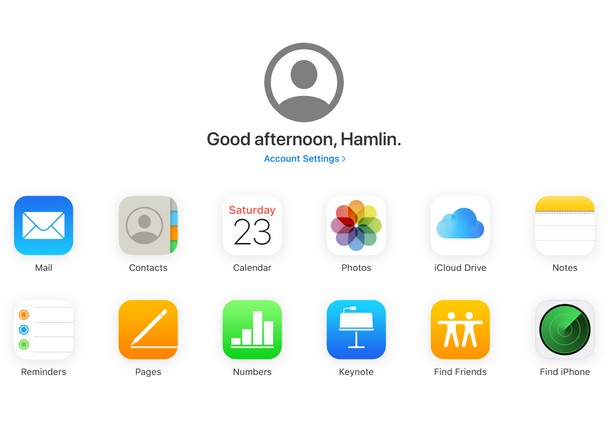
Step 7. Download the files to your PC.
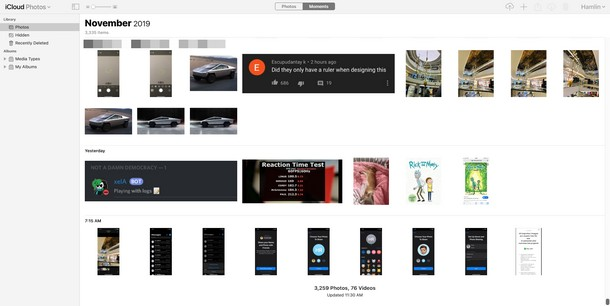
When to Choose iCloud
- You want a quick, no-setup solution
- File sizes are small or moderate
- You already have enough iCloud storage
Conclusion
If you’re wondering how to transfer files from iPhone to PC wirelessly, the best method depends on your situation. For remote access and large file transfer, AnyViewer offers the most flexibility and security. If both devices are on the same network, shared folders provide high-quality wireless transfers. For everyday use and convenience, iCloud remains a simple and familiar option. Choose the method that fits your needs, and you’ll never have to rely on USB cables again.
FAQs
How to transfer directly from iPhone to PC?
You can transfer directly using wireless methods such as remote desktop software, shared folders on the same network, or cloud services like iCloud.
Can I wirelessly transfer files from phone to PC?
Yes. iPhone files can be transferred wirelessly to a PC using tools like AnyViewer, Windows shared folders, or iCloud.
Can iPhone USB-C transfer data?
Yes. Newer iPhone models with USB-C ports support data transfer, but this method still requires a cable.
Can you plug an iPhone into a PC to transfer files?
Yes. Using a USB cable and tools like iTunes or File Explorer, you can transfer files, though this is not wireless.
How to transfer files from iPhone to laptop using Type-C cable?
You can connect your iPhone to a laptop using a compatible Type-C cable and transfer files through supported software or file management tools.



 as a preferred
source on Google
as a preferred
source on Google