

How to Share Computer Screen: Step-by-Step Guide for 2026
An actionable guide explaining how to share my computer screen with someone else via 4 proven methods, including native tools, meeting apps, and AnyViewer, to safely share screen with another computer.

By Ellie / Updated on June 22, 2026


Need to show a colleague a stubborn software bug? Want to help your parents fix their Wi-Fi settings from across the country? Or maybe you just want to stream a movie with a friend. Learning how to share computer screen processes shouldn't feel like rocket science.
Whether you are working from home, providing remote tech support, or collaborating on a school project, sharing your display saves hours of frustrating back-and-forth emails.
This comprehensive guide will walk you through exactly how to share my computer screen with someone else safely, quickly, and without the usual technical headaches.
How to Share Screen with Another Computer: 4 Best Ways
When figuring out how do I share my computer screen with someone, the method you choose depends heavily on your specific needs. Do you just need a quick video call, or do you need deep system control?
Here are the most effective ways to get the job done.
Method 1: The Best All-in-One Solution AnyViewer (Recommended)
If you need a reliable, fast, and completely secure way to share my computer screen with someone else, dedicated remote desktop software like AnyViewer is your best bet. Unlike standard video conferencing apps that lag or compress video quality, AnyViewer is built specifically for high-performance screen sharing and remote control.
AnyViewer has added a powerful "Mirror screen" feature. This allows you to mirror your current screen to another device in real time, making it easier than ever for business presentations, casual screen sharing, online collaboration, and multimedia viewing.
Here is how to share computer screen to another computer using AnyViewer "Mirror screen":
Step 1. Download and open AnyViewer on both devices, the source PC you want to share computer screen from, and the target PC.
Step 2. Sign up and log into the same account on both computers to link them for quick access.

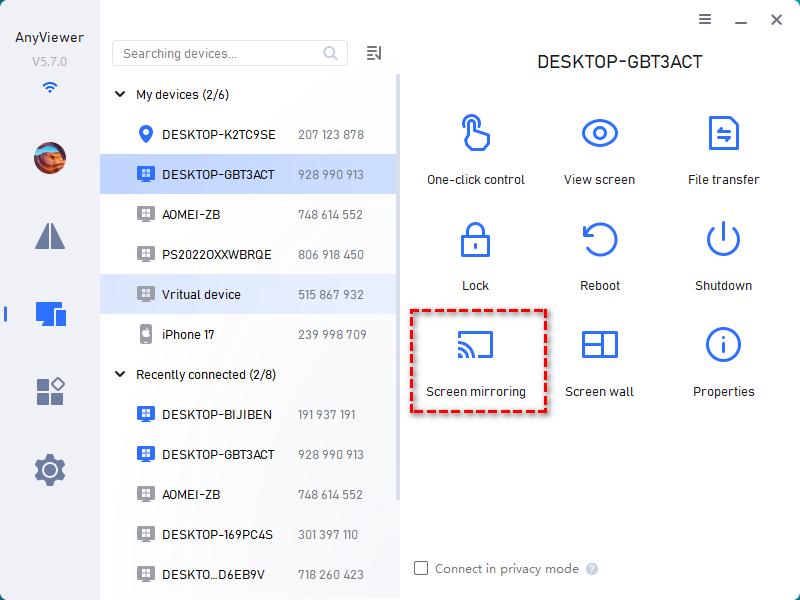
Step 3. On the source computer, go to Device, select the target computer's name, and click Screen Mirroring.
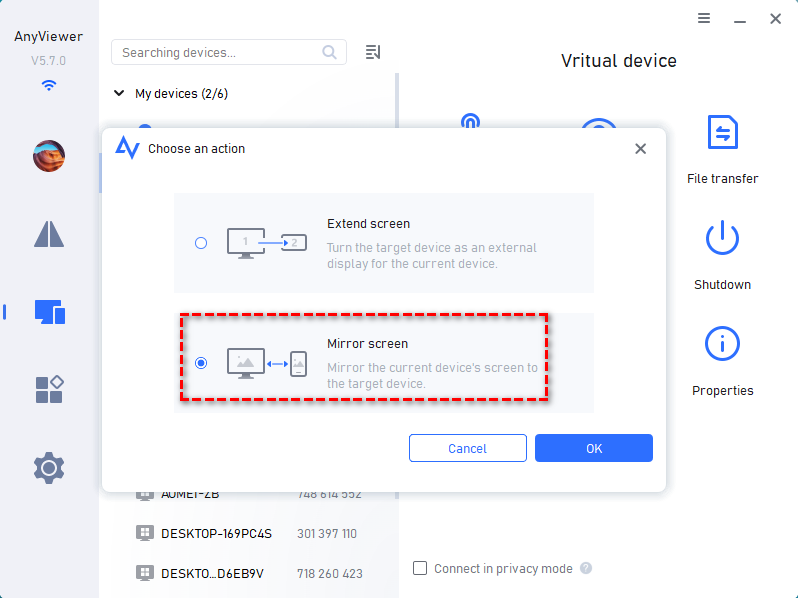
Step 4. Choose the Mirror screen option and click OK. Your screen will instantly broadcast to the other device for viewing or remote troubleshooting.
Why AnyViewer? It offers ultra-low latency, file transfer capabilities, and end-to-end ECC encryption, making it the safest way to share computer screen with a friend or IT support.
Method 2: Built-in Tools for Windows & Mac (No Downloads Required)
If you want to know how to screen share with another computer immediately without dealing with third-party software downloads, both Windows and macOS offer powerful, free native tools built right into their operating systems.
Option A: Windows Quick Assist
For Windows 10 and 11 users, Microsoft provides a streamlined utility called Quick Assist. It is the perfect built-in solution when you need to figure out how to share computer screen to another computer for quick troubleshooting.
Step 1. Launch the Tool: Type Quick Assist into your Windows search bar and open the application.
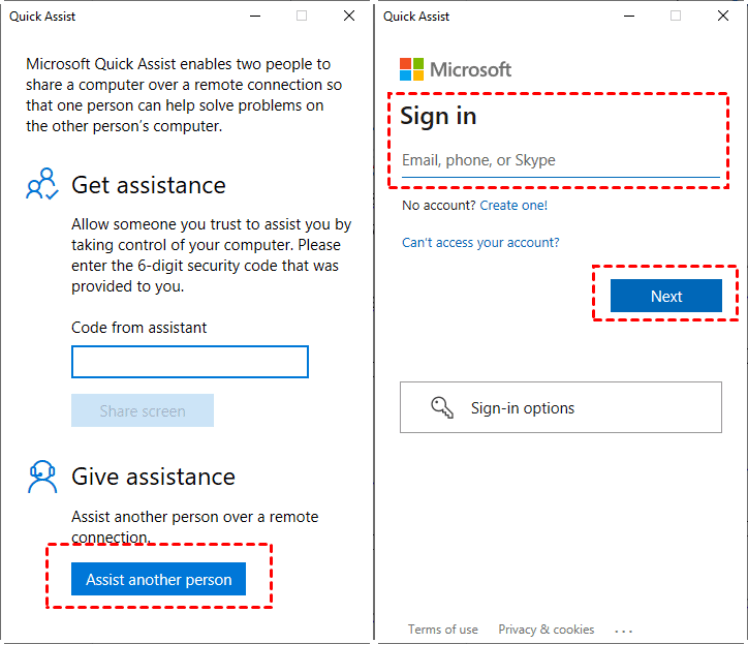
Step 2. Generate a Session Code: If you are the one providing help, click the Give assistance button > log in to your Microsoft account. The app will generate a unique 6-digit security code.
Step 3. Connect with Your Friend: Share this code with the person who needs assistance.
Step 4. Establish the Link: The recipient opens Quick Assist on their device, enters your code under the Get assistance section, and clicks Share screen. You can then choose to view their desktop or request full control.

Option B: macOS Screen Sharing App
If you and your colleague are both on Apple devices, you don't need external platforms to solve the puzzle of how to share my computer screen with someone else. Apple has a robust, hidden gem built directly into the ecosystem.
Method 1: Via Spotlight Search
Step 1. Press "Command + Space" to open Spotlight, type Screen Sharing, and hit Enter.
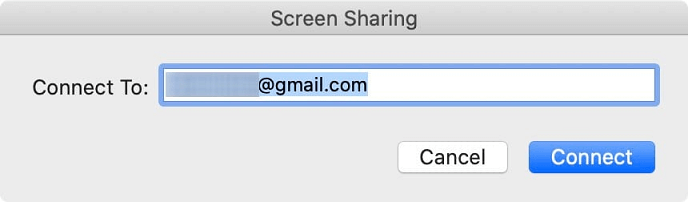
Step 2. In the connection window, enter the Apple ID or hostname of the person you want to connect with. Click Connect.
Step 3. Your friend will receive a prompt asking whether to allow you to view or actively control their screen.
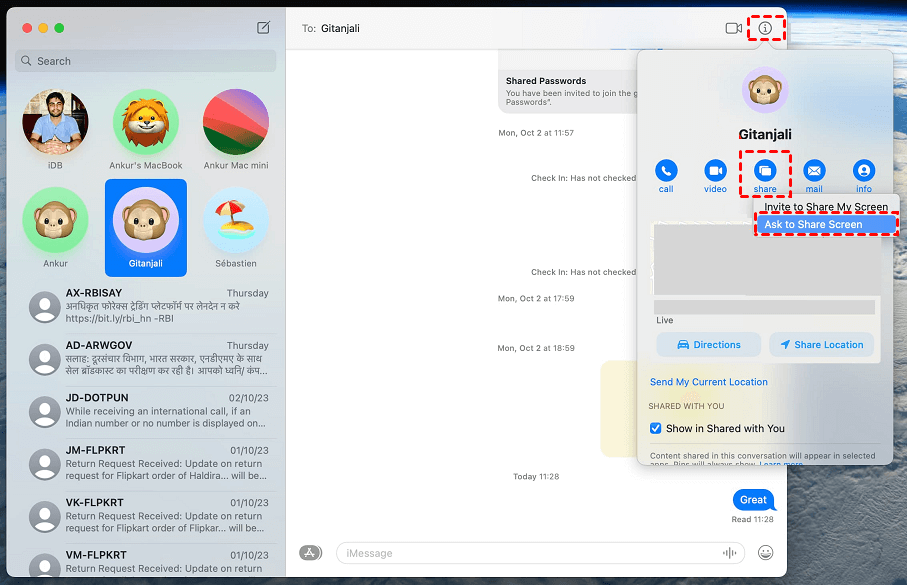
Method 2: Via iMessage (Fastest for Friends)
Step 1. Open the Messages app and click into your conversation with your friend.
Step 2. Click the Info (i) button in the top right corner.
Step 3. Click Share, then choose either Invite to share my screen or Ask to share screen to launch an instant connection.
Method 3: Share via Zoom (Best for Quick Meetings)
When you need to know how to share your computer screen with someone during a casual catch-up or a quick virtual huddle, Zoom is an incredibly popular choice. It requires no complex configuration.
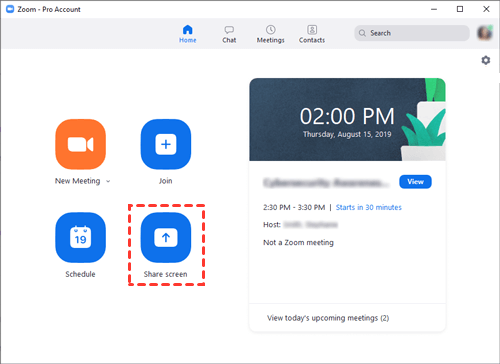
Step 1. Launch Your Meeting: Start or join your Zoom meeting.
Step 2. Locate the Control: Click the bright green Share Screen button located on the bottom toolbar.
Step 3. Select Your View: A window will pop up asking what you want to broadcast. You can choose your entire desktop or select a single open application (like a specific Word document).
Step 4. Optimize Settings (Optional): If you are sharing a video clip, remember to check the boxes for Share sound and Optimize for video clip at the bottom.
Step 5. Start Sharing: Click the blue Share button in the bottom right corner to go live.
Method 4: Share via Microsoft Teams (Best for Workplace Collaboration)
If you are working within a corporate environment and wondering how to share a computer screen with someone in your organization, Microsoft Teams integrates seamlessly with your daily workflow.
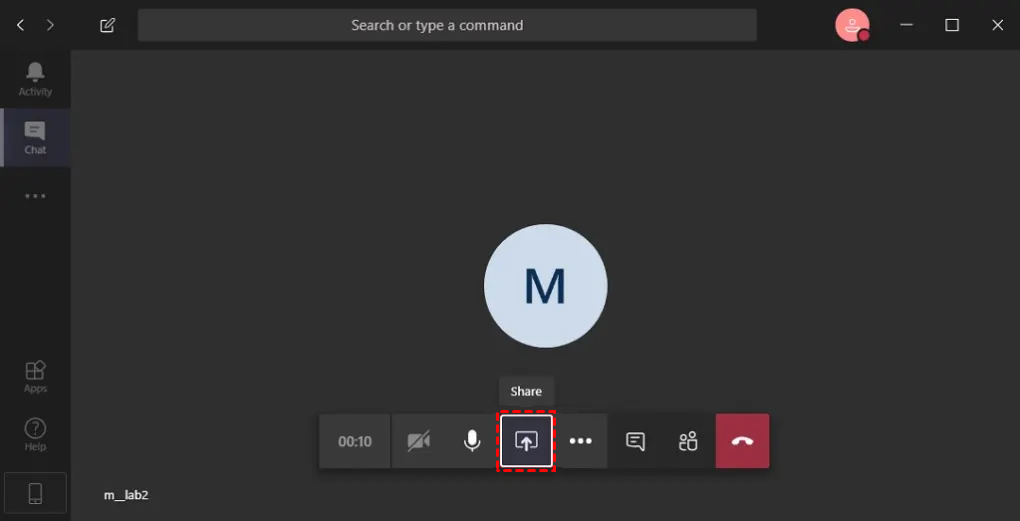
Step 1. Join the Call: Open your Teams chat or calendar invite and join the meeting.
Step 2. Find the Share Icon: Look at the top right corner of the meeting window and click the Share icon (a rectangle with an upward-pointing arrow).
Step 3. Choose Screen or Window: Under the "Share content" menu, decide whether to stream your full monitor or just one application window.
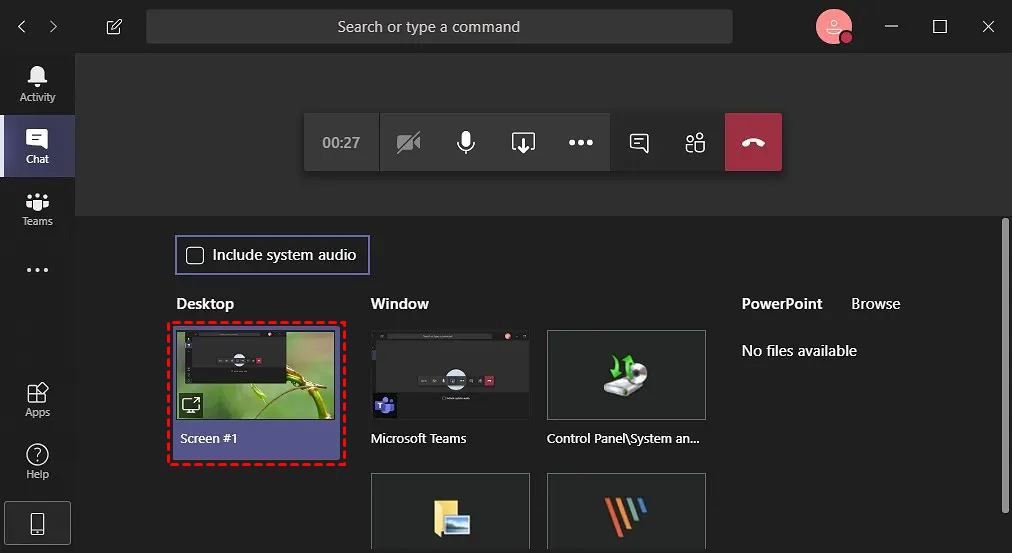
Step 4. Include Computer Sound: If your presentation has audio, toggle the Include computer sound switch at the top of the menu before selecting your screen.
Step 5. End the Stream: Once you are done, click the Stop sharing icon (a rectangle with an "X" inside) in the same top toolbar.
Key Benefits of Learning How to Share Computer Screen with Someone
Why has screen sharing become an absolute necessity in our daily digital interactions?
- Instant Visual Clarity: Stop trying to describe what you see. Show them. It eliminates misunderstandings instantly.
- Seamless Remote Collaboration: Multiple team members can look at the same design mockup, spreadsheet, or code snippet simultaneously, making remote meetings highly productive.
- Effortless Tech Support: Instead of guessing what menu your friend is looking at, you can request access to share screen with another computer and fix the issue directly.
- Dynamic Presentations and Training: Teachers and managers can walk students or new hires through complex software interfaces step-by-step.
Conclusion
Mastering how to share computer screen processes is essential for modern remote work and digital collaboration. Whether you rely on built-in tools, standard meeting apps, or need to share computer screen with friend and colleagues, there is a solution for your workflow.
For those seeking low-latency, high-performance screen sharing and advanced safety features, AnyViewer stands out as the premium choice. Configure your privacy settings, pick your method, and start collaborating efficiently today.



 as a preferred
source on Google
as a preferred
source on Google