

Laptop Screen Sharing: How to Mirror Your Screen Easily
This guide shows you how to easily set up laptop screen sharing. It covers simple methods to cast a PC to a laptop and mirror your screen using built-in settings or AnyViewer to boost your productivity.

By Ellie / Updated on June 17, 2026


Whether you are trying to present a pitch deck to a colleague, extend your workspace without buying a second monitor, or help a family member troubleshoot a technical issue, mastering laptop screen sharing is a game-changer. You no longer need to crowd around a tiny 13-inch display or pass HDMI cables back and forth.
This comprehensive guide will walk you through everything you need to know about laptop screen sharing, how to set it up across different platforms, and how to fix common headaches along the way.
How to Share a Laptop Screen: Step-by-Step Methods
Depending on your operating system and specific goals, there are several native and third-party ways to mirror a laptop screen. Here are the most reliable methods.
Method 1: The Best Cross-Platform Solution (AnyViewer)
If you need to share your screen with a laptop that isn't on the same Wi-Fi network, or if you are mixing Windows and iOS/Android devices, native tools often fall short. This is where AnyViewer shines.
AnyViewer is a secure, ultra-fast remote desktop and screen-sharing software designed for seamless collaboration. To make teamwork even more efficient, AnyViewer has added the "Mirror screen" feature. This powerful update allows you to mirror your current screen to another device in real time, making it the perfect tool for easier presentations, screen sharing, online collaboration, and media viewing without any lag.
How to use AnyViewer for laptop screen sharing:
Step 1. Download AnyViewer on both computers, the one you want to share (the source PC) and the one you want to watch on (the target PC). Open the app on both.
Step 2. Sign up for a free account and log into that same account on both computers. This links them together for quick, one-click access.

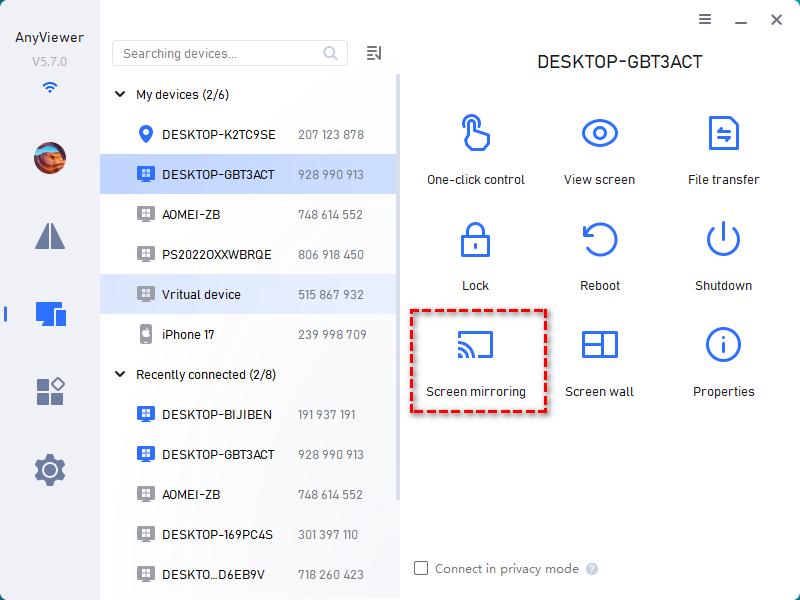
Step 3. On the computer you want to share, click on the Device menu, find the other computer's name, and click Screen Mirroring.
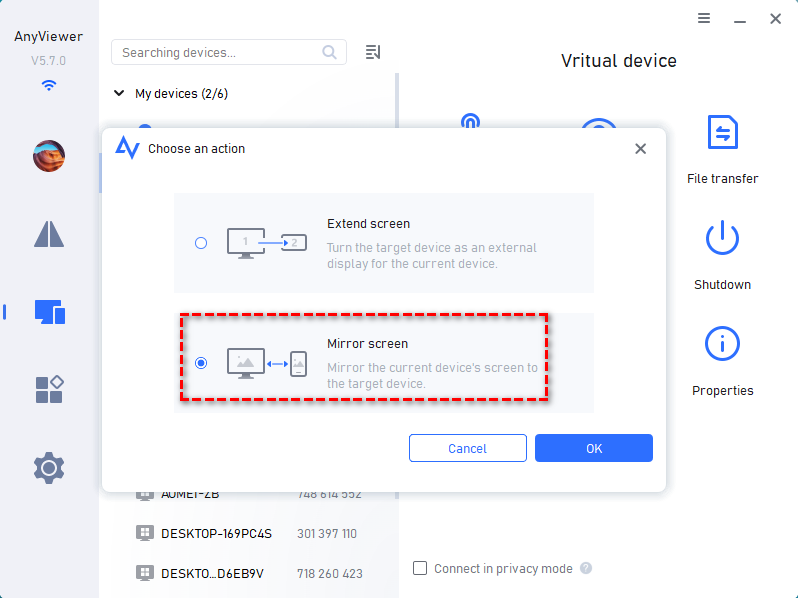
Step 4. Choose the Mirror screen option, then hit OK. Your screen will instantly show up on the other laptop. From there, the other person can just watch your screen, or you can let them take control if you need help troubleshooting.
Unlike native tools that restrict you to the same local network, AnyViewer allows you to cast your screen across different cities or countries safely with ECC end-to-end encryption.
Method 2: Windows-to-Windows (Miracast)
If you have two Windows 10 or 11 devices on the same Wi-Fi network, you can learn how to cast PC to laptop without installing any third-party software using the built-in Wireless Display feature.
Part 1: Prepare the receiving laptop
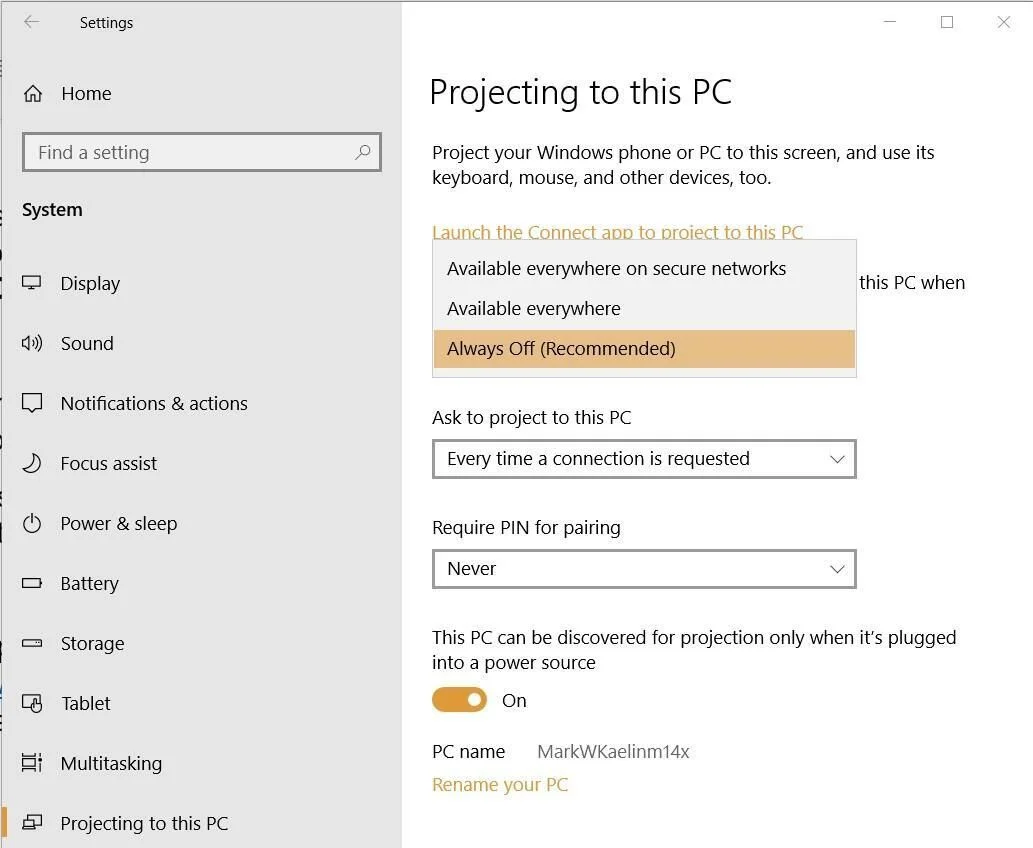
Step 1. Go to Settings > System > Projecting to this PC.
Step 2. If the feature is grayed out, click Optional features and install "Wireless Display".
Step 3. Change the dropdown menu to Available everywhere on secure networks.
Part 2: Connect from the primary laptop
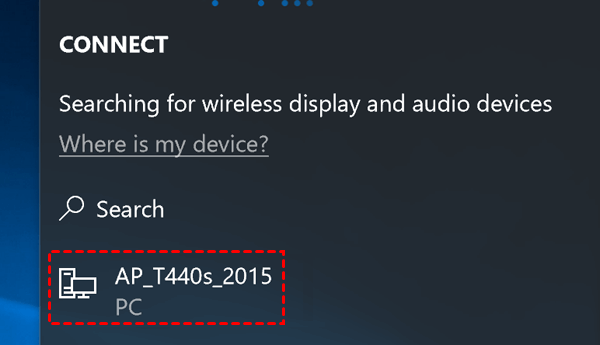
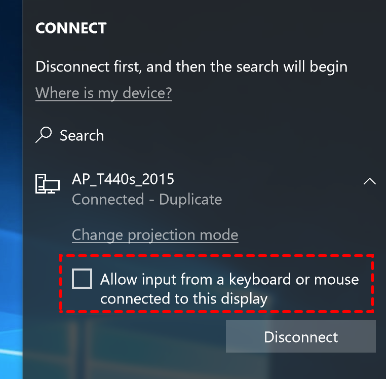
Step 1. On your main laptop, press the Windows Key + K to open the Cast panel.
Step 2. Select the receiving laptop from the list of available devices.
Step 3. Check the box to Allow input from a keyboard or mouse connected to this device if you want dual control.
Step 4. Accept the connection prompt on the receiving laptop.
Method 3: Mac-to-Mac (AirPlay & Screen Sharing)
Apple users can achieve flawless screen mirroring with a laptop using built-in macOS tools.
Step 1. Ensure both MacBooks are logged into the same Apple ID and connected to the same Wi-Fi network.
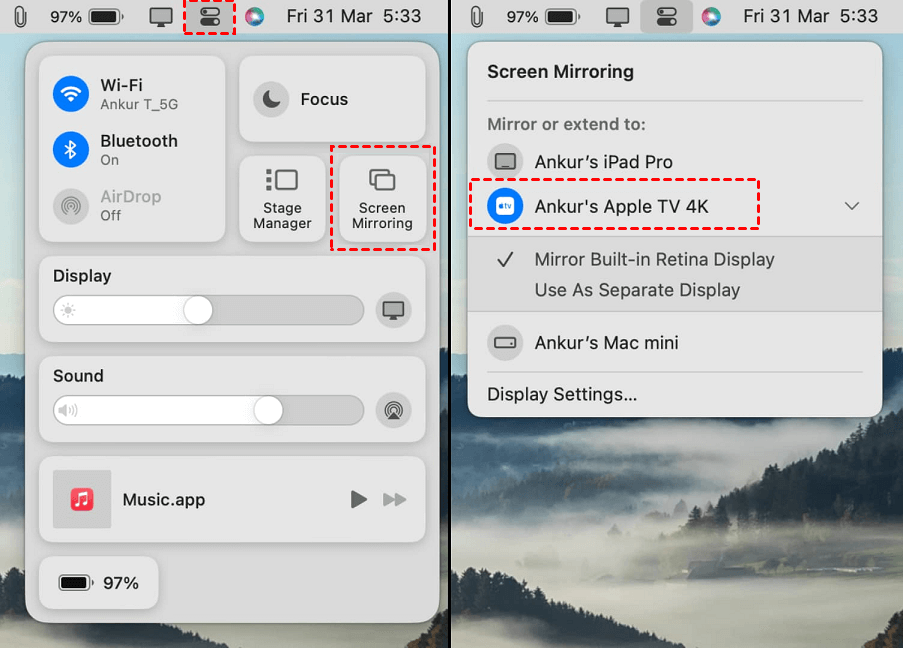
Step 2. On the primary Mac, open the Control Center from the top right menu bar.
Step 3. Click Screen Mirroring.
Step 4. Select your second MacBook from the list.
Step 5. Choose whether to Mirror Built-in Display or Use As Separate Display.
The Benefits of Laptop Screen Sharing
Why should you integrate this tech into your daily workflow? The advantages go far beyond just showing off your vacation photos.
- Boosted Productivity: Studies show that utilizing multiple screens can increase productivity by up to 42%. Extending your display allows you to keep references open on one side while typing on the other.
- Seamless Collaboration: Whether you are in a hybrid office or working fully remote, sharing your screen makes brainstorming, code reviewing, and designing an interactive, real-time experience.
- Cost-Efficient Hardware Deployment: Instead of buying expensive standalone monitors, you can repurpose an old, unused laptop sitting in your closet as a secondary display.
- Effortless Tech Support: Instead of trying to explain technical troubleshooting steps over a phone call, you can simply view the screen and guide the user visually.
Conclusion
Mastering laptop screen sharing is one of the easiest ways to boost your productivity, simplify remote teamwork, and get the most out of your existing hardware. Whether you choose to use built-in options like Miracast for Windows or AirPlay for macOS, learning how to mirror one laptop screen to another will instantly upgrade your workflow.
However, if you want a hassle-free, secure, and cross-platform remote desktop option that works even when devices are miles apart, AnyViewer is the ultimate choice. With its newly added "Mirror screen" feature, you can enjoy lag-free presentations and effortless collaboration with just a few clicks. Pick the method that best fits your setup today and experience a smarter way to share your screen!



 as a preferred
source on Google
as a preferred
source on Google