

7 Best Screen Mirroring Devices for Classroom Interaction
This guide reviews the top wireless display tools for schools. It helps you choose the best screen mirroring device for classroom setups to eliminate cables, boost student engagement, and share screens effortlessly from any device.

By Ellie / Updated on June 16, 2026


Imagine walking into your classroom, hitting "play" on your tablet, and instantly displaying a 4K biology simulation on the main screen, all while walking around the room to help a struggling student. No tripping over HDMI cords. No wrestling with faulty adapters.
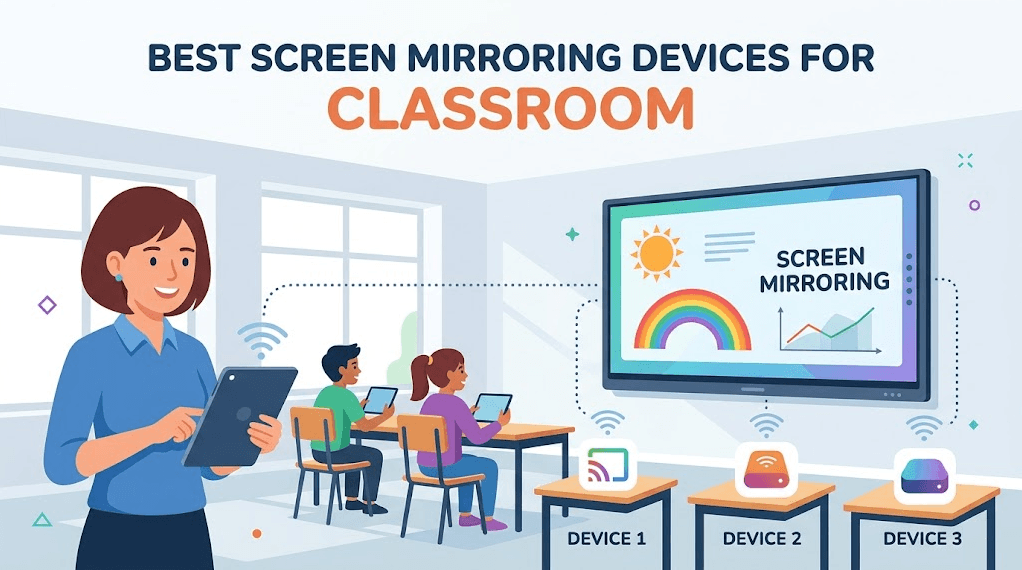
Finding the best screen mirroring device for classroom environments is no longer a tech luxury; it is the backbone of modern, interactive teaching. Whether you need to push content from an iPad to a projector or want a secure way to monitor student devices, this comprehensive guide covers the absolute best wireless display solutions available today.
Top 7 Best Screen Mirroring Devices & Apps for Classrooms
Here are the top 7 wireless display tools for modern classrooms, ranked by simplicity, features, and value.
1. AnyViewer: The Powerful Software Alternative for Remote & Flexible Control
While hardware dongles are excellent for local physical boards, AnyViewer offers a premium software-based alternative that transforms how teachers interact with computers and displays. It serves as a high-performance classroom screen-mirroring app for schools, prioritizing remote access, control, and multi-device visibility.
Key Features for Teachers:
AnyViewer eliminates the need for expensive hardware receivers by utilizing secure, cloud-based or local software streaming with ECC (Elliptic Curve Cryptography) encryption. The standout capability of this tool is its dedicated "Mirror screen" feature. This allows teachers to mirror their current screen to another device in real time for easier presentations, screen sharing, online collaboration, and media viewing. Combined with its robust remote control capabilities, teachers can run heavy desktop software (like AutoCAD, Photoshop, or programming IDEs) from a lightweight iPad while standing at the back of the classroom.
Educational Use Cases:
- Real-Time Interactive Presentations: Use the "Mirror screen" functionality to instantly project your laptop screen to student tablets, ensuring everyone has a clear, front-row view of complex diagrams, slides, or media files during lessons.
- Seamless Online & Hybrid Collaboration: Perfect for hybrid classrooms; mirror your screen to remote students and local displays simultaneously, creating an inclusive, high-speed online collaboration environment.
- Untethered PC Management: Walk around the room with a phone or tablet while fully controlling and executing programs on your main teacher's desktop at the front desk.
- Remote Lab Demonstration: If you are teaching a computer lab session, use AnyViewer to access a student's computer from your own desk to fix an issue without having to physically walk over.
Platform Support:
Fully compatible with Windows,macOS, iOS, and Android, making it a highly reliable app for teachers to see students' screens or manage their own systems flexibly.
2. Vivi: The Purpose-Built Educational Engagement Platform
Vivi is a hybrid hardware and software solution built exclusively for the education sector. Rather than just mirroring screens, it functions as a comprehensive classroom management tool.
Key Features for Teachers:
Vivi gives teachers absolute pedagogical control. Through an intuitive teacher dashboard, you can view student screens before approving them for public display, administer quick formative assessments, and monitor classroom engagement. It features an array of built-in teacher tools like split-screen controls, digital whiteboards, and timers.
Educational Use Cases:
- Pre-Screened Student Sharing: Review a student's work on your device first to ensure correctness and safety before broadcasting it to the class.
- Formative Assessment Toggling: Pause a lesson to push out a quick poll or wellness check directly through the screen-sharing interface.
- Emergency Broadcast Integration: Instantly override all classroom displays across the campus to show critical safety alerts or school-wide announcements.
Platform Support:
Comprehensive cross-platform app support for Windows, Mac, Chromebook, iOS, and Android.
3. 1001 TVs: The Multi-Device Champion for Interactive Classrooms
1001 TVs is one of the most versatile screen mirroring solutions specifically designed for educational environments. This cross-platform application supports wireless mirroring from Android, iOS, Windows, Mac, and even directly to projectors and Smart TVs.
Key Features for Teachers:
The standout capability is wireless multi-device mirroring, which lets you view student devices side-by-side or toggle between screens with one click. You can demonstrate an app from your phone while simultaneously displaying slides from your laptop, enhancing flexibility during lessons. 1001 TVs delivers stable, high-quality mirroring with a connection that minimizes interruptions. The built-in player lets you cast videos to the TV and control playback easily from your smartphone.
Educational Use Cases:
- Mirror one laptop to multiple TVs or projectors at once: Perfect for large classrooms or multiple learning spaces where you need the same content displayed simultaneously across different screens.
- Mirror multiple devices to one PC: Ideal for PE classes where you can monitor and compare groups of students'movements in real-time. Also excellent for comparing multiple students'work side-by-side during class discussions or assessments.
- Mirror camera content to TV: For delicate experiments where details matter, use your phone as a lens and display real-time footage on the TV. This ensures everyone in the classroom can see intricate details clearly, from science experiments to art demonstrations.
Platform Support:
Available on iOS (App Store), Android (Google Play), Windows (Microsoft Store), Mac, projectors with Android systems, Apple TV and Android TVs, with browser-based receiving options that require no app installation on the display device.
4. Airtame 2: The Gold Standard for Networked School Districts
Airtame 2 is a sleek, hardware-based wireless adapter designed to standardize screen sharing across entire school campuses. It focuses heavily on security, central cloud management, and turning idle screens into informative digital signage.
Key Features for Teachers:
Airtame 2 provides rock-solid reliability by plugging directly into the HDMI port of your projector or display. Through the Airtame Cloud platform, school IT administrators can manage hundreds of devices simultaneously, push updates, and set pin-code protections. This ensures that only authorized teachers and students can present, eliminating accidental disruptions during lessons.
Educational Use Cases:
- Campus-Wide Digital Signage: When teachers are not mirroring their screens, Airtame 2 can display school announcements, bell schedules, or student artwork.
- Pin-Protected Class Sessions: Prevent classroom hijacking by forcing users to enter a random 4-digit code shown on the projector before their screen goes live.
- Enforced Focus Mode: Teachers can use the desktop app to easily disconnect any student device and regain instant control of the main display.
Platform Support:
Supports Windows, macOS, Linux, Chromebooks, iOS, and Android via the Airtame application.
5. ScreenBeam 1000 EDU: The App-Free Infrastructure Savior
The ScreenBeam 1000 EDU is an enterprise-grade hardware receiver engineered to take the burden off your school's local Wi-Fi. By utilizing peer-to-peer wireless connections, it creates a direct link between the teacher's or student's device and the display.
Key Features for Teachers:
Its defining feature is app-free, native casting. Teachers and students do not need to download software, configure accounts, or use local Wi-Fi. It supports native touch-back capabilities, meaning if you mirror a Windows laptop to an interactive touchscreen whiteboard, you can control your laptop by touching the whiteboard.
Educational Use Cases:
- Congestion-Free Streaming: Stream high-definition videos and 4K graphics even if the school's local Wi-Fi network goes completely offline.
- Interactive Whiteboard Control: Teach from the front interactive board while your Windows laptop sits safely on your desk across the room.
- Quad-View Student Presentations: Display up to four different student screens simultaneously to compare problem-solving methods side-by-side.
Platform Support:
Native support for Windows (Miracast), macOS/iOS (AirPlay), and Android/Chromebooks (Google Cast) with no app installation required.
6. Apple TV 4K: The Ultimate Hub for 1:1 iPad Classrooms
For schools that have fully committed to the Apple ecosystem, the Apple TV 4K offers the most seamless, fluid, and intuitive hardware mirroring experience available.
Key Features for Teachers:
Powered by Apple's AirPlay protocol, it allows instantaneous screen mirroring with near-zero latency. Teachers can move freely around the room with an iPad, using it as a mobile whiteboard. Apple TV 4K also integrates tightly with Apple School Manager, allowing IT departments to lock down settings and deploy security configurations remotely.
Educational Use Cases:
- Mobile Whiteboarding: Write on your iPad with an Apple Pencil while walking around the room, instantly projecting your notes to the main board.
- Instant Student Spotlight: Easily pass presentation rights to any student holding a school-issued iPad with two taps.
- 4K Multimedia Lessons: Stream high-fidelity educational documentaries and smooth audio without stuttering or synchronization issues.
Platform Support:
Native support for iOS and macOS. Limited and inconsistent support for Windows and Android via clumsy third-party software.
7. Google Chromecast: The Budget-Friendly Solution for Google Schools
Google Chromecast with Google TV is a compact, highly cost-effective hardware dongle that integrates perfectly into environments running on Chromebooks and Google Workspace for Education.
Key Features for Teachers:
Chromecast makes wireless casting incredibly accessible. Since it is deeply integrated into the Google Chrome browser, teachers can choose to cast an entire desktop, a single browser tab, or a specific video file. This allows teachers to keep their personal notes private on their laptops while casting only the relevant lesson tab to the students.
Educational Use Cases:
- Tab-Specific Sharing: Cast an educational quiz tab to the projector while keeping your student gradebook open and hidden on your laptop screen.
- Affordable Multi-Classroom Rollouts: Equip an entire wing of a school with wireless capabilities for a fraction of the cost of enterprise hardware.
- Seamless Cloud Presentation: Open Google Slides on a Chromebook and tap the native "Cast" icon to present instantly.
Platform Support:
Optimized for Chromebooks and Android. Universally supported across Windows and Mac via the Google Chrome browser. Basic casting available on iOS.
How to Set Up Screen Mirroring in Your Classroom with AnyViewer (Step-by-Step)
Setting up your wireless classroom display with AnyViewer is incredibly easy. Just follow these three quick steps to get your screen up on the big board:
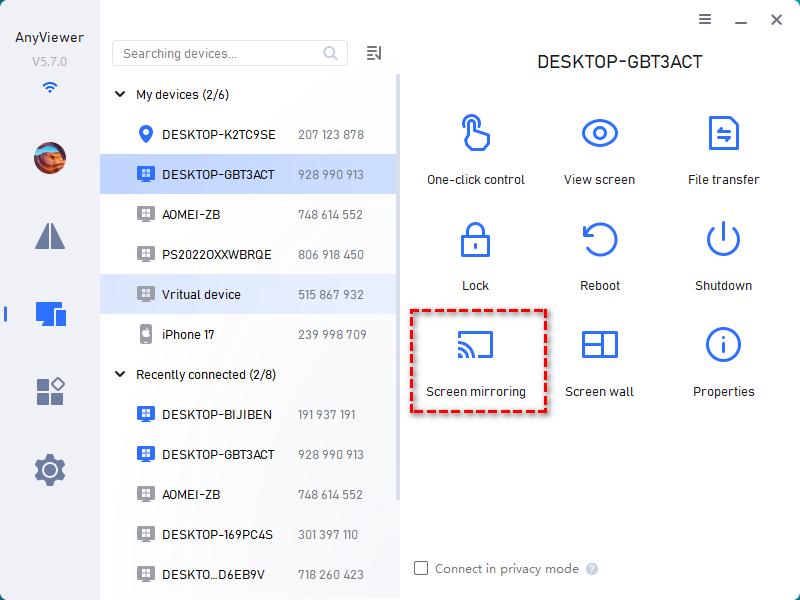
Step 1: Choose the Screen You Want to Send to
- Open AnyViewer on your main teaching computer or laptop.
- Click Device and then My Devices from the menu.
- Find and click on the classroom projector PC or big screen from your list.
- Click the Screen Mirroring button on the right side.
Step 2: Turn on Mirror Mode
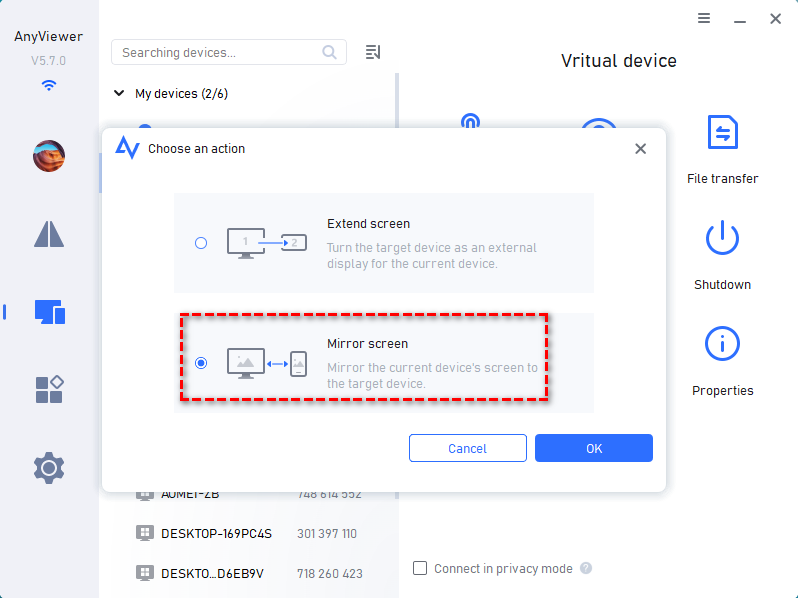
- Choose the Mirror Screen option and confirm.
- A message will instantly pop up on your screen saying: "Local screen is now mirroring to the target device."
Step 3: Start Teaching in Real Time
That's it! The big screen will now show exactly what is on your computer screen with no lag.
While mirroring, the big classroom screen is just a monitor. Students or users cannot tap the big display to control or change things on their laptop.
Why Modern Schools Need Dedicated Wireless Screen Sharing
Cutting the cord does more than just clean up classroom aesthetics. Upgrading to dedicated screen mirroring solutions for teachers fundamentally changes classroom dynamics.
- Untethered Teaching: Teachers are freed from the podium. You can circulate the room, manage behavior, and provide one-on-one support while maintaining control of the lesson.
- Boosted Student Engagement: Students can share their work, presentations, or coding projects directly from their desks, turning passive listening into active participation.
- True Cross-Platform Flexibility: Modern classrooms are hybrids. A great mirroring device handles a teacher's MacBook, a student's Chromebook, and a school Windows laptop without requiring different cables.
- Cost Efficiency: Instead of running expensive HDMI cables through walls and ceilings, a single wireless hub connects everything via your existing network.
Conclusion
Choosing the best screen mirroring device for classroom setups depends on your budget and hardware preferences. While dedicated receivers like ScreenBeam or Airtame excel at campus-wide deployments, high-performance software like AnyViewer offers an affordable, flexible alternative for real-time screen sharing and remote desktop control. Ultimately, adopting the right wireless solution frees teachers from the podium and builds a more collaborative learning environment.



 as a preferred
source on Google
as a preferred
source on Google