

How to Secure Remote Desktop for Small Business in 7 Steps
Learning how to secure remote desktop for small business starts with closing public RDP access, requiring multifactor authentication, and limiting who can reach each computer. This guide helps owners and small IT teams choose a connection method, protect accounts, and test access removal.

By Ellie / Updated on October 14, 2026


What Is Secure Remote Desktop for Small Business?
Secure remote desktop lets authorized employees view and control a business computer from another location while protecting account access, session traffic, and company data.
Windows Remote Desktop uses Microsoft's Remote Desktop Protocol (RDP). Remote access applications, including AnyViewer, use their own connection workflows. Both require careful account and device management.
For a small business, success means an employee can reach the right computer, an outsider cannot, and a departing employee loses access promptly.
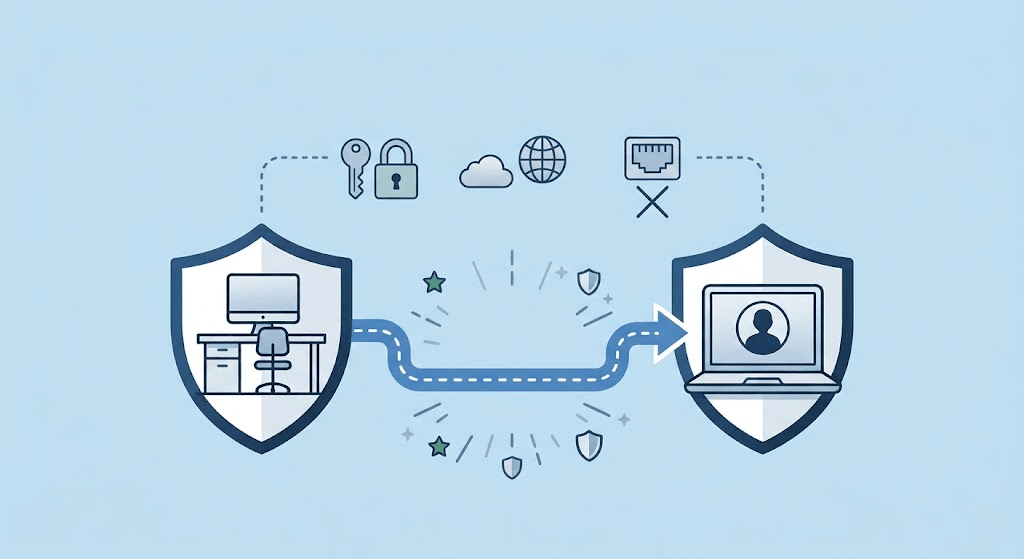
What Are the Benefits of Securing Remote Desktop?
- Lower exposure: Closing unnecessary public services reduces opportunities for unwanted connections.
- Controlled remote work: Staff can use office applications with access limited to their responsibilities.
- Easier offboarding: Named users and device records make permissions easier to remove.
- Better accountability: Available sign-in and session records help investigate unexpected activity.
Keeping files on an office PC reduces local data leakage risks, but clipboard sharing, file downloads, and screen captures can still expose sensitive data. Be sure to establish clear rules for every workflow.
How to Secure Remote Desktop for Small Business Step by Step
1. List Every Remote Access Route
Record each remote desktop tool, VPN, office computer, employee, and contractor. Include who approves access and when temporary access expires.
Remove unused tools after checking their business purpose. Otherwise, an old support application may leave a second route into a computer you thought was protected.
Only access devices, accounts, and files that you own or are explicitly authorized to use.
2. Close Public RDP and Choose a Protected Connection
Do not forward public internet traffic directly to an office PC's RDP port, normally 3389. Changing the port number does not provide authentication or meaningful access control.
For Windows RDP, use a maintained VPN or Remote Desktop Gateway with MFA. Restrict access to approved destination computers. Microsoft explains how a gateway prevents direct public exposure of RDP hosts in its remote desktop security guidance.
|
Connection method |
Good fit |
Essential check |
|
RDP through a VPN |
Teams with managed network access |
Restrict VPN users to required PCs |
|
RDP through RD Gateway |
Businesses with Windows administration support |
Configure MFA and destination policies |
|
Remote access application |
Small teams needing straightforward support |
Verify accounts, trusted devices, and revocation |
Ask your IT provider to confirm direct RDP is unreachable from outside your network, including over IPv6 where enabled.
3. Require MFA and Separate User Accounts
Give each employee an individual account and a unique password stored in an approved password manager. Keep administrative accounts separate from everyday work.
Require MFA at the remote access entry point. For RDP, protecting Microsoft 365 sign-in does not automatically protect a separate Windows remote login. Follow Microsoft's RDS MFA guidance for the chosen architecture.
Test a fresh connection from an untrusted device. Check saved sessions and alternative connection methods too. Prefer phishing-resistant authentication where your access system supports it.
4. Limit Permissions and Session Sharing
Grant access only to required computers. A bookkeeper may need an accounting workstation without needing administrator rights or access to every office PC.
- Disable clipboard, drive, printer, and file-transfer sharing where unnecessary and supported.
- Set idle-session limits and lock unattended screens.
- Give contractors time-limited access with a named approver.
For Windows RDP, keep Network Level Authentication enabled. NLA authenticates users before a full session begins; it does not replace MFA. See Microsoft's Remote Desktop setup guidance.
5. Protect Both Ends of the Connection
Update the office PC, connecting laptop, remote access software, and VPN or gateway. Use supported operating systems, endpoint protection, and disk encryption.
Avoid shared household computers for sensitive work. Train staff to verify unexpected support requests through a known contact method and never disclose access codes to unsolicited callers.
6. Review Activity and Prepare for Recovery
Assign someone to review available login and session records. Investigate unfamiliar devices, repeated failures, and unusual access times.
Keep protected backups and test a restore. If you suspect unauthorized control, end remote access, isolate affected equipment as appropriate, and contact your IT provider. Preserve available logs for investigation. These controls align with CISA's ransomware prevention guidance.
7. Revoke Access and Test the Result
When someone leaves, disable their accounts, remove device assignments and trusted devices, terminate active sessions where supported, and change shared security codes they knew.
Do not assume a password reset ends an existing session. Using an authorized test account, confirm that both a new login and a previously saved connection fail after access removal. Record the result.
Why AnyViewer Is the Best Remote Desktop Choice for Small Businesses
Building and maintaining complex VPNs or RD Gateways can be costly, time-consuming, and resource-heavy for growing businesses. AnyViewer delivers a seamless, high-performance remote access experience without the hassle of port forwarding or firewall adjustments.
Powerful AnyViewer Features Designed for Businesses
- Bank-Grade Encryption: Built with 256-bit Elliptic Curve Cryptography (ECC) end-to-end encryption to guarantee your sensitive commercial data remains private.
- Unattended Remote Access: Connect seamlessly to authorized office PCs with a single click, providing ultra-smooth remote work capabilities.
- Two-Factor Authentication (2FA) & Interface Lock: Safeguard accounts with robust 2FA and customizable security codes to block unauthorized entry.
- Privacy Mode: Black out the remote physical screen and disable the host keyboard/mouse during remote sessions, protecting sensitive operations from office onlookers.
- High-Speed File Transfer & Multi-Monitor Support: Transfer large files at top speed, switch between multiple monitors smoothly, and enjoy low-latency 4K quality.
- Centralized Team & Device Management: Effortlessly group devices, assign access permissions, and revoke access instantly from a centralized admin console.
Unlock advanced business features, high-speed channels, and Privacy Mode today! Upgrade toAnyViewer Solo / Team / Enterprise Plan.
Set Up and Verify an Authorized Connection
- Install the official application on two approved computers and create the necessary account.
- Enable 2FA for the account in the Management Center and protect the associated email account with MFA.
- For attended support, enter the recipient's device ID under Connect, send a control request, and have the recipient select Allow.
- Enable unattended remote access only for approved devices. Review device assignments, security-code options, and unnecessary connection methods.
- End the session, review trusted devices, and test whether removed access actually prevents reconnection.
The official account guide states that 2FA uses email verification for new-device sign-ins. Devices already in My Devices are trusted and do not require that verification. This is not a guarantee of an MFA challenge for every session.
Pilot AnyViewer for remote work on one workstation before rollout. If your business requires specific audit retention, enforced identity policies, or regulated-data handling, verify those requirements with the vendor first.
Conclusion
Mastering how to secure remote desktop for small business means closing public RDP ports, enforcing MFA, and tightly managing permissions. While traditional RDP setups require complex VPNs and gateways, AnyViewer offers an all-in-one, bank-grade secure solution that is easy to deploy and budget-friendly. Download AnyViewer for free or upgrade to a Business Plan today to safeguard your hybrid workforce!



 as a preferred
source on Google
as a preferred
source on Google