

How to Remotely Help Elderly Parents With Computer Problems in 6 Steps
Learn how to remotely help elderly parents with computer issues using remote software to view their screen, take control, and fix problems together. This guide covers setup routines, quick fixes, and using AnyViewer for safe, parent-approved Windows support.

By Ellie / Updated on October 8, 2026


"Click on the bottom left!" "Which bottom left? The blue icon or the yellow folder?"
If this frustrating exchange sounds all too familiar, you're not alone. Explaining technical steps over the phone to aging parents often leads to confusion, anxiety, and hours of wasted time when you just want to fix computer remotely.

Fortunately, modern remote desktop technology makes distance irrelevant. With AnyViewer, a secure, user-friendly remote support tool designed for effortless connections, you can instantly view your parent's screen, take control with their permission, and solve tech glitches together in minutes.
This guide will show you how to set up a stress-free tech support routine for your family, avoid common connection pitfalls, and build your parents' confidence with their computers.
What Is Remote Computer Help for Elderly Parents?
Remote computer help lets a trusted person view or control a parent's computer over the internet. Screen sharing shows what is happening; remote control also lets the helper click and type. Your parent can stay at home while you troubleshoot from another location.
Two approaches serve different needs:
- Attended support: Your parent approves the connection while present. Start here when they can manage the approval prompt.
- Unattended access: Configure access beforehand, without approval for every session. Use it only with explicit agreement about who may connect and when.
Remote assistance can help with browser settings, email attachments, and software problems. It cannot reconnect an offline computer or repair a broken cable by itself.
Choose a Remote Support Method
|
Family situation |
Starting option |
What to check |
|
Both people use Windows PCs |
AnyViewer attended support |
Install the app and practice accepting a request. |
|
Occasional Windows help |
Microsoft Quick Assist |
The helper signs in; the parent enters a code and grants permission. |
|
A Windows, Mac, or Linux computer needs support |
Chrome Remote Desktop |
Complete setup and check operating-system permissions first. |
|
The parent cannot complete initial setup |
A trusted person onsite |
Set up and test remote support together. |
Microsoft's Quick Assist guide explains its code and approval process. Google's remote desktop instructions cover supported computers and one-time support codes.
Why AnyViewer Is the Best Choice for Remote Family Support
While several tools exist, AnyViewer stands out as the most reliable, secure, and senior-friendly remote access solution for families.
|
Feature / Scenario |
AnyViewer(Recommended) |
Microsoft Quick Assist |
Chrome Remote Desktop |
|
Ease of Use for Parents |
⭐⭐⭐⭐⭐ One-click "Allow" prompt |
⭐⭐⭐ Requires typing one-time codes |
⭐⭐⭐ Complex browser extensions |
|
Cross-Platform Support |
Windows, iOS, Android, macOS |
Windows only |
Requires Chrome Browser |
|
Security & Privacy |
ECC 256-bit End-to-End Encryption |
Basic security |
Google Account required |
|
Unattended & Attended |
Supports both seamlessly |
Attended only |
Limited functionality |
|
Ideal User Group |
Families wanting long-term, hassle-free connection |
Quick one-time Windows fixes |
Chrome power users |
6 Steps to Remotely Help Elderly Parents With Computer Problems
Step 1: Prepare the Computer and Agree on the Task
Call your parent using a number you both recognize. Ask what they want fixed and whether they agree to screen sharing and control.
Before connecting:
- Confirm both computers can open a website.
- Plug in laptops and keep the parent's computer awake.
- Close private messages, banking pages, and unrelated documents.
- Keep the phone call running separately from the computer session.
Only access devices, accounts, and files that you own or are explicitly authorized to use.
Step 2: Install AnyViewer Before an Urgent Problem
For this Windows-to-Windows walkthrough, install and open the app on both computers. Use the official AnyViewer website to get started, and check current system requirements before installation.
This is a useful option when you need to:
- See the same screen your parent sees.
- Request permission before taking control.
- Let your parent stop the session locally.
If downloads or installation prompts are already too difficult, arrange local help for setup. Do not assume remote software can solve its own installation barrier.
Step 3: Send a Request and Let Your Parent Approve
Follow the official AnyViewer Remote Control guide for the current interface. For its request-based workflow:
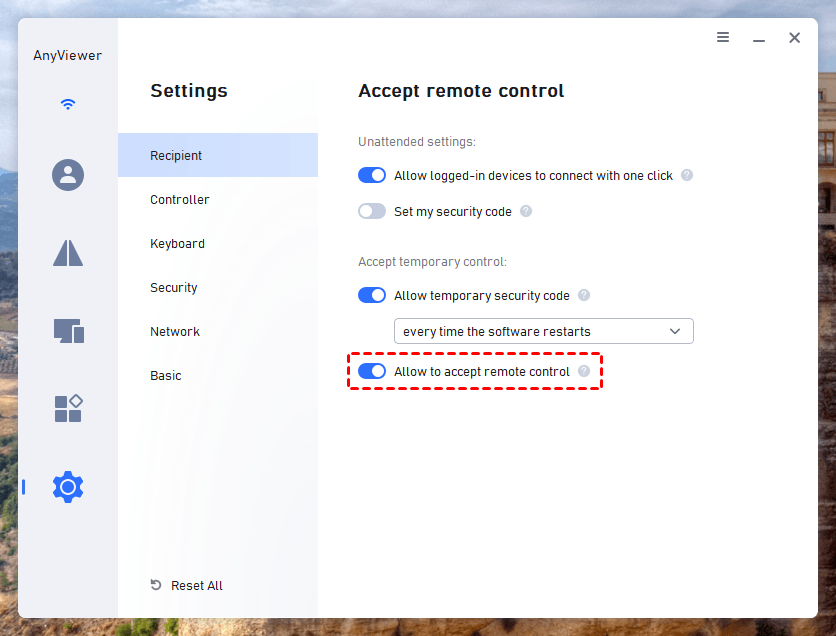
- On your parent's PC, open Settings > Recipient and enable "Allow to accept remote control."
- On your PC, open Connect, enter their device ID, and select Connect.
- Choose "Send a control request to your partner," then OK.

- Ask your parent to select Allow on the expected request.
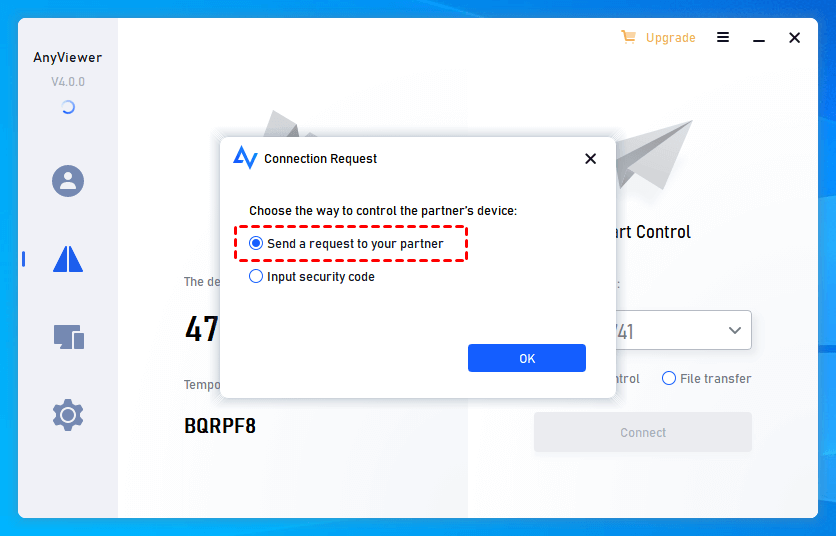
These instructions use the attended workflow for devices not signed into the same account. Do not substitute automatic account-based access without discussing the change.
Step 4: Fix One Problem While Explaining Each Change
Ask your parent to show the issue before you touch anything. Explain your next action in plain language: "I'm opening Downloads to find the document."
Take turns using the mouse. Make one change at a time and test it before continuing. Avoid reorganizing their desktop during an unrelated repair; familiar icons may be how they navigate.
Let your parent enter passwords themselves. Stop screen sharing before sensitive account activity when appropriate, then reconnect afterward.
Step 5: Let Your Parent Repeat the Task
Release control and ask them to try the same action. If they get stuck, write instructions that match the visible labels.
A useful reminder might read: "Open Mail. Open the message from Jane. Click the attachment once." Add a screenshot only with permission, and remove private information.
Step 6: End the Session and Leave a Help Routine
Show your parent the Stop control before finishing. AnyViewer's guide identifies it in the controlled computer's session panel. Confirm that your connection has ended.
Leave a large-print card beside the computer:
- Call my saved number first.
- Open the agreed support app.
- Accept only the request we discussed.
- Stop the session if anything feels wrong.
For future calls, review AnyViewer's remote access options together and practice the approval routine while everything is working.
What to Do When Remote Help Does Not Connect
- Computer appears offline: Check power, sleep status, internet access, and whether the support app is running.
- Screen is visible, but clicks do nothing: Check control permission before reconnecting.
- An installation prompt blocks progress: Your parent may need to approve it locally. Do not disable security controls to avoid the prompt.
- The connection drops after restarting: Stay on the phone and confirm the computer and support app have reopened.
- Internet is down, or hardware is damaged: Use a phone video call for basic checks, or arrange local assistance.
Conclusion
Remotely helping aging parents with computer issues is more than just technical troubleshooting; it is a meaningful way to show love, patience, and support across distances. Vague phone directions often lead to unnecessary frustration, but setting up AnyViewer ahead of time turns stressful tech emergencies into smooth, reassuring interactions.
By implementing a clear, senior-friendly "one-click permission" routine, you save time and eliminate guesswork while keeping your parents'data completely secure. Equipped with the right tool and a supportive workflow, your parents can navigate the digital world with total peace of mind.



 as a preferred
source on Google
as a preferred
source on Google