

How To Lock Android Phone Remotely With Ease?
How to lock Android phone remotely? This guide shows fast and easy steps to lock or unlock your device anytime and protect your data.

By Irene / Updated on September 26, 2025


Need to lock Android phone remotely
If you want to protect your phone and personal information, knowing how to lock Android phone remotely is essential. Android phones store a lot of sensitive data, including passwords, bank details, contacts, photos, and even work-related information. Losing a phone or having it stolen can put all this data at risk.
With the right tools, you can lock your Android phone from another device. Simply log in, select your phone, and choose the lock option. Even if the device is offline, it will lock automatically once it connects to the internet. This ensures your information stays safe no matter where your phone is.
For businesses, remote phone locking is very important. Employers can secure company data if a work device is lost or stolen. It also helps ensure employees use devices only for work purposes and prevents misuse of sensitive information.
For personal use, remote locking offers similar protection. You can lock your phone when it’s misplaced to prevent unauthorized access. Parents can also use this feature to control screen time or limit phone usage for their children.
Learning how to lock Android phone remotely helps you protect your privacy, safeguard important data, and maintain control over your device at all times.
How to lock or unlock Android phones remotely
Option 1. Lock or unlock Android phones with a professional tool
AnyViewer is a top remote access and support application for Windows and Android, trusted by millions worldwide. It allows users to control their PC from an Android phone at any time and anywhere while also offering the ability to lock Android phones remotely. The app works over local networks or the internet, supports unattended computers, multiple monitors, and is compatible with most Windows versions, including Home and Standard editions. There is also an iOS version, giving iPhone and iPad users the same seamless remote control experience.
Security is a priority with AnyViewer. It uses end-to-end encryption with 256-bit elliptic curve cryptography and two-factor authentication to ensure all remote connections remain secure. The software is easy to set up, does not require complicated configurations, and provides fast and stable connections for smooth remote support and device management.
With its combination of strong security, broad compatibility, and simple operation, AnyViewer is a reliable choice for anyone who wants to remotely lock Android phones or provide effective remote support from their mobile devices.
Step 1. Begin by downloading and installing AnyViewer on your Android device. Once installed, open the app and create a new account by tapping "Register now."
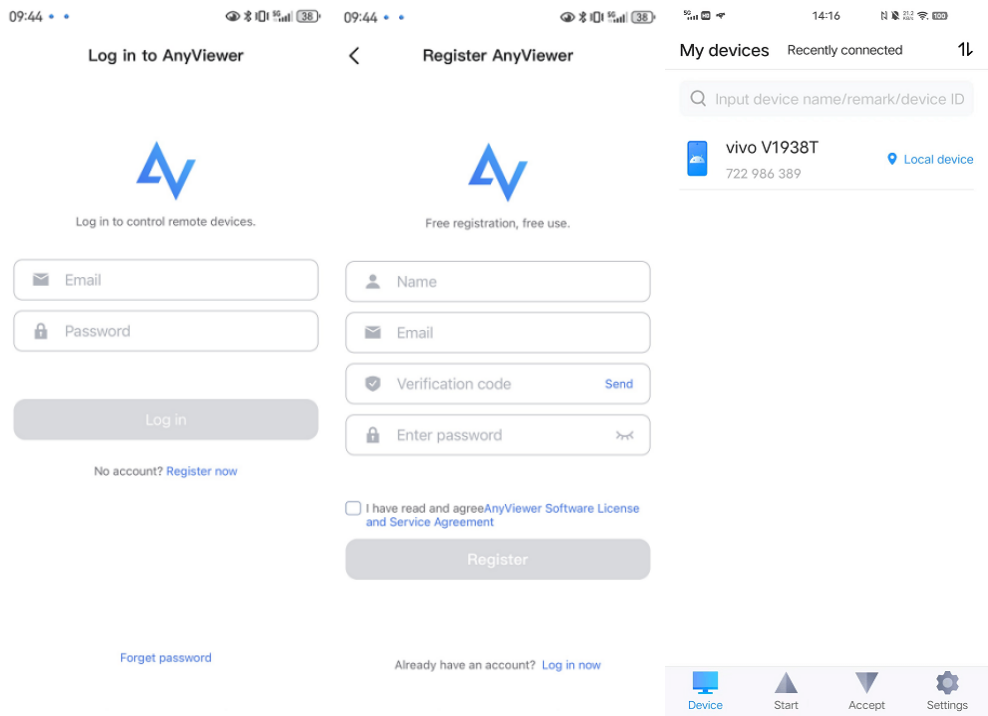
Step 2. Next, download and install AnyViewer on your other device and log in using the same account credentials.

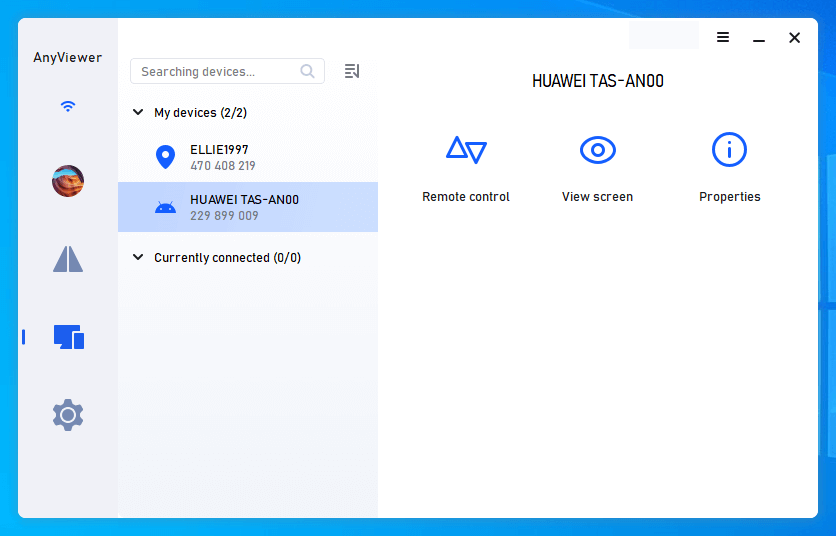
Step 3. In the "Devices" section of AnyViewer, select your Android device and click on "Remote control."
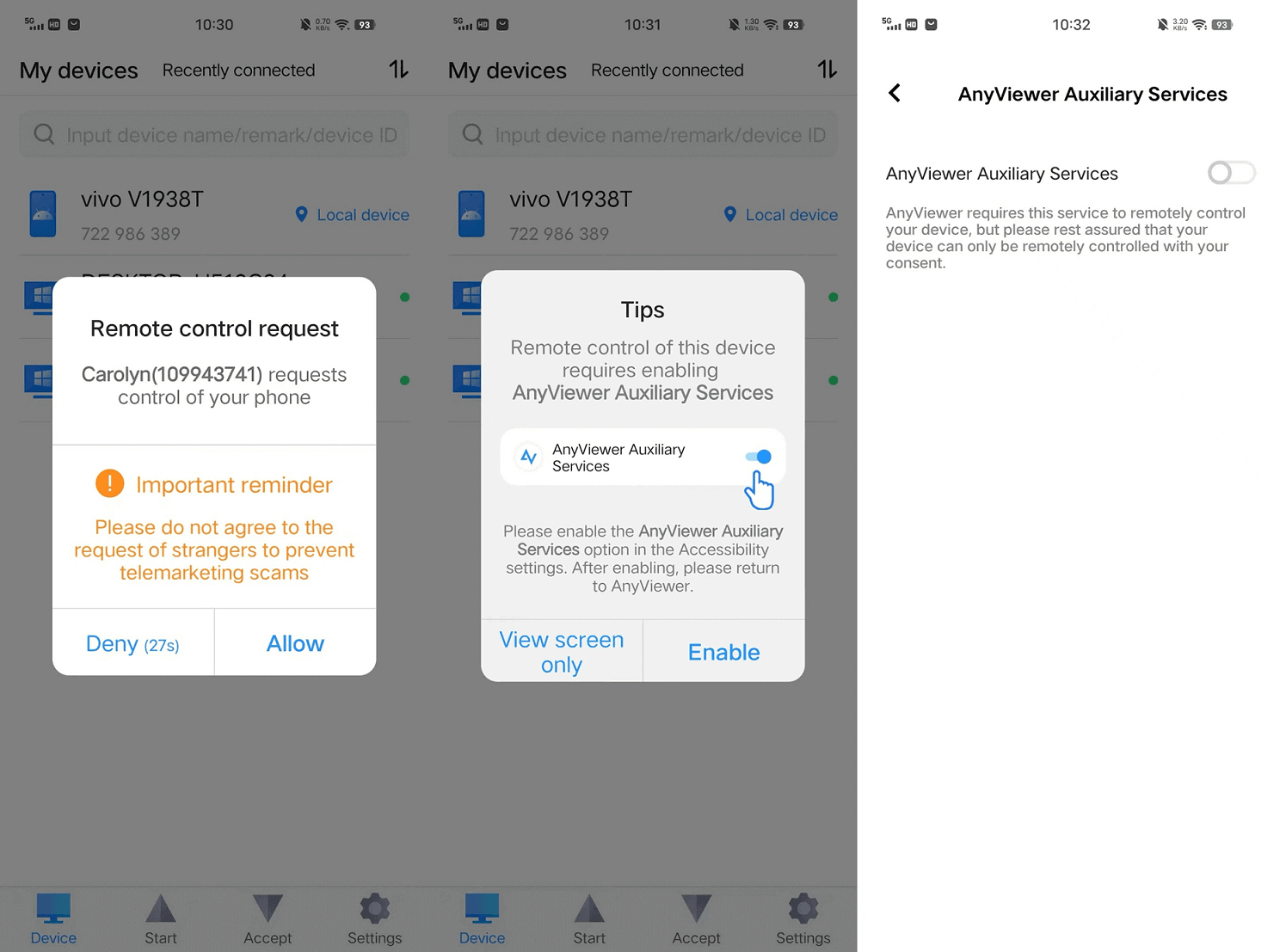
Step 4. On your Android device, tap "Allow" and enable "AnyViewer Auxiliary Service" in Installed Services.
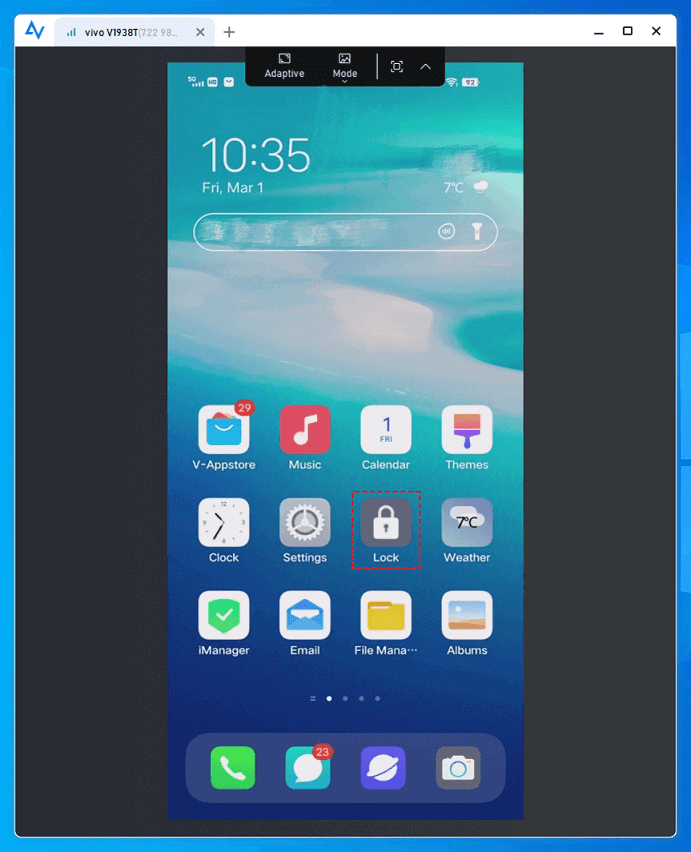
Step 5. Now you can control your phone from your other devices using any viewer, or lock your phone remotely by clicking "Lock".
★Tips: To enjoy a more convenient and extensive remote control experience across multiple devices, think about upgrading your account to a Professional or Enterprise plan.
Option 2. AirDroid
AirDroid Personal emerges as a versatile application catering to various platforms for remote control, spanning Windows, Mac, Linux (accessible via web), Android, and iPhone. This implies that it facilitates the remote control of an Android phone directly from an iPhone.Below is a step-by-step guide to using AirDroid.
Step 1. Start by downloading and installing the AirDroid Personal App on your Android device.
Step 2. Create and log in to your AirDroid personal account.
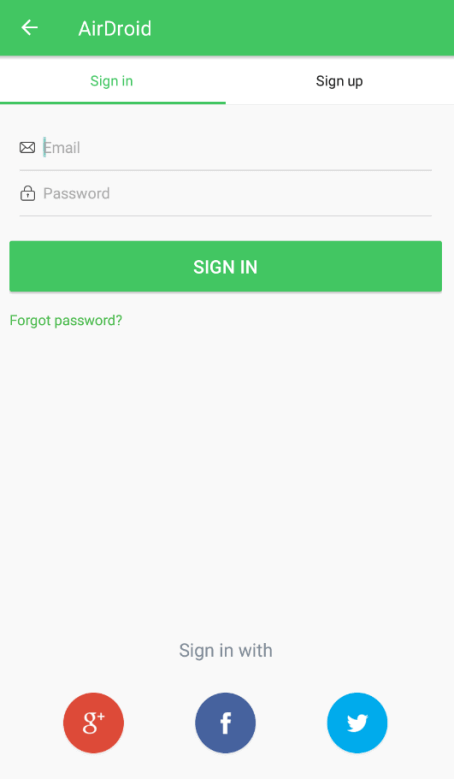
Step 3. On your iPhone, access the AirDroid personal web client via Safari or any other mobile browser.
Step 4. Log in to the same AirDroid Personal Edition account on the AirDroid Personal Edition web client.
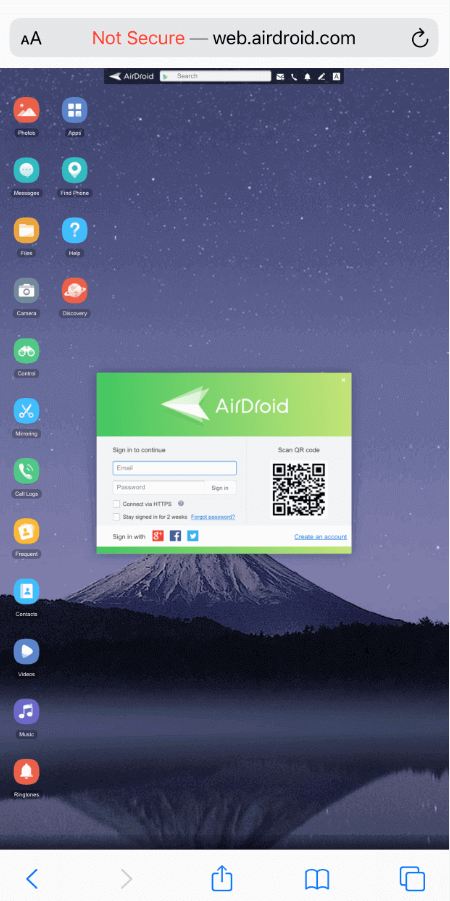
Step 5. Click the remote control icon to initiate remote control of your Android device from your iOS device.

Option 3. ApowerMirror
To control your Android device with an iPhone, ApowerMirror is an excellent choice. This screen mirroring tool offers robust mirroring capabilities and powerful features, allowing you to display and control your Android phone's screen using your iPhone. Additional features include screen capture, video screen recording, and whiteboard markup for annotation processes. Follow the steps below to begin using this powerful screen mirroring tool.
Step 1. Download and install ApowerMirror on both your Android and iPhone.
Step 2. Launch the app on both devices. On your iPhone, tap the “Local Cast” button, then select “Reverse Cast and Control”, and hit “Enable now” on your Android phone.

Step 3. On your Android device, go to Accessibility features and enable “Reverse Control Android device”, then hit “Enable” Now.
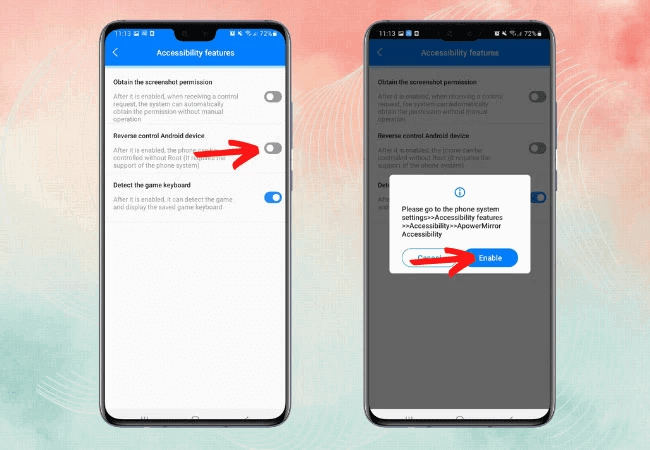
Step 4. Access "Advanced Settings," then proceed to the "Accessibility button," and select "ApowerMirror." Click “Allow” and “Turn on” the necessary permissions.
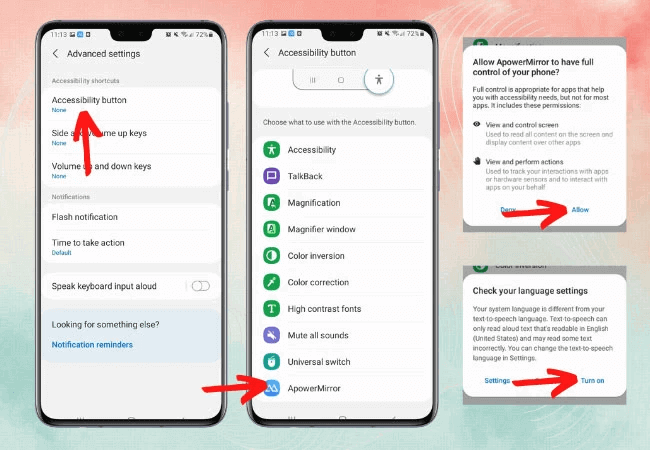
Step 5. Go back and switch to “Installed Services”> “ApowerMirror”. Click “Allow” and "Turn on" the required permissions.
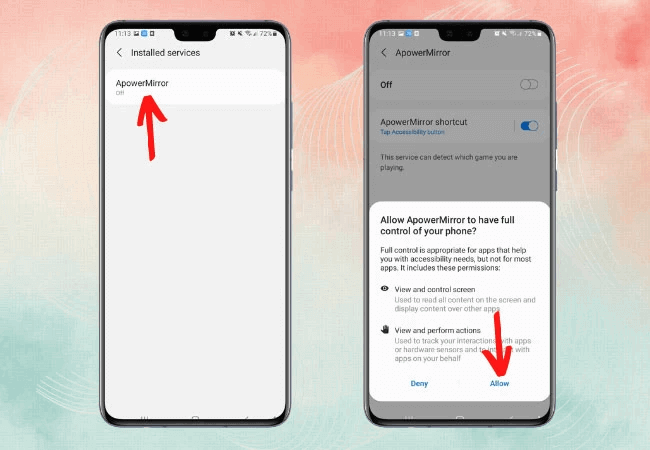
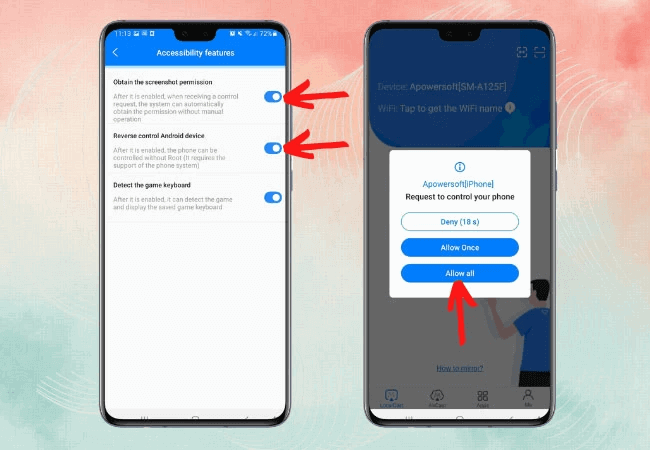
Step 6. Activate both "Reverse control Android device" and "Obtain the screenshot permission." Finally, go back and hit “Allow all” to start controlling your Android phone using your iPhone.
Option 4. TeamViewer
Consider using TeamViewer for remote control of your Android device from your iPhone. This versatile tool provides continuous access to various devices, including both Android and iPhone. With TeamViewer, you can achieve real-time and comprehensive control, allowing your iPhone to seamlessly take charge of your Android phone, regardless of the distance
The mirroring and image quality are top-notch, ensuring a smooth and lag-free experience. Learn more about TeamViewer and maximize its functionality by following the steps outlined below.
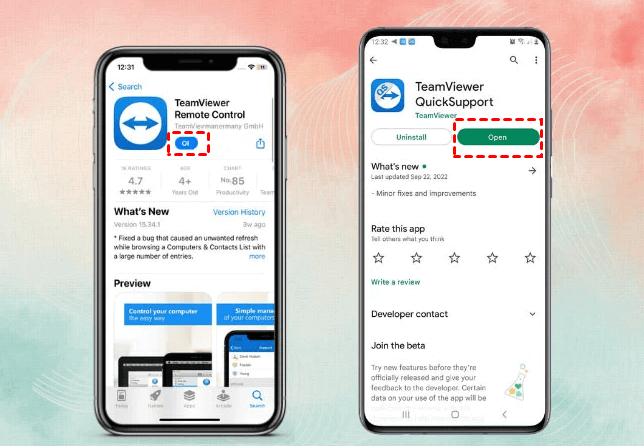
Step 1. Embark on the process by downloading the TeamViewer Quick Support app on your Android through the Google Play Store. Simultaneously, on your iPhone, download the TeamViewer Remote Device App via the App Store.
Step 2. Subsequently, initiate both applications. Enter the Partner's ID exhibited on your Android device into the designated field on your iPhone.
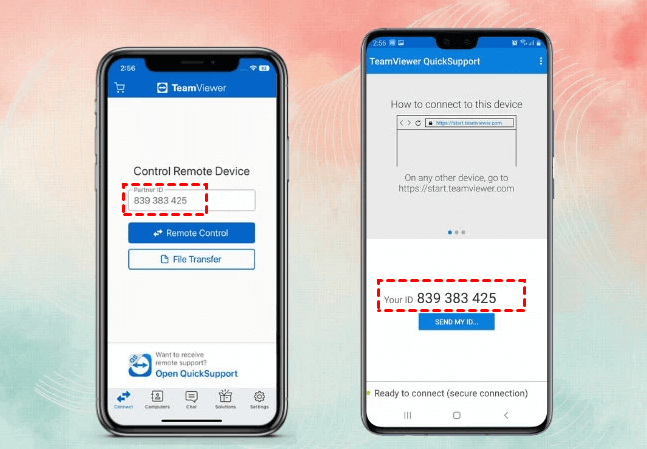
Step 3. Return to your Android interface and grant permission by tapping "Allow."
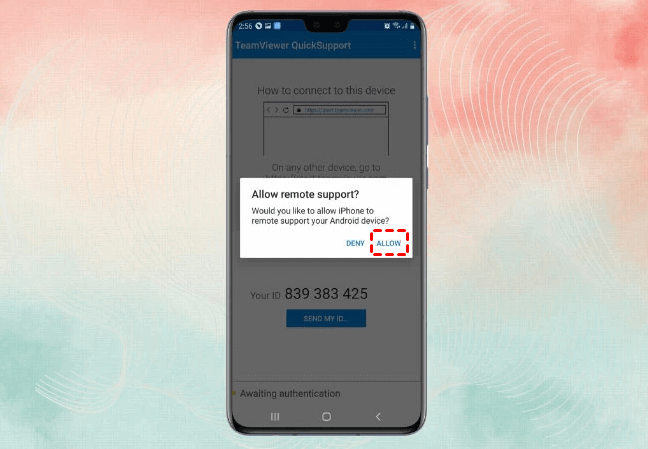
Step 4. By following these steps, you can seamlessly control your Android device from your iPhone using TeamViewer.
Conclusion
To wrap up, learning how to lock Android phone remotely is one of the smartest ways to keep your data safe. From Google’s Find My Device to trusted tools like AnyViewer, AirDroid, ApowerMirror, and TeamViewer, you have plenty of reliable options to secure your phone anytime and anywhere. Remote locking not only protects sensitive information if your device is lost or stolen but also gives you more control over how your phone is used. By choosing the right tool, you can enjoy peace of mind knowing your Android device and data are always in safe hands.



 as a preferred
source on Google
as a preferred
source on Google