

How to Delete TeamViewer Account
A complete guide on how to delete TeamViewer account for free and licensed users. Learn the steps for the new Remote interface, Classic Management Console, and how to handle managed company profiles.

By Ellie / Updated on April 22, 2026


In an era where digital privacy and account management are more critical than ever, knowing how to properly close unused accounts is a vital skill. Whether you are switching to a different remote desktop solution, consolidating your professional tools, or simply cleaning up your digital footprint, knowing how to delete a TeamViewer account correctly is essential.
However, learning how to remove TeamViewer account data isn't always as simple as clicking a "delete" button. There are specific nuances between free accounts, corporate profiles, and paid subscriptions that can lead to unexpected charges or data loss if not handled correctly.
In this comprehensive guide, we will walk you through every step of the process, explain the difference between account deletion and learning how to cancel TeamViewer account subscriptions, while providing troubleshooting tips for common issues.
How to Delete a TeamViewer Account: Step-by-Step
There are two primary ways to delete your account, depending on which version of the interface you are using: the New TeamViewer Remote interface or the TeamViewer Classic Management Console.
Method 1: Using the New TeamViewer Remote (Web or Desktop)
The modern interface has streamlined the process. You can perform these steps either through the installed desktop client or by logging into https://web.teamviewer.com.
Step 1. Open TeamViewer Remote and sign in with your email and password.
Step 2. Locate the Gear Icon (Settings) in the bottom-left corner of the interface.
Step 3. Click on "Go to your profile's settings." This will usually open a web browser tab focused on your profile management.
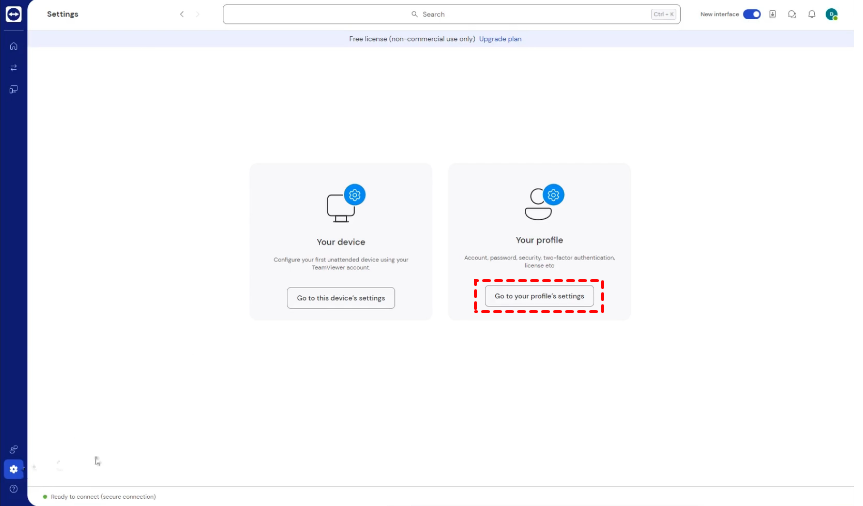
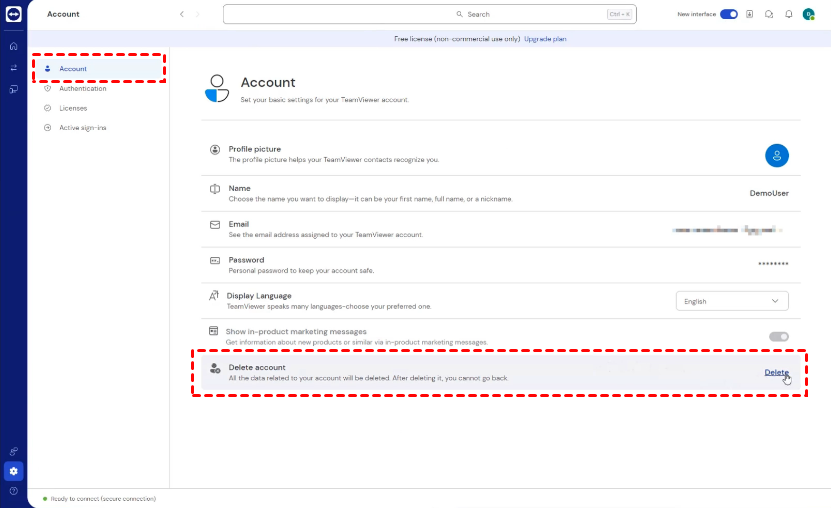
Step 4. On the right-hand side of the profile page, look for the section titled "Delete Account."
Step 5. Click the "Delete" button. A warning box will appear explaining that all data will be lost. Confirm your choice, and your account will be immediately terminated.
Method 2: Using the TeamViewer (Classic) Management Console
If you are still using the older management console, the steps for how to remove TeamViewer account access are slightly different.
Step 1. Go to https://login.teamviewer.com.
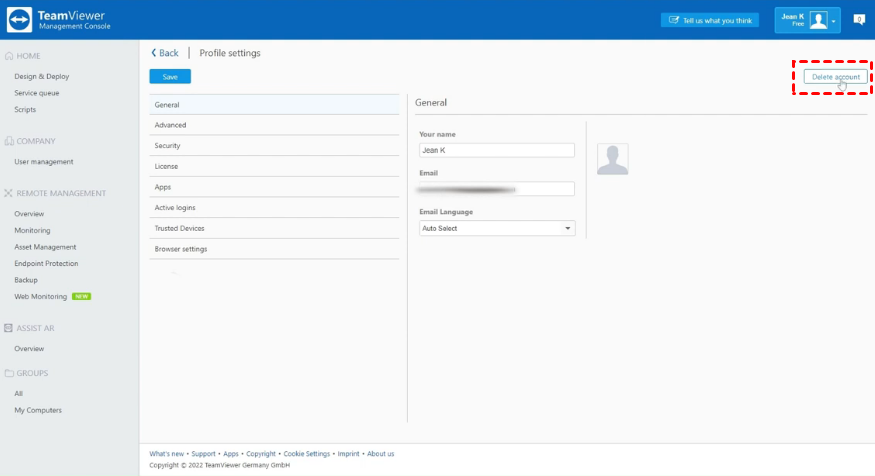
Step 2. Click on your Username in the top-right corner and select "Edit Profile" from the drop-down menu.
Step 3. In the pop-up window that appears, look for the "Delete Account" button in the top-right corner.
Step 4. Click "Yes" on the confirmation prompt.
How to Deal with Managed Company Accounts
If you see a message stating that your account is "managed by a company," the standard delete button may be grayed out or missing. In this scenario, the account is technically owned by the organization that provided the license.
Steps for Employees:
Step 1. Ask them to remove your user account from the Company Profile.
Step 2. Once removed, your account typically reverts to a standard "Free" account.
Step 3. Now that the account is no longer managed, you can follow the "Method 1" steps above to delete it permanently.
Steps for Administrators:
If you are the admin and want to delete a user:
Step 1. Log in to the Management Console.
Step 2. Go to User Management.
Step 3. Select the user and choose "Delete User."
Note: You can choose to transfer the user's groups and data to another admin before deletion to prevent data loss.
How to Uninstall TeamViewer (Windows & Mac)
Deleting your account is a server-side action, but the software remains on your computer. To remove TeamViewer from your system, follow these steps.
On Windows
Simply using the "Add or Remove Programs" feature often leaves behind "junk" registry files. To do it right:
Step 1. Go to Control Panel > Programs and Features.
Step 2. Find TeamViewer, right-click, and select Uninstall.
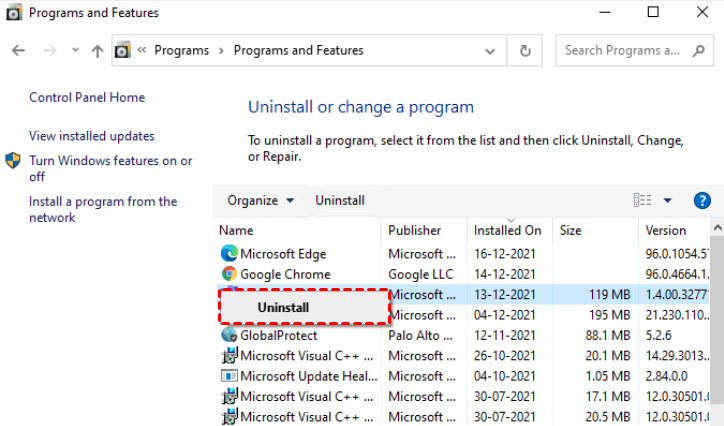
Step 3. Crucial Step: Check the box that says "Remove Settings" during the uninstallation process.
Step 4. After uninstallation, press "Win + R", type "%appdata%", and delete any remaining TeamViewer folders.
On macOS
Step 1. Open the TeamViewer app.
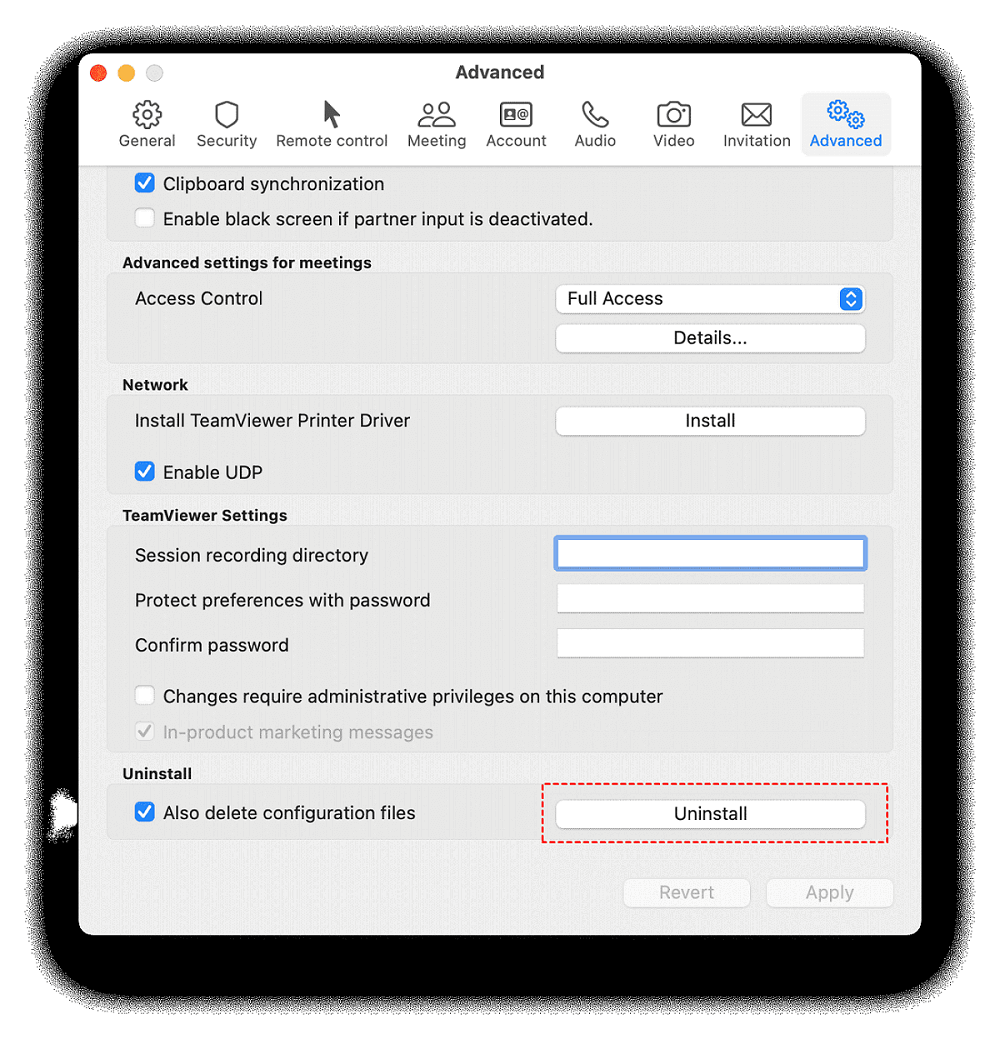
Step 2. Go to the top menu and select TeamViewer > Preferences.
Step 3. Click the Advanced tab.
Step 4. Scroll to the bottom and check "Also delete configuration files."
Step 5. Click Uninstall.
Key Notes on Account Deletion
Before proceeding with the deletion, please keep the following critical points in mind to avoid data loss or financial complications:
- Permanent Data Loss: Deleting your TeamViewer account is irreversible. All account-related data, including your "Computers & Contacts" list, owned groups, and custom modules, will be permanently purged. This information cannot be recovered by support once the action is confirmed.
- Subscription vs. Account: Deleting your account does not constitute a legal cancellation of your paid subscription. To avoid being billed for the next cycle, you must submit a written cancellation request via a support ticket at least 28 days before your renewal date.
- Inactive Account Policy: TeamViewer automatically deletes free standalone accounts that have been inactive for more than 2 years. This policy is designed to enhance security and data privacy. Note that this does not apply to accounts associated with a company profile or an active license.
- Ownership Transfer: If you own shared groups that other team members rely on, those groups will disappear for all users upon your account deletion. Ensure you transfer ownership to another administrator before closing your account.
AnyViewer: A Robust TeamViewer Alternative
If you are deleting your TeamViewer account due to rising costs, complex management, or "commercial use suspected" errors, AnyViewer is an excellent TeamViewer alternative.
AnyViewer is a professional remote desktop software designed for seamless connectivity, offering a high-speed experience without the steep learning curve.
Key highlights include:
- Superior Visual Fidelity: Supports True Color (4:4:4 color accuracy) to ensure that the remote screen looks exactly as it does in person—ideal for designers and engineers.
- Optimized Performance: Features high-frame-rate support for smooth remote gaming and 3D modeling, even on devices like the Steam Deck.
- Enterprise-Grade Security: Utilizes Elliptic Curve Cryptography (ECC) encryption and Two-Factor Authentication (2FA) to keep your remote sessions secure.
- Flexible Access: Easily manage unattended access for Windows PCs and servers, providing a cost-effective solution for IT support and remote work.
Conclusion
Knowing how to delete TeamViewer account is a straightforward process if you follow the correct interface steps, but it requires caution regarding active subscriptions and company management. Always ensure your data is backed up and your legal notice for cancellation is filed if you are a paid user. If you are looking for a more streamlined and high-performance remote access tool, transitioning to a solution like AnyViewer can provide the features you need without the complexities of traditional enterprise software.



 as a preferred
source on Google
as a preferred
source on Google