

How to Change Mouse Size in Remote Accessed Machine
This guide shows you how to change mouse size in remote accessed machine step by step. Whether you're using Windows settings or a remote tool like AnyViewer, making the pointer bigger can help you work better and see clearly.

By Ellie / Updated on July 11, 2025


How can you change mouse size in remote accessed machine?
Ever found yourself squinting at the mouse pointer while working on a remotely accessed computer? You're not alone. Remote desktop sessions can make the pointer seem tiny, especially on high-resolution displays or when managing different operating systems. This comprehensive guide walks you through every method on how to change mouse size in remote accessed machine, ensuring smoother navigation, enhanced visibility, and a more productive experience.
Let’s dive into the practical, step-by-step ways to make that mouse pointer pop, no matter where your machine is.
Common scenarios requiring mouse size adjustment
Whether you're supporting users or working remotely from home yourself, there are several everyday situations where adjusting the mouse size becomes more than just a preference; it's essential.
Accessibility needs for visually impaired users
Accessibility isn't just about compliance; it's about inclusivity. Many remote users have visual impairments and rely heavily on system features to improve visibility. A small mouse pointer can become a major barrier in remote environments.
Imagine trying to troubleshoot or use enterprise software with poor vision. If you can't see your mouse, how are you supposed to navigate complex menus?
By learning how to change mouse size in remote access machine Windows 11 and Windows 10, users with visual challenges can enhance usability, making work and learning more manageable.
Remote desktop on high-resolution monitors
4K and ultra-HD displays look beautiful, but they often cause UI scaling issues, especially in remote desktop scenarios. When you connect to a machine that uses different resolution settings, your mouse pointer may appear extremely small.
For instance, connecting from a laptop (1080p) to a desktop with a 4K display often compresses the visuals. The result? An itty-bitty pointer that's barely visible. You'll need to adjust pointer settings to compensate for the resolution gap manually.
Knowing how to change mouse size in remote access machine Windows 10 or Windows 11 ensures consistency and visibility no matter what device you're working from.
Low bandwidth or performance constraints
Ever notice how remote sessions sometimes look pixelated or laggy? That's because lower bandwidth forces the system to compromise on graphical details. The pointer might lag or flicker, or even disappear momentarily.
In these cases, increasing mouse size can provide a more solid, persistent visual, especially if you use contrasting colors like black on white. Even if the image quality drops, the cursor remains visible enough to maintain functionality.
This adjustment helps reduce eye strain, minimizes click errors, and improves your remote working speed, without needing to upgrade your connection.
Methods to change mouse size on remote machines
Depending on the version of Windows and your remote access setup, there are several effective ways to adjust the mouse pointer size for better visibility and usability.
Method 1. Using built-in Windows settings
One of the easiest and most reliable ways to change mouse size is directly through the Windows Settings panel on the remote computer. If you're wondering how to change mouse size in remote access machine Windows 11, this is the go-to method.
Accessing Ease of Access Settings
Here's how to do it:
Step 1. Connect to the remote machine via RDP, AnyViewer, or your preferred tool.
Step 2. Click on the Start Menu and search for “Settings” > "Ease of Access".
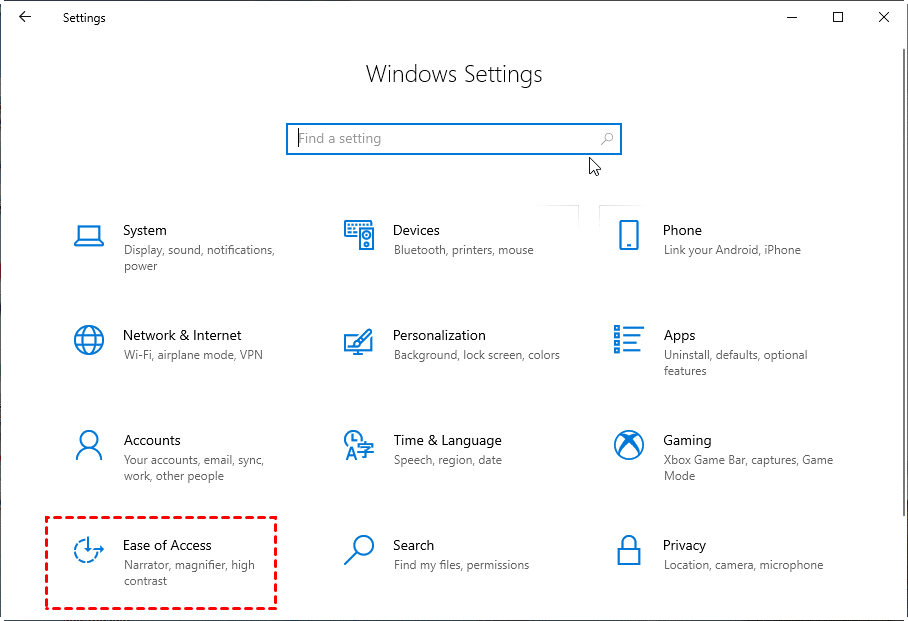
Step 3. Navigate to Mouse Pointer.
Step 4. Use the slider under “Change pointer size” to increase or decrease it.
Step 5. Below that, you'll find an option to change the pointer color for better contrast.
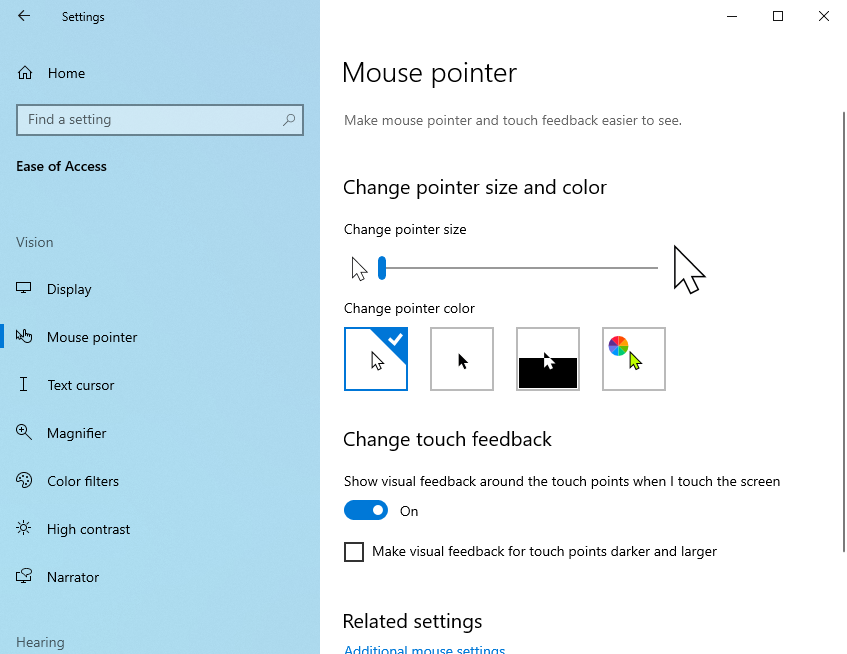
This method is excellent for users who want to quickly improve visibility without diving into complex configurations.
Selecting Pointer Size and Color
Windows provides three pointer size presets and a color picker. You can go from a small, default arrow to a bold, large one. For users with color sensitivity or visual stress, choosing a high-contrast color like yellow or black-on-white can make navigation far easier.
These settings are retained even when you log off, so the next time you connect remotely, your cursor appears exactly as you left it.
Method 2. Changing mouse size via Control Panel
Some versions of Windows (especially older ones like Windows 7 or Server 2012) may not have modern Ease of Access settings. Here, you'll need the trusty Control Panel.
Classic Control Panel Adjustments
To change the mouse size:
Step 1. Open Control Panel > Large icons > Mouse.
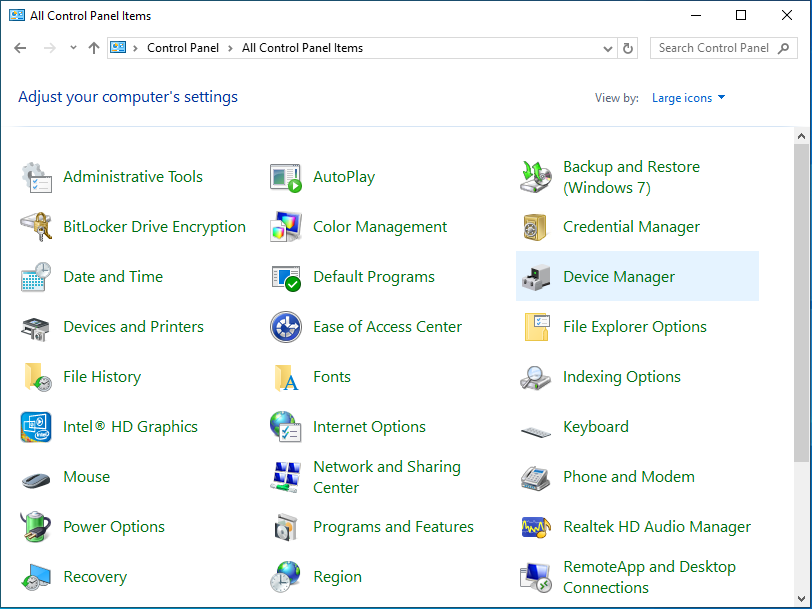
Step 2. Click on the Pointers tab.
Step 3. In the Scheme dropdown, select options like “Windows Black (extra large)” or “Magnified”.
Step 4. Click Apply and OK.
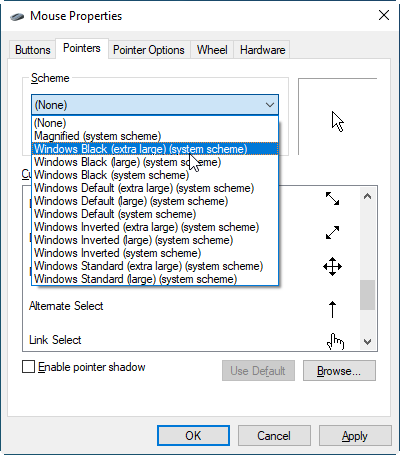
This provides predefined pointer themes that cater to users needing larger sizes or different aesthetics.
Compatibility with Older Systems
Remote servers and legacy machines often don't have updated GUIs. If you're managing a Windows Server 2008 R2 or a legacy desktop, this Control Panel method might be your only option. Fortunately, it's effective and stable across Windows generations.
Looking for a more seamless remote desktop experience?
Changing your mouse size on a remote machine is just one part of the puzzle. If you're constantly battling visibility issues, lag, or complicated remote setups, the real question is: Are you using the right remote desktop tool?
That's where AnyViewer comes in—a powerful, easy-to-use remote desktop solution built for the modern remote worker.

What Makes AnyViewer a Game-Changer?
- Flawless High-Resolution Support
Ever connected to a remote desktop only to squint at a microscopic pointer? AnyViewer is optimized for high-resolution displays, so everything—including your mouse pointer—renders crisply and clearly. No more distorted scaling or tiny UI elements.
- Blazing-Fast, Lag-Free Performance
Whether you're accessing a work PC across the hall or managing a server halfway across the globe, AnyViewer delivers ultra-low latency performance that feels like you're sitting right in front of the remote machine.
- Built-In Accessibility Features
Adjusting pointer size, screen scaling, and resolution settings is intuitive with AnyViewer. It supports a wide range of visual accessibility features to help users with impaired vision work more comfortably.
- Cross-Platform Compatibility
Need to access your Windows PC or Mac from an Android tablet? Or control your office desktop from an iPhone? AnyViewer makes it effortless. Its cross-device flexibility means you can work from virtually anywhere.
- Top-Tier Security
Remote access is only useful if it's secure. AnyViewer uses end-to-end ECC-256 encryption, two-factor authentication, and session control features to keep your data safe, whether you're at home, in the office, or on the go.
- Simple Setup, Professional Tools
Unlike other remote desktop tools that require advanced configuration, AnyViewer offers a one-click connection process, easy device pairing, and even unattended remote access features—perfect for IT admins, tech support teams, and everyday users alike.
Perfect for:
- IT professionals managing multiple remote systems
- Businesses needing fast, secure remote support
- Individuals who want a hassle-free remote access experience
- Users with accessibility needs who require UI scaling, like larger cursors
Making your mouse pointer larger is a smart way to improve your productivity during remote sessions, but upgrading your remote access tool might make an even bigger impact.
If you're ready to ditch the lag, skip the complexity, and enjoy your remote desktop experience, give AnyViewer a try. It's one of the most reliable, user-friendly, and performance-focused remote desktop tools available today.
Conclusion
Knowing how to change mouse size in remote accessed machine is a simple but powerful way to improve your remote desktop experience. Whether you're working on a high-resolution screen or helping someone with vision issues, a larger pointer makes everything easier to see and use.
While Windows settings and Control Panel offer quick fixes, using a reliable tool like AnyViewer can make the whole process even smoother. It's fast, easy to use, and built to give you a better remote connection.
Try AnyViewer if you want remote access that just works—no more tiny cursors or lag.



 as a preferred
source on Google
as a preferred
source on Google