

GoToMyPC Not Working? Easy Fixes for Windows and Mac
This guide shows how to fix common GoToMyPC problems, like blank screens, resolution issues, Opener errors, uninstall problems, and connection errors. It also introduces AnyViewer, a free and easy alternative for reliable remote access.

By Ellie / Updated on December 5, 2025


Solving GoToMyPC not working issues
GoToMyPC is designed to give you fast, secure remote access to your computer from virtually any device with an internet connection. While it’s a reliable tool for many users, it can still run into occasional glitches that disrupt your workflow. If you are experiencing GoToMyPC not working, this guide walks you through practical ways to troubleshoot common issues so you can get back to working smoothly.

If you prefer avoiding repeated troubleshooting altogether, consider switching to a more seamless alternative. AnyViewer is a free, modern remote desktop platform that supports Windows, macOS, and Linux, offering both unattended and on-demand access without the usual headaches. You can jump to the GoToMyPC alternatives solution section to learn more, or continue below for troubleshooting steps.
How to fix a GoToMyPC blank screen
Encountering a blank screen in GoToMyPC can be frustrating, whether you’re using Windows or a Mac. Many users report GoToMyPC not working on Mac with blank displays, but there are effective ways to restore normal visibility. Try the options below to get your remote session working again.
Solution 1: Fix greyed-out viewer options
Step 1: Go to Tools and open the GoToMyPC Viewer toolbar.
Step 2: Check whether the drop-down options appear greyed out. If they do, the issue is likely caused by one of the following:
- An outdated Nvidia GeForce graphics driver. Updating the driver usually resolves the display error.
- A strict MTU (Maximum Transmission Unit) setting on your network—a rare situation. In this case, contacting GoToMyPC’s support team is the best course of action.
Solution 2: Resolve security software conflicts
Step 1: Open Tools and access the GoToMyPC Viewer toolbar.
Step 2: If the drop-down menu is active, the blank screen may be triggered by conflicts with certain security software, including:
- Kaspersky – Application Control
- Trusteer Rapport
- Webroot – Identity Shield
- ZoneAlarm – Extreme
- ZoneAlarm – ForceField
Step 3: Visit the corresponding developer’s website for guidance on adjusting settings or creating exceptions to eliminate the interference.
Solution 3: Switch to a trouble-free GoToMyPC alternative
If the issue persists, consider moving to a more stable remote access solution. AnyViewer is a standout option among GoToMyPC alternatives. This free remote desktop tool supports both unattended and on-demand sessions, delivering dependable performance across Windows, macOS, and Linux. Backed by modern technology and a streamlined interface, AnyViewer offers a consistently smooth remote access experience for both professional and personal use.
How to fix a GoToMyPC remote screen resolution issue
Screen resolution mismatches can make your remote workspace difficult to use. Users running GoToMyPC not working Windows 11 often encounter display scaling problems or large black borders. Adjusting the resolution can help you get a cleaner, more functional remote session.
Follow the steps below to correct the resolution and optimize your GoToMyPC viewing experience.
Step 1: Adjust the Viewing Mode
Open the View menu in GoToMyPC and select Scale-to-fit to automatically resize the display.
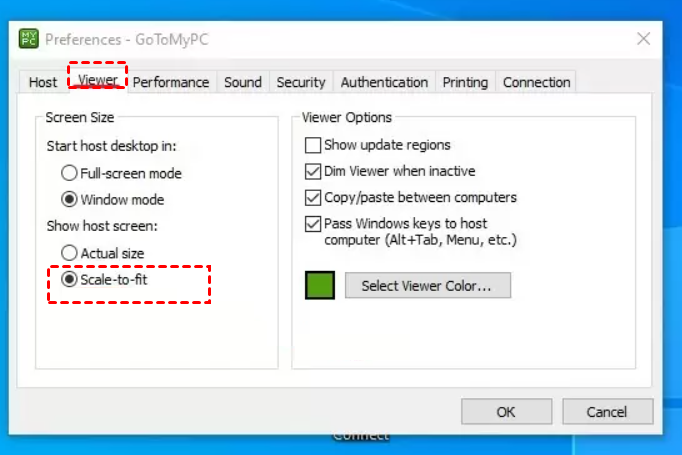
Step 2: Match the Host Computer’s Resolution
- On the host computer, left-click and then right-click on an empty area of the desktop to access the display settings.
- Note the current resolution values.
Step 3: Apply the Same Resolution on the Client Device
- On the client machine, follow the same steps—left-click and right-click on a blank area to open the display settings.
- Change the resolution to match the host’s settings.
- Click OK to confirm.
Step 4: Restart the GoToMyPC Session
Log out of GoToMyPC, then log back in to ensure the new resolution settings are applied correctly.
This simple adjustment typically eliminates unwanted black space and delivers a cleaner, more efficient remote desktop view.
How to fix the GoToMyPC Opener not working issue
If the GoToMyPC Opener is slow to download or refuses to launch, your session may fail to start. Many Mac users report GoToMyPC not working on Mac due to Opener issues. Follow these steps to troubleshoot:
Step 1: Clear Your Browser Cache
Clear your web browser’s cache and try joining the session once more. This forces the browser to verify whether the Opener is properly installed.
Step 2: Use the “Download & Run” Option
If you’re stuck on the Opener loading screen, click Download & Run to manually download the file. Once it appears, open it to launch your session.
Step 3: Manually Install the Opener on Windows
If launching a meeting from a Windows desktop fails:
- Click Download to manually get the g2minstallerextractor.exe file.
- Install the file.
- Rejoin the meeting afterward.
Step 4: Reinstall the GoToMyPC Opener
- Uninstall the existing GoToMyPC Opener completely.
- Start a new session attempt to trigger a clean installation, and fresh join flow.
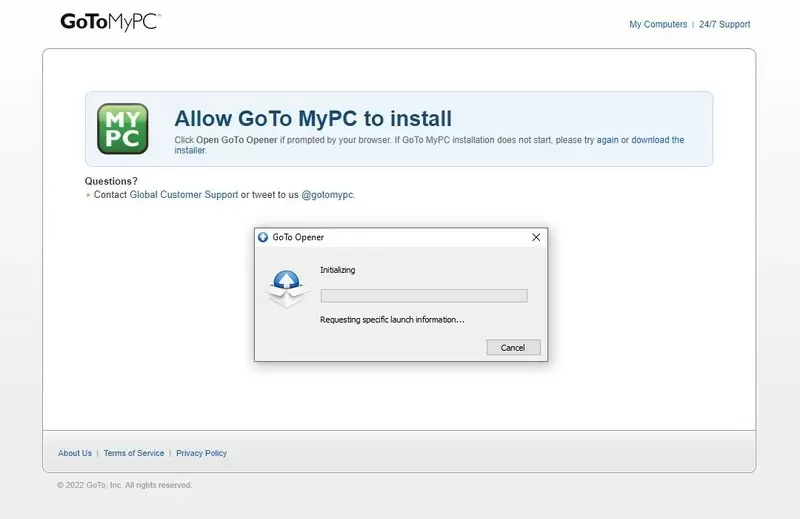
Step 5: Run the GoTo Opener Permissions Fix Tool
Use the GoTo Opener Permissions Fix Tool to repair any permission-related issues preventing the Opener from functioning properly.
These steps should help restore full Opener functionality and ensure your GoToMyPC session launches smoothly.
How to fix the GoToMyPC uninstall greyed out issue
Windows 10 may sometimes show GoToMyPC in the Apps & Features list without giving you the option to remove it. If the uninstall button is greyed out, follow the steps below to properly uninstall the application through the Control Panel.
Step 1: Press the Windows key on your keyboard.
Step 2: Type Control Panel and open it.
Step 3: Navigate to Programs > Uninstall a Program.
Step 4: Locate GoToMyPC in the list and select it.
Step 5: Click Change.
Step 6: When prompted, confirm that you want to remove GoToMyPC from your system.
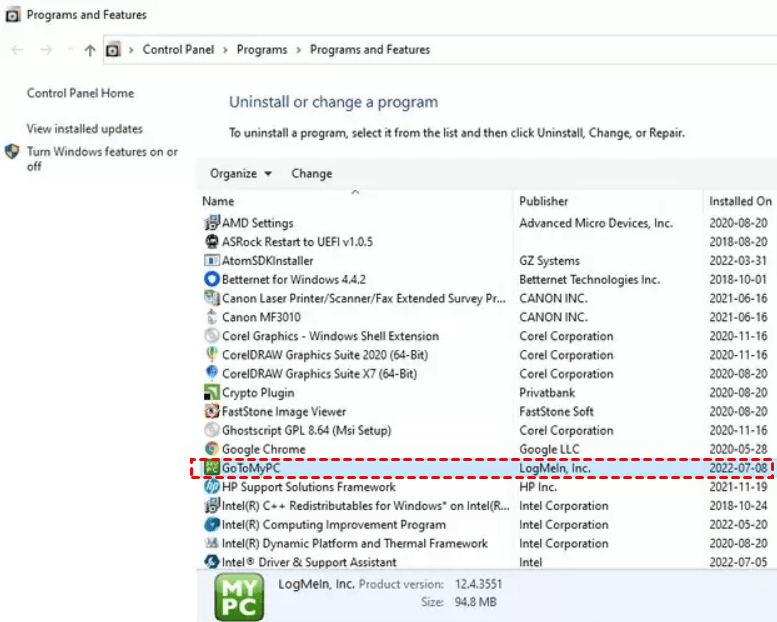
These steps help fix connection issues and make GoToMyPC not working on Windows 11 problems much less likely.
How to fix GoToMyPC error code 12029 — “Could not connect”
GoToMyPC error code 12029 typically means the application cannot establish a secure connection. Work through the methods below in order to resolve the issue.
Solution 1: Clear the browser cache and reset the connection
Step 1. Open your browser menu.
Step 2. Select History.
Step 3. Click Clear browsing data.
Step 4. Choose a time range (if applicable), then check cache and cookies.
Step 5. Press Clear data.
Solution 2: Reset internet settings
Step 1. Type Internet Options in the Windows search bar.
Step 2. Open it and go to the Advanced tab.
Step 3. Click Reset under Reset Internet Settings.
Solution 3: Disable antivirus and firewall temporarily
Turn off your antivirus and firewall briefly and try running GoToMyPC again.
If the connection works, adjust your security tools using the steps below:
Step 1. Whitelist GoToMyPC in your antivirus and firewall settings.
Step 2. Add GoToMyPC as a trusted site.
Step 3. Allow LMIIgnition.exeto access the Internet.
Step 4. If the issue persists, refer to your security software’s support documentation for further guidance.
Solution 4: Reinstall GoToMyPC
Step 1. Open the Control Panel and go to Programs.
Step 2. Select Programs and Features, then choose Uninstall a program.
Step 3. Find GoToMyPC and click Uninstall.
Step 4. Restart your computer.
Step 5. Download and install the latest version of GoToMyPC.
Working through these methods should help restore your connection and eliminate error code 12029. If the issue continues, further support from GoToMyPC may be required.
Bonus tip: Best free GoToMyPC alternative

If you’re tired of constant GoToMyPC errors, slow connections, or outdated features, AnyViewer is an excellent free alternative. It offers a smooth, modern remote access experience without the usual problems.
Here’s why AnyViewer stands out:
- Free and easy remote access for Windows, macOS, and mobile: No subscription is required for personal use.
- Fast and stable connections: Powered by advanced transmission technology that ensures low latency even across long distances.
- Unattended and on-demand remote access: Connect to your devices anytime without requiring someone on the other end.
- Strong security and privacy protection: Features include end-to-end encryption, two-factor authentication, and device binding.
- Modern, intuitive interface: No complicated setup—just install, log in, and connect.
Whether you need remote work, IT support, or access to files on the go, AnyViewer provides a smoother and more advanced experience than GoToMyPC.
Conclusion
GoToMyPC is a capable remote access tool, but like any software, it can run into issues—from blank screens and resolution mismatches to connection errors and installation failures. The troubleshooting steps above should help resolve most GoToMyPC not working problems. However, if you want a smoother, more reliable experience with fewer complications, considering a modern alternative like AnyViewer can save you significant time and frustration.



 as a preferred
source on Google
as a preferred
source on Google