

How to Fix RDP Error 1002 Tunnel Connection is Disabled?
Here is a brief overview of network connectivity problems, specifically focusing on error 1002 tunnel connection is disabled. Readers will find an err_tunnel_connection_failed fix alongside helpful context regarding the frustrating rdp error 1002.

By Irene / Updated on March 12, 2026


🌟 Quick Overview:
Error 1002 occurs when a secure tunnel connecting a client to a remote server becomes inactive. This prevents access to services like Remote Desktop or websites relying on gateways like Cloudflare. The client reaches the gateway but cannot connect to the host computer.
❗The tunnel service is stopped or expired.
❗Incorrect settings exist in the configuration file.
❗Firewalls are blocking necessary outgoing connections.
How to Fix It:
✔️ Restart the service: Run the restart command on the host computer.
✔️ Check configurations: Verify your config file for correct IDs and routes.
✔️ Update firewalls: Ensure network policies allow required ports.
✔️ Enable the tunnel again: Reactivate it from your management dashboard.
If tunnel issues persist, switching to direct remote access software like AnyViewer can bypass these configuration problems entirely.
What is Error 1002 Tunnel Connection is Disabled
Error 1002 is a connection error that appears when a tunnel used to access a remote service becomes inactive. It is commonly seen on websites using Cloudflare Tunnel, but it can also affect remote access services such as Remote Desktop when the connection depends on a tunnel or secure gateway.
In a typical setup, a tunnel creates a secure path between a client and a remote server. For example, when a user connects to a Windows computer through Remote Desktop via a secure tunnel, the request first reaches the gateway service. If the tunnel between the gateway and the host machine is not active, the connection fails and Error 1002 appears.
This means the remote desktop client may reach the gateway, but it cannot establish a connection with the actual host computer.
Common causes include:
-
Tunnel disabled: The secure tunnel used to access the server has been turned off or expired.
-
Tunnel service stopped: The tunnel agent running on the host computer is not running or has crashed.
-
Configuration problems: Incorrect settings in the tunnel configuration file prevent the connection from starting.
-
Firewall or network restrictions: Outbound connections required for the tunnel are blocked by a firewall or network policy.
When this happens, services that rely on the tunnel such as web access, SSH, or Windows Remote Desktop cannot reach the target machine until the tunnel connection is restored.
How to fix Error 1002 Tunnel Connection is Disabled
Error 1002 usually appears when the secure tunnel that connects a client to a server is not active. The following methods can help you restore the tunnel and reestablish the connection.
Method 1. Restart the tunnel service
If the tunnel service stops running, the connection between the gateway and the host server cannot be established. Restarting the service is often the quickest way to restore the connection.
Step 1. Log in to the server or host computer where the tunnel service is installed.
Step 2. Open the terminal or command prompt with administrator privileges.
Step 3. Run the command to restart the tunnel service, such as restarting the cloudflared service if you are using Cloudflare Tunnel.
Step 4. Wait a moment and confirm that the service is running normally.
Step 5. Try accessing the website or remote desktop connection again.
If restarting the service does not work, the tunnel configuration may contain errors.
Method 2. Check the tunnel configuration file
A configuration file controls how the tunnel connects to the server. If the file contains incorrect settings, the tunnel cannot establish a stable connection.
Step 1. Go to the folder where the tunnel configuration file is stored, usually named config.yml.
Step 2. Open the file using a text editor.
Step 3. Check that the tunnel ID, credentials file, and service routes are written correctly.
Step 4. Correct any formatting mistakes or incorrect paths.
Step 5. Save the file and restart the tunnel service.
If the configuration looks correct but the error still appears, the issue may be caused by network restrictions.
Method 3. Check firewall and network settings
Firewalls or network policies can block the outbound connection required for the tunnel. When this happens, the server cannot maintain communication with the gateway.
Step 1. Open the firewall settings on the server or host computer.
Step 2. Check whether outgoing connections for the tunnel service are blocked.
Step 3. Allow the required ports and network access used by the tunnel service.
Step 4. If the server is behind a corporate network, check whether the network firewall blocks the connection.
Step 5. Restart the tunnel service and test the connection again.
If the network is not blocking the connection, the tunnel itself may have been disabled.
Method 4. Re-enable or recreate the tunnel
Sometimes the tunnel may be disabled, expired, or removed from the management dashboard. In this case, you need to enable it again or create a new one.
Step 1. Log in to the tunnel management platform or dashboard.
Step 2. Locate the tunnel that connects to your server.
Step 3. Check whether the tunnel status shows inactive or disabled.
Step 4. Enable the tunnel again or create a new tunnel if necessary.
Step 5. Restart the tunnel service on the host server and test the connection.
By checking the tunnel service, configuration file, firewall rules, and tunnel status, most Error 1002 problems can be resolved. Once the tunnel connection becomes active again, services such as websites, SSH, or Windows Remote Desktop should work normally.
🌟Extra tip: Use AnyViewer for remote access to avoid issues
Error 1002 often occurs when a remote connection depends on a tunnel service that becomes inactive or misconfigured. If the tunnel stops working, services such as Remote Desktop may fail to connect. Instead of spending time troubleshooting tunnel services, a simpler solution is to use a dedicated remote access tool like AnyViewer. It allows you to connect to another computer directly through a secure cloud network without configuring tunnels.
- ★Why AnyViewer works better
- No tunnel configuration required: AnyViewer automatically creates a secure connection between devices. You do not need to set up Cloudflare Tunnel, VPN, or complex network rules.
- Works across different networks: Even if the remote computer is behind NAT, firewall, or different networks, AnyViewer can still establish a connection without manual port forwarding.
- Stable remote desktop connection: The software is designed specifically for remote control and file transfer, which helps maintain a stable connection for remote work and technical support.
- Easy setup: Users only need to install the software on both devices and sign in to the same account to enable one click remote access.
If Error 1002 keeps appearing due to tunnel connection problems, switching to AnyViewer can be a practical solution. It removes the need for tunnel services and complex network setup while providing a secure and stable way to access remote computers. This makes it a convenient option for both personal users and businesses that rely on remote access.
Step 1. Download and install
Download and install AnyViewer on both your local and remoted computer.
Step 2. Launch and sign in
After installation, launch AnyViewer and sign in using your account credentials.

Step 3. Explore the user interface
Once logged in, familiarize yourself with the user interface.

Step 4. Establish remote session
On your client computer, go to the "Device" section. There, pinpoint the PC you want to control and initiate an instant remote connection with a click on "One-click control."

Step 5. Control and manage the remote computer
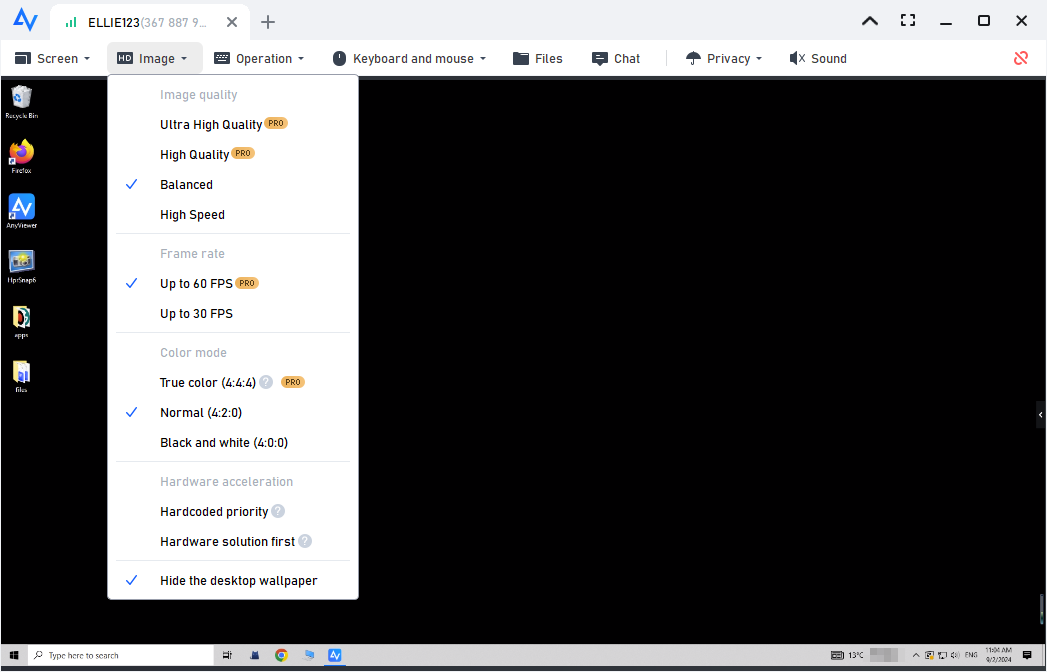
Once connected, you’ll have full control over the remote computer as if you were sitting in front of it. You can open files, run applications, transfer data, restart the device, or even adjust display settings. The intuitive toolbar allows quick access to features like screen resolution adjustment, chat, file transfer, and more. Whether for IT support, work-from-home tasks, or remote assistance, AnyViewer makes remote control seamless and efficient.
- ★Tips:
- Enhance your remote desktop experience by considering an upgrade to AnyViewer's Professional or Enterprise plan. Here's what you'll unlock:
- Easily handle multiple unattended access devices with precision.
- Manage several remote sessions at once, making multitasking simpler.
- Move large files between devices quickly for better efficiency.
- Ensure private access to remote devices by dimming the screen and disabling the keyboard.
- Explore additional features designed to enhance your remote desktop experience.
- ...
Conclusion
Error 1002 Tunnel Connection Is Disabled usually appears when the secure tunnel between a gateway and the host server is no longer active. When this happens, services that depend on the tunnel such as websites, SSH Tunnel, or remote desktop connections cannot reach the target machine. In many cases, the issue can be resolved by restarting the tunnel service, checking the configuration file, reviewing firewall settings, or re enabling the tunnel from the management dashboard.
If tunnel related problems continue to interrupt your remote access, using a dedicated remote desktop solution such as AnyViewer can be a simpler option. It allows you to connect to remote computers through a secure cloud network without complex tunnel configuration. By choosing the right troubleshooting method or an easier remote access tool, you can quickly restore stable and reliable remote connections.
FAQs
🗨️ Does VPN cause ERR_TUNNEL_CONNECTION_FAILED?
Yes. A VPN can cause ERR_TUNNEL_CONNECTION_FAILED if the VPN connection is unstable, misconfigured, or blocking the network route needed to reach the website or server.
🗨️ How to fix error tunnel connection failed?
You can fix it by restarting the tunnel service, checking the configuration file, disabling problematic VPN or proxy settings, and reviewing firewall or network restrictions.
🗨️ What is 0x1002 unable to connect?
Error 0x1002 usually indicates that a tunnel or remote connection cannot be established because the secure link between the client and the host server is inactive or blocked.
🗨️ How to check if RDP is disabled?
Open System Properties on the Windows computer, go to the Remote tab, and check whether Allow Remote Desktop connections to this computer is enabled. If it is unchecked, Remote Desktop is disabled.



 as a preferred
source on Google
as a preferred
source on Google