

Azure Virtual Machine RDP Not Working? 4 Easy Ways to Fix It
If you're stuck with Azure Virtual Machine RDP not working, this guide offers four quick fixes: checking NSG rules, verifying VM health, resetting configurations, and redeploying. We also introduce AnyViewer—a simpler, firewall-friendly alternative to traditional RDP.

By Ellie / Updated on February 28, 2026


Connecting to an Azure Virtual Machine (VM) via Remote Desktop Protocol (Protocol 3389) is a daily task for many IT professionals. However, encountering the "Azure Virtual Machine RDP not working" error is a common frustration. These connectivity issues typically stem from three areas: Network Blocking, VM State/Configuration, or Client-Side glitches.
If you are currently locked out of your instance, follow this prioritized checklist to restore your connection.
How to Fix Azure Virtual Machine RDP Not Working: A Step-by-Step Guide
Here are the detailed, step-by-step instructions for each of the four troubleshooting methods to fix Azure Virtual Machine RDP not working issues.
Method 1: Check and Configure Network Security Group (NSG) Rules
This is the most common fix. You need to ensure Azure's "external" firewall is letting RDP traffic through.
Step 1. Log in to the Azure Portal.
Step 2. Search for Virtual Machines in the top search bar and select your problematic VM.
Step 3. In the left-hand menu, under the Settings section, click on Networking.
Step 4. Click "Add inbound port rule" button.
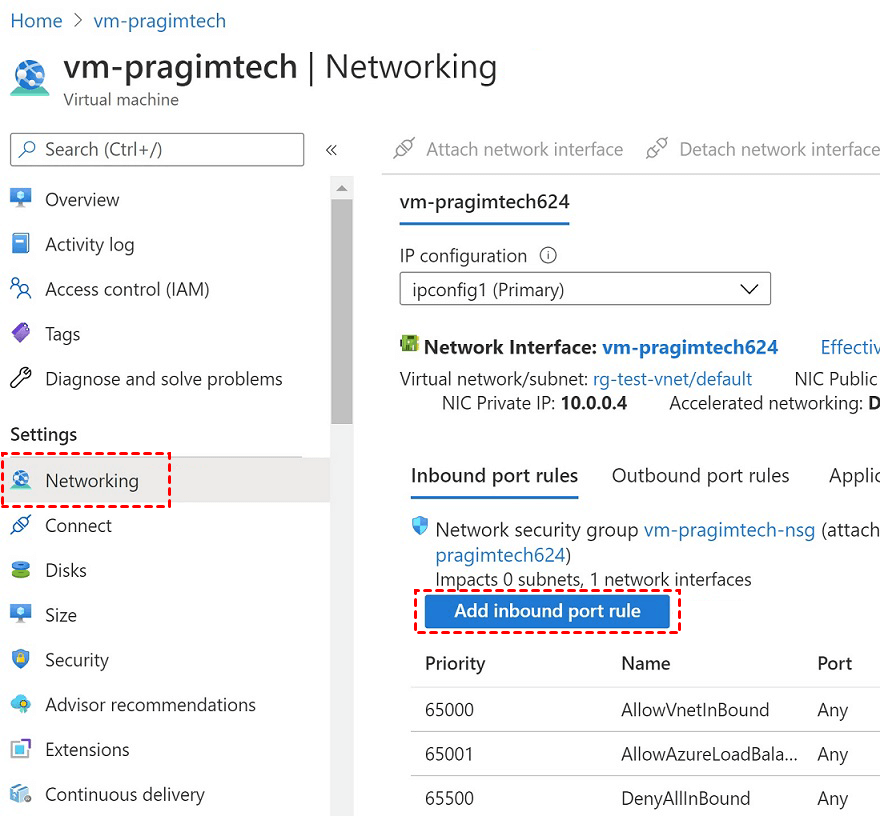
Step 5. Look for a rule allowing Port 3389.
- If it doesn't exist: Click Add inbound port rule. Set Service to RDP, Protocol to TCP, Port to 3389, and Action to Allow. Give it a low priority number (e.g., 100).
- If it exists: Check the Priority. Ensure no "Deny" rule has a smaller number than your "Allow" rule.
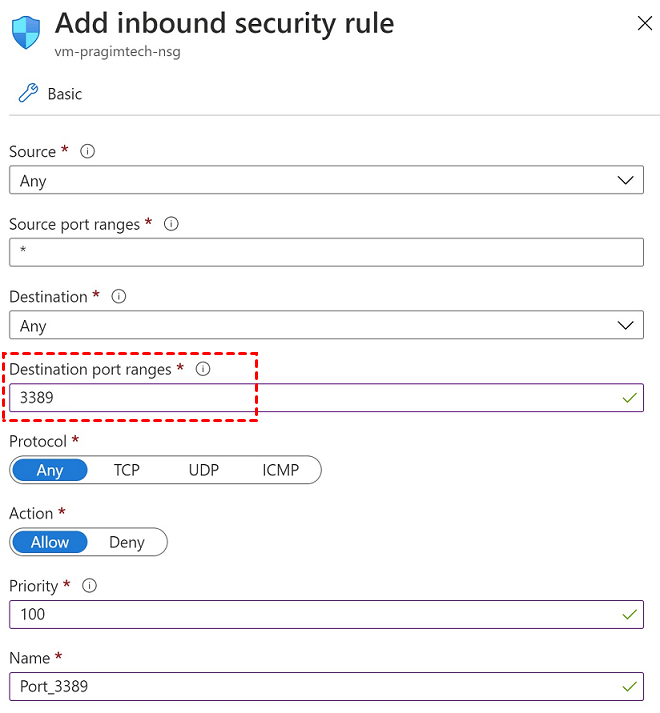
Step 6. Verify: From your local PC, open PowerShell and run:
- Test-NetConnection -ComputerName -Port 3389
Method 2: Verify VM Health via Boot Diagnostics
If the network is open but you still can't connect, the Windows OS inside the VM might be frozen or updating.
Step 1. Stay in the Virtual Machine blade in the Azure Portal.
Step 2. Scroll down the left menu to the Help section and click Boot diagnostics.
Step 3. Click on the Screenshot tab.
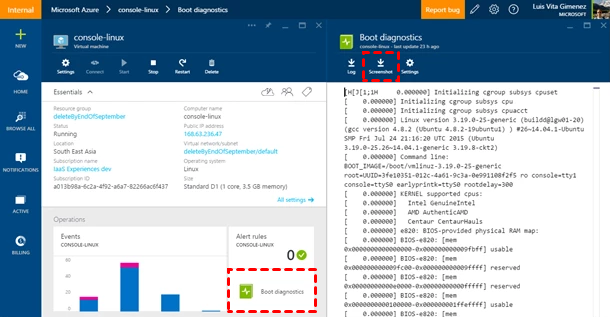
Step 4. Analyze the image:
- Windows Login Screen: The VM is running; the issue is likely network or credentials.
- Black Screen / Blue Screen: The OS has crashed. Click Restart at the top of the VM Overview page.
- "Applying Updates": Wait for the process to finish; RDP is disabled during updates.
Method 3: Use the "Reset Configuration" Tool
This tool is a "magic button" that fixes the RDP service and Windows Firewall settings inside the VM without you needing to be logged in.
Step 1. In the VM left-hand menu, scroll to Help and select Reset password.
Step 2. In the Mode dropdown, select Reset configuration only.
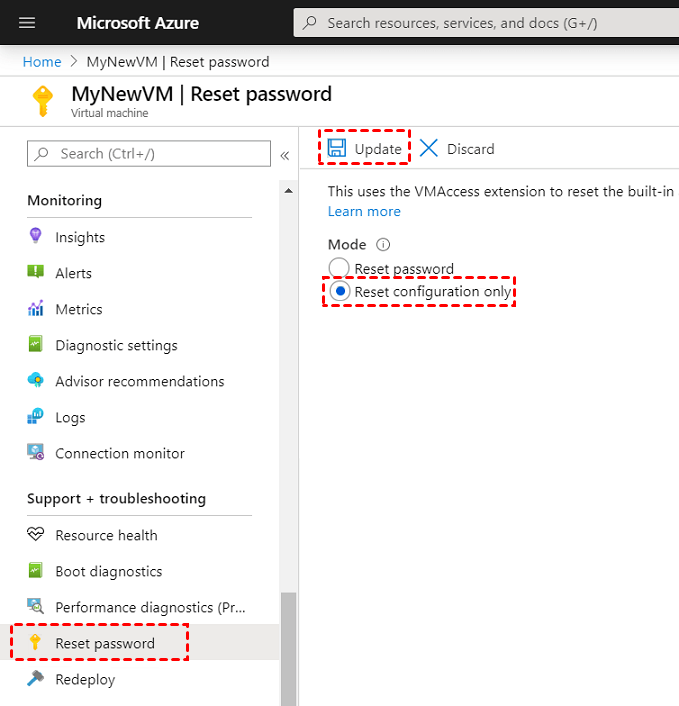
Note: This does not change your username or password; it only resets the RDP extension.
Step 3. Click the Update button at the bottom.
Step 4. Wait 2–3 minutes for Azure to signal the VM to restart its remote desktop services, and then try connecting again.
Method 4: Redeploy the VM (The "Last Resort")
If the underlying hardware hosting your VM is having issues, "Redeploying" moves your VM to a healthy physical server.
Step 1. In the VM left-hand menu, scroll to Help and select Redeploy + reapply.
Step 2. Click the Redeploy button.
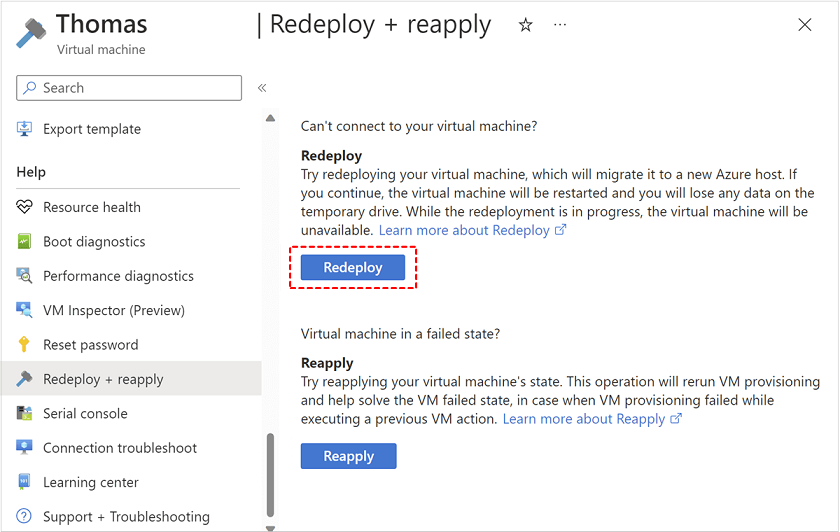
Warning: The VM will be shut down and moved. Any data stored on the Temporary Drive (D:) will be deleted. Data on the C: drive and data disks will remain safe.
Step 3. Once the status changes back to "Running," try to RDP in using the (potentially new) IP address.
Tired of RDP Issues? Try AnyViewer as a Better Alternative
While Azure RDP is the standard, it is notoriously sensitive to network configurations and firewall rules. If you want a more stable, user-friendly way to access your Azure VMs, AnyViewer is an excellent alternative.
Why Choose AnyViewer for Azure?
AnyViewer is a professional remote desktop software designed for seamless connectivity. Unlike standard RDP, which requires complex remote desktop port forwarding and NSG configurations, AnyViewer uses a proprietary connection protocol that easily bypasses NAT and strict firewalls.
- Easy Setup: No need to manually open port 3389 or manage complex VPNs.
- High Performance: Optimized for low-latency connections, providing a smooth experience even on slower networks.
- Security: Features end-to-end 256-bit ECC encryption, ensuring your Azure data remains private.
- Feature Rich: Includes built-in file transfer, multi-monitor support, and text chat.
Steps to set up AnyViewer on Azure:
Step 1. Install: Download and install AnyViewer on your Azure VM in advance and on your local PC.
Step 2. Sign Up: Create a free account and log in on both machines.

Step 3. Start Unattended Access: From your local PC, find the Azure VM in your device list and click One-click control.

Because AnyViewer uses an optimized desktop protocol that traverses firewalls automatically, you won't have to worry about Port 3389 or NSG rules ever again.
Conclusion
Solving the "Azure Virtual Machine RDP not working" issue usually comes down to pinpointing whether the barrier is at the network level (NSG rules), the OS level (frozen updates), or the Azure platform level (host hardware). By following our four-step checklist, you can fix most connection errors in minutes. For those tired of constant configuration headaches, AnyViewer provides a reliable "one-click" connection that works even when standard RDP fails.
FAQs
How to enable RDP in Azure VM?
How to troubleshoot RDP issues in Azure?
1. Network: Use the "IP flow verify" or "NSG diagnostics" to ensure Port 3389 is open.
2. Status: Check Boot Diagnostics to see if the VM is stuck on a Windows update or a Blue Screen.
3. Service: Use the Reset Password/Configuration tool in the Azure portal to restart the RDP extension.
4. Hardware: Use the Redeploy button to move the VM to a different host.



 as a preferred
source on Google
as a preferred
source on Google