

Android File Transfer to PC: 9 Easy Methods
This guide walks you through the easiest ways to complete Android file transfer to PC. It covers USB connections, wireless options like Bluetooth and cloud services, and highlights AnyViewer as a fast, secure, and cable-free solution for transferring files efficiently.

By Ellie / Updated on January 13, 2026


How do I transfer files directly from Android to PC?
Imagine needing to send an important document or photo in a hurry, only to find it saved on your phone. Knowing how to perform Android file transfer to PC can save time and stress. Luckily, there are several easy ways to move files from your smartphone to your computer today.
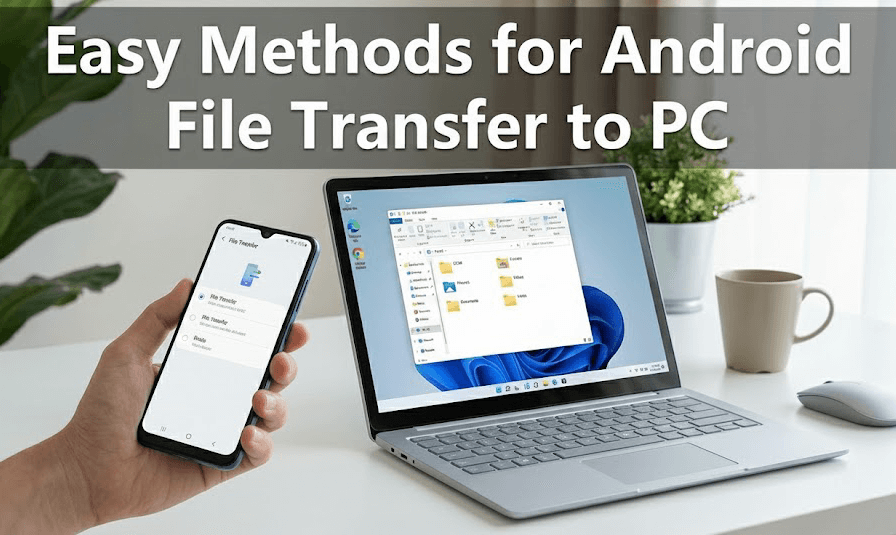
You can complete Android file transfer to PC using reliable remote file transfer tools like AnyViewer, Bluetooth, a USB cable, cloud storage, or simple sync tools. The best option depends on what you have available and how quickly you need the files.
Below, we explain the easiest ways to transfer files from Android to a PC, including wired and Android file transfer to PC wireless solutions. Read on to get started.
How to effortlessly complete Android file transfer to PC using AnyViewer [Best choice]
AnyViewer is one of the most efficient file transfer tools for Android file transfer to PC wirelessly. It allows you to move data between your Android phone and your computer without a USB cable and without network restrictions. It combines powerful features with a very simple design, making it easy for anyone to use.
Step-by-step guide: How to move your files
To get started, make sure you have the AnyViewer app installed on both your Android device and your Windows PC. Once that is ready, follow these simple steps:
Step 1. Launch AnyViewer on both your phone and your computer.
Step 2. Log in to the same AnyViewer account.
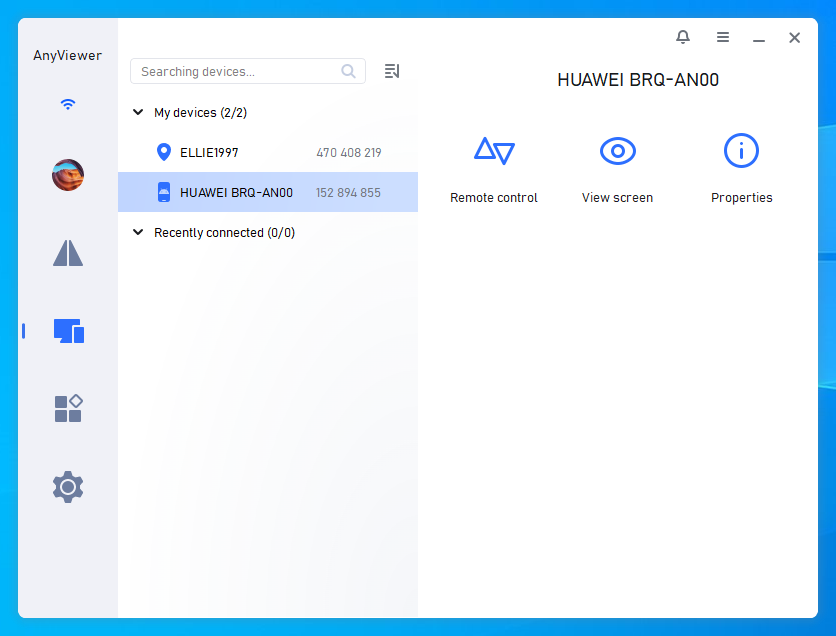
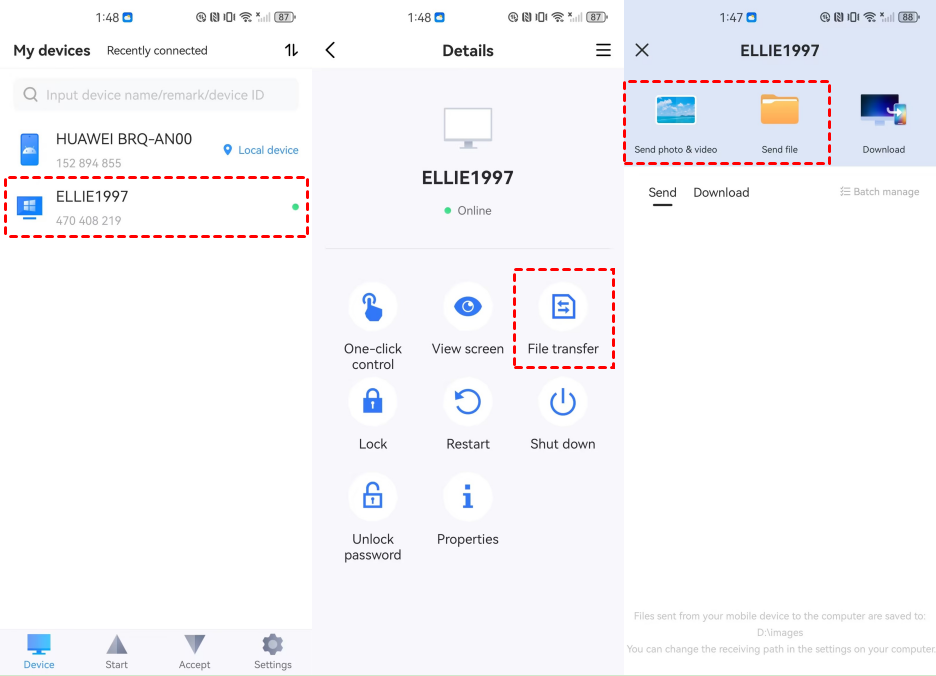
Step 3. On your Android phone, choose your PC and then tap the File Transfer option to link the two devices.
Step 4. You can easily move photos, videos, and files from your Android to your PC.
Why choose AnyViewer?
AnyViewer offers more than just basic file sharing. It provides professional-grade features that makeAndroid file transfer to PCvia wifi fast, secure, and convenient:
- Access From Anywhere: If you set up "unattended remote access" on your PC, you can grab files from your home computer even when you are away, using just your phone.
- Incredible Speed: You don't have to wait around. With advanced technology, even large movies or photo albums are sent in seconds.
- Save Phone Space: When your phone memory gets full, you can quickly move large files to your PC to free up room without deleting anything permanently.
- Total Security: Your privacy is protected. The software uses end-to-end encryption, ensuring that no one else can see the photos or documents you send.
Main benefits at a glance
This tool provides a sophisticated yet accessible solution for seamless Android file transfer to PC wireless:
- Cross-Platform Utility: Connects Android, Windows, macOS, and iOS without compatibility hurdles.
- Top-Tier Safety: Keeps your data private with strong encryption.
- Fast & Reliable: Built for quick transfers of high-quality photos and videos.
- Simple Interface: Designed to be user-friendly for everyone.
How to transfer files from Android to PC using USB [2 ways]
If you have access to a USB cable and a Windows PC, wired Android file transfer to PC is quick and reliable. A cable connection doesn’t rely on Wi-Fi and offers stable performance. Below are two simple methods you can use to complete the process efficiently:
Method 1: Using a standard USB cable
This is the most common way to link your devices. Most charging cables that come with phones today also support high-speed data transfers.
Step 1. Plug it in: Connect your phone to your computer using a compatible USB cable.
Step 2. Change the USB mode: Your phone will likely start charging by default. Swipe down from the top of your screen to see your notifications and select "File Transfer" (sometimes called MTP).

Step 3. Find your device: On your Windows PC, open File Explorer (or "This PC"). You will see your phone listed as a new drive under "Devices and drives."
Step 4. Copy and Paste: Double-click on your phone's icon to browse its internal storage. Simply find the files you want, right-click to Copy, and then Paste them into a folder on your computer.
Method 2: Using a USB OTG adapter
If you don't want to deal with long cables or want to move files while on the go, a USB OTG (On-The-Go) adapter is a great alternative. This allows you to plug a standard thumb drive directly into your phone.
Step 1. Connect the drive: Plug your USB flash drive into the OTG adapter, and then plug the adapter into your phone’s charging port.
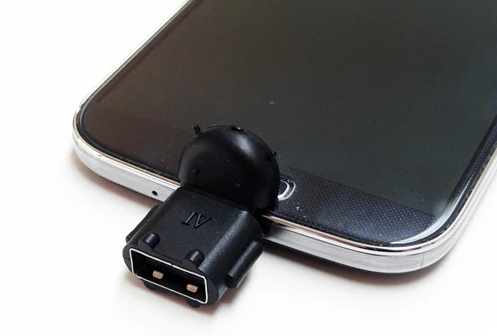
Step 2. Open your files: On your phone, open your "Files" or "My Files" app. You should see the USB drive listed alongside your internal storage.
Step 3. Transfer to the drive: Select the photos or documents you want to move, tap Move or Copy, and choose the USB drive as the destination.
Step 4. Plug into your PC: Once the files are on the flash drive, safely eject it from your phone. Plug the drive into your computer's USB port and move the files to your PC just like you would with any other external storage.
How to transfer files from Android to PC wirelessly [6 ways]
If you prefer Android file transfer to PC wireless, the following methods allow you to send files without cables.
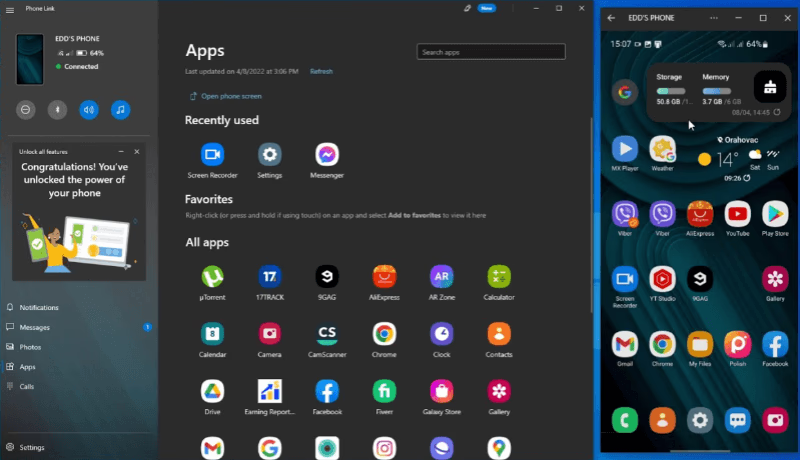
Method 1: Transfer files via Microsoft Phone Link
Microsoft’s Phone Link creates a direct wireless bridge between your Android device and a Windows PC, making file sharing smooth and cable-free.
System requirements
- PC: Windows 10 (May 2019 update or later) or Windows 11
- Android: Android 9.0 or higher
- Link to Windows app: Version 1.24032.518.0 or newer (Android)
- Phone Link app: Version 1.24032.156.0 or later (PC)
Step 1. On your Windows 10 or 11 PC, open or install the Phone Link app (preinstalled on most devices).
Step 2. On your Android phone, download the Link to Windows app from Google Play. Some phones (like Samsung Galaxy) may already have it built-in.
Step 3. Open both apps, then sign in with your Microsoft account or scan the QR code shown on your PC to pair the devices.
Step 4. Once paired, you can read and reply to texts using your keyboard, which is way faster. You can also transfer certain files like photos and videos.
Method 2: Send files via Bluetooth
Bluetooth is a built-in option that works well for quick, lightweight transfers.
Step 1. Enable Bluetooth on both the Android phone and the Windows PC.
Step 2. Pair the two devices.
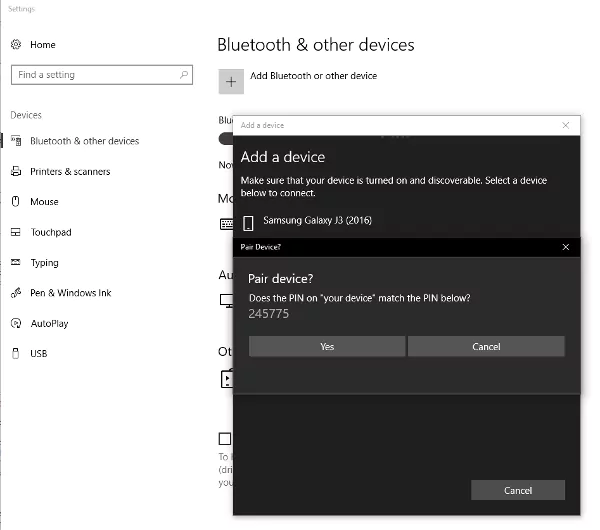
Step 3. On your phone, select a file and choose Share > Bluetooth.
Step 4. Pick your PC to start the transfer.
Tip: Bluetooth is best suited for small files due to speed limitations.
Method 3: Transfer files over Wi-Fi using a third-party app
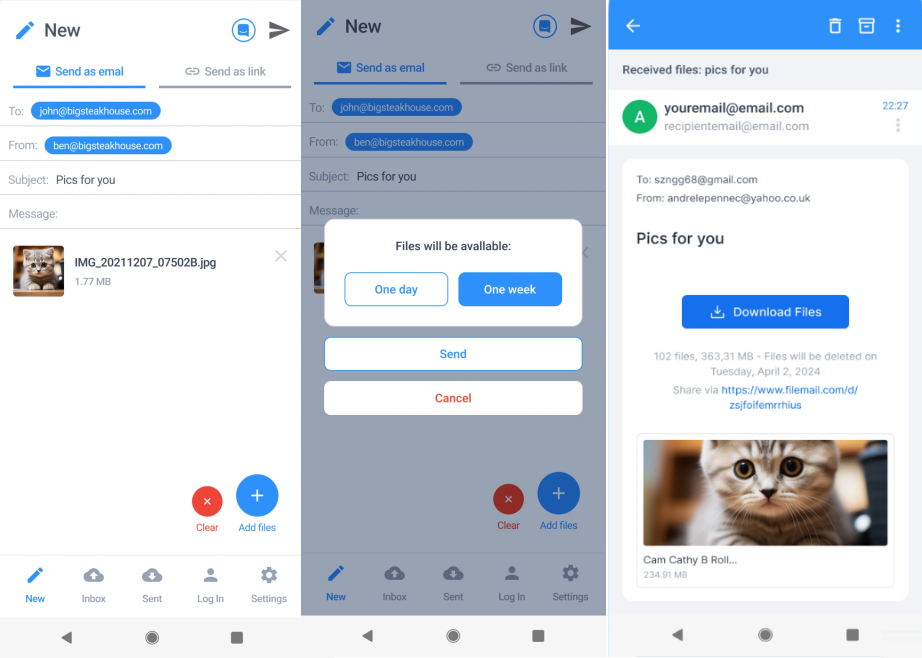
Wi-Fi-based apps allow faster transfers without cables. Tools like Filemail are commonly used.Filemail lets you send files directly from your Android phone to a PC over Wi-Fi without cables.
Steps:
Step 1. Install the Filemail app from the Google Play Store on your Android phone.
Step 2. Open Filemail and tap Attach files.
Step 3. Select the photos, documents, or videos you want to transfer. Then click Send.
Step 4. Filemail will generate a download link or QR code.
Step 5. On your PC, open the link in a browser or scan the QR code.
Step 6. Download the files directly to your computer.
This method works best for quick transfers of photos, PDFs, and short videos.
Method 4: Use cloud storage services
Cloud storage and file sharing platforms, like Google Drive, make files accessible across devices from anywhere. It allows you to upload files once and access them from any device.
Steps:
Step 1. Install Google Drive on your Android phone and make sure you’re signed in.
Step 2. Open the app and upload the files you want to transfer.
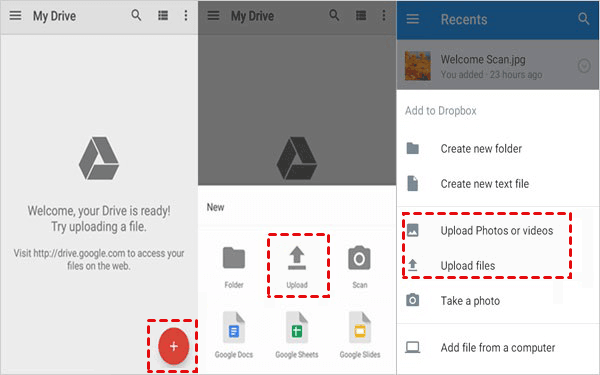
Step 3. On your PC, open a browser or the Drive app and sign in with the same Google account.
Step 4. Locate the uploaded files and download them to your computer.
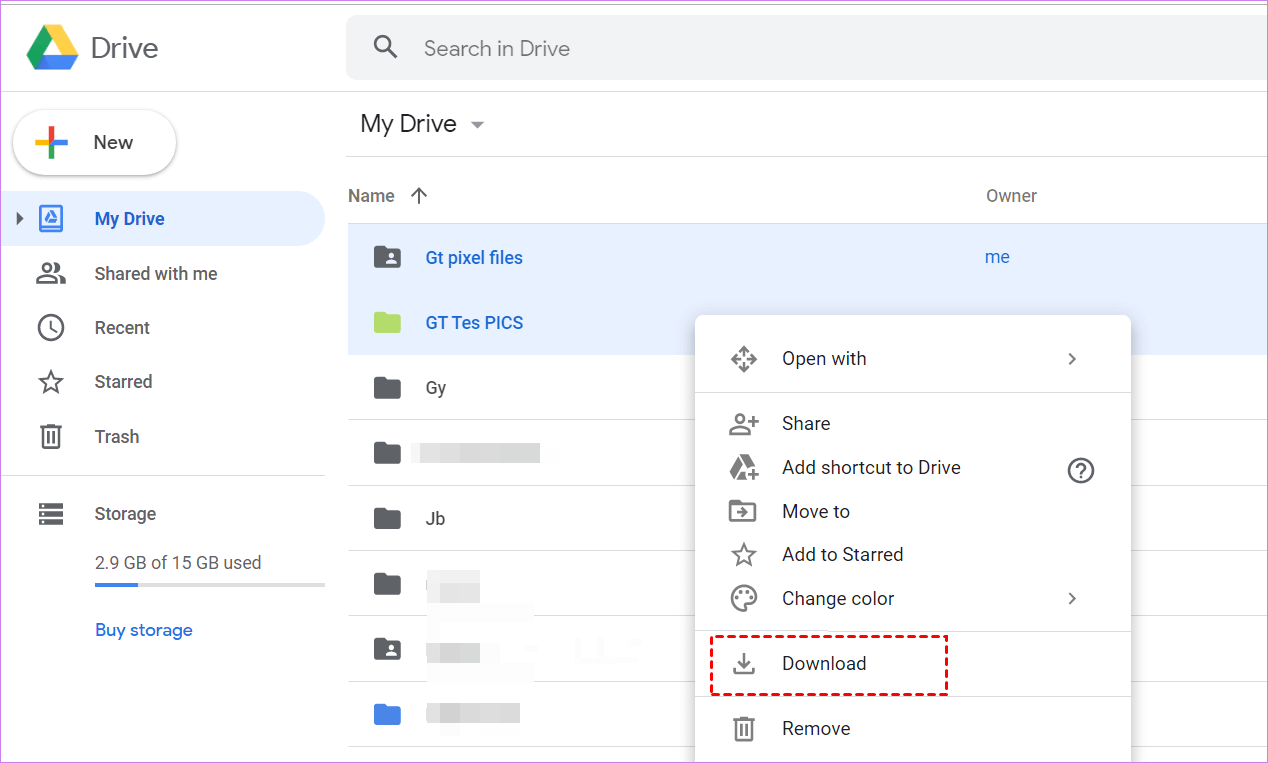
This option is ideal if you need ongoing access to your files across multiple devices.
Method 5: Transfer files via email
Email is a simple solution for sending individual files. For example, Gmail is a quick solution for sending single, small files.
Steps:
Step 1. On your Android phone, select the file you want to send.
Step 2. Tap More > Share > Gmail.
Step 3. Enter your email address and send the message.
Step 4. Open Gmail on your PC.
Step 5. Download the attached file to your computer.
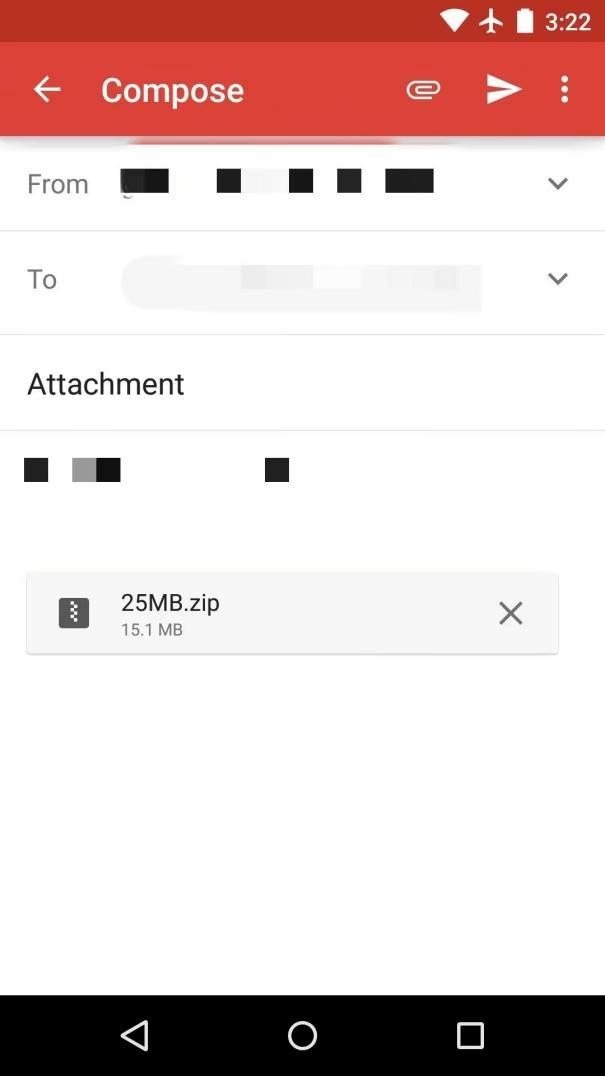
Due to attachment size limits, this method works best for documents and compressed images.
Method 6: Sendfiles through chat applications
Messaging apps provide a quick and familiar way to move files.WhatsApp makes file sharing easy when both devices are logged in.
Steps:
Step 1. Open WhatsApp on your Android phone.
Step 2. Start a chat (you can message yourself or a trusted contact).
Step 3. Tap the attachment icon and select the file to send.
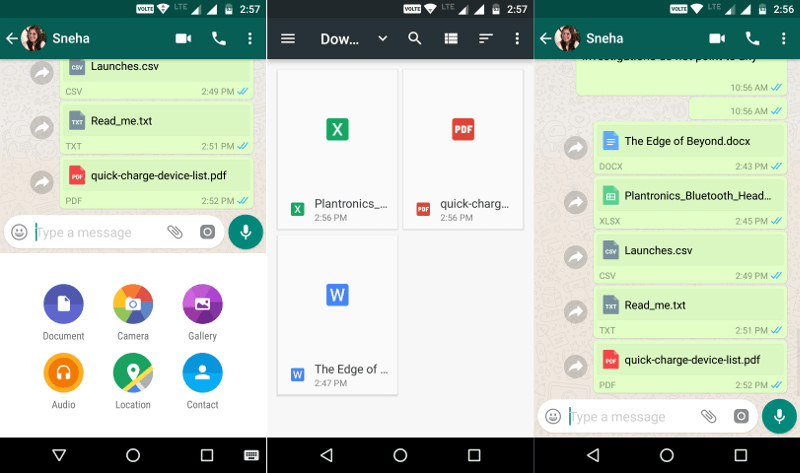
Step 4. Open WhatsApp Web or the desktop app on your PC.
Step 5. Find the message and download the file to your computer.
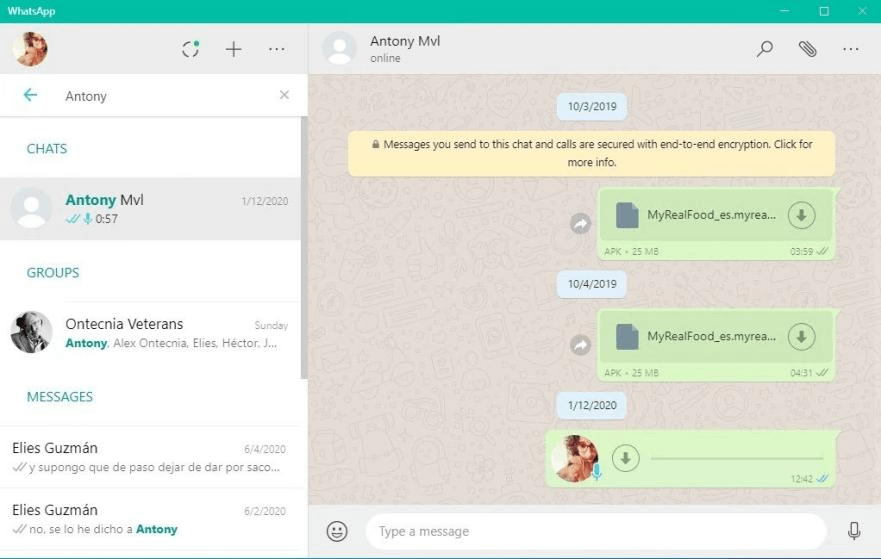
This is one of the fastest methods if WhatsApp is already set up on both devices.
Conclusion
Transferring files from an Android phone to a PC no longer has to be complicated or time-consuming. Whether you choose a wired USB connection or prefer Android file transfer to PC wireless, there’s a method for every situation. Among all the options, AnyViewer stands out as the best overall choice thanks to its high speed, strong security, and ability to transfer files remotely without cables or network limitations. By choosing the method that fits your needs, you can move photos, videos, and documents between devices smoothly and stress-free.
FAQs
How do I enable USB transfer on Android?
Connect your Android phone to the PC using a USB cable. Swipe down from the top of your phone’s screen, tap the USB notification (usually says “Charging this device”), and select File Transfer (MTP). Your phone’s storage will then appear in File Explorer on your PC.
Why is USB file transfer not working?
This usually happens due to a faulty USB cable, incorrect USB mode, outdated drivers, or a locked phone. Try switching to File Transfer (MTP) mode, using a different cable or USB port, and unlocking your phone. Restarting both devices can also help.
Why is my phone not connecting to PC via USB cable?
Common causes include a damaged cable, unsupported USB port, disabled USB settings, or missing drivers on the PC. Make sure your cable supports data transfer (not charging only), and update or reinstall USB drivers on your computer.
How to quick share from Android to PC?
For fast sharing, you can use AnyViewer, Microsoft Phone Link, or chat apps like WhatsApp. These options allow you to send files wirelessly in just a few taps without setting up cables or external storage.
How to connect Android to PC for file transfer without USB?
You can transfer files wirelessly using tools like AnyViewer, cloud services (Google Drive), Wi-Fi apps (Filemail), Bluetooth, email, or messaging apps. These methods are ideal when you don’t have a USB cable or need remote access.



 as a preferred
source on Google
as a preferred
source on Google