
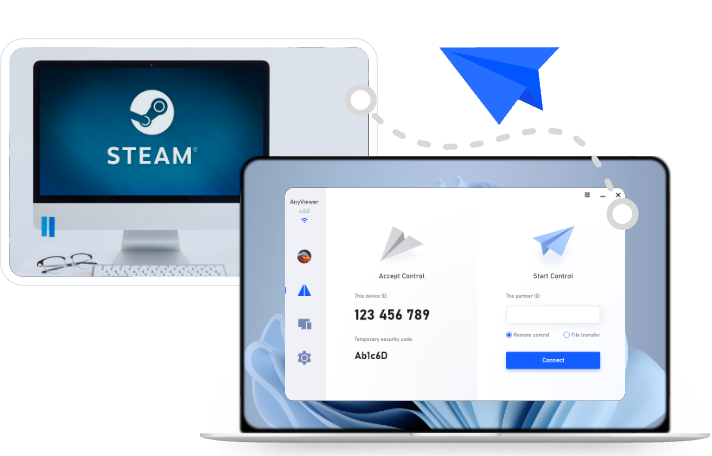
How to Reduce Remote Desktop Lag for Gaming: 7 Practical Fixes
This guide introduces how to reduce remote desktop lag for gaming: use Ethernet, stop competing traffic, lower streaming demands, and identify whether the bottleneck is networking, rendering, or decoding. AnyViewer is one option when you also need remote access to your gaming computer.

By Ellie / Updated on September 14, 2026


High latency, frame drops, and input delay can instantly ruin a cloud or home-streamed gaming session. When every millisecond counts, standard desktop sharing software falls short. This comprehensive guide covers proven, actionable strategies on how to reduce remote desktop lag for gaming so you can stream your favorite PC titles seamlessly to any device.
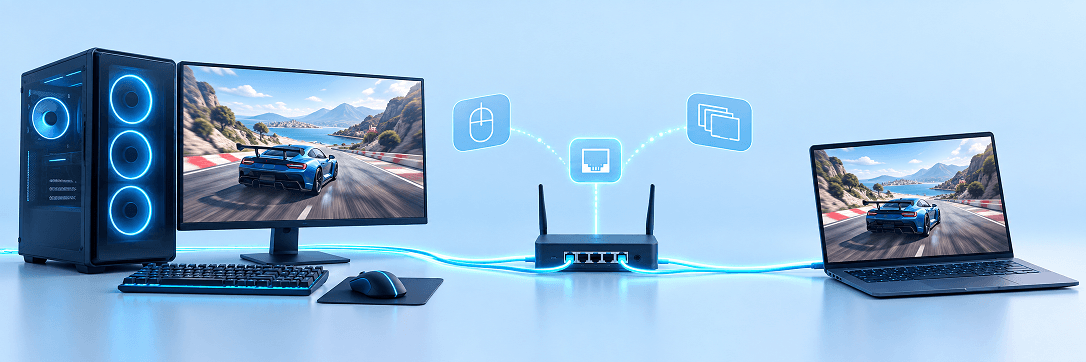
Root Causes of Remote Gaming Lag
To eliminate latency, you first need to identify where it originates. Remote desktop lag in gaming generally stems from three main bottlenecks:
| Lag Type | Primary Cause | Typical Symptoms |
| Network Latency (Ping/Jitter) | High distance, congested Wi-Fi, or poor ISP routing. | Delayed input response, sudden teleporting, or rubberbanding. |
| Encoding / Decoding Delay | CPU overload or lack of hardware acceleration. | Stuttering video feed, pixelated screen, low frame rate. |
| Input & Display Desync | Windows mouse acceleration or standard office RDP limits. | Mouse rotation spinning uncontrollably in 3D FPS games. |
How to Reduce Remote Desktop Lag for Gaming in 7 Steps
1. Identify the Bottleneck Before Changing Settings
Run the same game scene directly on the host, then through your remote session. If it stutters locally, fix the host first. When available, enable your streaming app's performance overlay and compare network, encoding, decoding, and dropped-frame readings.
|
Symptom |
Suspected cause |
First test |
|
Stutter on the host and client |
Game rendering load |
Lower in-game graphics settings |
|
Smooth host, choppy client |
Network or decoding bottleneck |
Compare overlay statistics |
|
Lag increases during uploads |
Connection congestion |
Pause uploads and retest |
|
Only remote internet play feels slow |
Distance or routing |
Compare with a local-network session |
These are diagnostic clues, not proof. Change one setting at a time so you can identify what helped.
2. Connect the Host and Client Through Ethernet
Test both devices with wired connections where practical. This removes wireless interference as a variable. If the client must use Wi-Fi, keep the host wired and test the client near the router on 5 GHz or 6 GHz where supported.
Avoid assuming that a strong Wi-Fi signal means stable latency. Steam recommends a wired network for streaming. Compare responsiveness in the same game scene before committing to network upgrades.
3. Pause Traffic That Competes With the Stream
Stop game downloads, cloud backups, and large file transfers on both networks. For internet streaming, check the host's upload capacity as well as the client's download capacity.
If your application exposes a bitrate setting, keep it below the connection's sustained available capacity. Raising bitrate improves image detail only while the connection can carry it reliably. It does not inherently reduce input lag.
Test during your usual playing hours. A quiet morning test may miss evening congestion.
4. Lower Resolution Before Chasing Maximum Quality
Try 1080p instead of 4K. If stutter remains, test 720p. Higher resolutions require more processing and usually more bandwidth. Steam's display troubleshooting guide recommends lowering resolution when streaming has problems.
Use 60 FPS as a starting point when your app and hardware support it. Try 30 FPS if they cannot sustain 60, but expect less fluid motion. A frame interval is about 16.7 ms at 60 FPS and 33.3 ms at 30 FPS; neither number represents total input latency.
5. Check Hardware Encoding and Decoding
Where available, enable hardware encoding on the host and hardware decoding on the client. Use the native streaming app and current graphics drivers. Parsec's decoding documentation explains why falling back to CPU decoding can increase delay.
If decoding remains slow, lower resolution or try a codec your client accelerates in hardware. Avoid assuming a newer codec is always faster. On the host, reduce demanding game settings and stop unnecessary recording to leave resources for streaming.
6. Choose the Right Remote Desktop Software
Standard RDP (Remote Desktop Protocol) is optimized for text and spreadsheets, not high-framerate dynamic video. For optimal performance, leverage dedicated high-speed solutions.
- AnyViewer for Remote Gaming: For an intuitive and optimized experience, AnyViewer offers low-latency streaming modes tailored for remote access. It supports custom frame rate settings, hardware acceleration, and responsive controller passthrough, making it an excellent choice for remotely launching and playing games without complicated network configurations.
- Parsec / Moonlight: Popular alternatives engineered specifically for low-overhead game streaming over local networks or the internet.
7. Retest Input, Display, and Distance
If the stream looks smooth but controls feel delayed, test a wired input device and your display's Game Mode, if available. Display processing can add delay that a network overlay does not show.
Repeat a short, familiar scene and record the settings, dropped frames, and responsiveness. Keep the combination that performs consistently. If local streaming is responsive but long-distance access is slow, lowering quality may not solve the remaining network delay.
Optimize AnyViewer for Ultra-Low Latency Remote Gaming
To enjoy a seamless, console-like gaming experience anywhere, fine-tuning your remote desktop settings is crucial. AnyViewer is built with cutting-edge frame-acceleration technology and adaptive streaming protocols to deliver smooth, high-FPS gameplay with virtually zero input lag. Follow these simple steps to unlock the ultimate gaming performance on AnyViewer:
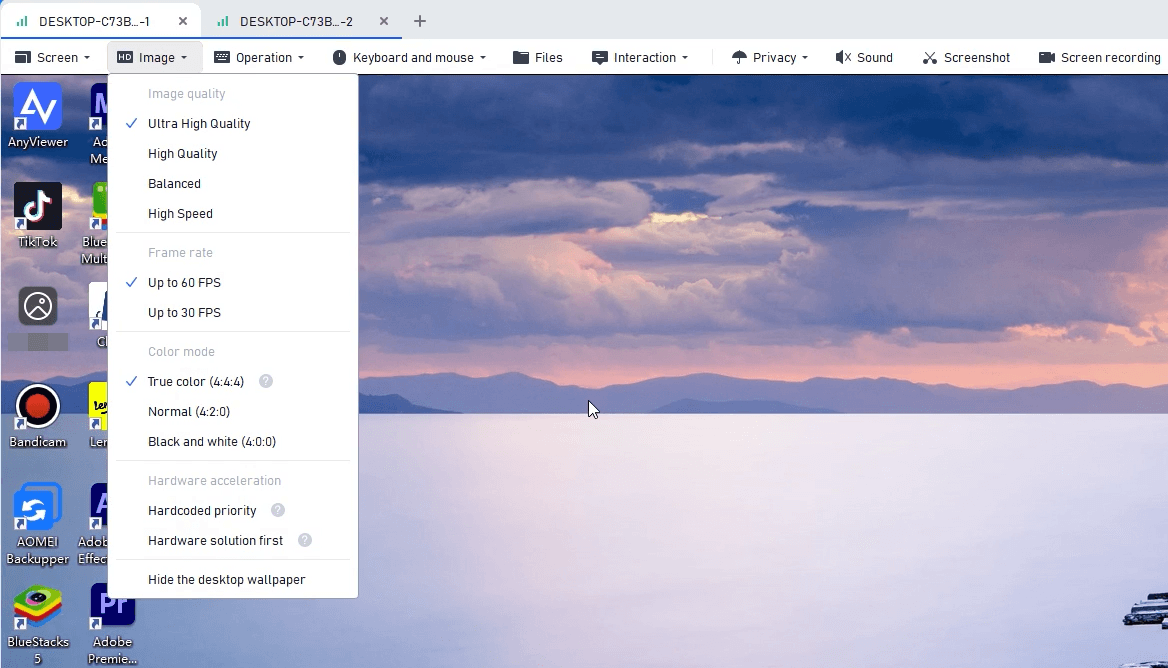
Step 1. Choose High Quality or Ultra-Smooth FPS Settings
During an active remote gaming session, locate the top toolbar to optimize your visual and performance preferences:
- Image Quality: Click Image in the toolbar and select Ultra High Quality for crisp visuals, or switch to Balanced/High Speed if you are playing on a network with limited bandwidth.
- Frame Rate: Upgrade your connection fluidity by setting the FPS to Up to 60 FPS. High frame rates dramatically reduce screen tearing and input delay, giving you a competitive edge in fast-paced FPS or racing games.
- Color Mode: Set the color mode to True color (4:4:4).
- Hide Desktop Wallpapers: Disable background wallpaper rendering via connection settings to save bandwidth for pure game stream performance.
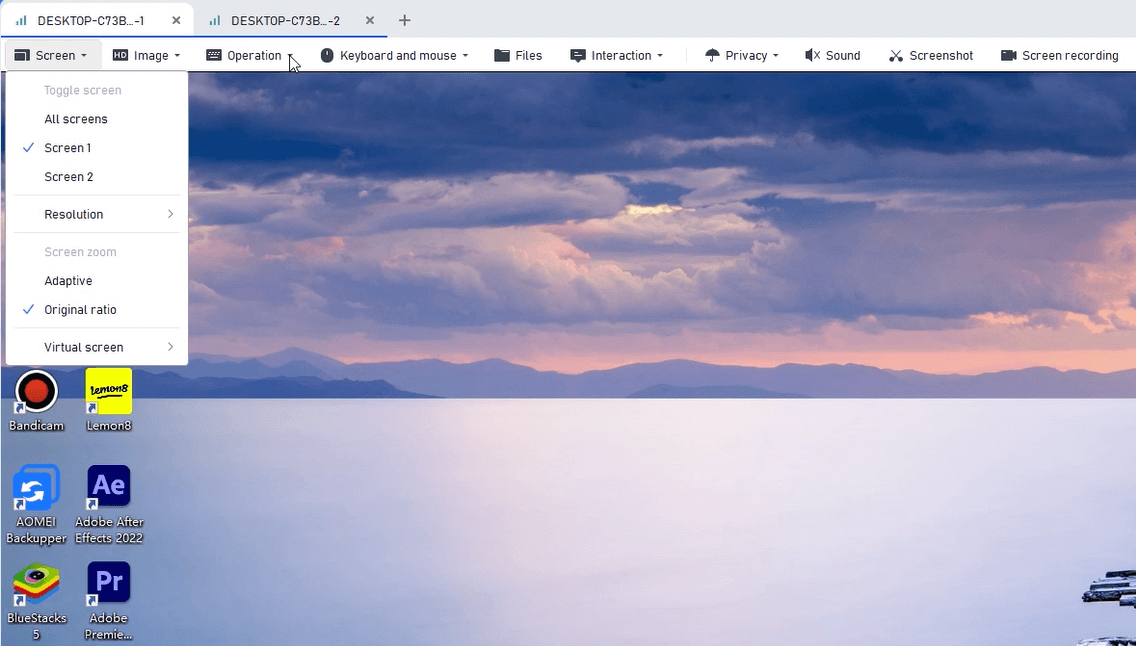
Step 2. Match the Remote Resolution to Your Host Display
To eliminate unnecessary rendering strain on your GPU and prevent scaling delay, ensure the remote resolution matches your local screen or host monitor natively:
- Go to Screen on the top toolbar.
- Select Adaptive or manually choose the native resolution of your remote gaming PC (e.g., 1920×1080).
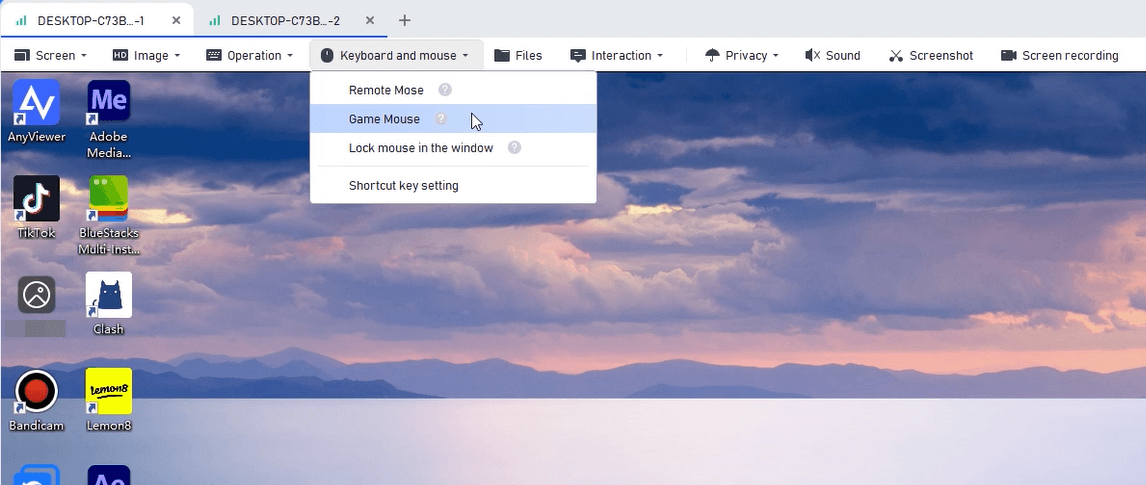
Step 3. Enable Game Controller & Game Mode Features
AnyViewer natively supports direct remote gaming interactions, ensuring your mouse clicks and controller inputs are executed instantly on the host machine:
- Game Mouse: Enable Game Mouse for 3D rotation of the first-person view when playing 3D games remotely.
- Mouse Lock: Lock the remote mouse cursor to the game window to prevent accidental tab-outs during intense battles.
💡 Pro Tip for Hardcore Gamers: Want to unlock 60 FPS ultra-smooth streaming, multi-monitor support, and high-speed dedicated channels? Upgrade to an AnyViewer Premium Plan today to experience lag-free remote gaming with top-tier performance!
Conclusion
Reducing remote desktop lag is key to unlocking a smooth, high-definition gaming experience from anywhere. By optimizing your network, fine-tuning your PC settings, and leveraging AnyViewer's high-FPS remote access features, you can completely eliminate input delay and screen tearing. Ready to elevate your remote gaming performance? Upgrade your AnyViewer plan today and enjoy flawless, ultra-low latency gameplay on any device!



 as a preferred
source on Google
as a preferred
source on Google