

Fixed: Windows Failed to Apply the MDM Policy Settings
This overview explains the Windows failed to apply the MDM policy settings 0x8018000a error code in detail. It presents solutions to help restore standard device management functionality.

By Irene / Updated on March 10, 2026


🌟Quick Summary:
The Windows Failed to Apply the MDM Policy Settings error, often accompanied by error code 0x8018000a, typically occurs when a device fails to synchronize with management platforms like Microsoft Intune. This conflict usually stems from leftover data from previous enrollments, corrupted registry records, or insufficient user permissions. Because these policies often handle VPN profiles and security certificates, a failure can block essential remote access to corporate resources.
To resolve these enrollment conflicts, users should follow these steps:
-
Disconnect Accounts: Remove any existing work or school accounts via the Windows Settings menu to clear previous management links.
-
Clean the Registry: Delete specific GUID folders under the Enrollments path in the Registry Editor to wipe stagnant metadata.
-
Reset Scheduled Tasks: Erase old Enterprise Management folders within the Task Scheduler to allow for fresh synchronization.
If troubleshooting MDM issues causes work delays, AnyViewer serves as an effective workaround. It provides a secure remote desktop connection that operates independently of MDM policy deployment. This tool is particularly useful for maintaining productivity while the system's management and compliance status are being repaired.
What is the Windows Failed to Apply the MDM Policy Settings error?
The “Windows Failed to Apply the MDM Policy Settings” error occurs when a Windows device cannot successfully apply configuration policies delivered by a Mobile Device Management platform such as Microsoft Intune. This usually happens when the device tries to sync with the organization’s management service but encounters problems that prevent policy deployment.
That is to say, when Windows cannot interpret or apply the instructions sent from the management server, the configuration process stops and the system reports the failure. A related issue is the 0x8018000a error, which typically appears during device enrollment and indicates that the system cannot complete registration with the MDM service.
This may happen if the device was previously enrolled in another management platform, if enrollment records are corrupted, or if the user account does not have the correct permissions. Both errors are closely connected to remote access functionality in enterprise environments.
Organizations often rely on MDM platforms to automatically configure devices with the required remote access settings, including VPN profiles, security certificates, and parameters for tools like Microsoft Remote Desktop. If the MDM policies fail to apply or the device cannot complete enrollment, these remote access configurations may never be installed.
As a result, the computer may not have the necessary authentication or network settings to connect securely to company resources from outside the office. In addition, many companies use compliance checks that allow remote connections only from properly managed devices. When policy deployment fails, the device may be marked as non-compliant, which can cause corporate systems to block remote access until the management policies are successfully applied.
How to fix the Windows Failed to Apply the MDM Policy Settings 0x8018000a error?
Method 1. Disconnect existing work or school accounts
This error usually appears when Windows believes the device is already enrolled in a Mobile Device Management system such as Microsoft Intune. When old enrollment information remains on the device, Windows cannot apply new MDM policies and shows the 0x8018000a error. Disconnecting the previous work or school account is the easiest way to clear this conflict. This process removes the old management link so the device can enroll again and receive security policies that enable remote access to company resources.
Step 1. Press Win + I to open Settings on your computer.
Step 2. Go to Accounts, then select Access work or school.
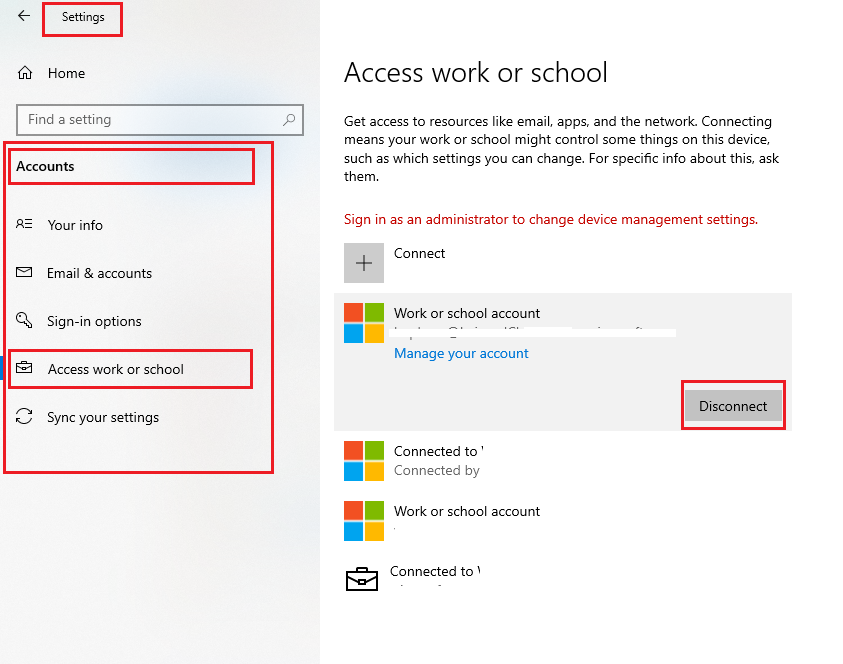
Step 3. Look for any connected work or school account listed in the window.
Step 4. Click the account and choose Disconnect.
Step 5. Restart your computer to clear the local enrollment status.
After the restart, try enrolling the device again. If the error still appears, you may need to remove leftover enrollment records from the system.
Method 2. Remove old MDM enrollment entries from the Registry
Sometimes disconnecting the account does not fully remove the old MDM enrollment data. In this case, Windows may still think the device is managed because registry records remain. Cleaning these leftover entries can resolve the 0x8018000a error and allow the system to apply MDM policy settings correctly. Be careful when editing the registry and always create a backup before making changes to avoid damaging important system configurations.
Step 1. Press Win + R, type regedit, and press Enter.
Step 2. Navigate to the following path:
HKEY_LOCAL_MACHINE\SOFTWARE\Microsoft\Enrollments
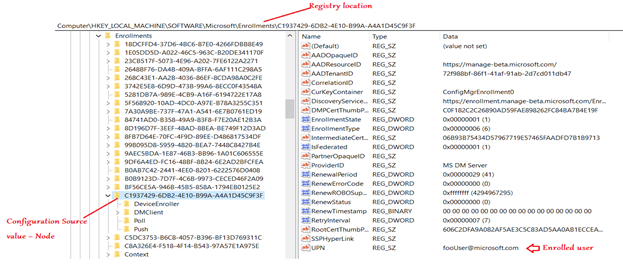
Step 3. Right-click the Enrollments folder and choose Export to create a backup.
Step 4. Expand the folder and look for subfolders with long GUID names.
Step 5. Find the folder that contains enrollment information such as DiscoveryServiceFullURL.
Step 6. Right-click that specific GUID folder and delete it.
Restart the computer after removing the entry. If the issue continues, clearing the scheduled tasks related to device enrollment may help.
Method 3. Delete old Enterprise Management scheduled tasks
Windows uses scheduled tasks to handle background synchronization between the device and the MDM service. If tasks from a previous enrollment remain in the system, they may prevent the new policy from applying. Removing these tasks resets the management synchronization process and can fix the Windows Failed to Apply the MDM Policy Settings 0x8018000a error. This allows the device to complete enrollment and receive the policies required for secure remote access.
Step 1. Type Task Scheduler in the Windows search box and open it.
Step 2. In the left panel, go to Task Scheduler Library.
Step 3. Navigate to Microsoft > Windows > EnterpriseMgmt.
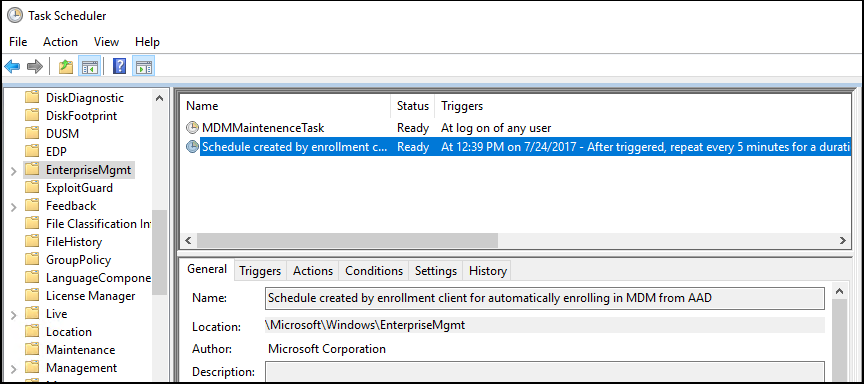
Step 4. Look for folders with long GUID names.
Step 5. Right-click those folders and delete them.
Step 6. Restart your computer and attempt the MDM enrollment again.
Once the old tasks are removed, Windows can create new synchronization tasks and properly apply the MDM policies.
👍Ultimate fix: Run AnyViewer for easy remote access
The error “Windows Failed to Apply the MDM Policy Settings 0x8018000a” often occurs when a device cannot complete enrollment in an MDM system such as Microsoft Intune. When enrollment fails, the device may not receive remote access policies or security configurations required to connect to corporate resources. If the issue blocks remote work, using AnyViewer can be a practical solution. It provides a stable remote desktop connection that does not rely on MDM policy synchronization.
- ★Why AnyViewer is a good choice for remote access:
- It allows remote connections without relying on MDM enrollment or corporate policy deployment.
- You can remotely access computers simply by logging into the same AnyViewer account and selecting the target device.
- It provides smooth remote sessions with ultra-high image quality and true color display, improving the remote work experience.
- High-speed file transfer is supported, with speeds up to 10 MB/s and multiple transfer threads, making it easier to move large files during remote sessions.
- The software supports unlimited simultaneous sessions in higher plans, which is useful for managing multiple remote computers.
- It offers different plans for different needs, including Solo plans for personal users, Team plans for small businesses, and Enterprise plans for large organizations managing many devices.
- Business features such as role permission management, device grouping, and monitoring multiple computers help teams manage large networks efficiently.
While fixing the MDM enrollment error is important for proper device management, it may take time to resolve the policy conflict. During this period, AnyViewer provides a reliable remote access alternative. With flexible plans for individuals, teams, and enterprises, along with high-quality remote sessions and powerful management features, it delivers strong performance for both personal and business use even when MDM policies fail to apply.
Step 1. Download, install, and launch AnyViewer on both computers. Go to Log in, and then click Sign up. (If you already have signed up on its official website, you can log in directly.)

Step 2. Fill in the signup information.

Step 3. Then you can see you successfully logged in to AnyViewer. Your device will automatically be assigned to the account you've logged in to.
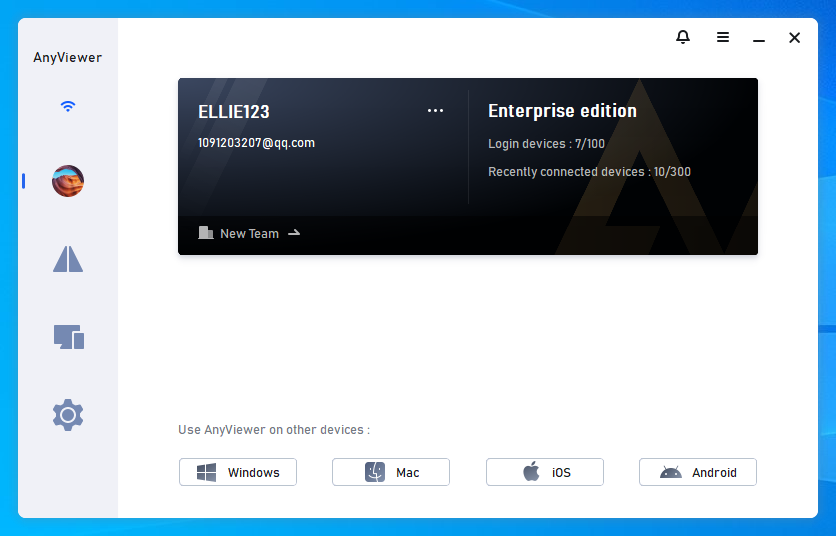
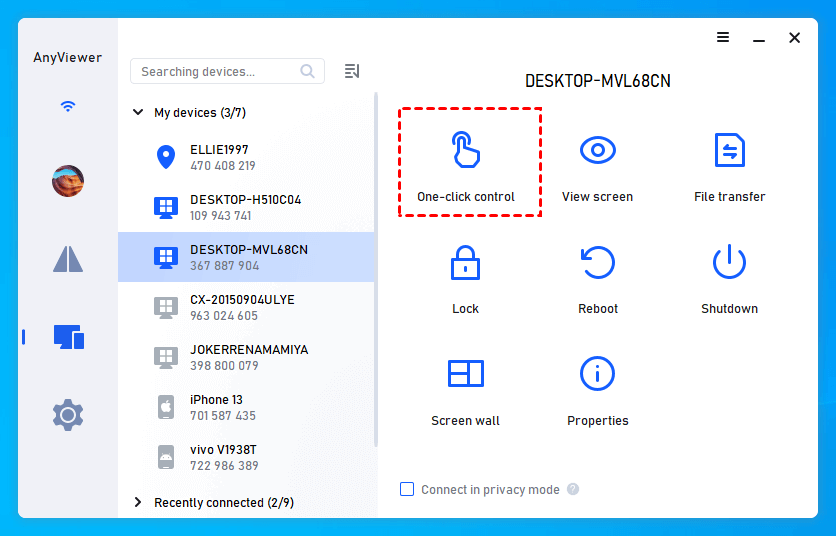
Step 4. Log in to the same AnyViewer account on other devices, then you can achieve a direct connection by clicking One-click control.
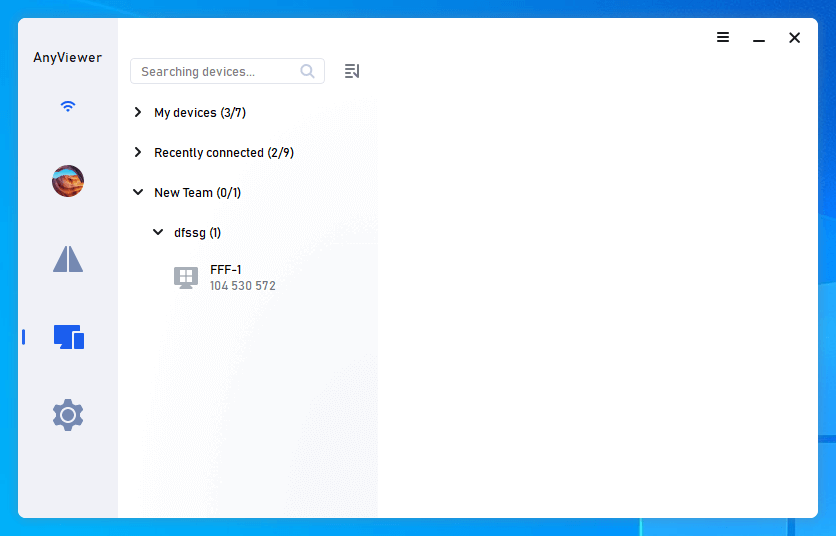
Step 5. Furthermore, by logging into the AnyViewer webpage and navigating to Device Management > Device List, you can create groups and categorize devices into distinct teams or categories, thereby facilitating more efficient management practices.
Conclusion
In summary, the “Windows Failed to Apply the MDM Policy Settings” error and the related 0x8018000a issue usually appear when a device cannot properly enroll in or synchronize with an MDM service. This prevents Windows from applying management policies and may also block remote access configurations required by organizations. By disconnecting old work accounts, removing leftover enrollment records, and clearing outdated scheduled tasks, most users can resolve the conflict and allow the device to enroll correctly. If remote work is urgently required while troubleshooting the issue, using AnyViewer can provide a simple and reliable way to access computers remotely without relying on MDM policy deployment.
FAQs
🗨️ How to enable MDM in Windows?
You can enable MDM by enrolling the device with an organization account. Go to Settings > Accounts > Access work or school, click Connect, and sign in with your work or school credentials. The device will then register with the organization’s MDM service and receive management policies.
🗨️ How to remove MDM from a Windows PC?
Open Settings > Accounts > Access work or school, select the connected work or school account, and click Disconnect. This removes the device from the MDM system and stops management policies from being applied.
🗨️ How to fix error code 8018000a?
This error usually appears during device enrollment. You can fix it by disconnecting existing work or school accounts, deleting old MDM enrollment records from the registry, and removing outdated Enterprise Management scheduled tasks before trying enrollment again.
🗨️ What is MDM error 0x80180022?
MDM error 0x80180022 typically occurs when a device fails to enroll because it does not meet the organization’s enrollment requirements, such as device restrictions, licensing limits, or policy conflicts set by the administrator.



 as a preferred
source on Google
as a preferred
source on Google