

Windows Couldn’t Connect to the Remote Desktop Configuration Service
A practical guide to fixing the "Windows couldn't connect to the remote desktop configuration service" error through service restarts, registry tweaks, and folder permission repairs. It also highlights AnyViewer as a stable, hassle-free RDP alternative.

By Ellie / Updated on April 15, 2026


Remote Desktop Protocol (RDP) is a cornerstone of modern business infrastructure, enabling seamless remote work and server administration. However, few things are as frustrating as being locked out of a critical system by a cryptic error message. One of the most persistent and disruptive errors is: "Windows couldn’t connect to the Remote Desktop Configuration service. Contact your network administrator for assistance."
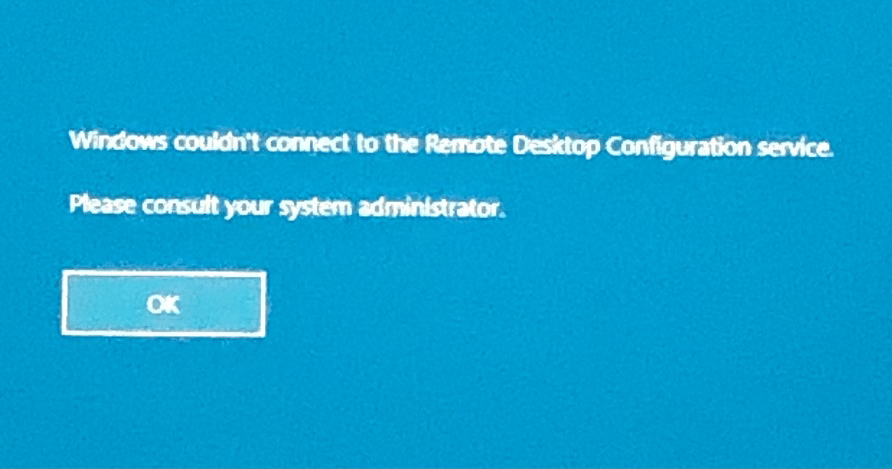
This error typically prevents users from establishing a session, even if the credentials are correct and the network appears stable. Many users report seeing "Windows couldn’t connect to the Remote Desktop Configuration service" on startup, leaving them unable to perform essential tasks. In this comprehensive guide, we will dive deep into why this happens and provide a step-by-step roadmap to resolving it.
Understanding the Remote Desktop Configuration Service
Before we jump into the fixes, it is essential to understand what is happening under the hood. The Remote Desktop Configuration (RDCS) service is responsible for all Remote Desktop Services (RDS) and Remote Desktop session-related configuration and session maintenance activities.
This includes:
- Validating session permissions.
- Mapping printers and drives.
- Loading user profiles during the RDP handshake.
- Managing the licensing protocols for the session.
When this service fails to respond or crashes, the entire RDP pipeline breaks, resulting in the dreaded connection error.
Common Causes of the Error
There is rarely a "one-size-fits-all" reason why "Windows couldn’t connect to the Remote Desktop Configuration service"2022. Usually, the culprit is one of the following:
- Service Stalls: The RDCS or its dependencies (like the RPC locator) have stopped running or are stuck in a "Starting" state.
- Corrupt Registry Keys: Incorrect configurations in the Windows Registry can prevent the service from initializing.
- Permissions Issues: The "Network Service" account may have lost permission to access the machine's RSA machine keys.
- Windows Updates: A recent update may have altered security protocols or corrupted system files.
- Group Policy Conflicts: Domain-level policies might be overriding local configurations, causing a mismatch.
Phase 1: Basic Troubleshooting & Service Management
Often, the simplest solution is the most effective. Let’s start by ensuring the necessary services are active.
1. Restart the Remote Desktop Configuration
Step 1. Press Win + R, type services.msc, and hit Enter.
Step 2. Locate Remote Desktop Configuration.
Step 3. Right-click it and select Restart. If it isn't running, click Start.
Step 4. Set the Startup type to Automatic.
Step 5. Repeat this process for Remote Desktop Services and Remote Desktop Services UserMode Port Redirector.
2. Check for Dependency Services
The RDCS relies on the Remote Procedure Call (RPC). Ensure that the RPC service is running and set to Automatic. If RPC is disabled, Windows generally fails to boot properly, but it’s worth verifying its status in the Services console.
Phase 2: Fixing Permissions via the MachineKeys Folder
One of the most common "hidden" causes of this error involves the RSA encryption keys used by the Remote Desktop service. If the service cannot read these keys, the connection fails.
Step-by-Step Permission Fix:
Step 1. Navigate to C:\ProgramData\Microsoft\Crypto\RSA\.
Step 2. Right-click the MachineKeys folder and select Properties.
Step 3. Go to the Security tab and click Advanced.
Step 4. Ensure that Everyone or Network Service has "Full Control."
Step 5. If not, click Add, type Everyone, and grant them full permissions.
Warning: Do not delete the files inside this folder unless you are an advanced user, as these keys are used for various system encryption tasks.
Phase 3: Advanced Registry Repairs
If the services are running but you still can't connect, the issue might lie within the Windows Registry.
Note: Always back up your registry before making changes.
1. Verification of the Service DLL
The RDCS runs via a shared service host. We need to ensure the registry points to the correct DLL file.
Step 1. Open regedit.exe.
Step 2. Navigate to: HKEY_LOCAL_MACHINE\SYSTEM\CurrentControlSet\Services\SessionEnv
Step 3. Look for a string value named ImagePath. It should be: %SystemRoot%\System32\svchost.exe -k netsvcs -p.
Step 4. Check the Parameters subkey. The ServiceDll value should point to %SystemRoot%\System32\SessEnv.dll.
2. Disabling Persistent Bitmaps (Client Side)
Sometimes the error is triggered by the client-side configuration. On the computer you are connecting from:
Step 1. Open Remote Desktop Connection.
Step 2. Click Show Options Experience.
Step 3. Uncheck Persistent bitmap caching.
Step 4. Try to reconnect.
Phase 4: Dealing with Group Policy (GPO) Issues
In a corporate environment, Group Policies can often break RDP configurations if they are not updated to match the server's OS version.
Check Local Group Policy:
Step 1. Type gpedit.msc in the Run box.
Step 2. Navigate to: Computer Configuration > Administrative Templates > Windows Components > Remote Desktop Services > Remote Desktop Session Host > Connections.
Step 3. Look for Allow users to connect remotely by using Remote Desktop Services. Ensure this is set to Enabled or Not Configured.
Step 4. Run gpupdate /force in an elevated Command Prompt to apply changes immediately.
Phase 5: Handling Windows Update Corruptions
Occasionally, a Windows Update (SFC/DISM) can fix underlying file corruption that prevents services from communicating.
Step 1. Open Command Prompt as Administrator.
Step 2. Run the System File Checker:
- sfc /scannow
Step 3. After that completes, run the Deployment Image Servicing and Management tool:
- DISM /Online /Cleanup-Image /RestoreHealth
Step 4. Restart your computer and check if the Remote Desktop Configuration service can now connect.
Phase 6: Network and Firewall Considerations
While the error message specifically mentions the "Configuration Service," network roadblocks can sometimes masquerade as service failures.
1. Port 3389 Check
Ensure that TCP/UDP port 3389 is open on your firewall. You can test this using PowerShell:
- Test-NetConnection -ComputerName [Your_IP] -Port 3389
2. Network Level Authentication (NLA)
If the server requires NLA but the client doesn't support the specific encryption level, it may drop the connection before the configuration service completes the handshake. Try disabling NLA temporarily to see if it resolves the issue:
Step 1. Right-click This PC > Properties > Remote Desktop.
Step 2. Turn off "Require computers to use Network Level Authentication to connect."
Bonus Tip: Using AnyViewer as a Reliable RDP Alternative
If you find that the "Windows couldn’t connect to the Remote Desktop Configuration service" errors are recurring or too complex to manage, it might be time to consider a dedicated third-party RDP alternative. AnyViewer is a professional remote desktop software designed to provide a more stable, user-friendly, and error-free experience compared to the native Windows RDP.
Why Choose AnyViewer Over RDP?
While RDP is built into Windows, it is notorious for configuration hurdles, port forwarding requirements, and the specific "Configuration Service" errors we've discussed. AnyViewer bypasses many of these technical barriers:
- No Port Forwarding Required: Unlike RDP, which often requires complex router configurations or VPNs to work over the internet, AnyViewer works seamlessly across different networks using its own secure servers.
- Wider Compatibility: AnyViewer works across various versions of Windows (including Home editions) and even offers mobile support for iOS and Android, allowing you to control your PC from a phone or tablet easily.
- One-Click Connection: Once logged into your account on both devices, you can establish a remote session with a single click, eliminating the need to remember IP addresses or manage complex credentials every time.
- Built-in Features: It comes standard with high-quality file transfer, multi-monitor support, and a built-in chat function, features that often require extra configuration in a standard RDP environment.
How to Get Started with AnyViewer
Step 1. Download and Install: Download AnyViewer on both the computer you want to control (the host) and the one you are using to connect (the client).
Step 2. Create an Account: Sign up for a free account and log in on both machines.
Step 3. Assign Devices: In the "Device" tab, you will see your logged-in computers.
Step 4. Connect: Simply select the remote computer and click One-click control to start the session instantly, bypassing the Windows Remote Desktop Configuration service entirely.
Using a tool like AnyViewer is often the fastest "fix" for businesses that cannot afford downtime caused by native Windows service failures.
Conclusion
The "Windows couldn’t connect to the Remote Desktop Configuration service" error is a multifaceted problem, but it usually boils down to service health, file permissions, or registry integrity. By methodically working through the steps above, starting with service management and moving into deeper registry and permission fixes, you can restore your remote access without needing a full OS reinstall.
If the native Windows tools continue to prove unreliable for your workflow, switching to a dedicated alternative like AnyViewer can provide a more stable and feature-rich remote desktop experience with significantly less administrative overhead.



 as a preferred
source on Google
as a preferred
source on Google