

Fixed: TCP Socket Read Operation Failed (Error 64) in RDP
RDP Error 64 (TCP socket READ operation failed) occurs when your network connection is suddenly cut off. Essentially, the "network name" is no longer reachable. This is usually caused by incorrect MTU settings, firewall interference, outdated drivers, or unstable VPNs.

By Ellie / Updated on March 19, 2026


If you are a systems administrator or a remote worker, few things are as frustrating as being kicked out of a session with a cryptic message. One of the most common, yet misunderstood, errors is the TCP socket READ operation failed error 64 in RDP.
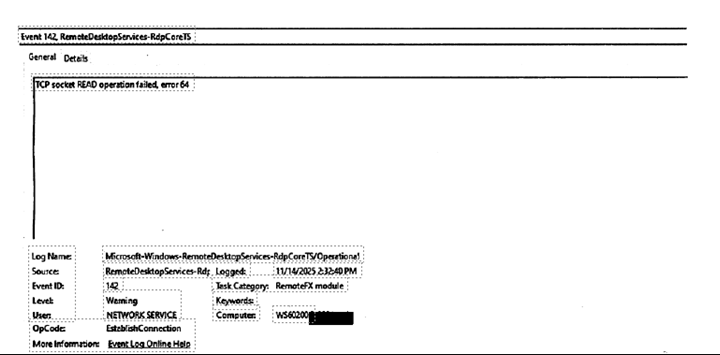
This error typically indicates that the network connection between the RDP client and the host server was abruptly terminated at the transport layer. In this guide, we will break down exactly what this Remote Desktop TCP socket READ operation failed error 64 means, why it happens, and how to fix it for good.
Understanding the Mechanics of Error 64
To fix the issue, we first need to understand what is happening under the hood. RDP relies on the Transmission Control Protocol (TCP) to ensure data packets are delivered in the correct order.
When you see "Error 64," the RDP client was expecting to "read" data from the network socket, but the connection was closed by the remote host, an intermediate device (like a router), or the local stack before the read could complete. It is the digital equivalent of a phone call dropping because one person walked into a tunnel.
Common Causes of RDP Error 64
- MTU (Maximum Transmission Unit) Mismatch: The MTU defines the largest size of a packet that can be sent over a network. If your RDP packets are larger than what a router along the path can handle (common with VPNs), the packets are dropped, leading to a socket read failure.
- Firewall and Sophos/SonicWall Interference: Many enterprise firewalls have "TCP Flood Protection" or "Inactivity Timeouts." If the firewall thinks the RDP heartbeat is suspicious or the session has been idle for too long, it kills the socket.
- Network Driver Issues: Offloading features in modern Network Interface Cards (NICs), such as IPv4 Checksum Offload, can sometimes corrupt packets during the encapsulation process, causing the receiver to reject the data.
- Unstable VPN Tunnels: Since RDP is sensitive to latency and packet loss, any "re-keying" or instability in a VPN tunnel will immediately manifest as a socket error.
Step-by-Step Solutions to Fix Error 64
Phase 1: Basic Troubleshooting
Before diving into registry edits, try these quick wins:
- Disable UDP for RDP: Force RDP to use only TCP. Sometimes the transition between UDP and TCP causes the socket to fail.
- Update NIC Drivers: Ensure both the client and the host are using the latest manufacturer drivers (Intel/Realtek), not just the generic Windows Update versions.
Phase 2: Adjusting MTU Settings (The VPN Fix)
If you are using a VPN, your MTU should likely be lower than the standard 1500.
Step 1. Open Command Prompt as Administrator.
Step 2. Run: "netsh interface ipv4 show subinterfaces" to find your connection name.
Step 3. Set a lower MTU (e.g., 1300):
- netsh interface ipv4 set subinterface "Your-Interface-Name" mtu=1300 store=persistent
Phase 3: Disabling NIC Offloading
Network cards try to be "smart" by handling tasks the CPU usually does. This often breaks RDP sockets.
Step 1. Open Device Manager.
Step 2. Right-click your Network Adapter > Properties.
Step 3. Go to the Advanced tab.
Step 4. Disable the following (if available):
- IPv4 Checksum Offload
- Large Send Offload (LSO)
- TCP Checksum Offload
Step 5. Click OK and restart your connection.
Phase 4: Registry and Group Policy Tweaks
You can tell Windows to be more "patient" with RDP connections by adjusting the KeepAlive settings.
Enable KeepAlive via Registry:
Step 1. Navigate to: "HKEY_LOCAL_MACHINE> SYSTEM> CurrentControlSet> Control> Terminal Server"
Step 2. Create a DWORD value named KeepAliveEnable and set it to "1".
Step 3. Create a DWORD value named KeepAliveInterval and set it to "1".
This forces the server to check the connection status every minute, preventing firewalls from timing out the "idle" socket.
A Reliable Alternative: Using AnyViewer to Bypass RDP Socket Errors
When RDP Error 64 becomes a persistent headache due to complex network configurations or restrictive firewalls, many professionals turn to AnyViewer, one of the best remote desktop solutions.
Why AnyViewer Avoids Error 64
Unlike traditional RDP, which is highly sensitive to TCP socket interruptions and often requires port forwarding (Port 3389), AnyViewer uses a more resilient connectivity algorithm.
- ECC Encryption: AnyViewer utilizes Elliptic Curve Cryptography (ECC) for secure, stable data transmission that is less likely to trigger "Socket Read" failures on intermediate firewalls.
- No Port Forwarding Required: It navigates through NAT and complex firewalls automatically, eliminating the common "Network Name Deleted" issues associated with manual RDP setups.
- Adaptive Bitrate: If your network experiences a momentary dip (which would cause RDP to throw Error 64), AnyViewer adjusts its quality dynamically to maintain the connection rather than dropping the socket.
How to Switch to AnyViewer
Step 1. Download and Install: Install AnyViewer on both your local controller and the remote host.
Step 2. Assign Devices: Log into the same account on both ends to "assign" the devices for one-click unattended access.
Step 3. Connect: Simply click "One-click control" to start a session that isn't plagued by legacy TCP socket errors.

Conclusion
The TCP socket READ operation failed error 64 is rarely a problem with the RDP software itself. Instead, it is a symptom of a network environment that is dropping packets or closing connections prematurely. By adjusting your MTU settings, disabling NIC offloading, and ensuring your firewall isn't over-optimizing your traffic, you can maintain a stable, persistent remote session.



 as a preferred
source on Google
as a preferred
source on Google