

Why Is My Privacy Screen Not Working? Fix it in 4 Ways!
Many users often ask why their privacy screen is not working. This short summary explores why a screen protector may fail, offering easy guidance on privacy screen not working issues.

By Irene / Updated on March 12, 2026


🌟 Quick Look:
Why is my privacy screen not working? A privacy screen usually fails due to incorrect brightness settings, improper physical installation, or outdated software drivers. If you are using a physical filter, the "blackout" effect fails if your screen is too bright or if the filter is applied backward. For software-based privacy (like in remote desktop sessions), the "gray screen" glitch is typically caused by incompatible display configurations or driver errors. This passage will share effective solutions to help you fix it.
If your remote desktop privacy mode keeps failing, switching to a dedicated tool like AnyViewer allows you to run Privacy Mode that disables local input and hides your activity instantly.
Why is my privacy screen not working?
If your privacy screen is not working, the reason usually depends on the type of privacy protection you are using. Some people use a physical privacy screen filter attached to the monitor, while others rely on software features that hide the screen during remote sessions. Each type can fail for different reasons. Understanding the possible causes, such as installation issues, brightness settings, or software problems, can help you identify the issue quickly and restore the privacy function.
| Type of Privacy Screen | Possible Cause | Explanation |
|---|---|---|
| Physical privacy screen | High screen brightness | If the screen brightness is too high, the filter effect becomes weaker and the display may still be visible from the side. |
| Physical privacy screen | Incorrect installation | Installing the filter backward or misaligned can reduce the privacy angle and make the screen visible. |
| Physical privacy screen | Viewing angle | Privacy filters only block side views. If someone looks directly at the screen, the content will still be visible. |
| Software privacy screen | Outdated display drivers | Old or incompatible drivers may prevent the privacy feature from working correctly. |
| Software privacy screen | Software glitch | Temporary system or application issues can cause the gray privacy screen to malfunction. |
| Software privacy screen | Unsupported monitor setup | Some privacy features do not work well with multiple monitors or certain display configurations. |
A privacy screen may stop working due to simple issues such as brightness settings, incorrect installation, or software problems. Checking the type of privacy screen you use and reviewing these common causes can help you quickly identify and fix the problem.
How to fix privacy screen gray or not working?
Method 1. Update the display driver
Outdated or incompatible display drivers are a common reason why a privacy screen appears gray or stops working during remote sessions. When the driver cannot properly communicate with the graphics hardware, some screen protection features may fail. Updating the driver can often restore the normal display behavior.
Step 1. Press Windows + X and select Device Manager from the list.
Step 2. Expand Display adapters to find your graphics device.
Step 3. Right click the graphics driver and select Update Driver Software.
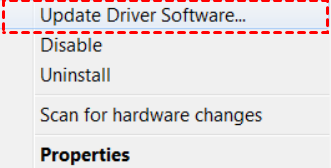
Step 4. Choose Search automatically for drivers and follow the instructions to complete the update.
Step 5. Restart your computer to apply the changes.
If the problem continues after updating the driver, you can try restarting the remote access software or service to clear temporary glitches.
Method 2. Restart the remote access application or service
Sometimes the gray privacy screen appears because the remote access program experiences a temporary software glitch. Restarting the application or its background service can refresh the connection and reload the display components, which may restore the privacy screen feature.
Step 1. Close the remote access program completely on your computer.
Step 2. Press Ctrl + Shift + Esc to open Task Manager.

Step 3. Look for any processes related to the remote access software and end them.
Step 4. Reopen the remote access application and reconnect to the remote computer.
Step 5. Check whether the privacy screen works normally.
If restarting the application does not solve the issue, you may need to check your monitor setup or display configuration.
Method 3. Check the monitor and display configuration
Some privacy screen features do not work properly when multiple monitors are connected or when the display settings are incompatible. Incorrect screen configurations can interfere with how the system hides the remote display. Adjusting the monitor settings may help the feature function correctly.
Step 1. Press Windows + I to open Settings.
Step 2. Go to System and select Display.
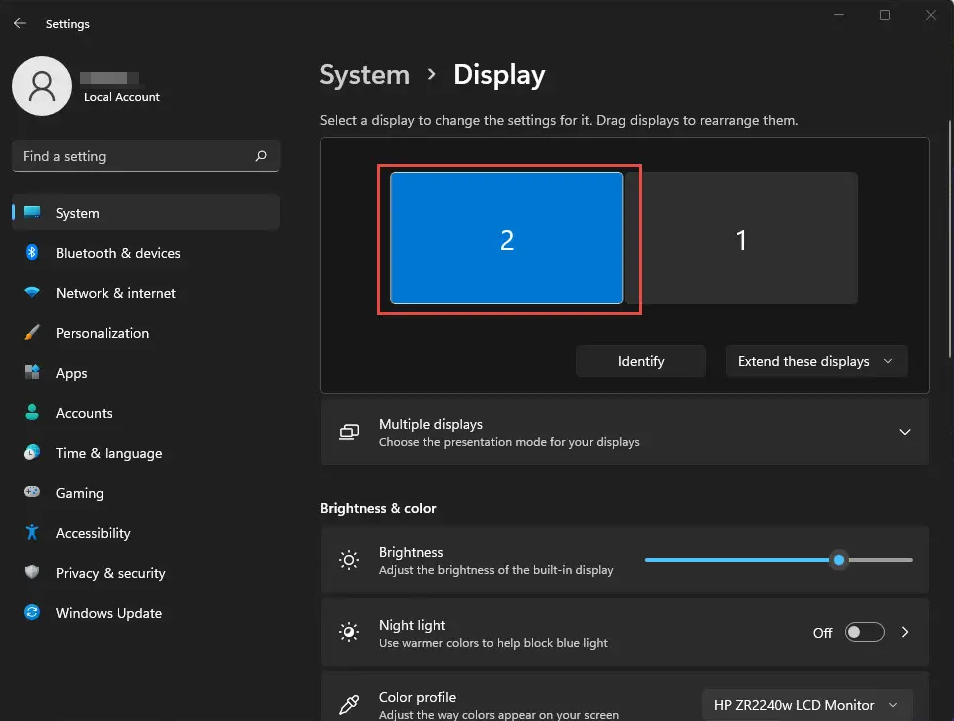
Step 3. Check the monitor arrangement and confirm which display is set as the main screen.
Step 4. Try disconnecting extra monitors temporarily and test the privacy screen again.
Step 5. Apply the changes and reconnect to the remote session to see if the issue is resolved.
If the privacy screen is still gray or not working, reinstalling the remote access software may be the next step to ensure all components are functioning correctly.
Method 4. Turn on Privacy Screen with AnyViewer
If your current remote desktop tool cannot reliably hide the host screen, switching to a more stable solution can save time and avoid repeated troubleshooting. AnyViewer provides a built in Privacy Mode designed to protect your screen during remote sessions. Once enabled, it automatically blocks the view and local input on the host computer. This makes it a quick and practical way to keep your work private when accessing a device remotely.
- ★ Advantages of using AnyViewer
- The remote screen turns completely black: When Privacy Mode is enabled, the host computer screen becomes fully black, preventing anyone nearby from seeing your activity or sensitive information.
- Local keyboard and mouse are disabled: The keyboard and mouse on the remote computer are temporarily disabled, so people near the device cannot interfere with the session.
- Exclusive control for the remote user: Only the remote user can see and operate the system, ensuring the session remains private and uninterrupted.
- Simple and stable privacy protection: Privacy Mode works automatically during the session, reducing the chance of display issues or privacy screen failures.
Using AnyViewer with Privacy Mode is one of the fastest ways to protect your screen during remote access. It blocks the host display and disables local input, allowing you to work securely without worrying about others seeing or interrupting your session.
Step 1. Download, Install, and Sign Up
- Install AnyViewer on both the local and remote computers.
- Launch the app and go to Log in > Sign up to create your AnyViewer account.

Step 2. Log In on Both Devices
- Use the same AnyViewer account to log into both computers.
- Once signed in, each device will be automatically linked to your account and listed under My Devices for quick access.

Note: Privacy Mode and additional features like multi-device management, high-resolution display, and multiple concurrent sessions can meet advanced remote access needs with the Professional or Enterprise plan.
Step 3. Connect in Privacy Mode
From your local device:
- Navigate to the Device tab.
- Select the remote computer from your list.
- Check Connect in privacy mode.
- Click One-click control to initiate the session.
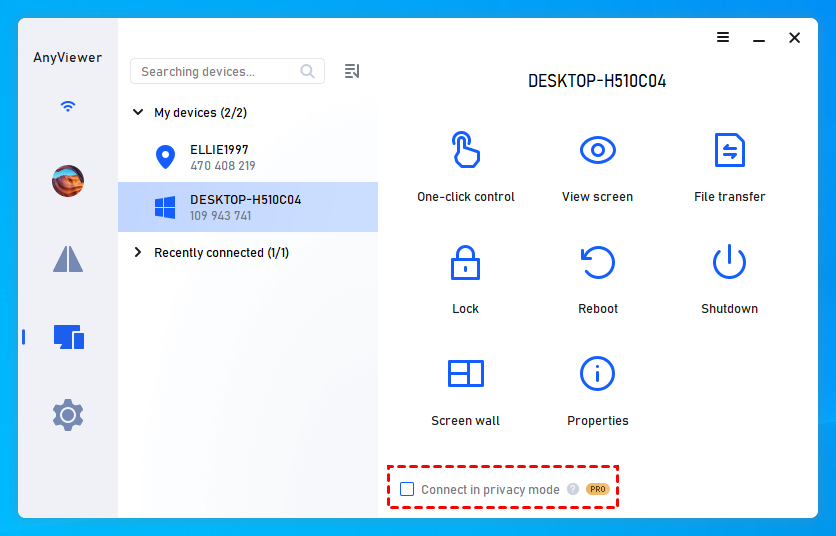
Once connected, the host screen will go black, similar to a black background wallpaper, ensuring complete privacy. The keyboard and mouse on the remote end will be disabled, giving you full control without any interference or visibility from the other side.
✔️Note: The Professional or Enterprise plan unlocks several important benefits that make remote access more flexible and powerful:
Increase Connection Channels: Multiple devices can start remote connections at the same time.
Simultaneous Connections: One device can connect to multiple devices simultaneously.
Faster File Transfer: Transfer large files up to 1TB at speeds of 10 MB/s.
Conclusion
A privacy screen may stop working for several reasons, depending on whether you are using a physical screen filter or a software based privacy feature. Common causes include high screen brightness, incorrect installation, outdated display drivers, temporary software glitches, or incompatible monitor settings. By checking these factors and applying the right fixes, you can often restore the privacy function quickly.
If the issue occurs during remote access, updating drivers, restarting the remote software, or adjusting display settings may help resolve the problem. For users who need a more reliable solution, using AnyViewer with Privacy Mode can provide a simple way to hide the host screen and prevent local input. This helps ensure your remote sessions remain private and secure.
FAQs
🗨️ Why did my privacy screen stop working on my iPhone?
Your privacy screen may stop working if the screen protector is installed incorrectly, worn out, or not designed for your device. High screen brightness or viewing the screen directly from the front can also reduce the privacy effect.
🗨️ What is the problem with privacy screen protectors?
Privacy screen protectors can reduce screen brightness and viewing clarity. They only block side views, so people looking directly at the screen may still see the content.
🗨️ How do I turn on privacy screen mode?
Turning on Privacy screen mode is usually enabled in the settings of a remote access tool. For example, in AnyViewer, you can enable Privacy Mode when starting a remote session to black out the host screen and block local input.
🗨️ How to repair a privacy screen?
If it is a physical privacy filter, check the installation and replace it if it is damaged. If it is a software privacy feature, update display drivers, restart the program, or adjust display settings.
🗨️ How to repair screen display?
You can restart the device, update graphics drivers, adjust display settings, or check for system updates. These steps often fix common screen display issues.
🗨️ Are privacy screens removable?
Yes. Most privacy screen protectors are removable and can be replaced if they become scratched, damaged, or lose their privacy effect.



 as a preferred
source on Google
as a preferred
source on Google