

How to Troubleshoot Account Block From Shared Usage?
You will find clear solutions for resolving shared account lockouts. This article explains how to identify common triggers for access blocks and provides straightforward methods to unblock accounts and regain folder entry.

By Irene / Updated on April 13, 2026


🌟 Overview: Windows Account Lockout
This guide addresses the "referenced account is currently locked out" error, a security safeguard against brute-force attacks that triggers after multiple failed login attempts.
🔶 Core Technical Triggers
While intended to stop hackers, lockouts usually result from authentication loops caused by:
- Stale Cached Credentials: Windows Credential Manager attempting logins with an expired password.
- Persistent Mapped Drives: Background reconnection attempts to network shares using old data.
- Legacy Services: Windows Services or Scheduled Tasks running under outdated user credentials.
- Mobile Sync: ActiveSync (email) on mobile devices repeatedly failing with old passwords.
- Shared Accounts: A single user’s error locking out all shared account holders.
🔶 Resolution & Prevention
To restore access and prevent recurrence, follow these steps:
| Action | Technical Execution |
| Unlock Account | Use lusrmgr.msc for local accounts or contact IT for Domain environments. |
| Clear Cache | Purge outdated entries in the Windows Credential Manager. |
| Remap Drives | Disconnect network drives and re-map them using current credentials. |
| Audit Services | Update login info for all background processes and automated tasks. |
| Modernize | Use dedicated remote access tools (e.g., AnyViewer) to simplify file transfers and bypass complex permission hurdles. |
The lockout error is a vital security layer that often flags internal configuration mismatches. Proactive credential management and individual user accounts are the most effective ways to maintain uptime.
What causes the referenced account is currently locked out error?
Encountering the message "the referenced account is currently locked out" can be a major roadblock when attempting to access network resources or shared folders. This error is a deliberate security feature within Windows environments designed to mitigate the risk of brute-force attacks and unauthorized access. By monitoring failed login attempts within a specific timeframe, the system automatically disables the account to protect sensitive data. While essential for security, this mechanism frequently triggers in collaborative environments where shared credentials or automated background processes are at play. Understanding the underlying triggers—ranging from simple typos to complex synchronization issues—is the first step toward restoring access. This guide explores the diverse technical causes behind these lockouts and how to effectively resolve them.
🔷Common Causes of Account Lockouts
- Excessive Failed Login Attempts: The most direct cause is exceeding the "Account Lockout Threshold" set in the Windows Security Policy. If a user (or an intruder) enters the wrong password too many times, the system triggers a lockout to prevent further guessing.
- Stale Cached Credentials: Windows often stores passwords in the "Credential Manager." If you change your network password but the manager still holds the old one, it will repeatedly attempt to log in using the expired data, leading to an automatic lockout.
- Persistent Mapped Network Drives: If you have a mapped drive that was set up with a previous password, Windows will attempt to re-establish that connection upon startup or folder access. These silent, background connection attempts can quickly exceed the failure threshold.
- Programs and Services: Many background applications or Windows Services are configured to run under a specific user account. If the password for that account is updated but the service configuration is not, the service will repeatedly fail to start, locking the account.
- Shared Account Usage: In team environments where multiple employees use the same login for a shared resource, one person’s mistake affects everyone. A single team member entering the wrong password multiple times will lock the account for every other user on the network.
- Mobile Device Synchronization: Mobile devices synced to corporate email or internal networks (via ActiveSync) often cause "ghost" lockouts. If a phone is trying to sync with an old password, it can lock your Active Directory account before you even sit down at your computer.
In conclusion, the "account is currently locked out" error serves as a vital shield against cyber threats, but it often stems from internal configuration oversights rather than external attacks. Whether the cause is a forgotten mapped drive, an outdated password stored in Credential Manager, or a legacy service running in the background, the result is a frustrating disruption of workflow. Successfully resolving these lockouts requires a systematic approach to identifying and clearing old data. By proactively managing saved credentials and monitoring account activity, users and IT administrators can maintain a secure environment while ensuring seamless access to essential network resources.
Use AnyViewer to simplify your remote access and file sharing
Managing shared folders and network permissions often leads to account lockouts and access issues, especially for teams. Instead of dealing with complex Windows settings, AnyViewer offers a simpler and more reliable solution. It lets you securely access files and control remote computers from anywhere without credential conflicts.
Built for team use, AnyViewer supports unattended access, fast file transfers, and multiple simultaneous sessions, so your team can work smoothly without interruptions. With strong ECC encryption and an easy setup, it is a practical way to avoid shared folder errors and keep everyone connected efficiently.
By using AnyViewer, you bypass the common headaches of network permission errors and focus on getting your work done quickly and efficiently. It is easy to set up, requires no complex port forwarding, and works across different network environments seamlessly. The powerful tool even supports sharing folders and files across different devices. Here we will show you how to transfer them between Windows and MacBook Air.
Step 1. Download and install AnyViewer on both your Windows PC and MacBook Air.
Step 2. Create an AnyViewer account or sign in if you already have one.
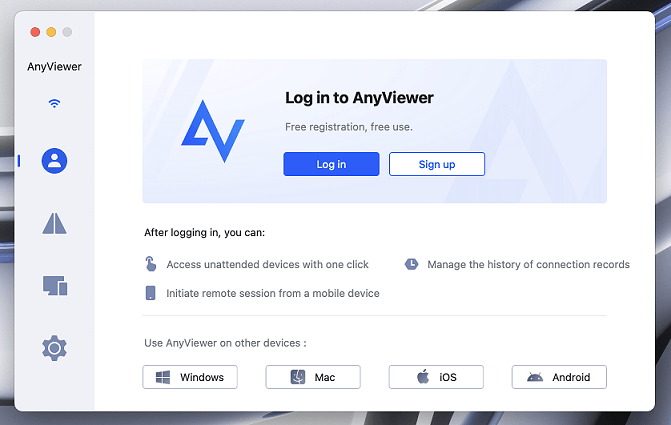
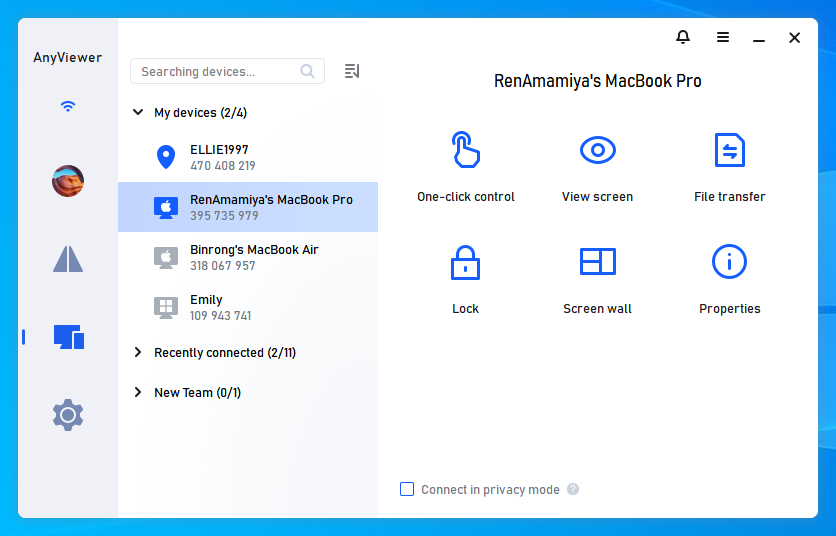
Step 3. Open the AnyViewer app on your Windows device, click "Device" to view connected devices, and select your Mac under "My Devices." Then, click "File Transfer" to open the file transfer manager.
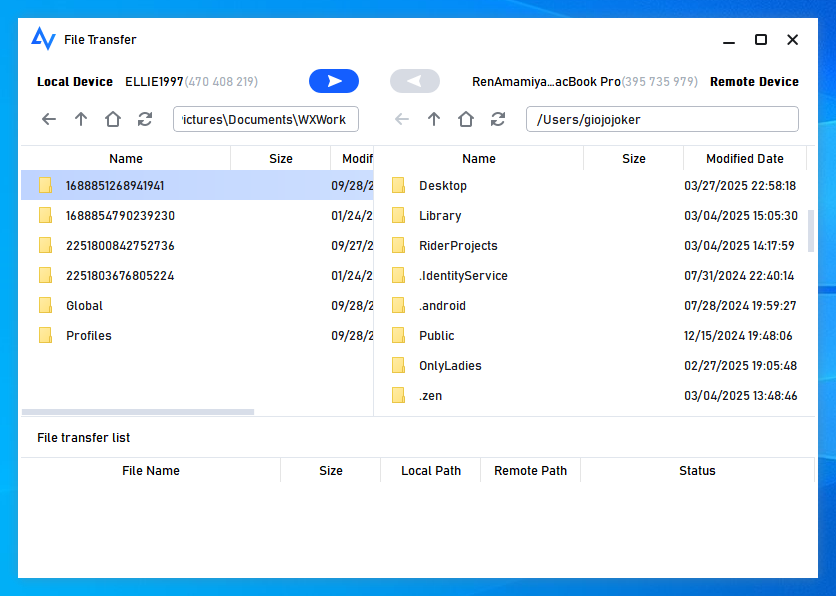
Step 4. Use the file transfer manager to manage your data:
- Transfer files from Windows to Mac: Select files on the local pane and click the arrow toward the remote device.
- Transfer files from Mac to Windows: Select files on the remote pane and click the arrow toward the local device to begin the transfer.
Alternatively, if you want to enable unattended Mac access while transferring files, click "One-click control" to remotely access your Mac. Once connected, you can manage files from the remote session’s toolbar.
- Unleash Maximum Speed: Experience lightning-fast transfers up to 10 MB/s.
- Seamless Multitasking: Process up to 5 concurrent file transfers.
- No Boundaries: Enjoy unlimited file transfers per session.
- Massive Storage Support: Easily move individual files up to 2 TB.
How to unblock a shared account and troubleshoot lockout issues?
If you find yourself unable to access your files, the first step is to unblock the account. If you are on a local computer that is not part of a large domain, you can use the Local Users and Groups tool. Press the Windows key and R key together, type lusrmgr.msc, and hit enter. Look for the Users folder and find the account that is locked. Right-click the account, select Properties, and look for the checkbox that says Account is locked out. Uncheck this box, click Apply, and then OK. This should immediately restore access.
For those working in an office with a domain, you will likely need to contact your IT administrator. They use a tool called Active Directory Administrative Center to look up your user profile and unlock it. However, if the lockout keeps happening, you must troubleshoot the source. Start by clearing the Windows Credential Manager. Open the Control Panel, go to User Accounts, and select Credential Manager. Look for any saved credentials related to the network path or the shared folder. Remove these entries and then try to reconnect. This forces the system to ask for the new, correct password.
Another effective troubleshooting step is to disconnect all mapped network drives that might be using the old password. You can do this by opening File Explorer, right-clicking the mapped drive, and selecting Disconnect. Once disconnected, restart your computer and map the drive again using the fresh credentials. Additionally, check the Account Lockout Policy settings if you have administrative rights. You can find these in the Local Security Policy tool under Account Policies and then Account Lockout Policy. Increasing the lockout threshold or reducing the lockout duration can help reduce the frequency of these interruptions during shared usage.
What are the best practices to prevent account lockout in the future?
Preventing account blocks requires a proactive approach to managing your digital identity and network settings. The most important practice is to always update your saved credentials immediately after changing your password. This includes updating passwords in browsers, mapped drives, and any specialized software that connects to shared folders. Most lockouts are not caused by hackers but by forgotten background processes using old information.
Educating everyone who shares an account is also vital. If multiple people must use one account, ensure they all know the current password and understand the consequences of multiple failed attempts. However, it is always better to give each person their own unique user account. Windows allows you to grant different users access to the same shared folder. This way, if one person forgets their password and gets locked out, it does not affect the rest of the team. Individual accounts provide better security and make it much easier to track who is accessing which files.
Finally, consider using modern tools that simplify the connection process. Traditional network sharing is powerful but can be brittle when security policies are strict. Using a dedicated remote access tool provides a layer of separation that prevents your main Windows account from being constantly hammered by failed background requests. Regularly auditing your security logs can also help you see exactly which device is causing the lockout. By staying organized and keeping your credentials updated, you can maintain a productive environment free from the "account is currently locked out" error.
Conclusion
In conclusion, the “referenced account is currently locked out” error is not just a barrier to access but a clear signal that your system is actively protecting your data. While it often results from everyday issues like outdated credentials, mapped drives, or shared account misuse, the impact on productivity can be significant if left unresolved. The key to minimizing disruptions lies in identifying the root cause quickly and maintaining consistent credential management across all devices and services.
For teams and individuals alike, combining good security practices with smarter tools can make a major difference. By reducing reliance on shared credentials, keeping systems updated, and leveraging solutions like AnyViewer for secure remote access and file sharing, you can avoid repeated lockouts and streamline collaboration. With the right approach, it is possible to maintain both strong security and smooth, uninterrupted access to your essential resources.
FAQs
🗨️ How to resolve account lockout problem?
To resolve an account lockout, start by unlocking the account through Local Users and Groups or ask your IT administrator if you are in a domain environment. Then identify the root cause. Clear saved credentials in Credential Manager, disconnect any mapped drives using old passwords, and update credentials in all devices and services. Restart your system and log in again with the correct password. This prevents repeated lockouts caused by background processes.
🗨️ How to fix you can't access this shared folder because your organization's security policies block?
This issue is usually related to network security settings. You can fix it by enabling network discovery and file sharing, adjusting Local Security Policy settings such as LAN Manager authentication level, and ensuring SMB protocols are properly configured. Also check that your user account has permission to access the folder and that both devices are on the same network. Updating Windows to the latest version can also resolve compatibility issues.
🗨️ How to unblock administrator blocked apps?
If an app is blocked by an administrator, you can try running it as an administrator or adjusting settings in Windows Security. Go to App and Browser Control and check the reputation based protection settings. In some cases, Group Policy or SmartScreen may be blocking the app, so you may need admin rights to allow it. If you are in a work environment, contact your IT administrator to safely whitelist the application.
🗨️ Can I bypass a referenced account lockout?
No, you cannot safely bypass an account lockout. This security feature is designed to prevent unauthorized access. Attempting to bypass it may create security risks or violate organizational policies. The correct approach is to unlock the account and fix the underlying issue such as incorrect credentials or repeated failed login attempts from connected devices.
🗨️ Does oobe bypassnro work to fix account lockout problem?
No, OOBE bypassnro does not fix account lockout problems. It is a command used during Windows setup to bypass network requirements, not account security restrictions. Account lockouts are controlled by security policies, so the only effective solution is to unlock the account and correct the source of failed login attempts.
🗨️ Is there an easier way to avoid repeated lockouts when accessing shared resources?
Yes. Instead of relying on traditional shared folders and credentials, you can use tools like AnyViewer. It allows secure remote access and file transfer without repeated password conflicts. This reduces the risk of lockouts caused by cached credentials, mapped drives, or multiple users sharing the same account, making it especially useful for teams.



 as a preferred
source on Google
as a preferred
source on Google