

How to Transfer Large 10GB Files from PC to Android [4 Fast Ways]
This guide explores four high-performance methods for moving 10GB files from Windows to Android. From USB MTP connections to professional remote tools like AnyViewer, these methods help you overcome common file size limits with ease.

By Ellie / Updated on February 5, 2026


Why Is Transferring 10GB Files So Difficult?
Moving a 10GB file from your PC to an Android device can be a frustrating experience. A 10GB file is significantly larger than your average photo or document. Windows' built-in tools often struggle with large data packets, USB connections can be finicky depending on the cable quality, and cloud storage providers usually demand a monthly subscription once you exceed their meager free tiers.
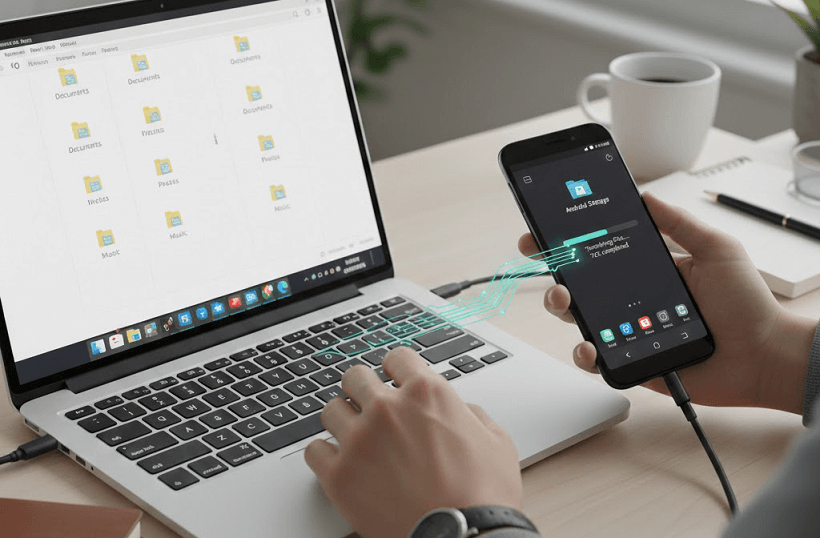
If you're wondering how to transfer large 10GB files from PC to Android efficiently, you've come to the right place. In this comprehensive guide, we will break down the fastest, most reliable methods available, from traditional hardware solutions to professional-grade remote transfer software like AnyViewer.
How to Transfer Large 10GB Files from PC to Android [4 Methods]
Before we dive into the step-by-step instructions on how to transfer large 10GB file from PC to Android free, here is a quick breakdown of how the most popular transfer methods stack up in terms of speed, convenience, and range.
| Method | Speed | Max File Size | Remote Access? | Best For |
| AnyViewer | High (10MB/s+) | Up to 2TB | Yes | Remote work, large videos, and reliability. |
| USB Cable | Very High | Unlimited | No | Fast transfers when sitting at your desk. |
| Quick Share | Medium | Unlimited | No | Quick wireless transfers in the same room. |
| Cloud Storage | Slow (depends on ISP) | Varies by Plan | No | Multi-device syncing and backups. |
Method 1: The "Anytime, Anywhere" Professional Solution – AnyViewer
When you need to move massive files without being physically tethered to your computer, AnyViewer is the gold standard. While many know AnyViewer as a premier remote desktop solution, its File Transfer engine is specifically optimized for high-speed, large-scale data migration.
Why use AnyViewer for a 10GB transfer?
- Blazing Speed: Supports transfer speeds up to 10MB/s, meaning a 10GB file can be moved in roughly 15-20 minutes, depending on your network.
- Remote Capability: Unlike a USB cable, AnyViewer supports file transfer over the internet. You can send a 10GB file from your office PC to your Android phone while sitting in a coffee shop across town.
- No Size Restrictions: While RDP (Remote Desktop Protocol) often caps files at 2GB, AnyViewer allows individual files up to 2TB on its professional plans.
- Security: Every transfer is protected by ECC (Elliptic Curve Cryptography) encryption, preventing any data interception during transit.
How to Transfer a 10GB File via AnyViewer:
Step1. Download and install AnyViewer on your Windows PC, and the AnyViewer app from the Google Play Store on your Android.
Step2. Create a free account and sign in on both devices.
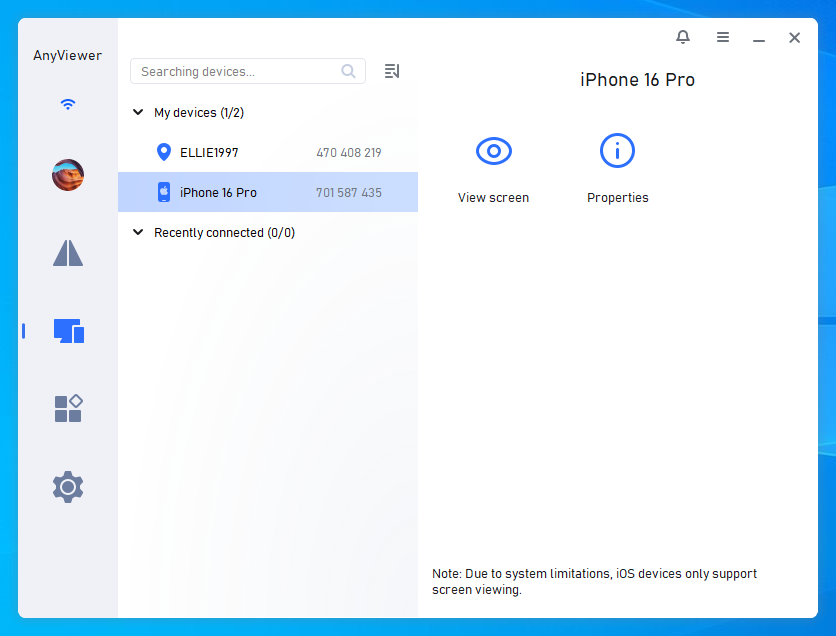
Step3.On your Android app, go to "Device," select your PC, and tap "File Transfer."
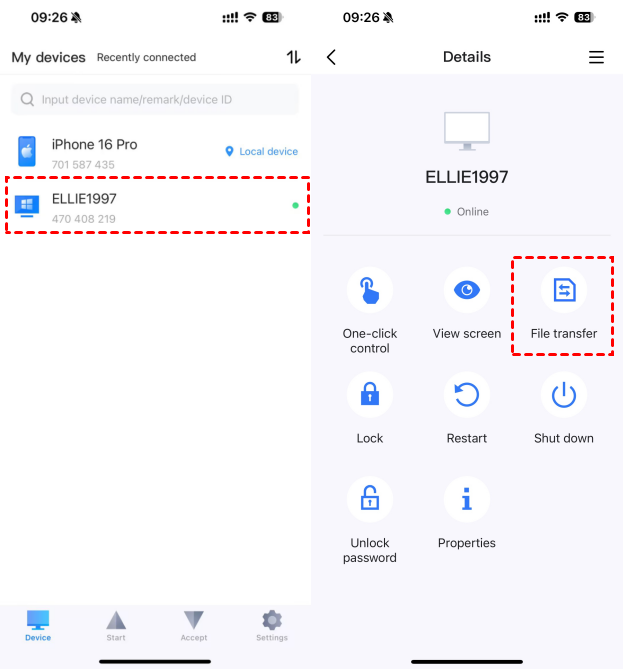
Step4. Choose Download. Browse your PC's storage, select your 10GB file, and move it to your Android's internal storage.
Method 2: The "Direct-Wire" High-Speed Link – USB MTP Transfer
If you have a cable handy and want to know how to transfer a large 10GB file from PC to Android via USB, the classic MTP (Media Transfer Protocol) is your best bet for raw local speed.
Steps for Success:
Step 1. Ensure you are using a USB 3.1 or USB-C 3.2 cable. Cheap "charging-only" cables will either not be recognized by the PC or will transfer at painfully slow USB 2.0 speeds.
Step 2. When you plug your phone into the PC, a notification will appear on the Android screen. Tap it and change the setting to "File Transfer / MTP."

Step 3. Your phone will appear as a drive in Windows File Explorer.
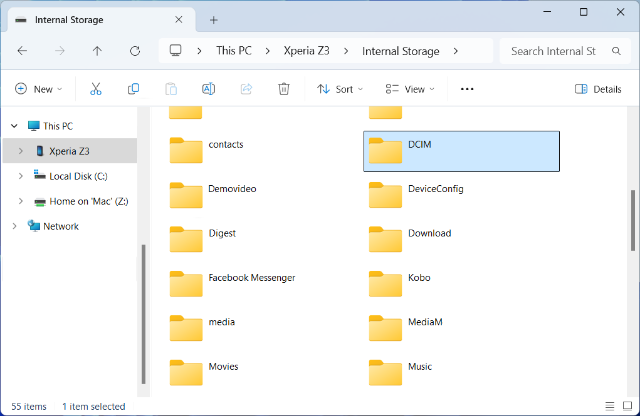
Step 4. Simply copy the 10GB file and paste it into the "Download" or "Movies" folder on your device.
Pro Tip: If your 10GB file is a 4K movie or a large database, ensure your Android's internal storage is formatted to ext4 or F2FS (which most modern phones are) to avoid the 4GB file size limit.
Method 3: The "Zero-Cable" Local Sync – Google Quick Share
If your PC has Bluetooth and Wi-Fi capability and is running Windows 10 or 11, you can use Quick Share. This is Google's answer to Apple's AirDrop.
How it works:
Step 1. Download the Quick Share for Windows app from the official Android website.
Step 2. Ensure Bluetooth and Wi-Fi are turned on for both the PC and the Android phone.
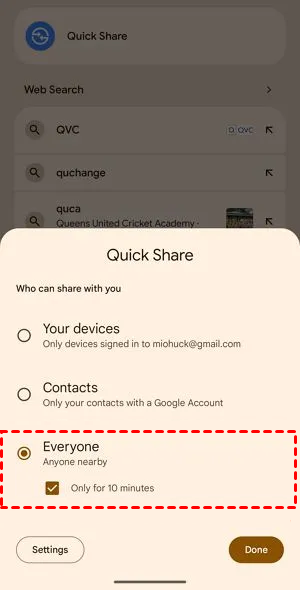
Step 3. On your PC, drag the 10GB file into the Quick Share window.
Step 4. Select your Android phone from the list of nearby devices.
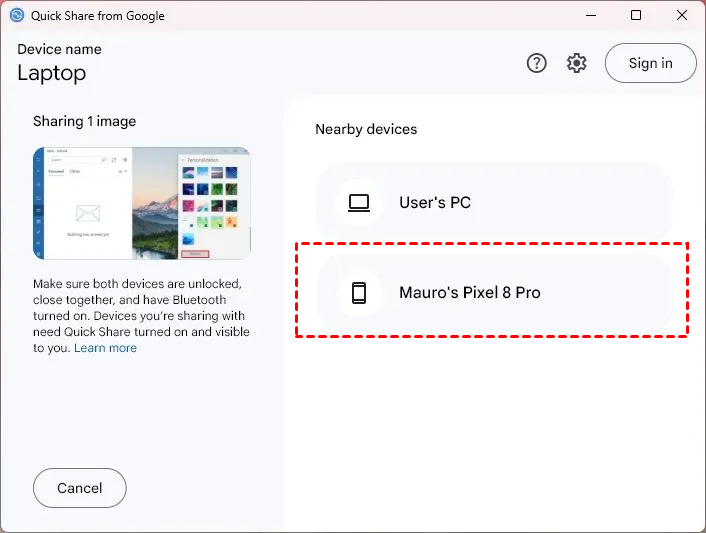
Step 5. Accept the transfer on your phone.
Note: While convenient, Quick Share can be temperamental with files as large as 10GB. If the devices lose "line of sight" or the Wi-Fi signal fluctuates, the transfer may fail mid-way.
Method 4: The "Cloud-Bridge" Backup Method – Google Drive / OneDrive
Cloud storage and file sharing service is the "set it and forget it" method. However, for a 10GB file, this is often the most expensive and slowest option.
The Trade-offs:
- Storage Limits: Google Drive gives you 15GB for free, but that is shared with your Gmail and Photos. A 10GB file might push you over the limit, requiring a $1.99/month subscription.
- Double Bandwidth: You have to upload 10GB from the PC (which takes time) and then download 10GB onto the phone (which takes more time).
Detailed Steps:
Step 1. A 10GB file is huge. Ensure your Google Drive or OneDrive has enough remaining space (Google's free tier is 15GB total).
Step 2. Open your browser, go to drive.google.com, and upload the 10GB file.
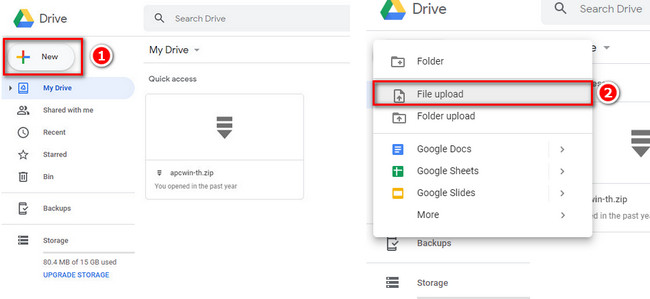
Step 3. Once the upload is 100% complete, wait another 2-3 minutes for the cloud servers to process the file.
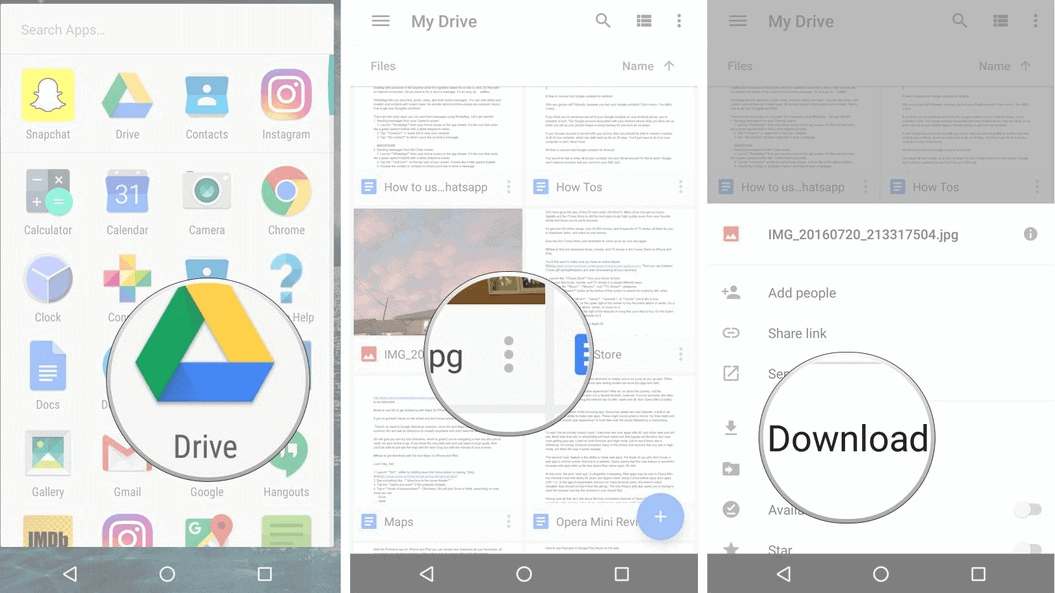
Step 4. Open the Google Drive app on your Android phone.
Step 5. Locate the file. Tap the three dots (⋮) and select "Download" to save it to your phone's internal memory, or "Make available offline" to cache it within the app.
Conclusion
Understanding these four methods ensures you'll never be stuck wondering how to transfer large 10GB file from PC to Android again.If you have a high-quality cable and are at your desk, USB MTP is a solid choice. If you are looking for a wireless, modern, and remote-capable solution that can handle even larger files in the future, AnyViewer is the most robust tool for the job.
By using the right software and understanding the limitations of your hardware, you can move your high-definition movies, large databases, and project files seamlessly.
FAQs
1. How long does it take to transfer a 10GB file from PC to Android?
The transfer time depends entirely on your connection method.
- USB 3.0: Usually takes 3 to 5 minutes (at ~40-60 MB/s).
- AnyViewer/Wi-Fi: On a stable high-speed connection (10MB/s), it takes approximately 15 to 20 minutes.
- Cloud Storage: This can take several hours, as you must first upload the 10GB from your PC and then download it to your Android device.
2. Why does my 10GB file transfer keep failing at 99%?
If your transfer fails right at the end, it is usually a file system limitation or a cache error.
- FAT32 Limit: If you are transferring to an older microSD card formatted to FAT32, the maximum individual file size is 4GB. You must reformat the card to exFAT.
- Storage Space: Ensure your Android device has at least 12-15GB of free space. The system often needs extra "buffer" space to finalize a large file transfer.
- App Interruptions: Using a professional tool like AnyViewer helps prevent this by using a dedicated transfer protocol that handles file "finalization" more reliably than standard Windows Explorer.



 as a preferred
source on Google
as a preferred
source on Google