

3 Ways to Transfer Files Between iOS Devices and Desktop Using WiFi
This comprehensive guide covers three proven methods to move data wirelessly between iPhone/iPad and Windows desktops. From the one-click professional efficiency of AnyViewer to manual SMB setups and cloud syncing, discover how to ditch the cables for good.

By Ellie / Updated on January 27, 2026


Can you transfer files between iPhone and PC wirelessly using WiFi?
In the modern digital landscape, the phrase "there’s an app for that" has never been truer, yet many of us still struggle with the simplest of tasks: getting a high-resolution video or a batch of work documents from an iPhone to a desktop computer without hunting for a Lightning or USB-C cable.

If you are looking to transfer files between iOS devices and desktop using WiFi, you are in the right place. Moving away from cables isn't just about convenience; it’s about speed, flexibility, and leveraging the powerful wireless hardware already built into your devices.
In this comprehensive guide, we will explore the best methods to master WiFi file transfers, ranging from native Apple features to professional third-party solutions like AnyViewer.
Why choose WiFi over cables for file transfer?
Before we dive into the "how," let’s look at the "why." While cables are reliable, they are physically restrictive. WiFi-based transfers offer several distinct advantages:
- No Hardware Constraints: You don't need to worry about mismatched ports (USB-A vs. USB-C) or damaged cables.
- Freedom of Movement: You can initiate a transfer from your couch while your desktop is in the home office.
- Multi-Device Handling: WiFi allows you to broadcast or receive files across multiple devices simultaneously.
- Remote Access: Advanced tools allow you to transfer files even if you aren't on the same local network, something a cable simply cannot do.
How to transfer files between iOS devices and desktop using WiFi
There are three main ways to achieve this, depending on your needs for speed and ease of use. Whether you want to transfer files between iOS devices and desktop using WiFi free or need a robust professional tool, the solutions below have you covered.
Method 1: The professional choice – AnyViewer (Best for Windows & iOS)
While Apple has its own ecosystem, most of the world uses a combination of an iPhone and a Windows PC. This is where native solutions often fail. AnyViewer bridges this gap perfectly. Originally designed as high-end remote desktop software, AnyViewer has evolved into a powerhouse for wireless file management. It is arguably the most reliable way to transfer files from PC to iPhone wirelessly without iTunes.
Why AnyViewer is the Top Recommendation
AnyViewer isn't just a "send and receive" app; it is a comprehensive remote management tool. If you are away from your desk and realize you forgot a file on your desktop, AnyViewer allows you to "remote in" via WiFi (or cellular data) and pull that file to your iOS device instantly.
Key Features for File Transfer:
- True Cross-Network Capability: UnlikeSMB, which require you to stay on the same local router, AnyViewer works across different WiFi networks and even cellular data.
- Uncompromising Speed & Stability: Built on high-speed data transmission protocols, AnyViewer is optimized for massive files. It ensures that 4K videos, heavy database files, and large photo libraries transfer without timing out.
- Bank-Grade Security: Your privacy is paramount. AnyViewer utilizes ECC (Elliptic Curve Cryptography) encryption—the same standard used in modern financial transactions—ensuring your files are never intercepted.
- Intuitive "Dual-Pane" Interface: No more digging through confusing folders. AnyViewer provides a side-by-side view of your iPhone and your PC, making file management as simple as a tap.
- Unattended Access: Forgot to upload a file before leaving for a trip? As long as your PC is on, you can "remote in" and grab what you need without needing anyone at home to click "Accept."
Step-by-Step: How to Transfer Files via AnyViewer
AnyViewer is designed for speed, from the installation to the final transfer. Here is how to get started:
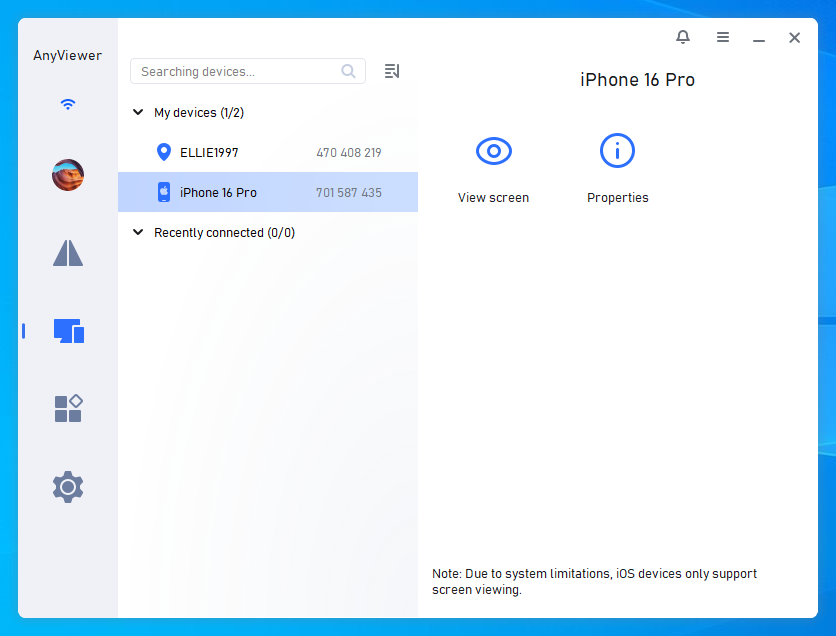
Step 1. Download and install AnyViewer on your Windows Desktop and the AnyViewer App on your iOS device.
Step 2. Create a free account and log in on both devices. This "binds" them for secure, easy access.
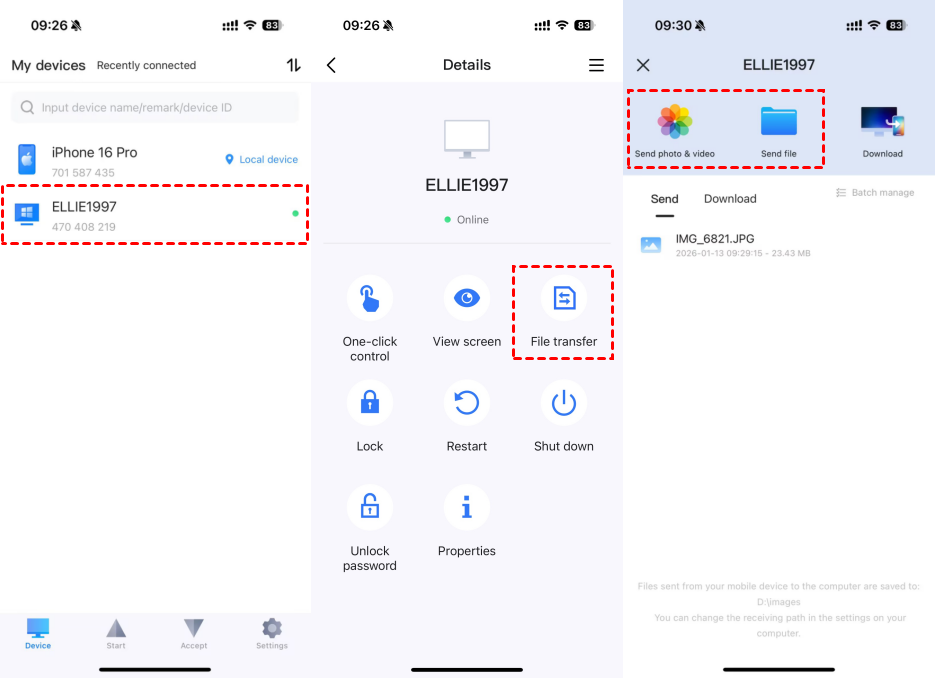
Step 3. On your iPhone/iPad, go to the Device tab, select your desktop, and tap File Transfer.
Step 4. To transfer files from an iPhone to Windows, tap Send photos & videos or Send files. To move files from Windows to an iPhone, tap Download. Choose the files you need, and the transfer begins right away.
Method 2: The SMB Protocol – Turning your desktop into a local cloud
If you prefer a built-in solution and want to transfer files between iOS devices and desktop using WiFi free without installing additional desktop software, you can use SMB (Server Message Block). This manual method allows the iOS Files app to communicate directly with your Windows PC.
How to Set Up an SMB Share (Step-by-Step)
Setting this up requires a bit of "under the hood" configuration on your Windows machine. Follow these steps carefully:
Step 1: Create a new folder on your Windows desktop (e.g., "WiFi Transfer") and place the files you wish to share inside it.
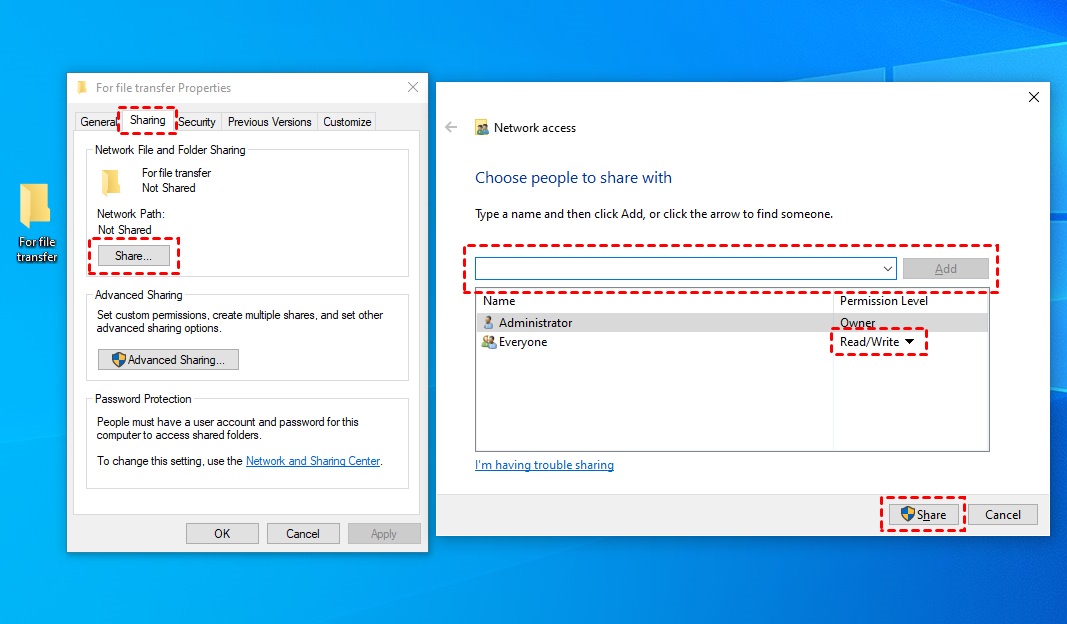
Step 2: Configure sharing permissions:
- Right-click the folder and select Properties.
- Navigate to the Sharing tab and click the Share... button.
- In the dropdown menu, select Everyone, click Add, and change the Permission Level to Read/Write.
- Click Share and then Done.
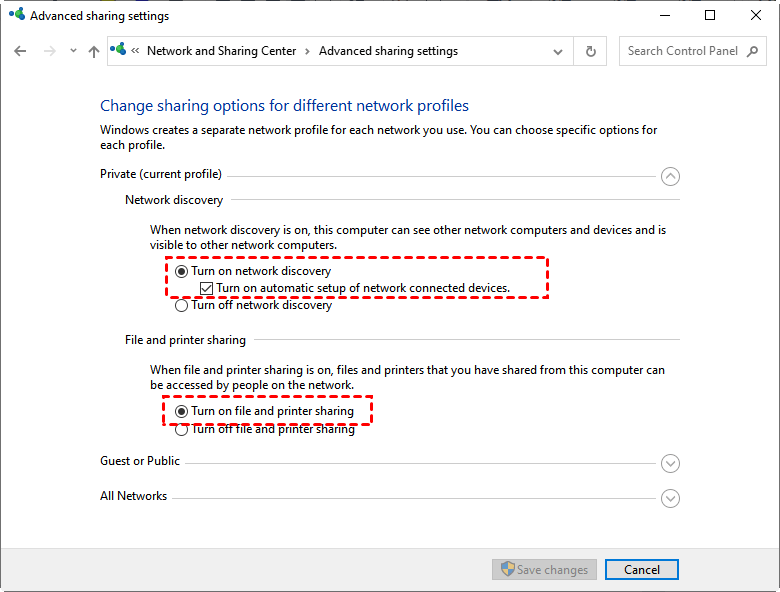
Step 3: To ensure your iPhone can "see" your PC, you need to tweak your network security:
- Open Control Panel > Network and Internet > Network and Sharing Center.
- Click Change advanced sharing settings on the left sidebar.
- Under the current profile, Turn on network discovery and Turn on File and printer sharing.
- Scroll down to "All Networks" and Turn off password protected sharing (this simplifies the connection, though we recommend turning it back on later for security).
Step 4: Your iPhone needs a "digital address" to find your PC:
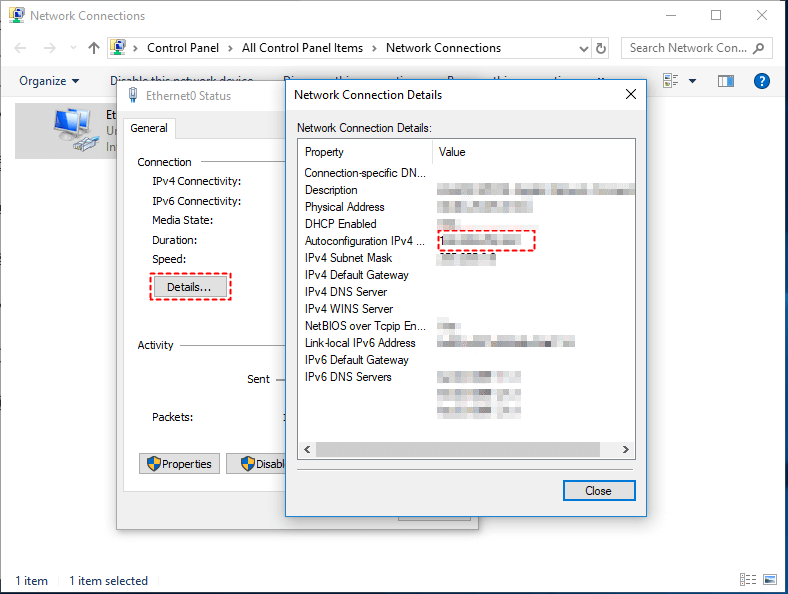
- In the Network and Sharing Center, click on your active WLAN connection link.
- Click Details... and look for the IPv4 Address (e.g., 192.168.1.XX). Note this down.
Step 5: Connect via the iOS Files app:
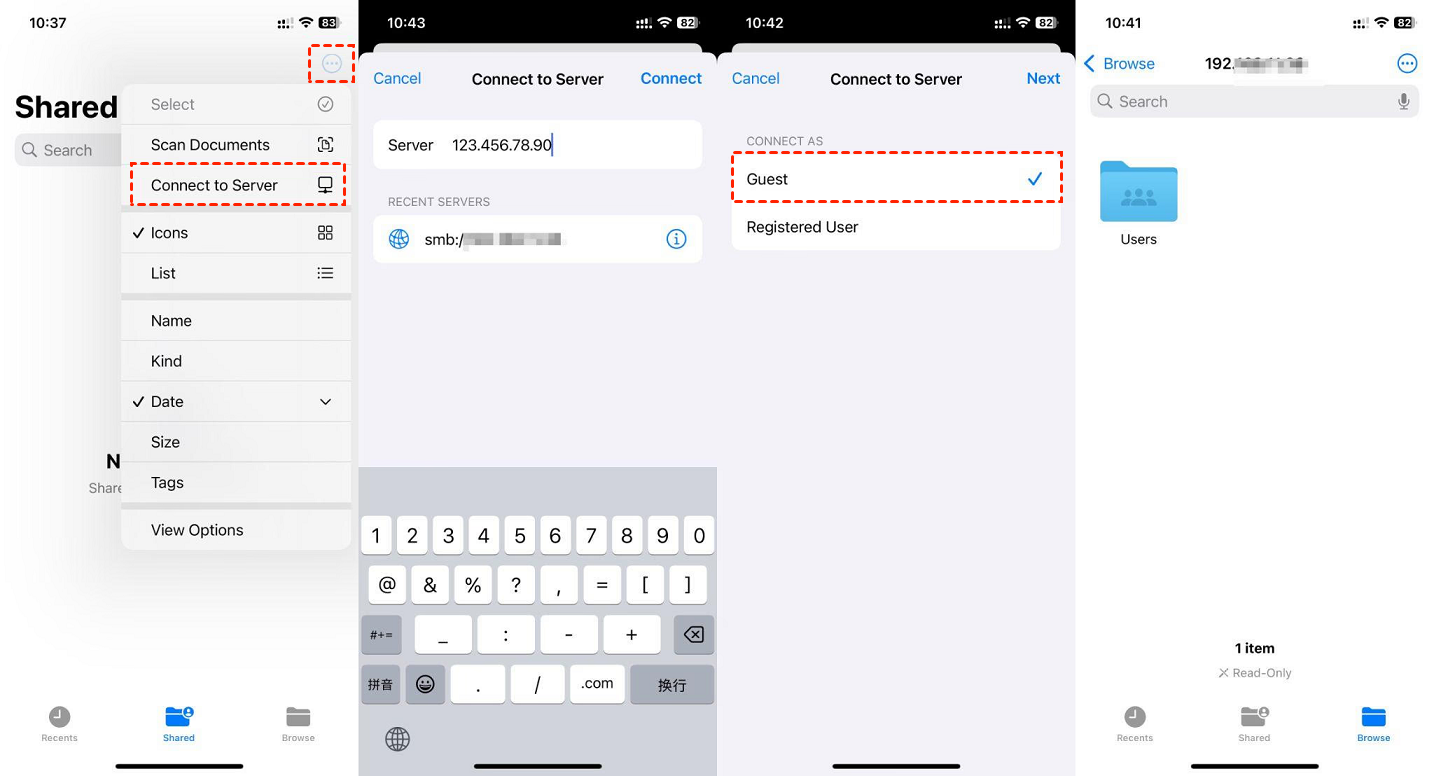
- Open the Files app on your iPhone or iPad.
- Tap the Browse tab, then tap the three dots (...) in the top right corner.
- Select Connect to Server.
- Enter your IP address (e.g., `192.168.1.XX`) and tap Connect.
- Select Guest (if you disabled passwords) or enter your Windows credentials, then tap Next.
Step 6: Syncing your files:
- From PC to iPhone: Drop files into the Windows folder; they will instantly appear in the Files app on your iPhone.
- From iPhone to PC: Select a photo or document on your iPhone, tap Share > Save to Files, and choose the shared IP folder.
Pros
- Zero Cost: No third-party subscriptions or software installations required.
- No Limits: Transfer massive 4K videos or thousands of photos without worrying about file size caps.
- High Fidelity: Files are transferred in their original quality without compression.
Cons
- Complex Setup: The multi-step configuration is prone to errors (firewall blocks, IP changes, etc.).
- Local Only: This only works if your iPhone and PC are on the same WiFi network. You cannot access your files if you leave the house.
- Security Risks: Disabling password protection or sharing folders with "Everyone" can expose your data to other people on the same network.
- IP Instability: Most home routers change your PC's IP address periodically, meaning you'll have to repeat Step 4 and 5 frequently.
Looking for a faster way? If the SMB setup feels too technical or you need to transfer files while away from home, AnyViewer automates this entire process. With AnyViewer, you skip the IP hunting and firewall headaches, gaining a secure, encrypted connection that works across any network with just one click.
Method 3: Cloud storage services – The "middle-man" approach
If you aren't in a rush and prefer a "set it and forget it" workflow, cloud storage services are a common way to transfer files from PCto iPhonewirelessly. Unlike direct methods, this uses a middle-man: you upload your files from the source device to an online server and then download them onto the destination device.
While there are dozens of providers, the three giants dominate the space:
- iCloud Drive: The native choice for Apple users, offering the best system-level integration.
- Google Drive: The go-to for users who rely on Google Workspace and cross-platform flexibility.
- Dropbox: A favorite for creative professionals who need advanced file-sharing links and version history.
How to Transfer Files via Cloud Services
While each platform has a unique interface, the wireless transfer logic remains the same. Here is the general workflow:
Step 1: Upload from the source device:
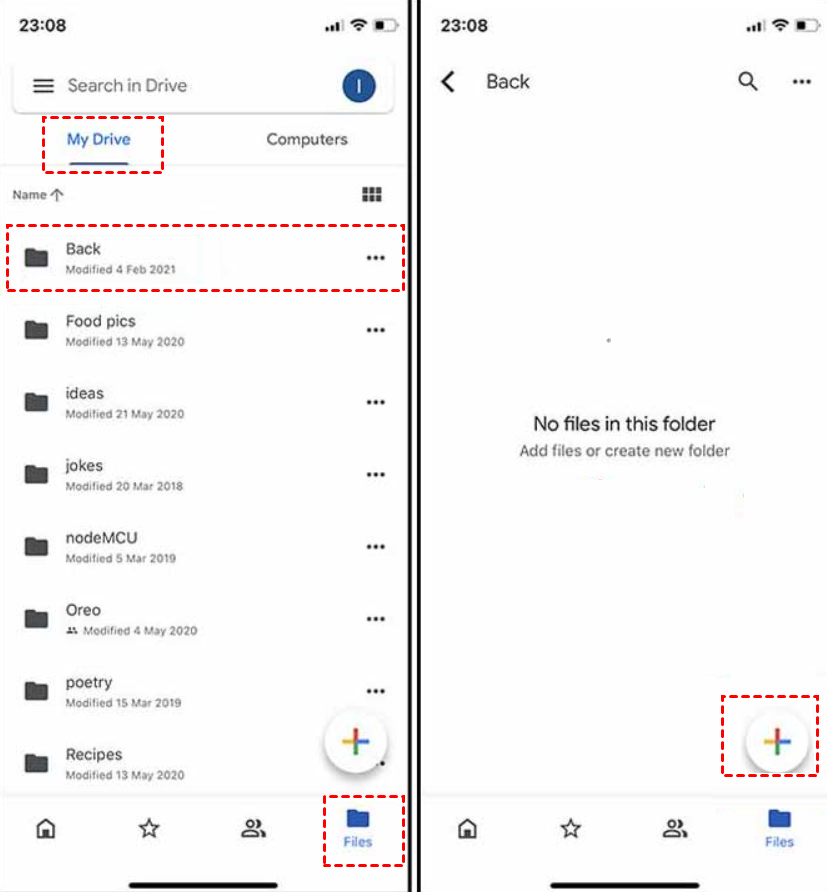
- From iPhone/iPad: Open the app (e.g., Google Drive), tap the "+" (Add) icon, select Upload, and pick your photos or documents.
- From Desktop: Open your browser, navigate to the cloud website, and drag and drop your files into the storage window.
Step 2: Ensure your device is connected to a stable WiFi network. You must wait for the upload progress bar to finish. This time depends entirely on your internet’s upload speed.
Step 3: Download to the target device:
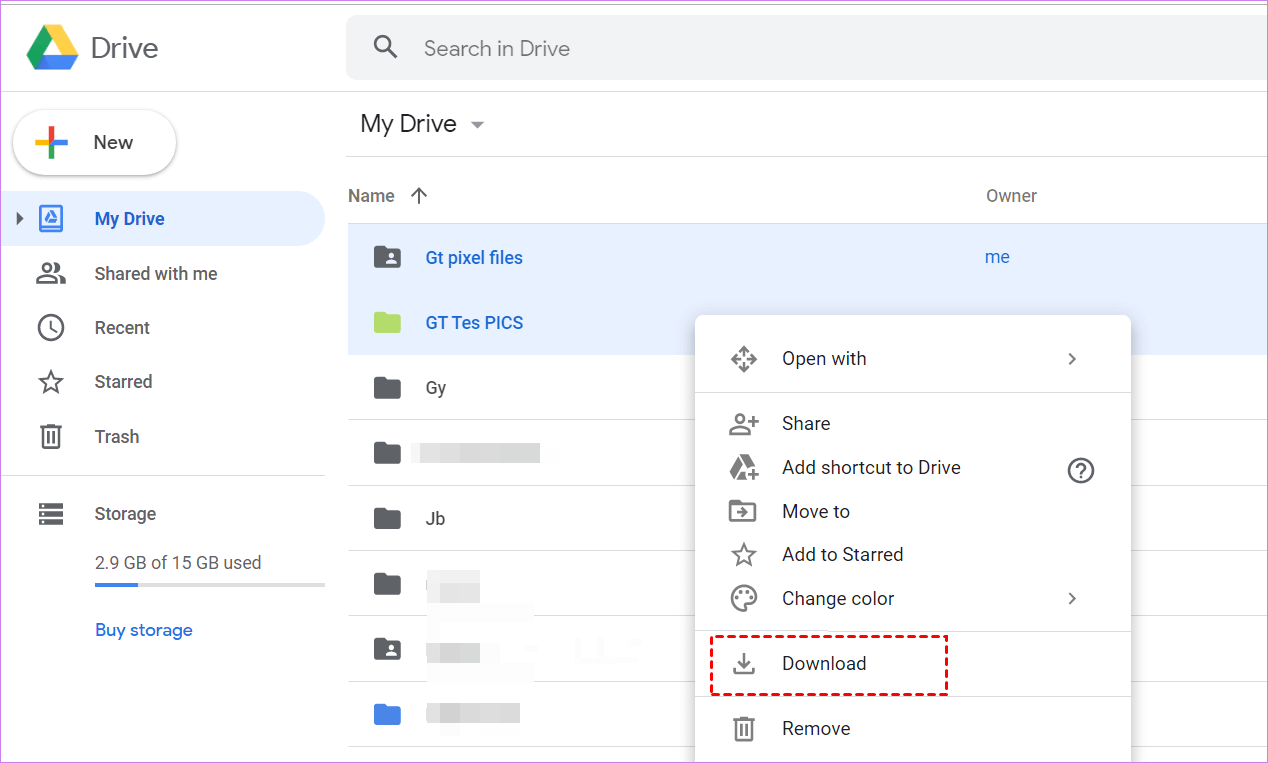
- On Desktop: Log into the same account, locate the file, and click Download.
- On iOS: Open the corresponding app or the native Files app (where iCloud, Drive, and Dropbox can all be integrated). Tap the file to view it or "Download" to keep it locally on your device.
Pros
- Accessibility: Once a file is uploaded, you can access it from any device in the world with an internet connection.
- Automatic Backup: Your files aren't just transferred; they are backed up in the cloud, protecting you from hardware failure.
- Cross-Platform Ease: It doesn't matter if you are moving files from an iPhone to a Windows PC or a Mac to an Android tablet; the cloud doesn't care about operating systems.
Cons
- The "Speed Bottleneck": This is the least efficient way to use WiFi for large files. To move a 2GB video, you must upload 2GB and then download 2GB. On a standard home connection, this can take 10x longer than a direct transfer tool like AnyViewer.
- Storage Costs: Most services only offer 2GB to 15GB for free. High-resolution videos and large backups will quickly force you into a monthly paid subscription.
- Privacy Concerns: Your data is stored on a third-party server. For sensitive or confidential work documents, many users prefer a direct point-to-point transfer.
- Internet Dependency: If your internet goes down, your "WiFi transfer" stops completely, even if your devices are sitting right next to each other.
Conclusion
To transfer files between iOSdevices and desktop using WiFishouldn't feel like a chore. While AirDrop is great for the Mac elite, and SMB is a fun project for the tech-savvy, AnyViewer offers the most balanced, powerful, and user-friendly experience for the average user, especially those on Windows.
By choosing a WiFi-based workflow, you're not just ditching the cable; you're gaining the ability to manage your digital life from anywhere in your home or the world.
Ready to simplify your workflow? Download AnyViewer todayand experience the fastest way to transfer files between iOS and desktop via WiFi.
FAQs
1. Can I transfer files between iOS and Windows without iTunes?
Yes, absolutely. While iTunes was once the standard, it is often slow and prone to crashing. You can use AnyViewer for a professional, one-click experience, or use the built-in SMB protocol via the iOS Files app for a manual connection. Both methods rely on WiFi rather than cables.
2. Is WiFi file transfer faster than a USB cable?
It depends on your hardware. A physical cable (especially USB 3.0 or USB-C) can be very fast, but modern WiFi (WiFi 6 or 5GHz bands) offers comparable speeds without the physical clutter. Furthermore, tools like AnyViewer optimize data packets for transmission, making them significantly faster than cloud-based methods that rely on internet upload speeds.
3. Why can't my iPhone find my PC when using SMB?
This is the most common issue with manual WiFi transfers. It usually happens for three reasons:
- Network Isolation: Your PC and iPhone must be on the same WiFi network.
- Firewall Blocks: Windows Firewall might be blocking the connection.
- Public Network Profile: Ensure your Windows network is set to "Private" rather than "Public," as Windows blocks incoming discovery requests on public networks for safety.
Solution: If SMB is too frustrating, AnyViewer bypasses these network discovery issues entirely using a secure account-based login.
4. Are my files safe when transferring over WiFi?
If you use the right tools, yes. Native SMB is safe within your home network. However, for transfers across different networks, you should use AnyViewer, which utilizes ECC (Elliptic Curve Cryptography). This bank-grade encryption ensures that your data is unreadable to anyone else on the network during the transfer process.
5. Can I transfer large videos (over 2GB) using WiFi?
Yes. Cloud services like Google Drive or iCloud may have storage limits or upload caps that make this difficult. However, direct WiFi transfer methods like AnyViewer or SMB have no file size limits. You are only limited by the available storage space on your destination device.
6. Does AirDrop work on Windows PCs?
No, AirDrop is a proprietary Apple technology that only works between iPhones, iPads, and Macs. If you want an "AirDrop-like" experience on Windows, AnyViewer is the best alternative, as it allows for similar high-speed wireless sharing between iOS and Windows devices.



 as a preferred
source on Google
as a preferred
source on Google