

TeamViewer Stuck on “Starting Remote Session” [Easy Fixes]
If TeamViewer freezes on “Starting Remote Session,” quick fixes like checking your connection, adjusting settings, and restarting services usually solve the problem. For a smoother, more reliable experience, AnyViewer offers fast, secure, cross-platform remote access without interruptions.

By Ellie / Updated on December 16, 2025


TeamViewer stuck at "Starting remote session"
When you urgently need remote access, whether helping a client, fixing a friend's computer, or managing your work device, it's frustrating to be stuck on the "Starting Remote Session" screen. The spinner keeps loading, nothing progresses, and the cause isn't always clear. This issue is more common than you might think and can occur on Windows, macOS, Android, or iOS. It may stem from network problems, software glitches, firewall restrictions, or incorrect settings.
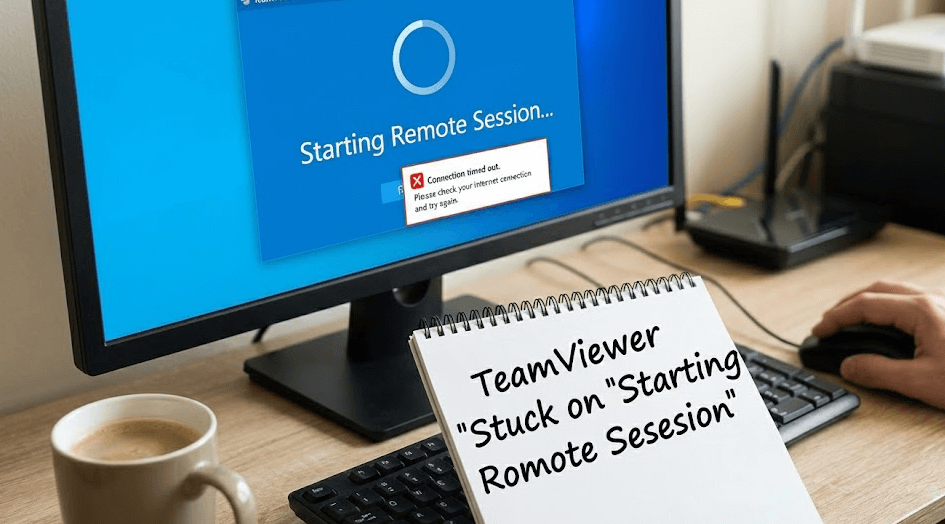
The good news is that it's usually easy to fix once you understand the cause. This guide explains the most common reasons and provides clear, step-by-step solutions for users of all levels, helping you restore TeamViewer quickly and avoid guesswork. You can also choose to try the best TeamViewer alternative.
Common Causes of the "Starting remote session" issue
When TeamViewer gets stuck on "Starting remote session" on Windows or Mac, it's easy to assume the software itself is broken. But in reality, the problem usually comes from one of several underlying causes.
- Slow or unstable internet connection: A weak or fluctuating connection can prevent TeamViewer from establishing a stable handshake with the remote device, leaving it stuck on the loading screen.
- TeamViewer server issues: If TeamViewer's servers are experiencing downtime or heavy traffic, the connection request may not process properly, leading to delays or a frozen "Starting Remote Session" prompt.
- Incorrect proxy, VPN, or DNS settings: Misconfigured network settings, such as an active VPN, strict proxy rules, or incorrect DNS, can interfere with TeamViewer's ability to route the remote session request.
- Firewall or antivirus blocking TeamViewer: Security software may mistake TeamViewer's communication packets as unsafe and block them, stopping the session from initiating.
- Outdated TeamViewer version: Using an older version of TeamViewer can lead to compatibility issues, especially when connecting to a device running a newer version.
- Device OS conflicts: Certain system updates on Windows, macOS, Android, or iOS may temporarily conflict with TeamViewer's services, causing connection failures.
- Background services not running: TeamViewer depends on specific background services. If they crash or stop running, the app may freeze at the session initialization stage.
- Account or licensing conflicts: Issues like expired licenses, commercial-use flags, or account restrictions can prevent sessions from starting properly.
Preliminary Checks Before Troubleshooting
Before trying advanced fixes, start with a few quick checks. TeamViewer stuck on "Starting Remote Session" on Mac or Windows issue is caused by simple, easily fixable problems.
- Check your internet connection: TeamViewer needs stable upload speeds. Even minor fluctuations can freeze sessions. Test both your connection and the remote device's connection.
- Verify TeamViewer server status: Occasionally, outages or maintenance can prevent connections. Check the official status page or sites like DownDetector.
- Confirm ID and password: Ensure you're using the correct TeamViewer ID and the latest password, as temporary passwords frequently refresh.
- Ensure the remote device is awake: Sleeping or locked devices can cause the session to hang. Ask the user to wake or unlock it.
- Check permissions: On Macs, confirm TeamViewer has screen recording, accessibility, and full disk access enabled.
- Review security tools: Firewalls, antivirus, or network protection apps may block TeamViewer after updates.
Completing these checks often resolves the issue. If everything seems fine, you can move on to network-level troubleshooting.
Advanced Troubleshooting Methods for "Starting Remote Session"Issue
When TeamViewer gets stuck on "Starting Remote Session,"it's often due to network, firewall, antivirus, or service-related issues. The good news is that most causes are fixable with step-by-step adjustments. This guide provides detailed instructions to help you systematically resolve the problem.
Fix 1. Reset Network Settings
Network issues are one of the most common reasons TeamViewer fails to connect. Think of your network as a highway: blocked lanes, detours, or outdated maps can prevent smooth communication between your device and TeamViewer's servers.Resetting network settings can clear outdated routes and cached information that may interfere with TeamViewer.
Steps (Windows):
Step 1. Open Command Prompt as Administrator.
Step 2. Run "ipconfig /flushdns" to clear cached DNS records.
Step 3. Run "netsh winsock reset" to reset network settings.
Step 4. Run "ipconfig /release" and "ipconfig /renew" to refresh your IP address.
Step 5. Restart your computer and retry TeamViewer.
Steps (macOS):
Step 1. Go to System Preferences > Network.
Step 2. Select your active connection, then click Advanced > TCP/IP.
Step 3. Click Renew DHCP Lease to refresh network allocation.
Step 4. Toggle Wi-Fi off and on to reset the connection.
This method often resolves minor connectivity glitches without requiring advanced networking knowledge.
Fix 2. Change DNS Servers
Slow or unreliable DNS servers can delay the lookup process, causing TeamViewer to hang. Switching to a faster DNS can dramatically improve connection stability.
Steps:
Step 1. Open your device's network settings.
Step 2. Replace your ISP's DNS with Google DNS (8.8.8.8, 8.8.4.4) or Cloudflare DNS (1.1.1.1, 1.0.0.1).
Step 3. Save changes and reconnect to TeamViewer.
This simple adjustment often solves issues where TeamViewer struggles to resolve server addresses.
Fix 3. Disable VPN or Proxy
VPNs and proxies can redirect or encrypt your connection in ways that interfere with TeamViewer's direct communication requirements.
Steps:
Step 1. Turn off any active VPN or proxy software.
Step 2. For corporate devices, check Network Settings to ensure no proxy is active.
Step 3. Retry connecting to TeamViewer.
If TeamViewer works after disabling these, you know the VPN or proxy was causing the blockage.
Fix 4. Switch Networks
Sometimes the problem lies with your current network rather than TeamViewer itself. Testing a different network helps isolate the cause.
Steps:
Step 1. Connect to a different network, such as a mobile hotspot.
Step 2. Open TeamViewer and try to start a session.
Step 3. If it works, your main Wi-Fi, router, or ISP may be causing the issue.
This method is useful for quickly determining if your connection environment is the root cause.
Fix 5. Allow TeamViewer Through Firewall
Firewalls and antivirus programs protect your system, but they can sometimes block legitimate applications like TeamViewer. Security software updates may introduce new rules silently, preventing remote connections.
Steps (Windows):
Step 1. Open Control Panel > Windows Defender Firewall > Allow an app or feature through Windows Firewall.
Step 2. Ensure TeamViewer and TeamViewer Remote Service are allowed for both Private and Public networks.
Step 3. Save changes and retry connecting.
Steps (macOS):
Step 1. Go to System Settings > Security & Privacy > Firewall.
Step 2. Ensure TeamViewer is set to Allow incoming connections.
Proper firewall configuration ensures TeamViewer can send and receive the necessary traffic without being blocked.
Fix 6. Check Required Ports
TeamViewer primarily uses port 5938, with fallbacks on ports 80 and 443. If all three are blocked, sessions cannot initialize.
Steps:
Step 1. Check that these ports are open on your firewall and router.
Step 2. On managed networks, contact your network administrator to ensure the ports are accessible.
Ensuring these ports are open guarantees proper communication with TeamViewer servers.
Fix 7. Restart TeamViewer Background Services
Sometimes TeamViewer's services stop working correctly, preventing sessions from starting. Restarting them can resolve the issue.
Steps (Windows):
Step 1. Press Ctrl + Shift + Esc to open Task Manager.
Step 2. Go to the Services tab.
Step 3. Find TeamViewer_Service and right-click Restart.
Steps (macOS):
Step 1. Open Activity Monitor.
Step 2. Search for TeamViewer processes.
Step 3. Quit all TeamViewer processes and relaunch the app.
Restarting background services ensures TeamViewer has a clean environment to initiate remote sessions.
TeamViewer Alternative: Enjoy Seamless Remote Access with AnyViewer

If you're tired of dealing with TeamViewer getting stuck on "Starting Remote Session," AnyViewer is an excellent alternative that offers a faster, more stable, and hassle-free remote access experience. Unlike TeamViewer, which can be affected by network fluctuations, firewall restrictions, or licensing issues, AnyViewer is designed to provide seamless connections across Windows, macOS, Android, and iOS without complicated configurations.
Why Choose AnyViewer?
- Reliable and Fast Connections: AnyViewer uses optimized network protocols that maintain stable sessions even on slower or fluctuating internet connections, reducing freezing or lag issues.
- Cross-Platform Compatibility: Access and control devices across multiple platforms, including Windows, macOS, and mobile devices, with the same smooth performance.
- No Licensing Interruptions: AnyViewer offers free personal use and affordable professional plans without the frequent commercial-use blocks or license conflicts that TeamViewer users often encounter.
- Easy Setup and Lightweight: Installing AnyViewer is quick and straightforward, with minimal background processes and no complicated firewall adjustments required.
- Advanced Security Features: With end-to-end encryption, two-factor authentication, and optional privacy mode, AnyViewer ensures your remote sessions are safe and private.
How to Get Started with AnyViewer:
Step 1. Go to the official AnyViewer website and download the version compatible with your device.
Step 2. Sign up for a free AnyViewer account using your email.

Step 3. Log in on both your local and remote devices to automatically link them for remote access.
Step 4. Click on the remote device from your device list and choose "One-click Control" or "View Screen," depending on your needs.

Step 5. AnyViewer maintains a stable connection even in environments where TeamViewer might hang or freeze.
By switching to AnyViewer, you can avoid the common headaches associated with TeamViewer, including network errors, firewall blocks, and session freezes. It's an ideal solution for professionals, IT support teams, or casual users who need reliable, instant remote access without interruptions.
Conclusion
Being stuck on TeamViewer’s “Starting Remote Session” screen can be frustrating, but most issues are caused by network problems, firewall blocks, outdated software, or background services. Checking your connection, adjusting settings, and restarting services usually fixes the problem.
For a smoother experience, AnyViewer is a great alternative. It offers fast, stable connections, easy setup, cross-platform support, and strong security. With AnyViewer, you can enjoy reliable remote access without freezes or interruptions.



 as a preferred
source on Google
as a preferred
source on Google