

4 Easy Ways to Share Files from an Android Phone with Windows 10/11
This guide explains the top 4 ways to move photos, videos, and documents from Android to Windows 10. From traditional USB cables to AnyViewer’s high-speed remote file transfer, find the best solution for your needs.

By Ellie / Updated on February 3, 2026


How to share files from Android to Windows 10?
To share files from Android to Windows 10 efficiently, you need a method that balances speed and convenience. While smartphones are great for capturing content, heavy tasks like editing and archiving are best done on a PC.
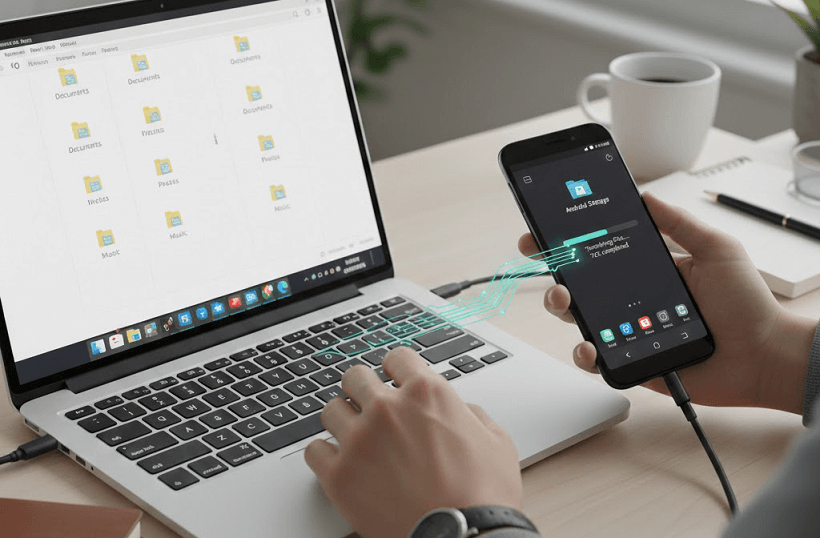
Whether you're moving a single photo or a 10GB video, this guide covers the best methods for 2026, from traditional USB cables to the high-speed, professional features of AnyViewer.
4 ways to share files from an Android phone with Windows 10
Whether you need a quick wireless fix or a high-speed professional link, these four methods are the best ways to move your data. Let’s look at which one fits your needs best.
Method 1: Professional high-speed file transfer & remote access – AnyViewer
When you need to share files from an Android phone with Windows 10 without limitations, AnyViewer stands out as the premier remote file transfer solution. While many tools are limited by file size, distance, or complex setups, AnyViewer is designed for high-speed, professional-grade data movement.
- Blazing Speed: Supports transfer speeds up to 10MB/s, significantly faster than Bluetooth or standard cloud uploads.
- Massive File Support: Unlike email or free cloud tiers, AnyViewer handles files up to 2TB with ease.
- Cross-Network Transfer: You don’t need to be on the same Wi-Fi. You can send files from your Android phone at a coffee shop to your Windows 10 PC at home.
- Bank-Grade Security: All transfers are protected by 256-bit Elliptic Curve Cryptography (ECC), ensuring your private data never falls into the wrong hands.
- All-in-One Tool: Beyond file sharing, it offers remote desktop control and screen mirroring.
How to Transfer Files Using AnyViewer:
Step 1. Get AnyViewer for Windows on your PC and the AnyViewer App from the Google Play Store on your Android.
Step 2. Create a free account and log in on both devices.
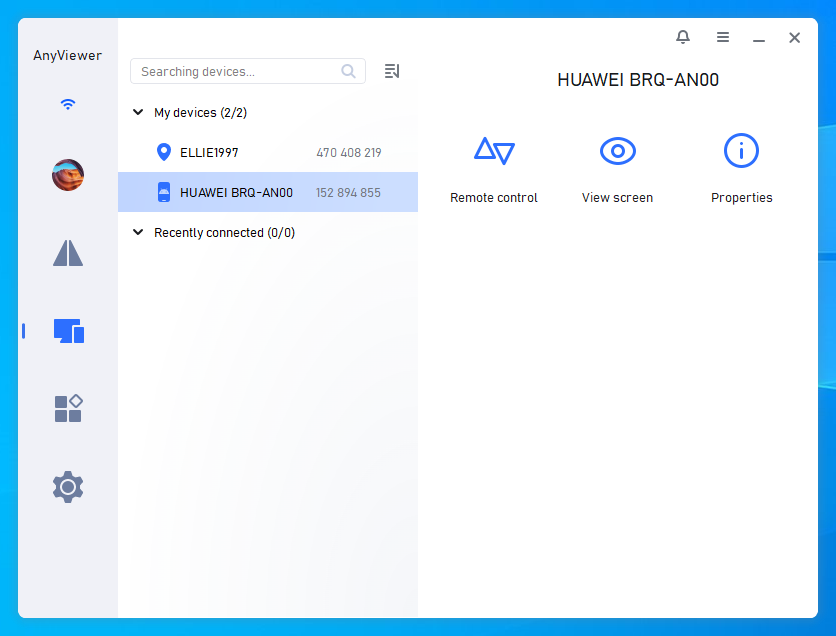
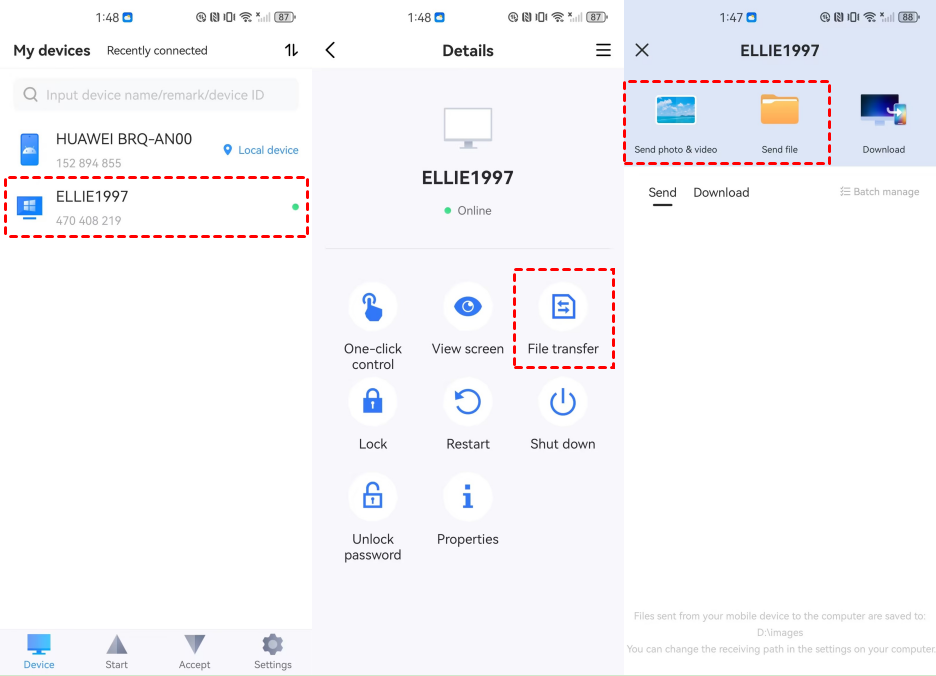
Step 3. On your Android phone, go to the "Device" list and tap your Windows 10 PC.
Step 4. Tap "File Transfer." You can now browse your phone's storage and send files directly to your PC’s hard drive.
Advanced Tip: Using AnyViewer for "Unattended" Transfers
Tired of needing someone at your PC to click "Accept"? AnyViewer’s unattended remote access lets you remotely connect to your Windows 10 PC from your phone, even when no one is there. This allows you to transfer files and manage your desktop from anywhere, making it the perfect tool for remote work and ultimate productivity.
Method 2: The physical link – USB Transfer (MTP)
For users who prefer a "no-software" approach and have a cable nearby, the USB method is the most traditional way to share files from an Android phone with Windows 10.
Steps:
Step 1. Connect your phone to your Windows 10 PC using a compatible USB-C or Micro-USB cable.
Step 2. On your Android phone, swipe down the notification shade. Look for a notification saying "Charging this device via USB" and tap it.
Step 3. Under "Use USB for," select "File Transfer" (or MTP).

Step 4. On your Windows 10 PC, open File Explorer. Your phone will appear as a drive under "This PC."
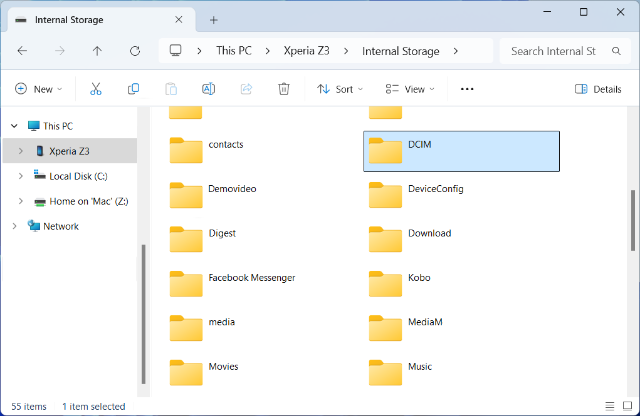
Step 5. Drag and drop your files into your desired folder.
- Pros: This method offers the fastest possible local transfer speeds with zero software installation.
- Cons: But it leaves you physically tethered to your PC and is highly dependent on the quality of your USB cable for a stable connection.
Method 3: Wireless ad-hoc – Google Quick Share
Formerly known as Nearby Share, Quick Share is Google's answer to AirDrop. It is excellent for quick, wireless transfers when your phone and Windows 10 PC are in the same room.
Steps:
Step 1. Download and install the Quick Share for Windows app on your Windows 10 PC, and set your device visibilityto "Receive fromeveryone" to ensure your phone can find it.
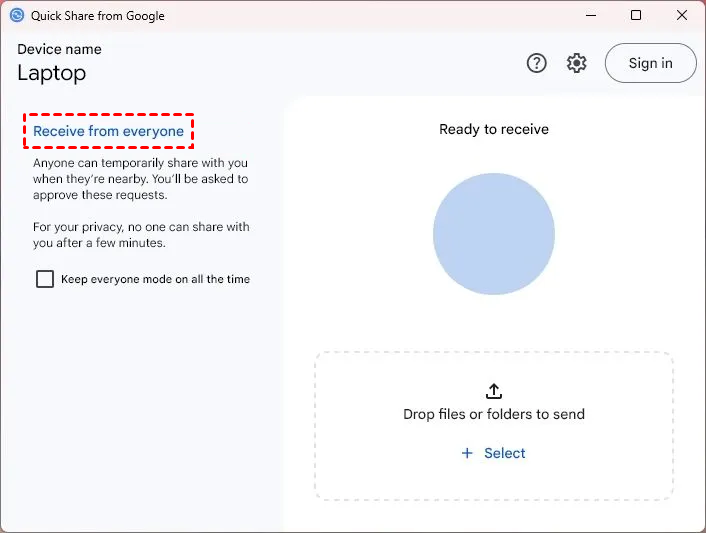
Step 2. Ensure both Bluetooth and Wi-Fi are turned on for both devices.
Step 3. On your phone, select a file and tap the Share icon, then choose Quick Share.
Step 4. Select your PC from the list of available devices.
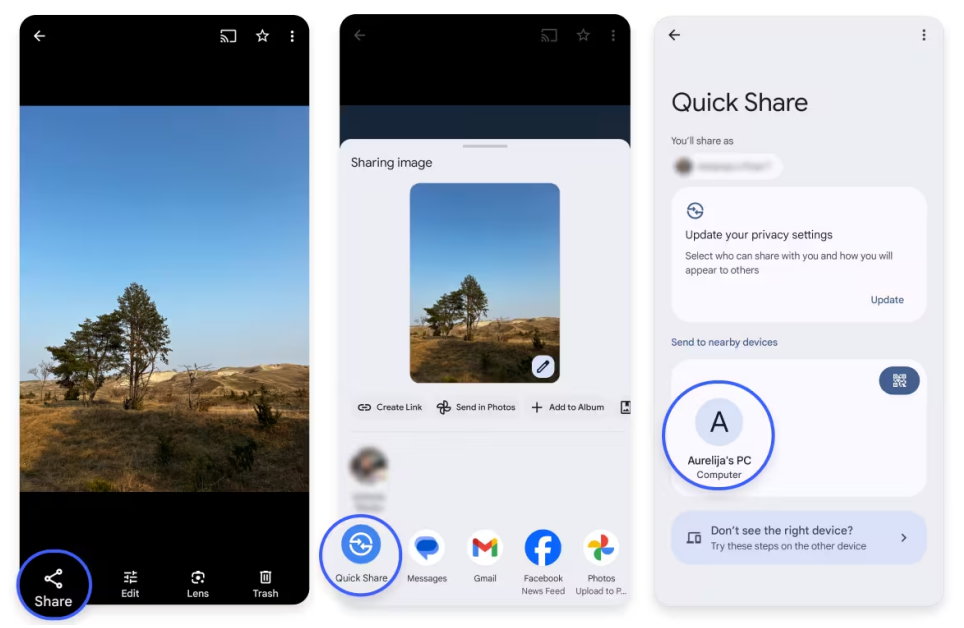
Step 5. On your computer, a prompt will appear; click "Accept." The file will begin downloading to your "Downloads" folder.
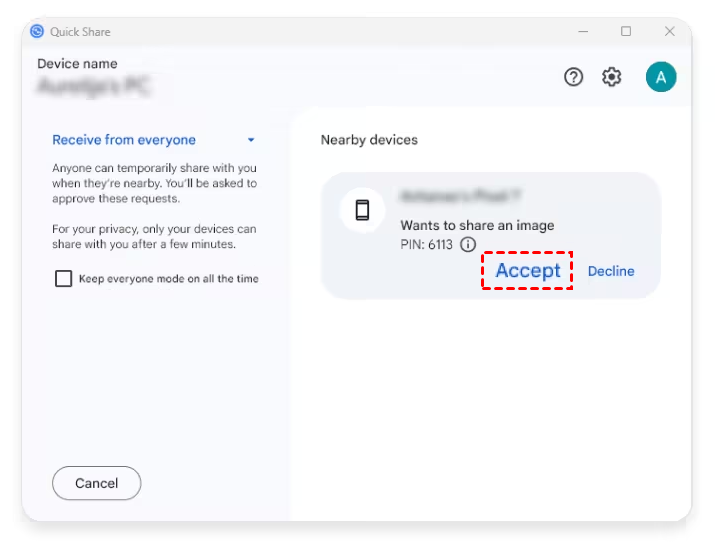
- Pros: No cables needed; natively integrated into the Android share menu.
- Cons: Requires a specific app installation on Windows 10; performance drops significantly if the devices are more than a few feet apart.
Method 4: The cloud middleman – Google Drive or OneDrive
If you need to share files but don't need them on your PC immediately, cloud storage and file sharing service acts as a convenient "dead drop."
Steps:
Step 1. Open Google Drive or OneDrive on your Android phone.
Step 2. Tap the "+" (Upload) button and select your files.
Step 3. Wait for the upload to finish.
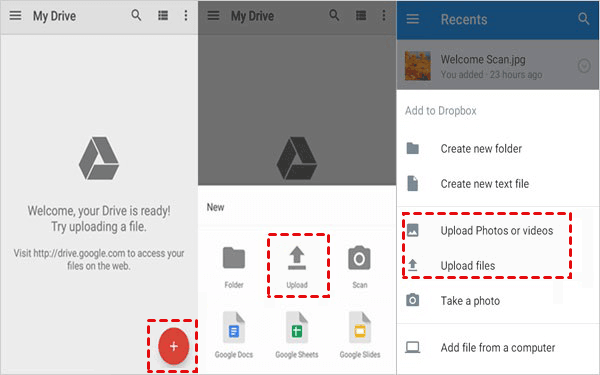
Step 4. On your Windows 10 PC, log in to the same account via a browser or the desktop app to download the files.
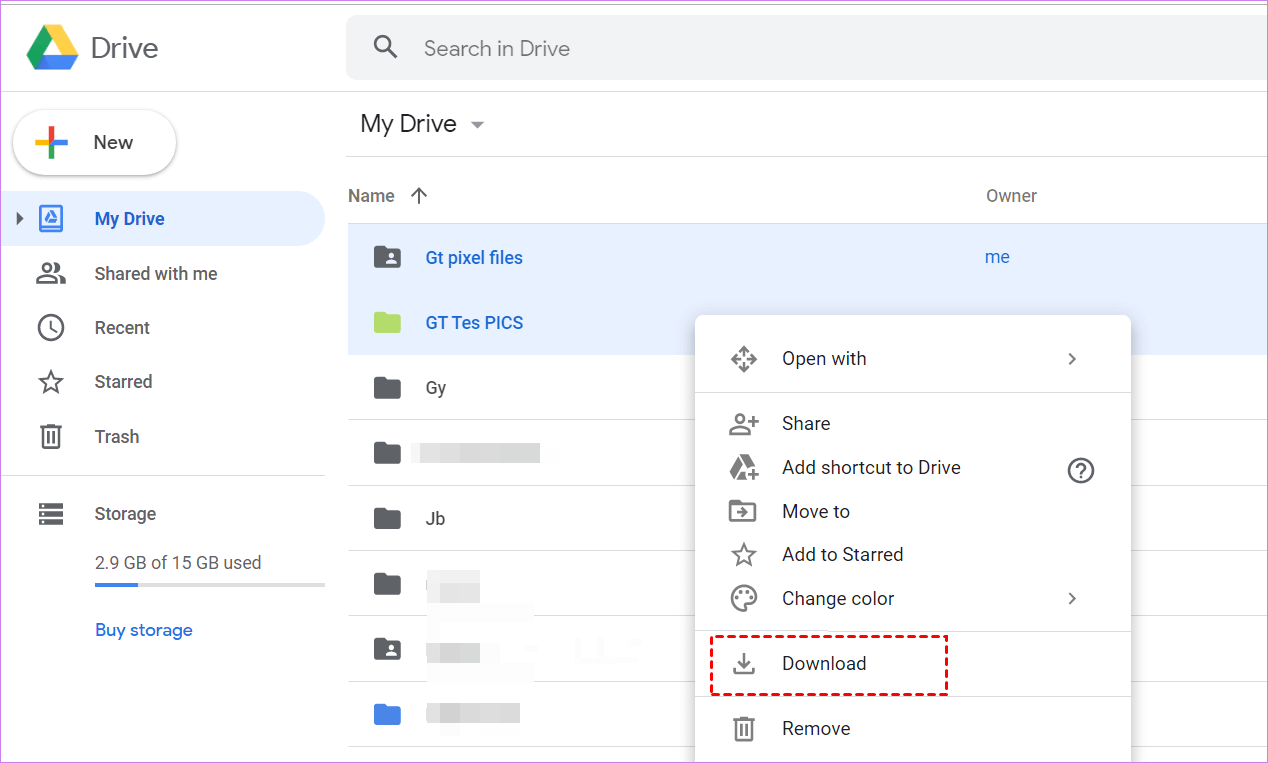
- Pros: Accessible from anywhere.
- Cons: Limited by your internet upload speed; free storage is usually capped at 5GB (OneDrive) or 15GB (Google Drive).
Conclusion
Sharing files from an Android phone with Windows 10 doesn't have to be a headache. While USB cables are great for a quick fix and cloud services are good for small documents, they often fall short when dealing with large 4K videos, massive folders, or remote scenarios.
For the modern user who values speed, security, and the ability to transfer files from anywhere in the world, AnyViewer is the clear winner. It transforms your Windows 10 PC into a powerful, accessible hub for all your mobile data.
Ready to experience the fastest way to sync your devices? Download AnyViewer for free todayand take the hassle out of file sharing!



 as a preferred
source on Google
as a preferred
source on Google