

How to Remotely Access Android Phone with Gmail
You can remotely access Android phone with Gmail to track, lock, or erase it if it's lost or stolen. This guide shows you how to set up Google Find My Device, manage your phone remotely, troubleshoot common problems, and protect your Gmail account from unauthorized access.

By Ellie / Updated on April 22, 2026


Can you remotely access my Android phone with Gmail?
In an era where our lives are stored on our smartphones, losing access to your Android device can be stressful. Whether you’ve misplaced your phone at home or it has been stolen, you might be wondering: "Can I remotely access my Android phone with Gmail?"
The answer is Yes. You can remotely access android phone with Gmail free using Google’s native tools to control essential functions. By using the remotely access android phone with Gmail account credentials, you can locate, lock, and even wipe your device.
However, if you need deeper access, such as remotely operating apps, providing technical support to a family member, or transferring critical files from your phone to your PC, the standard Google method will fall short. For these high-level tasks, you need a professional-grade remote access suite like AnyViewer.
In this guide, we will cover both the basic Gmail method and the professional remote control method.
How to Remotely Access Android via Gmail (Google's Find My Device)
Google’s "Find My Device" is a native security ecosystem integrated into the Android OS. Using your Gmail credentials, this service lets you find your phone via Gmail and serves as a digital lifeline to track your hardware from a distance. It is the go-to tool for basic device recovery and emergency security management.
Prerequisites before using Find My Device
Before you attempt to locate a lost phone using Gmail, ensure that the following settings are configured on the target device; otherwise, the Google server will not be able to establish a connection:
- The phone must be signed in to a valid Google Account.
- The phone must be connected to mobile data or Wi-Fi.
- "Find My Device" and "Location" services must be toggled "On" in the system settings.
- The device must be visible on Google Play.
Step-by-step guide to remotely access Android via Find My Device
If you meet the requirements, follow these steps to remotely access android phone with Gmail:
Part 1. Activate Find My Device on your Android
Step 1. First, confirm your mobile device is signed in to your Google Account. Go to Settings > Google and look for your name and email address. If you don't see it, sign in to your account.
Step 2. Turn on location tracking. Go to Settings > Location and make sure Use Location is enabled.
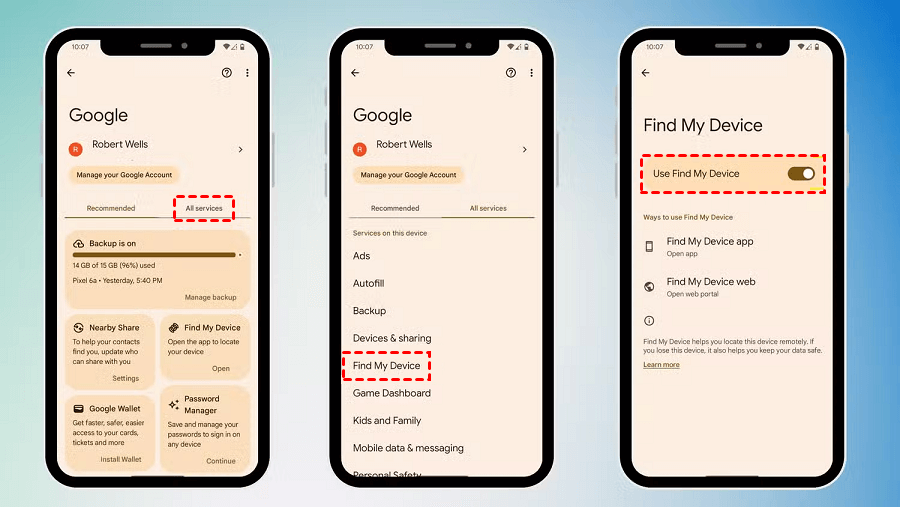
Step 3. Turn on Find My Device. Go to Settings > Google > All Services > Find My Device and make sure Use Find My Device is enabled.
Part 2. Remotely access Android via Find My Device
Step 1. Open a web browser and visit the Google Find My Device official site.
Step 2. Use the same Gmail account that is currently linked to your lost or remote phone.
Step 3. If you have multiple devices under one account, click the specific icon for the device you wish to manage at the top of the sidebar.
Step 4. Explore the Remote Features:
- Locate: View the device's real-time or last known location on a high-precision map.
- Play Sound: Force the phone to ring at maximum volume for 5 minutes, even if it is set to silent or vibrate.
- Secure Device: Remotely lock the phone with your PIN, pattern, or password. You can also display a message or phone number on the lock screen to help a finder return it.
- Erase Device: As a last resort, wipe all data permanently to prevent identity theft. Note: Once erased, you can no longer track the device.
This process turns Gmail into a powerful remote control center for your Android phone. Whether you misplaced your device at home or lost it while traveling, these tools can help you act quickly.
The limits of the Gmail method
While you can how to control other phone using Google account for security purposes, it has significant limitations for daily use:
- No Real-Time Screen Control: You cannot see the phone’s interface, open applications, or navigate through menus. If you need to check a notification or change a setting, this tool cannot help.
- Zero File Management: There is no way to browse the gallery, download a forgotten document, or upload files from your PC to the phone.
- Passive Interaction Only: It is purely a "security and recovery" tool. It lacks the productivity features required for remote tech support, remote work, or using mobile-exclusive apps from a desktop.
- Dependency on Google Play Services: If the device has been rooted or is running a custom ROM without Google services, the Gmail method may fail.
Advanced solution — Remotely access Android via AnyViewer

For users who need more than just a tracking tool, AnyViewer provides a comprehensive experience for remote control Android phone. While Google’s method is built for recovery, AnyViewer is built for interaction. It is an excellent remote desktop software that allows you to bridge the gap between your Windows PC and Android device, giving you full operational control from anywhere in the world.
Why AnyViewer is the best choice for remote control
Before diving into the setup, it is helpful to understand the professional features that set AnyViewer apart from basic Gmail tracking:
- Full Remote Interaction: Unlike Gmail, AnyViewer lets you see the live screen and control the phone with your mouse and keyboard.
- High-Speed File Transfer: Quickly move photos, videos, or work documents between your PC and Android without needing a USB cable or cloud storage.
- One-click Control: Once configured, you can access your phone remotely with one click, with no complex setup and configuration.
- Bank-Level Encryption: Every session is protected by end-to-end ECC (Elliptic Curve Cryptography) encryption, ensuring your data remains private and secure.
Step-by-step: How to fully control Android from a PC
Setting up AnyViewer is straightforward. Follow these steps to transform your PC into a powerful remote workstation for your Android device:
Step 1. Download and install the AnyViewer Windows version on your PC, and install the AnyViewer Android App from the Google Play Store on your phone.
Step 2. Register for a free AnyViewer account and log in on both the PC and the Android device.
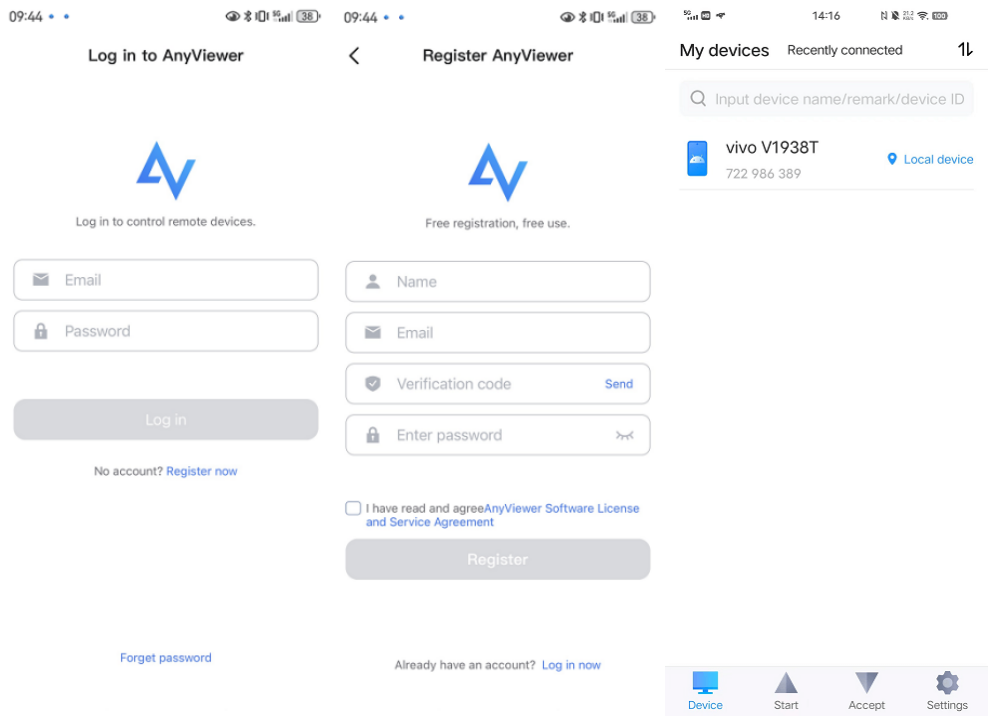
Step 3. On your PC software, go to the "Device" tab, select your Android phone from the list, and click "Remote control".
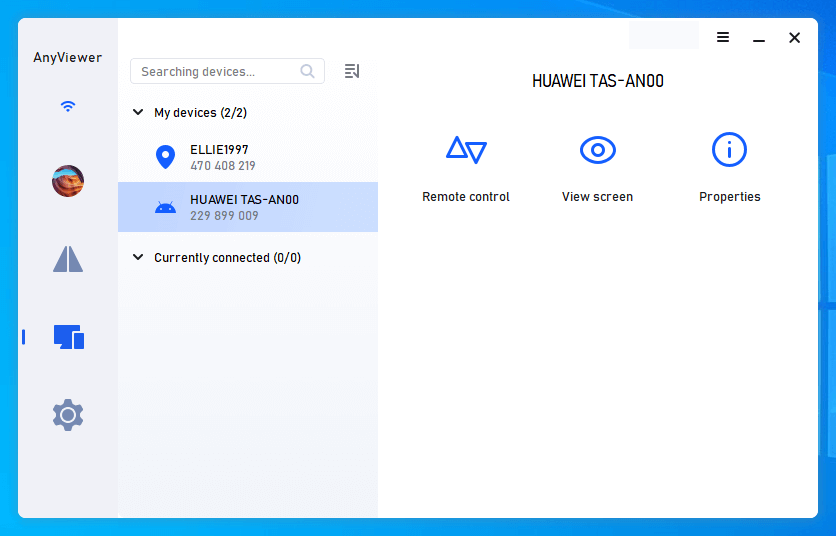
Step 4. Allow the control request on your Android.
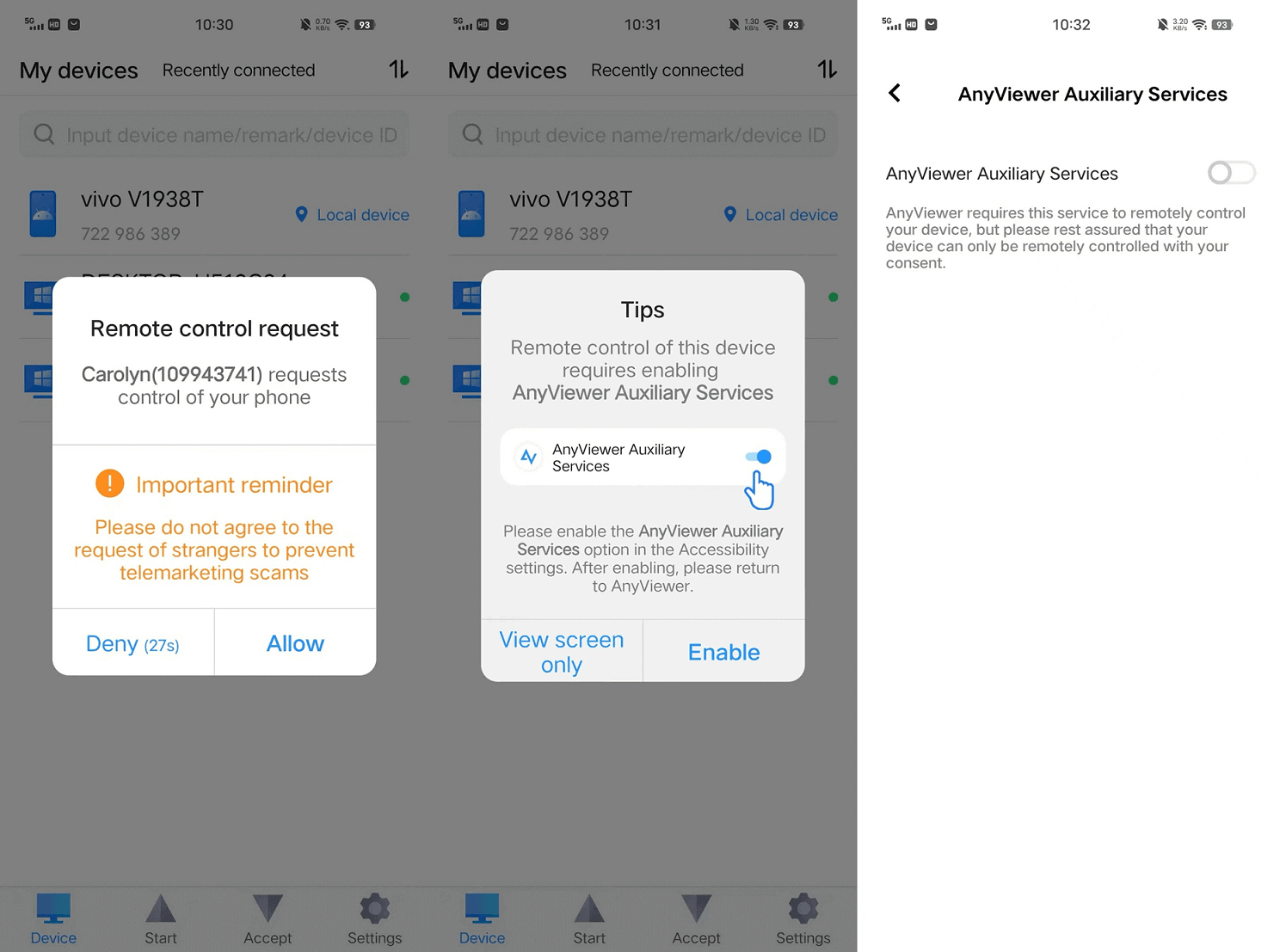
Step 5. You can now see your phone’s screen on your monitor, control it, and transfer files.
Conclusion: Security vs. productivity
Choosing the right method depends entirely on your current situation.
- Use Gmail (Find My Device) if your phone is lost or stolen and you need to lock it down or wipe your private data immediately.
- Use AnyViewer if your phone is safe but you need to work on it remotely, transfer files, provide technical support to others, or manage mobile apps from your desktop.
By combining the security of Google with the power of AnyViewer, you have a complete toolkit for managing your Android device in any scenario.
Final thought
This post discusses how to remotely access Android phone with Gmail (Find My Device). For the best experience, we recommend keeping "Find My Device" enabled for peace of mind, while using AnyViewer for your daily remote management and file transfer needs.
Ready to unlock the full potential of remote access? Download AnyViewer today and experience seamless control over your Android world.
FAQs
How to view someone's screen remotely?
To view an Android screen remotely, Google’s "Find My Device" will not work as it only provides location tracking. Instead, you should use AnyViewer. By installing AnyViewer on both the PC and the Android phone, you can use the "Remote Control" or "View Screen" feature to see the phone's interface in real-time from your monitor.
Does Google have a remote access app?
Google provides "Find My Device" for basic remote security (locating, locking, and wiping). While Google also offers "Chrome Remote Desktop" for accessing computers, it does not provide a native tool for full remote control of an Android phone's screen. For complete interaction and file management, a professional solution like AnyViewer is required.
Can someone access your Android phone?
Yes, someone can access your phone remotely if they have your Gmail credentials (via Find My Device for security actions) or if a remote access tool like AnyViewer is installed and authorized. AnyViewer ensures this access is secure by using bank-level ECC encryption to prevent unauthorized data leaks.
Can I access my Android phone from another Android phone?
Yes. While this guide focuses on PC-to-Android access, AnyViewer supports multi-platform connections. You can install the AnyViewer app on a second Android device, log in to your account, and remotely control your primary phone just as you would from a computer.
Can I check my email on someone else's phone?
Yes, you can log in to your Gmail account on any device's browser or mail app. However, if you have lost your phone and need to check emails specifically to find recovery codes or tracking alerts, it is safer to use a browser in Incognito/Private mode or use the Find My Device portal to manage your device without leaving your personal data on the other person's phone.



 as a preferred
source on Google
as a preferred
source on Google